Can You Use A Printer With A Usb Cable And Setup Guide
Yes, you can absolutely use a printer with a USB cable, and it remains one of the most reliable ways to connect your printer to a computer. Whether you have a home office setup or need a quick wired connection, a USB printer connection offers speed, stability, and simplicity. This guide walks you through every step, from picking the right cable to fixing common problems. You will learn how to set up your printer, troubleshoot issues, and get the best performance from your USB printer setup.
Have you ever plugged in a printer and wondered if the USB cable was enough to get it working? The answer is a clear yes. Using a printer with a USB cable is one of the simplest and most dependable methods available today. Whether you are setting up a new printer or reconnecting an old one, a USB connection gets the job done with minimal fuss.
Many people assume that printers only work through Wi-Fi or Bluetooth. But the truth is, USB printer connection remains a popular and effective choice for millions of users worldwide. It delivers consistent speeds, reliable performance, and a setup process that even beginners can handle. In this guide, we will walk you through everything you need to know about using a printer with a USB cable.
You will learn how to choose the right cable, install the correct drivers, troubleshoot common problems, and optimize your setup for the best results. By the end of this article, you will feel confident connecting any printer through USB. Let us dive right in.
Key Takeaways
- USB connections work with most printers: Nearly all modern printers support USB connectivity for direct computer linking.
- Setup is simple and fast: You can connect and configure a USB printer in under 15 minutes with the right steps.
- Cable choice matters: Using the correct USB cable type and length ensures a stable and reliable connection.
- Driver installation is essential: Without the right printer driver, your computer may not recognize the USB printer.
- Troubleshooting is straightforward: Most USB printer connection issues have easy fixes like cable replacement or port checking.
- USB offers advantages over wireless: Wired connections provide faster data transfer and fewer dropped print jobs.
- Compatibility is wide: USB printers work with Windows, Mac, and Linux systems with proper setup.
📑 Table of Contents
- What Is a USB Printer Connection?
- How to Connect Your Printer with a USB Cable
- USB Printer Setup: Step-by-Step Guide
- Common USB Printer Connection Issues and Fixes
- USB Cable Types and Compatibility for Printers
- Expert Tips for a Smooth USB Printer Experience
- Why Choose USB Over Wireless Printing?
- Conclusion
What Is a USB Printer Connection?
A USB printer connection is a wired link between your computer and printer using a USB cable. This direct connection allows your computer to send print jobs to the printer without needing a network. The USB standard has been the go-to method for printer connectivity for many years, and it continues to work well with modern devices.
When you use a USB cable for printer setup, your computer recognizes the printer as a direct peripheral. This means the print data travels straight from your device to the printer. There is no router involved, no wireless signal to weaken, and no network congestion to slow things down. For many users, this wired approach feels more secure and predictable.
How USB Printer Connectivity Works
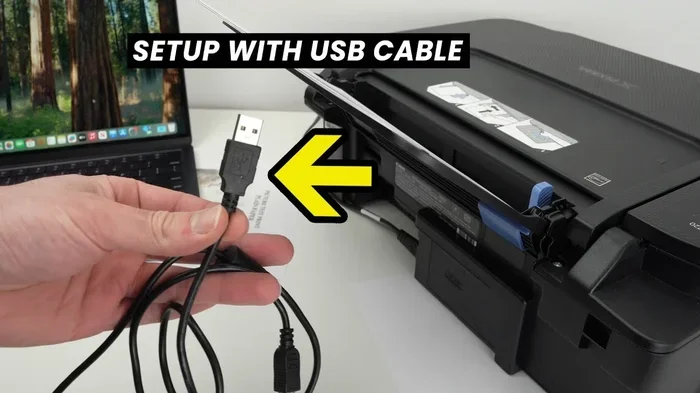
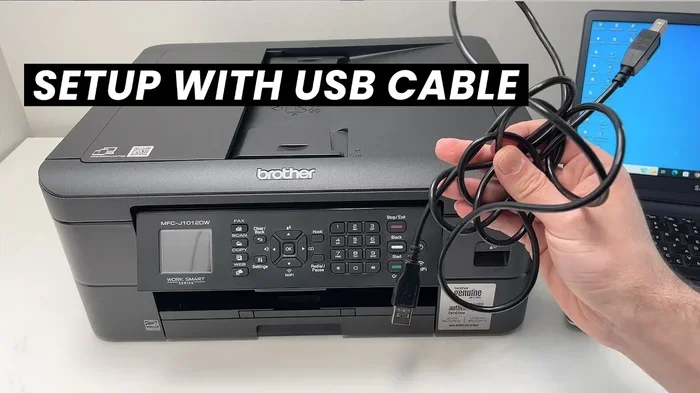
The process is straightforward. You plug one end of the USB cable into your computer and the other end into the printer. Once connected, the computer detects the new device and begins installing the necessary printer USB driver. This driver acts as a translator, allowing your operating system to communicate with the printer correctly.
Most printers use USB Type-B ports on the printer side and USB Type-A or Type-C on the computer side. The cable carries both data and power in many cases, which means you might not even need a separate power cable for basic printers. This simplicity is one of the biggest advantages of a USB cable printer setup.
How to Connect Your Printer with a USB Cable
Connecting a printer via USB is a quick process. You do not need advanced technical skills. Follow these general steps to get your printer USB connection up and running smoothly.
Step 1: Gather Your Equipment
Before you start, make sure you have everything you need. Here is a quick checklist:
- A compatible USB cable (usually USB-A to USB-B)
- Your printer and computer
- The printer power cord and a working electrical outlet
- The printer software or driver (often available on the manufacturer website)
Using the wrong cable is a common mistake. Make sure your USB cable supports data transfer, not just charging. Some cheap cables only carry power and will not work for printer connectivity. Always check the cable specifications before purchasing.
Step 2: Power On the Printer
Plug in your printer and turn it on. Wait for it to fully boot up. Most printers display a ready indicator or a steady light when they are powered on and ready to connect. Do not skip this step, as the computer will not detect the printer if it is still off.
Step 3: Plug in the USB Cable
Connect one end of the USB cable to the printer and the other end to an available USB port on your computer. Avoid using USB hubs or extension cables if possible, as they can sometimes cause connection issues. A direct connection to the computer works best for printer USB setup.
Step 4: Install the Printer Driver
Your computer will likely detect the new device and prompt you to install a driver. If it does not, or if the automatic installation fails, visit the printer manufacturer website and download the latest driver for your model. Installing the correct driver is the most important part of the USB printer setup process.
USB Printer Setup: Step-by-Step Guide
Setting up a printer with a USB cable involves more than just plugging it in. You need to ensure your computer recognizes the device and communicates with it properly. Here is a detailed walkthrough for both Windows and Mac users.
Setting Up a USB Printer on Windows
Windows makes the process fairly simple. After plugging in the USB cable and powering on the printer, Windows should detect the new hardware. It will search for and install a basic driver automatically. Here is what to do next:
- Open Settings and go to Devices or Devices and Printers.
- Click on Add a printer or scanner.
- Select your printer from the list of detected devices.
- Follow the on-screen prompts to complete the setup.
- Print a test page to confirm everything works.
If Windows does not find your printer, try a different USB port. Some ports on the back of the computer provide more stable power and data transfer than front-facing ports. Also, make sure you have downloaded the latest printer USB driver from the manufacturer website.
Setting Up a USB Printer on Mac
Mac users can also connect printers via USB with ease. macOS includes built-in support for many printer models. Here is the process:
- Plug in the USB cable and turn on the printer.
- Open System Settings and go to Printers and Scanners.
- Click the Add button and look for your printer in the list.
- Select the printer and click Add.
- Print a test page to verify the connection.
Mac users may need to download a driver from the manufacturer if the printer does not appear automatically. Apple provides excellent built-in support for many popular brands, but some less common models require manual driver installation for proper USB printer compatibility.
Common USB Printer Connection Issues and Fixes
Even with a straightforward setup, you might run into problems. USB printer troubleshooting is often simpler than you think. Here are the most common issues and how to fix them.
Printer Not Recognized by Computer
This is the most frequent complaint. If your computer does not detect the printer when you plug in the USB cable, try these steps:
- Unplug the cable and plug it into a different USB port on your computer.
- Try a different USB cable to rule out a faulty cable.
- Restart both the printer and the computer.
- Check if the printer shows any error lights or messages.
- Update or reinstall the printer driver through Device Manager on Windows.
Sometimes the issue is as simple as a loose connection. Make sure the USB cable clicks firmly into both the printer and the computer port. A loose fit is a leading cause of printer USB connection issues.
Driver Installation Failures
If the driver fails to install, your computer cannot communicate with the printer. This often happens when the downloaded driver is outdated or incompatible with your operating system. Visit the printer manufacturer website, enter your exact model number, and download the latest driver available. Always match the driver version to your operating system version.
Print Jobs Stuck in Queue
Sometimes print jobs get stuck and nothing prints. This can happen with any USB printer setup. To fix this, open the print queue on your computer, cancel all pending jobs, and restart the print spooler service. On Windows, you can find this in the Services app under Print Spooler. Restarting this service clears stuck jobs and often resolves the problem.
Intermittent Connection Drops
If the printer keeps disconnecting and reconnecting, the USB cable might be damaged or too long. USB cables have a maximum recommended length of about 16 feet (5 meters) for reliable data transfer. If your cable is longer, consider using a shorter, high-quality cable. Also, avoid running the USB cable near power cords or other sources of electrical interference.
USB Cable Types and Compatibility for Printers
Not all USB cables are the same. Choosing the right cable for your printer USB setup makes a big difference in performance and reliability. Understanding the different cable types helps you avoid frustration and ensures a stable connection.
USB-A to USB-B Cables
This is the most common cable type for printers. The USB-A end plugs into your computer, and the USB-B end plugs into the printer. These cables come in different versions, including USB 2.0 and USB 3.0. USB 2.0 is sufficient for most printing tasks, but USB 3.0 offers faster data transfer if you print large files frequently.
USB-C Connections
Newer printers and computers increasingly use USB-C ports. These reversible connectors are compact and support faster data speeds and higher power delivery. If you have a USB-C printer or computer, look for a USB-C to USB-C or USB-C to USB-A cable depending on your setup. Always verify compatibility before purchasing.
USB Cable Length Considerations
The length of your USB cable matters more than many people realize. A cable that is too long can cause signal degradation and connection drops. For most printer USB connection setups, a cable between 3 and 10 feet works best. If you need a longer run, consider using a high-quality active USB cable with a built-in signal booster.
| Cable Type | Best For | Max Reliable Length | Speed |
|---|---|---|---|
| USB-A to USB-B (USB 2.0) | Standard printer setups | 16 feet (5m) | Up to 480 Mbps |
| USB-A to USB-B (USB 3.0) | High-volume printing | 16 feet (5m) | Up to 5 Gbps |
| USB-C to USB-C | Modern printers and laptops | 6.5 feet (2m) | Up to 10 Gbps |
| USB-C to USB-A | Connecting USB-C printer to older PC | 10 feet (3m) | Up to 5 Gbps |
Expert Tips for a Smooth USB Printer Experience
Getting the most out of your USB printer connection requires a few smart habits. These expert tips will help you avoid common pitfalls and keep your printer running smoothly for years.
Use High-Quality Cables
Cheap USB cables are a leading cause of connection problems. Invest in a well-made cable from a reputable brand. Look for cables with proper shielding and reinforced connectors. A quality USB cable for printer costs a little more but saves you from countless headaches.
Keep Drivers Updated
Printer manufacturers regularly release driver updates that fix bugs and improve performance. Check the manufacturer website every few months for updates. Installing the latest printer USB driver ensures your USB printer compatibility with the newest operating system updates.
Avoid USB Hubs When Possible
While USB hubs are useful for connecting multiple devices, they can introduce power and data issues for printers. Whenever possible, plug your printer directly into a USB port on your computer. This gives you the most stable printer USB setup and the fastest data transfer speeds.
Label Your Cable
If you have multiple USB cables on your desk, label the printer cable. This simple habit prevents accidental disconnections and saves you time when troubleshooting. A small piece of tape with “Printer” written on it goes a long way.
Clean the USB Ports Regularly
Dust and debris can accumulate in USB ports over time, causing intermittent connection problems. Use compressed air to gently clean both the printer and computer USB ports every few months. This simple maintenance step keeps your USB printer setup running reliably.
Why Choose USB Over Wireless Printing?
Wireless printing has its benefits, but connecting a printer with a USB cable still holds several advantages that many users overlook. Understanding these benefits helps you decide which connection method suits your needs best.
Speed is a major advantage. USB connections transfer data faster than most wireless protocols. If you frequently print large documents, photos, or files with high-resolution images, a USB connection delivers noticeably faster print times. The print data travels directly from your computer to the printer without any wireless delay.
Reliability is another key benefit. Wireless connections can suffer from interference, signal drops, and network congestion. A USB cable provides a direct, stable link that rarely loses connection. For important documents or time-sensitive print jobs, this reliability is invaluable. You never have to worry about a weak Wi-Fi signal interrupting your work.
Security matters too. A USB-connected printer is not on your network, which means it is not accessible to other devices or potential intruders. For sensitive documents containing personal or confidential information, a wired USB connection offers an extra layer of privacy. Your print jobs stay between you and the printer.
Setup simplicity also favors USB. You do not need to configure Wi-Fi networks, enter passwords, or deal with IP address conflicts. Plug in the cable, install the driver, and you are printing. This ease of setup makes USB connections ideal for shared office spaces, guest computers, and temporary setups.
That said, wireless printing offers convenience for mobile devices and multiple users. Many people use both methods, keeping USB for high-volume or sensitive jobs and wireless for everyday casual printing. The best approach depends on your specific needs and workflow.
Conclusion
Using a printer with a USB cable is simple, reliable, and still one of the best ways to connect your printer to a computer. From choosing the right cable to installing the correct driver and troubleshooting common issues, this guide has covered everything you need to know. A proper USB printer setup delivers fast, stable, and secure printing every time.
Remember to use high-quality cables, keep your drivers updated, and connect directly to your computer for the best results. Whether you are a home user, a student, or a small business owner, a USB printer connection serves you well. Follow the steps in this guide, and you will have your printer up and running in no time.
Take a few minutes today to check your USB cable and driver setup. A small investment of time now saves you from frustrating printing problems later. Happy printing!
Frequently Asked Questions
Can I use any USB cable for my printer?
Not all USB cables work for printers. You need a cable that supports data transfer, not just charging. Most printers use a USB-A to USB-B cable. Check your printer manual or the manufacturer website to confirm the correct cable type for your specific model.
Why is my computer not recognizing the printer when I plug in the USB cable?
This usually happens because of a missing or outdated driver, a faulty cable, or a loose connection. Try plugging the cable into a different USB port, use a new cable, and make sure the printer is powered on. If the problem persists, download the latest driver from the printer manufacturer website.
Can I use a USB hub to connect my printer?
You can, but it is not recommended. USB hubs can sometimes cause power or data issues that lead to connection drops or slow printing. For the most reliable USB printer connection, plug the printer directly into a USB port on your computer.
What is the best USB cable length for a printer?
A cable between 3 and 10 feet works best for most setups. USB cables longer than 16 feet (5 meters) may experience signal loss. If you need a longer cable, choose an active USB cable with a built-in signal booster for reliable printer USB setup.
Do I need to install software to use a printer with a USB cable?
Yes, you need the correct printer driver. Windows and Mac often install a basic driver automatically when you plug in the printer, but downloading the latest driver from the manufacturer website ensures the best performance and full feature access for your USB printer compatibility.
Is USB printing faster than wireless printing?
Yes, USB printing is generally faster than wireless printing. The wired connection provides a direct, stable data path with no wireless interference or network delays. For large files or high-volume printing, a USB cable printer setup delivers noticeably better speed and reliability.