Can You Get Wifi On Xbox 360 Here Is Everything You Need
Yes, you can absolutely get WiFi on Xbox 360, and setting up a wireless connection is easier than most people think. Whether you own the original Xbox 360, the Xbox 360 S, or the Xbox 360 E, there is a way to connect your console to your home network. This guide covers everything from WiFi setup and adapter options to troubleshooting common problems and boosting your Xbox 360 internet speed. By the end, you will know exactly how to get your Xbox 360 connect to WiFi and enjoy smooth online gaming without any headaches.
So you want to game online but are not sure if your Xbox 360 can connect to WiFi. Maybe you just bought a used console and are not sure what you are working with. Or perhaps you have been using a cable and want to cut the cord. Either way, you are in the right place. Can you get WiFi on Xbox 360? The short answer is yes. The longer answer is that it depends on your model, your setup, and a few other factors we will walk through below.
This guide is built for real people who just want to get online and start playing. We will cover every angle. From Xbox 360 WiFi setup to picking the right wireless adapter, from fixing annoying connection drops to squeezing the most speed out of your home network. No fluff. No jargon. Just clear, practical advice that works.
By the time you finish reading, you will know exactly how to connect Xbox 360 to WiFi, what gear you might need, and how to avoid the most common pitfalls. Let us get into it.
Key Takeaways
- Xbox 360 supports WiFi: You can connect your Xbox 360 to a wireless network using a built-in adapter or a separate Xbox 360 wireless adapter.
- Setup is straightforward: Connecting to WiFi takes just a few minutes through the Xbox 360 network settings menu.
- The right adapter matters: Older models need a USB WiFi adapter for Xbox 360, while newer models have built-in wireless.
- Common problems are fixable: Most Xbox 360 WiFi issues can be solved with simple steps like restarting your router or repositioning the console.
- Wired can be better: For the best Xbox 360 internet speed and stability, an Ethernet cable beats wireless in many cases.
- Optimization tips help: Small changes like updating firmware and changing WiFi channels can significantly improve your wireless gaming experience.
📑 Table of Contents
- Can You Get Wifi On Xbox 360? The Short Answer
- How To Connect Your Xbox 360 To WiFi Step By Step
- Xbox 360 WiFi Adapter: Do You Need One
- Common WiFi Problems And How To Fix Them
- Wired Vs Wireless Connection For Xbox 360
- Tips To Boost Your Xbox 360 WiFi Performance
- Setting Up Xbox Live For Online Gaming With WiFi
- Final Thoughts On Getting WiFi On Xbox 360
Can You Get Wifi On Xbox 360? The Short Answer
What You Should Know First
The Xbox 360 was released in 2005 and supported wireless networking from early on. Microsoft has always made it possible to go wireless on Xbox 360, but the method has changed over the years. The original Xbox 360 did not have built-in WiFi. You needed to buy a separate Xbox 360 wireless adapter that plugged into one of the USB ports. It was a big, bulky piece of hardware, but it got the job done.
The Xbox 360 S and Xbox 360 E models came with built-in WiFi. This means you can connect to your wireless network without buying any extra accessories. If you have one of these newer models, you are already set. Just go to your network settings and follow the prompts.
Either way, getting WiFi on Xbox 360 is absolutely possible. The only question is which route you need to take based on your specific console.
Which Xbox 360 Models Support WiFi
Not all Xbox 360 consoles are created equal when it comes to wireless connectivity. Here is a quick breakdown:
- Original Xbox 360 (2005-2013): No built-in WiFi. You need a Xbox 360 WiFi adapter or an Ethernet cable.
- Xbox 360 S (2010-2013): Has built-in WiFi. No extra adapter needed for wireless connection.
- Xbox 360 E (2013-2016): Also has built-in WiFi. Same plug-and-play wireless experience as the Xbox 360 S.
If you are not sure which model you have, check the bottom or back of your console. The model number will be printed there. You can also look at the shape of the console. The original Xbox 360 was the tall, black tower design. The Xbox 360 S was a sleeker, matte black version. The Xbox 360 E was the most compact and had a flat, angular design.
How To Connect Your Xbox 360 To WiFi Step By Step
Now that you know your console can connect, let us walk through the actual process. The steps are simple and take less than five minutes in most cases.
Connecting Without A Wireless Adapter
If you have an Xbox 360 S or Xbox 360 E, you already have built-in wireless. Here is how to set it up:
- Turn on your Xbox 360 and sign in to your profile.
- Press the Xbox Guide button (the big glowing X in the center of your controller).
- Navigate to System and then select Settings.
- Choose Network Settings from the menu.
- Select Configure Network.
- Go to the Wireless Mode option and make sure it is set to WLAN.
- Your console will scan for available networks. Select your WiFi network from the list.
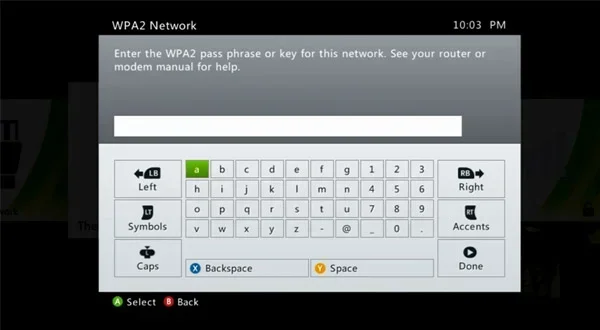
- Enter your WiFi password using the on-screen keyboard.
- Test your connection by selecting Test Xbox Live Connection.
That is it. Your Xbox 360 WiFi configuration is complete. You should now be able to browse the Xbox Live marketplace, download games, and play online.
Setting Up With A Wireless Adapter
If you have the original Xbox 360 without built-in WiFi, you will need a Microsoft Xbox 360 Wireless Network Adapter. Here is how to get it working:
- Plug the Xbox 360 WiFi adapter into one of the USB ports on your console.
- Turn on your Xbox 360 and go to System > Settings > Network Settings.
- Select Configure Network and set Wireless Mode to WLAN.
- The console will scan for networks. Pick yours and enter the password.
- Run the connection test to confirm everything is working.
You can also use a third-party WiFi adapter for Xbox 360. Some users have had success with generic USB wireless adapters that support WPA2 encryption. However, the official Microsoft adapter is the safest bet for compatibility and Xbox Live connection stability.
Xbox 360 WiFi Adapter: Do You Need One
This is one of the most common questions people ask when they are trying to connect Xbox 360 to WiFi. The answer depends entirely on your console model.
Original Xbox 360 And WiFi
The original Xbox 360 was designed in an era when wired Ethernet was still the standard for console gaming. Microsoft did not include built-in WiFi in this model. If you want to go wireless on Xbox 360 with the original model, you have two options:
- Microsoft Xbox 360 Wireless Adapter: This is the official accessory. It costs around $100 and works reliably with Xbox 360 network settings. It supports WPA and WPA2 encryption.
- USB WiFi adapter from a third party: These are cheaper, often around $15-$30. They work with most home network Xbox 360 setups but may have compatibility issues with some routers.
Some tech-savvy users even use a USB-to-Ethernet adapter for a wired connection, which is often more stable than any wireless option.
Xbox 360 S And Xbox 360 E Built-In WiFi
The Xbox 360 S and Xbox 360 E changed the game. Both models include built-in 802.11n WiFi. This means you can connect to any standard wireless router without buying any extra hardware. The wireless speed on these models is decent for gaming, though it will never match a wired Ethernet connection.
If you have one of these models and are struggling with your Xbox 360 wireless connection, the problem is likely your router, your network settings, or your WiFi signal strength, not the console itself.
Common WiFi Problems And How To Fix Them
Even when everything is set up correctly, you can run into problems. Xbox 360 WiFi issues are common and usually easy to fix. Here are the most frequent problems and their solutions.
Xbox 360 Not Finding Your WiFi Network
If your console cannot see your network during the scan, try these steps:
- Make sure your router is turned on and broadcasting its SSID (network name).
- Move your Xbox 360 closer to the router. WiFi signal strength Xbox 360 drops quickly through walls and floors.
- Restart both your router and your Xbox 360.
- Check if your router is set to a hidden network. If so, you will need to manually enter the network name in your Xbox 360 network settings.
- Make sure your router is not set to a frequency band (like 5GHz) that the Xbox 360 does not support. The original Xbox 360 wireless adapter only supports 2.4GHz.
Slow Speeds And Lag During Gaming
Nothing kills the online gaming experience faster than lag. If your Xbox 360 internet speed feels slow, here is what you can do:
- Move your router closer to the console or move the console closer to the router.
- Reduce interference by keeping the Xbox 360 away from microwaves, cordless phones, and Bluetooth devices.
- Change your router’s WiFi channel to a less congested one. Use a WiFi analyzer app on your phone to find the best channel.
- Limit the number of devices using your network while you are gaming.
- Consider switching to a wired connection for the best Xbox 360 internet speed.
Xbox 360 Keeps Losing WiFi Connection
A wireless connection that drops randomly is incredibly frustrating. This problem often comes down to signal strength or router issues:
- Check if your router firmware is up to date. Outdated firmware can cause wireless gaming console disconnects.
- Reduce the distance between your Xbox 360 and the router.
- Avoid placing the console behind TVs, inside cabinets, or near metal objects.
- Try setting your router to a fixed channel instead of auto.
- If you are using a third-party adapter, try the official Microsoft adapter instead.
Quick Tips
- Restart your router at least once a month to keep things running smoothly.
- Write down your Xbox 360 WiFi password and keep it somewhere safe so you do not have to type it in again.
- If you live in a crowded apartment building, your neighbors WiFi networks might be interfering with yours. Changing your channel can help.
Wired Vs Wireless Connection For Xbox 360
When it comes to Xbox 360 wired vs wireless connections, there are clear advantages and disadvantages to each. Let us break it down so you can make the best choice for your setup.
Pros And Cons Of Each Option
Wireless Connection (WiFi)
- Pros: No cables running across your room. Easy to set up. Portable. You can move your console anywhere within range of your router.
- Cons: Slower than wired. More prone to interference. Signal strength drops with distance and obstacles. Can experience lag spikes during intense gaming sessions.
Wired Connection (Ethernet)
- Pros: Faster and more stable. Lower latency. No interference from other devices. Best for competitive online gaming.
- Cons: Requires a cable. Less flexible in terms of console placement. You need to run a cable from your router to your console.
When To Choose Wired Over Wireless
If you are a competitive gamer who plays Xbox 360 online gaming titles like Halo or Call of Duty, a wired connection is almost always better. The lower latency and stable connection give you a real edge over players on WiFi.
However, if you are a casual gamer who mainly plays single-player games or does not mind a slight delay, wireless networking Xbox 360 works just fine. Most players will not notice the difference in everyday gaming.
Some people use both. They connect their Xbox 360 via Ethernet for the best Xbox 360 internet speed during competitive matches and switch to WiFi for casual browsing and downloading.
Tips To Boost Your Xbox 360 WiFi Performance
Want to get the most out of your wireless connection on Xbox 360? These practical tips can make a big difference.
Router Placement Matters
Where you place your router has a huge impact on your WiFi signal strength Xbox 360. Try to keep your router in a central location in your home. Avoid placing it in closets, behind TVs, or in basements. The higher up the router is, the better the signal travels. A router on a shelf or mounted on a wall will outperform one sitting on the floor every time.
Changing WiFi Channels And Bandwidth
Most modern routers let you choose which WiFi channel to use. If you live in a densely populated area, your neighbors might all be using the same channel, causing congestion. Log into your router settings and try switching to a less crowded channel. For 2.4GHz networks, channels 1, 6, and 11 are the best options because they do not overlap with each other.
Updating Your Xbox 360 Network Settings
Keeping your Xbox 360 network settings up to date can resolve many connection issues. Make sure your console has the latest dashboard update installed. You can check for updates by going to System > Settings > Network Settings and selecting Update Console.
Also, make sure your Xbox 360 WiFi configuration is set to use WPA2 security. This is the most secure and stable encryption type for modern routers. Older encryption types like WEP can cause connection problems and are less secure overall.
Setting Up Xbox Live For Online Gaming With WiFi
Once your Xbox 360 internet connection is working, the next step is setting up Xbox Live for online gaming. This is where the real fun begins.
First, make sure you have an active Xbox Live Gold subscription. This is required for most online multiplayer games on the Xbox 360. You can sign up through the console or on the Xbox website.
After you have Xbox Live Gold, test your connection by going to System > Settings > Network Settings and selecting Test Xbox Live Connection. This will verify that your Xbox Live connection is working properly and that your Xbox 360 internet speed is sufficient for online play.
If the test passes, you are ready to jump into multiplayer matches, download games from the marketplace, and chat with friends. If it fails, go back to your network troubleshooting steps and check your WiFi signal strength and connection settings.
One thing to keep in mind: Xbox 360 online gaming over WiFi works well for most games. However, if you are playing fast-paced competitive shooters or fighting games, you might notice more input lag compared to a wired connection. This is normal and expected with any wireless setup.
Final Thoughts On Getting WiFi On Xbox 360
Can you get WiFi on Xbox 360? Absolutely yes. Whether you have the original console, the Xbox 360 S, or the Xbox 360 E, there is a way to connect wirelessly. The process is simple, the gear is affordable, and the online gaming experience is well worth the effort.
If you have an older original Xbox 360, grab a WiFi adapter for Xbox 360 and follow the setup steps above. If you have a newer model, you are already equipped with built-in WiFi and just need to enter your network details.
Remember that wireless networking Xbox 360 works best when you put a little thought into your setup. Good router placement, the right channel, and a strong WiFi password can all make a noticeable difference. And if you ever need the rock-solid stability of a wired connection, an Ethernet cable is always there as a backup.
Now that you know everything about getting WiFi on your Xbox 360, there is nothing stopping you from jumping online and playing your favorite games. Get connected, get gaming, and enjoy the Xbox 360 wireless experience to the fullest.
Frequently Asked Questions
Do all Xbox 360 models have built-in WiFi?
No, only the Xbox 360 S and Xbox 360 E models have built-in WiFi. The original Xbox 360 requires a separate Xbox 360 wireless adapter to connect to a wireless network. You can check your console model by looking at the label on the bottom or back of the unit.
Can I use any USB WiFi adapter with my Xbox 360?
Not all USB adapters work with the Xbox 360. The official Microsoft Xbox 360 Wireless Network Adapter is the most reliable option. Some third-party adapters that support WPA2 encryption and the 802.11n standard may also work, but compatibility can vary. Always check compatibility before buying.
Why is my Xbox 360 WiFi so slow?
Slow Xbox 360 internet speed over WiFi is usually caused by distance from the router, interference from other devices, or a congested WiFi channel. Try moving your console closer to the router, reducing interference, and changing your router channel. For the best speed, use a wired Ethernet connection instead.
Can I use WiFi on Xbox 360 for Xbox Live gaming?
Yes, you can use WiFi to connect to Xbox Live and play online games on Xbox 360. However, a wired connection provides a more stable experience with lower latency. For casual gaming, WiFi works great. For competitive play, Ethernet is recommended for the most reliable Xbox Live connection.
What WiFi password do I need for Xbox 360?
You need the same WiFi password that you use to connect your phone or computer to your home network. Make sure your router is using WPA2 encryption for the best compatibility with the Xbox 360 WiFi configuration settings. Write your password down if you tend to forget it.
Is it better to use WiFi or Ethernet on Xbox 360?
Ethernet is generally better for Xbox 360 online gaming because it offers faster speeds, lower latency, and a more stable connection. WiFi is more convenient and works well for most casual players. If you experience frequent disconnects or lag on WiFi, switching to a wired connection can solve many Xbox 360 wireless connection issues.
=== CONCLUSION ===
Can you get WiFi on Xbox 360? Yes, and now you know exactly how to do it. From understanding which models support built-in WiFi to picking the right Xbox 360 WiFi adapter, from setting up your Xbox 360 network settings to troubleshooting common problems, you are fully equipped to get online. Whether you choose a wireless connection or stick with a wired Ethernet cable, the goal is the same: smooth, enjoyable online gaming on your Xbox 360.
Take the time to optimize your setup. Check your WiFi signal strength Xbox 360, update your Xbox 360 network settings, and keep your router firmware current. These small steps make a big difference in your daily gaming experience. Now go connect your console, sign into Xbox Live, and get back to the games you love.