Can You Piggyback Hdmi Monitors And Boost Productivity
Yes, you can piggyback HDMI monitors to create a powerful dual or multi-monitor setup that dramatically increases your productivity. Whether you use an HDMI splitter, a USB-C hub, or a docking station, connecting extra screens to your laptop or desktop is simpler than most people think. This guide covers everything from setup methods and cable requirements to common mistakes and expert tips for getting the most out of your piggyback HDMI monitors.
Ever found yourself juggling windows on a single screen and wishing you had more space? You are not alone. Millions of workers, students, and creatives look for ways to expand their digital workspace every day. The good news is that piggyback HDMI monitors offer a simple and affordable solution. You can connect a second or even third screen to your laptop or desktop and instantly double your productivity.
But can you really piggyback HDMI monitors without headaches? The short answer is yes. However, the method you choose matters a lot. Some approaches give you a true extended display, while others simply mirror the same screen. Understanding the difference is the first step toward building the multi-monitor setup that fits your workflow. This guide walks you through every option, from basic HDMI splitters to advanced USB-C docking stations.
Whether you are a remote worker, a graphic designer, or a gamer, adding extra screens can transform how you work. Let us dive into the details and explore how piggyback HDMI monitors can level up your setup.
Key Takeaways
- Yes, piggyback HDMI monitors work: You can connect multiple monitors using splitters, USB-C hubs, or docking stations to expand your screen real estate.
- Multiple methods exist: HDMI splitters, USB-C adapters, DisplayPort daisy chaining, and laptop docking stations all offer different ways to add extra screens.
- Check your hardware first: Not every laptop or graphics card supports multiple outputs, so verify your device capabilities before buying accessories.
- Resolution and refresh rate matter: Splitting a signal can reduce quality, so choose the right method based on your needs for sharpness and performance.
- Cable management is key: Use proper cables, adapters, and mounting solutions to keep your workspace clean and efficient.
- Avoid common mistakes: Using the wrong splitter, ignoring bandwidth limits, and mismatching resolutions can cause frustrating display issues.
📑 Table of Contents
- What Does It Mean to Piggyback HDMI Monitors?
- Methods to Piggyback HDMI Monitors
- What You Need to Piggyback HDMI Monitors Successfully
- Setting Up Your Piggyback HDMI Monitors: Step by Step
- Common Mistakes When Piggybacking HDMI Monitors
- Expert Tips to Maximize Productivity with Piggyback HDMI Monitors
- Final Thoughts on Piggyback HDMI Monitors
What Does It Mean to Piggyback HDMI Monitors?
When people talk about piggybacking monitors, they mean connecting additional screens to a single computer. The term comes from the idea of “hitching a ride” on an existing connection. Instead of plugging each monitor directly into separate ports on your PC, you use adapters, splitters, or hubs to share a single output across multiple displays.
Not all piggyback methods are the same, though. Some create a mirrored display, where every screen shows the exact same image. Others give you an extended desktop, where each monitor shows different content. Your choice depends on what you want to accomplish. Let us look at the most popular ways to piggyback HDMI monitors and what each one offers.
HDMI Splitters vs. Extended Display Adapters
Here is where things get interesting. An HDMI splitter takes one video signal and copies it to multiple screens. That is great for presentations or watching the same content on two TVs. But for productivity, a splitter alone will not help much because it mirrors rather than extends.
An extended display adapter works differently. It takes one HDMI output and creates a second independent display. This means your laptop screen can show your email while the piggyback monitor displays your spreadsheet. For most people looking to boost productivity, an extended display solution is the way to go.
Methods to Piggyback HDMI Monitors
Now that you understand the basics, let us explore the different methods you can use. Each approach has its pros and cons, and the right choice depends on your laptop, your graphics card, and your budget.
Method 1: USB-C to HDMI Adapters
Many modern laptops come with USB-C or Thunderbolt ports. These ports can carry video signals, which makes them perfect for piggybacking monitors. All you need is a USB-C to HDMI adapter or a USB-C docking station with an HDMI output.
This method is simple and clean. Plug the adapter into your laptop, connect an HDMI cable, and your second monitor lights up. Most USB-C adapters support resolutions up to 4K at 60Hz, which is more than enough for everyday work.
Here are some tips for using USB-C adapters:
- Make sure your laptop supports video output over USB-C. Check the manufacturer’s specs.
- Use a high-quality adapter to avoid signal drops or flickering.
- If your laptop has Thunderbolt 3 or 4, you get even better performance and reliability.
- Some USB-C hubs include multiple ports, so you can connect a monitor, keyboard, and mouse all at once.
Method 2: HDMI Splitters with Extended Display Support
Standard HDMI splitters mirror content across screens. But some advanced splitters support extended display mode. These devices split the video signal so each monitor shows a different part of your desktop.
Look for splitters specifically labeled as “extended” or “multi-display” support. These are less common than basic mirroring splitters, but they exist. Prices range from $20 to $80 depending on the brand and features.
Keep in mind that HDMI splitters can sometimes reduce image quality. The signal gets divided, which may affect sharpness or refresh rate. If you need crisp text and vibrant colors for design work, consider a different method.
Method 3: Laptop Docking Stations
A laptop docking station is arguably the best way to piggyback HDMI monitors. Docks connect to your laptop through a single USB-C or Thunderbolt cable and provide multiple video outputs. Most docks include two or three HDMI or DisplayPort outputs, so you can run two, three, or even four monitors.
Docking stations do more than just add screens. They also provide USB ports for peripherals, Ethernet for a wired internet connection, and audio jacks for headphones. This makes them a one-stop hub for your entire workspace.
Popular docking station brands include CalDigit, Anker, and Dell. Prices vary widely, from around $100 for basic models to over $300 for premium Thunderbolt docks. Here is a quick comparison:
- Budget docks ($50-$100): Usually offer one or two HDMI outputs. Good for basic dual-monitor setups.
- Mid-range docks ($100-$200): Support higher resolutions, more ports, and better build quality.
- Premium docks ($200+): Thunderbolt 4 support, 4K at 60Hz on multiple outputs, and fast charging for your laptop.
Method 4: DisplayPort Daisy Chaining
If your monitors support DisplayPort, you can daisy chain them together. This means connecting the first monitor to your computer and then linking the second monitor to the first. The signal passes through each display, so you only need one cable from your PC.
Daisy chaining is elegant and reduces cable clutter. It requires monitors with DisplayPort In and DisplayPort Out ports. Most modern monitors with this feature support resolutions up to 4K. This method is especially popular among professionals who need clean, organized workspaces.
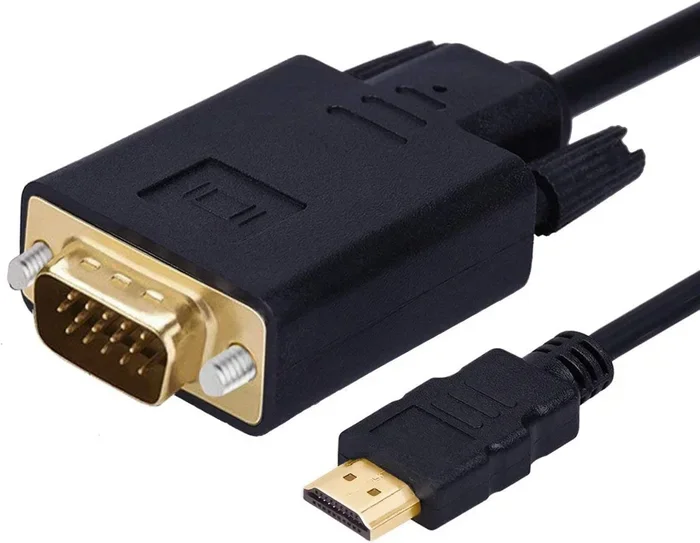
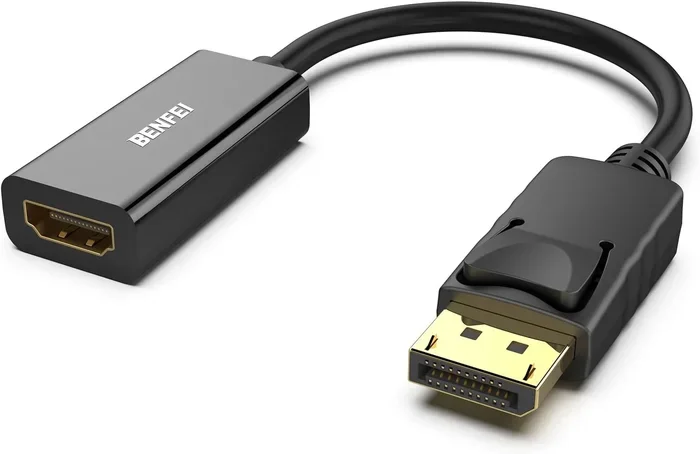
Note that HDMI does not natively support daisy chaining. If you want to use HDMI monitors in a chain, you would need a DisplayPort-to-HDMI adapter at each stage. This adds complexity, so daisy chaining works best with DisplayPort monitors.
Method 5: Graphics Card with Multiple Outputs
If you use a desktop PC, your graphics card likely already has multiple video outputs. Most modern GPUs include two or more HDMI ports, plus DisplayPort options. In this case, you do not need any adapters or splitters at all.
Simply plug one monitor into each HDMI port and configure your display settings in Windows or macOS. This is the most straightforward and reliable method. Your piggyback monitors will run at full resolution and refresh rate because each has its own dedicated output from the GPU.
What You Need to Piggyback HDMI Monitors Successfully
Before you start buying cables and adapters, take a moment to check your setup. A few simple checks can save you time, money, and frustration.
Check Your Laptop or PC Outputs
Look at the back or side of your computer. How many video output ports do you have? If your laptop only has one USB-C port and one HDMI port, you already have options. But if your device has limited outputs, you will need an adapter or dock.
For desktop PCs, open your case and check your graphics card. Most dedicated GPUs have multiple HDMI and DisplayPort outputs built in. Integrated graphics on older laptops may only support one external display, so check your specs carefully.
Choose the Right HDMI Cables
Not all HDMI cables are created equal. For piggyback monitors, you want cables that support the resolution and refresh rate you need. Here is a quick guide:
- Standard HDMI: Supports up to 1080p at 60Hz. Fine for basic office work.
- High Speed HDMI: Supports up to 4K at 30Hz. Good for most productivity tasks.
- Premium High Speed HDMI: Supports up to 4K at 60Hz. Ideal for video editing and design work.
- Ultra High Speed HDMI: Supports up to 8K at 60Hz. Overkill for most users but future-proof.
Buy cables from reputable brands to avoid signal issues. Cheap, no-name cables sometimes cause flickering, color distortion, or intermittent connections.
Update Your Display Drivers
This step is easy to overlook but incredibly important. Outdated graphics drivers can prevent your computer from recognizing a second monitor or cause display glitches. Visit your GPU manufacturer’s website (NVIDIA, AMD, or Intel) and download the latest drivers before setting up your piggyback monitors.
Setting Up Your Piggyback HDMI Monitors: Step by Step
Now that you have the right equipment, let us walk through the setup process. The steps are simple and should take about 10 to 15 minutes.
Step 1: Connect Your Monitors
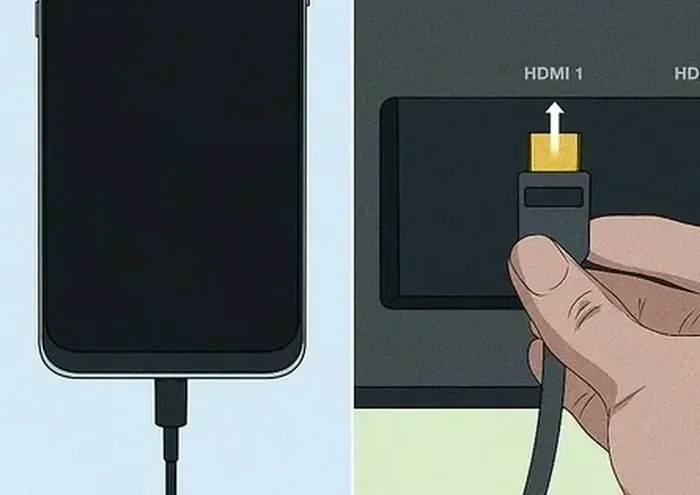
Plug your primary monitor into your computer using its preferred method. Then connect your piggyback monitor using an adapter, splitter, or dock. Make sure both monitors are powered on.
Step 2: Configure Display Settings
On Windows, right-click your desktop and select Display Settings. On macOS, go to System Settings and click Displays. You should see both monitors listed.
Choose the display mode that works for you:
- Extend these displays: Each screen shows different content. This is the best option for productivity.
- Duplicate these displays: Both screens show the same image. Useful for presentations.
- Show only on 1 or 2: Use only one monitor at a time.
Arrange the monitor icons to match the physical layout on your desk. This ensures your mouse moves naturally between screens.
Step 3: Adjust Resolution and Scaling
If text or images look blurry on your piggyback monitor, adjust the resolution and scaling settings. Match the resolution to your monitor’s native resolution for the sharpest image. For scaling, set it to 100% or 125% depending on your screen size and preference.
Step 4: Organize Your Workspace
Once both monitors are working, take a few minutes to organize your windows. Put your email and calendar on one screen and your main work application on the other. This simple habit alone can save you hours each week.
Common Mistakes When Piggybacking HDMI Monitors
Even with the right equipment, mistakes can happen. Here are the most common pitfalls and how to avoid them.
Using a Basic HDMI Splitter for Extended Display
This is the number one mistake. A standard HDMI splitter mirrors content. If you want an extended desktop, you need an adapter or dock that supports extended display mode. Always check the product description before you buy.
Ignoring Bandwidth Limitations
HDMI cables and ports have bandwidth limits. If you try to run two 4K monitors at 60Hz over a single connection, you may run into performance issues. Lower the resolution or refresh rate, or use a method that provides dedicated bandwidth to each monitor.
Using Low-Quality Adapters
Cheap adapters and cables are tempting, but they often cause problems. Signal degradation, audio sync issues, and intermittent connections are common with poor-quality accessories. Invest in reliable brands for a stable experience.
Forgetting to Update Drivers
As mentioned earlier, outdated drivers can cause all sorts of display problems. Always update your GPU drivers before and after adding a new monitor to your setup.
Not Matching Monitor Settings
If your two monitors have different sizes, resolutions, or refresh rates, you may experience a disjointed feel. Try to match your monitors as closely as possible for the best experience. At minimum, set both to their native resolutions.
Expert Tips to Maximize Productivity with Piggyback HDMI Monitors
Setting up piggyback monitors is only half the battle. How you use them makes all the difference. Here are expert tips to get the most from your dual-screen setup.
Use Monitor Mounts for Better Ergonomics
A monitor arm or mount frees up desk space and lets you adjust screen height and angle. Position your primary monitor directly in front of you and place your piggyback monitor to the side at a slight angle. This reduces neck strain and keeps your posture comfortable throughout the day.
Leverage Keyboard Shortcuts
Learn the keyboard shortcuts for moving windows between monitors. On Windows, press Windows Key + Shift plus the Left or Right Arrow to shift a window to the other screen. On macOS, use the full-screen button and Mission Control to manage windows across displays.
Keep Cable Management in Mind
Multiple cables can create a messy workspace. Use cable ties, cable trays, or a desk grommet to keep your HDMI cables organized. A clean workspace reduces distractions and makes it easier to troubleshoot any connection issues.
Consider a USB-C Hub for All-in-One Connectivity
A USB-C hub combines video output, USB ports, and charging into a single device. This simplifies your setup and reduces the number of cables you need to manage. For laptop users especially, a good hub is a game changer.
Final Thoughts on Piggyback HDMI Monitors
Piggyback HDMI monitors are one of the easiest and most cost-effective ways to boost your productivity. Whether you choose a USB-C adapter, a docking station, an HDMI splitter with extended support, or a simple dual-output graphics card, the benefits are clear. More screen space means less window switching, better multitasking, and a more organized workflow.
The key is to choose the right method for your specific setup. Check your computer’s outputs, invest in quality cables and adapters, and configure your displays properly. Avoid the common mistakes outlined in this guide, and you will be enjoying a dual-monitor workspace in no time.
Remember, the goal is not just to add screens. The goal is to create a workspace that helps you work smarter, not harder. With the right piggyback HDMI monitor setup, you will wonder how you ever managed with just one screen.
Frequently Asked Questions
Can I connect two HDMI monitors to a laptop with only one HDMI port?
Yes, you can. Use a USB-C to HDMI adapter or a laptop docking station to add a second monitor. Most modern laptops with USB-C or Thunderbolt ports support video output through these adapters. Alternatively, you can use an HDMI splitter that supports extended display mode, though a docking station is generally more reliable and easier to set up.
Will piggybacking HDMI monitors reduce image quality?
It depends on the method you use. Using a dedicated output on your graphics card or a high-quality USB-C adapter will maintain full resolution and refresh rate. Standard HDMI splitters may reduce quality because the signal gets divided. For the best results, choose an extended display adapter or docking station over a basic mirroring splitter.
What is the best way to piggyback HDMI monitors for productivity?
The best method depends on your laptop and needs. For most users, a USB-C docking station offers the best combination of simplicity, reliability, and features. It provides multiple video outputs, USB ports, and charging in one device. If you have a desktop PC with a modern graphics card, simply use the multiple HDMI ports already available on your GPU.
Do I need special HDMI cables to piggyback monitors?
You do not need special cables, but you should use high-quality cables that match your resolution needs. For 1080p, a standard High Speed HDMI cable works fine. For 4K, use a Premium High Speed HDMI cable. Always buy from reputable brands to ensure stable signal transmission and long-lasting durability.
Can I piggyback three HDMI monitors using one laptop?
Yes, but it requires the right hardware. Most laptops support only two external displays. To add a third monitor, you may need a USB-C docking station with multiple outputs or a DisplayLink adapter. Check your laptop and GPU specifications to confirm how many external displays it supports. Some high-end laptops and workstations can drive three or more monitors simultaneously.
Is daisy chaining HDMI monitors possible?
HDMI does not natively support daisy chaining. However, you can use a DisplayPort connection for daisy chaining and then use DisplayPort-to-HDMI adapters if your monitors only have HDMI inputs. This method works well but adds some complexity. For a simpler setup, use a docking station with multiple independent HDMI outputs instead.
=== CONCLUSION ===
Piggyback HDMI monitors are a powerful and accessible way to expand your workspace and get more done in less time. From USB-C adapters and HDMI splitters to full-featured docking stations, there is a solution for every budget and every setup. The key is understanding your options, choosing the right method, and avoiding the common mistakes that trip up most users.
Take the time to check your hardware, invest in quality cables and adapters, and configure your displays for the best experience. Once you experience the freedom of having multiple screens, you will never go back to a single monitor again. Start small with one piggyback monitor, and you will quickly see how it transforms your daily workflow. Your productivity will thank you.