Can You Get A Bluetooth Usb Adapter For Your Device
Yes, you can get a Bluetooth USB adapter for almost any device with a USB port. A Bluetooth USB adapter or USB Bluetooth dongle lets you add wireless connectivity to laptops, desktops, and even smart TVs. It is a simple, affordable way to connect wireless headphones, keyboards, mice, and speakers without cables.
Have you ever wanted to go wireless but your device does not have built-in Bluetooth? Maybe your desktop computer is missing the feature, or your old laptop simply does not support it. The good news is that you can fix this problem easily. A Bluetooth USB adapter is a small, affordable device that adds wireless connectivity to almost any gadget with a USB port.
In this guide, we will walk you through everything you need to know about USB Bluetooth dongles. We will cover what they are, how they work, which type to buy, and how to set them up. By the end, you will know exactly whether a Bluetooth USB adapter is right for your needs.
Let us get into it. Going wireless has never been this simple or this cheap.
Key Takeaways
- Easy Wireless Upgrade: A Bluetooth USB adapter turns any device with a USB port into a Bluetooth-enabled device in seconds.
- Multiple Types Available: You can choose from Bluetooth 4.0, 5.0, and 5.3 adapters depending on your speed and range needs.
- Plug and Play Setup: Most USB Bluetooth dongles work right out of the box with no extra software required.
- Wide Compatibility: These adapters work with Windows, Mac, Linux, smart TVs, and even some gaming consoles.
- Affordable Solution: A Bluetooth receiver or transmitter costs much less than buying a new Bluetooth-enabled device.
- Improved Audio Streaming: You can stream music and audio wirelessly to speakers and headphones using a USB Bluetooth adapter.
- Long Range Options: Modern Bluetooth 5.0+ adapters offer ranges up to 30 to 100 feet, giving you freedom of movement.
📑 Table of Contents
What Is a Bluetooth USB Adapter?
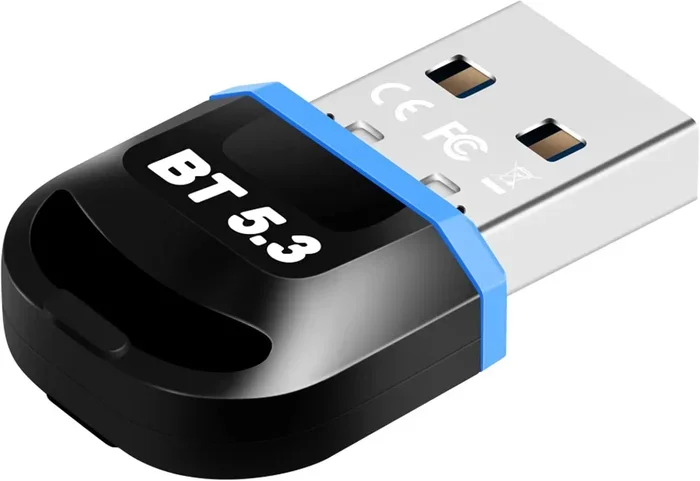
A Bluetooth USB adapter is a small device that plugs into a USB port on your computer or other device. It gives your device the ability to connect wirelessly to other Bluetooth-enabled gadgets. Think of it as a tiny bridge between your device and the world of wireless technology.
These adapters come in different shapes and sizes. Some are tiny thumb-drive-sized sticks. Others are slightly larger with better antennas for stronger signals. No matter the size, they all do the same basic job. They add Bluetooth connectivity to a device that does not have it built in.
How Does a USB Bluetooth Dongle Work?
A USB Bluetooth dongle works by sending and receiving Bluetooth signals. When you plug it into a USB port, your device recognizes it as a new piece of hardware. The dongle then acts as a wireless adapter, allowing your device to find and connect to other Bluetooth devices nearby.
The process is simple:
- You plug the dongle into a USB port.
- Your device installs the driver automatically or prompts you to do so.
- The adapter starts scanning for nearby Bluetooth devices.
- You select the device you want to connect to.
- Pairing is complete, and you can now use the device wirelessly.
Most modern adapters use plug and play technology. This means you do not need to be a tech expert to get them working. Just plug them in, and they start working almost immediately.
Bluetooth Versions: 4.0, 5.0, and 5.3 Explained
Not all Bluetooth adapters are the same. They come in different versions, and each version offers different benefits. Here is a quick look at what you need to know:
- Bluetooth 4.0: This is an older version. It still works fine for basic tasks like connecting a mouse or keyboard. However, the range is shorter, and the speed is slower compared to newer versions.
- Bluetooth 5.0: This is the current sweet spot. It offers faster data transfer, longer range, and better battery efficiency. Most users will be happy with a Bluetooth 5.0 adapter.
- Bluetooth 5.3: This is the newest version available. It offers the best performance, lowest power usage, and the most stable connection. If you want top-tier performance, go with Bluetooth 5.3.
For most people, a Bluetooth 5.0 or 5.3 adapter is the best choice. It gives you the best balance of speed, range, and price.
Why Do You Need a Bluetooth USB Adapter?
You might be wondering why you even need one of these adapters. After all, many modern devices come with Bluetooth built in. But there are plenty of good reasons to add a Bluetooth USB adapter to your setup.
Add Bluetooth to Older Devices
One of the biggest reasons people buy a Bluetooth receiver is to add wireless capability to older devices. Many desktop computers, older laptops, and even some monitors do not have Bluetooth. A USB dongle solves this problem instantly. You do not need to replace your entire device just to go wireless.
Improve Your Workspace
A wireless adapter helps you declutter your desk. Instead of dealing with cables for your mouse, keyboard, and headphones, you can connect them all wirelessly. This creates a cleaner, more organized workspace. It also means fewer cables to manage and less clutter on your desk.
Connect Multiple Devices at Once
Most Bluetooth adapters can connect to multiple devices at the same time. You can pair your wireless headphones, keyboard, and mouse all at once. Some adapters even support connecting to several devices and switching between them easily. This is great if you use multiple gadgets throughout the day.
It Is Affordable
Compared to buying a new laptop or desktop with built-in Bluetooth, a Bluetooth USB adapter is incredibly cheap. You can find a good one for as little as $10 to $20. That is a tiny investment for the convenience of wireless connectivity.
Types of Bluetooth USB Adapters
Not all adapters are built the same. Different types serve different purposes. Let us look at the main categories so you can pick the right one for your needs.
Bluetooth Receiver vs. Bluetooth Transmitter
This is an important distinction that many people miss. A Bluetooth receiver and a Bluetooth transmitter do opposite things.
A receiver takes Bluetooth signals and sends them to your device. For example, you plug a receiver into your TV, and it lets you connect wireless headphones to the TV. A transmitter does the opposite. It sends audio from a non-Bluetooth device to Bluetooth headphones or speakers.
Here is a quick comparison:
| Feature | Bluetooth Receiver | Bluetooth Transmitter |
|---|---|---|
| Direction | Receives Bluetooth signals | Sends Bluetooth signals |
| Common Use | Adding Bluetooth to a TV or PC | Sending audio from PC to Bluetooth headphones |
| Input | USB port | USB port or 3.5mm audio jack |
| Output | To your device | To Bluetooth headphones or speakers |
| Price Range | $10 – $30 | $10 – $25 |
Make sure you buy the right type. If you want to connect wireless headphones to a device that does not have Bluetooth, you need a receiver. If you want to send audio from a non-Bluetooth device to Bluetooth speakers, you need a transmitter.
Mini vs. Standard Size Adapters
Bluetooth adapters come in two main sizes. Mini adapters are tiny and portable. They are great for laptops because they do not block other USB ports. Standard-size adapters are a bit bigger but often have better antennas and stronger signals.
If you travel a lot, a mini adapter is a great choice. If you want the strongest possible signal for your desktop, a standard-size adapter might be better.
High-Power vs. Standard Power
Some adapters come with high-power antennas. These are called high-power Bluetooth adapters. They offer a longer range, sometimes up to 100 feet. Standard adapters usually have a range of about 30 feet. If you need to connect devices from across a room, a high-power adapter is worth the extra cost.
How to Choose the Right Bluetooth USB Adapter
With so many options on the market, picking the right one can feel overwhelming. Here are some key factors to consider before you buy.
Check Your Device Compatibility
Before buying a USB Bluetooth adapter, make sure it is compatible with your device. Most adapters work with Windows and Mac computers. Some also work with Linux and even smart TVs. Check the product description carefully to confirm compatibility.
Also, check the USB port type. Most adapters use standard USB-A ports. If your device only has USB-C ports, you need an adapter with a USB-C connector or a USB-A to USB-C cable.
Consider the Bluetooth Version
As we discussed earlier, the Bluetooth version matters a lot. Bluetooth 5.0 and 5.3 are the best choices for most users. They offer faster speeds, longer range, and better stability. Avoid Bluetooth 4.0 adapters unless you are on a very tight budget and only need basic connectivity.
Think About Range
Range is how far the adapter can connect to other Bluetooth devices. If you plan to use your wireless keyboard or mouse from across the room, you need a longer range. Bluetooth 5.0 adapters typically offer 30 to 50 feet of range. High-power adapters can go even further.
Read Reviews and Ratings
Before you buy any Bluetooth USB adapter, read user reviews. Look for feedback on connection stability, ease of setup, and range. Reviews will help you avoid poorly made adapters and find ones that actually deliver on their promises.
Price vs. Performance
You do not need to spend a lot of money to get a good adapter. However, the cheapest adapters sometimes have weak signals or poor build quality. A good Bluetooth USB adapter usually costs between $10 and $30. Spending in this range will get you a reliable product with solid performance.
Expert Insight
Tech experts recommend looking for adapters with built-in antennas for the best signal strength. External antennas may look bulky, but they provide significantly better range and stability. If you are using your adapter in a large room or across multiple floors, this feature makes a real difference.
How to Set Up a Bluetooth USB Adapter
Setting up a Bluetooth USB adapter is usually very simple. Here is a step-by-step guide to get you started.
Step 1: Plug in the Adapter
Insert the adapter into an available USB port on your device. Wait a few seconds for your system to recognize it. Most modern operating systems will automatically install the necessary drivers.
Step 2: Enable Bluetooth on Your Device
Go to your device settings and turn on Bluetooth. On Windows, you can do this by clicking the Bluetooth icon in the taskbar. On Mac, go to System Preferences and click Bluetooth.
Step 3: Put Your Target Device in Pairing Mode
Make sure the device you want to connect is in pairing mode. Most Bluetooth devices have a dedicated pairing button or a blinking light that indicates they are ready to pair.
Step 4: Pair the Devices
On your computer, click “Add Bluetooth or other device” and select your target device from the list. Follow any on-screen prompts to complete the pairing process.
Step 5: Test the Connection
Once paired, test the connection by playing audio, moving your mouse, or typing on your keyboard. If everything works smoothly, you are all set.
Quick Tips for a Smooth Setup
- Keep your adapter away from metal objects that can block signals.
- Place the adapter near the top of your device for better reception.
- If the adapter does not work right away, try a different USB port.
- Restart your device if you experience connection issues.
- Keep your adapter drivers updated for the best performance.
Common Mistakes to Avoid When Using a Bluetooth USB Adapter
Even though setting up a Bluetooth USB adapter is easy, there are some common mistakes that can cause problems. Here is what to watch out for.
Buying the Wrong Type
One of the biggest mistakes is buying a transmitter when you need a receiver, or vice versa. Make sure you understand what you need before you purchase. Check your device’s capabilities and choose accordingly.
Ignoring Driver Updates
Some adapters require driver updates to work properly with the latest operating systems. Always check the manufacturer’s website for the latest drivers after you set up your adapter.
Placing the Adapter Poorly
Your adapter’s signal can be weakened if it is placed near metal objects, inside a USB hub, or behind your monitor. For the best wireless connectivity, plug the adapter directly into a USB port on the front or side of your device.
Expecting Too Much Range
Bluetooth is not Wi-Fi. It has a limited range. Do not expect to walk completely around your house and still have a stable connection. Stay within the adapter’s rated range for the best experience.
Skipping the Pairing Process
Some users try to connect devices without putting them in pairing mode first. This always leads to frustration. Always make sure the target device is in pairing mode before you try to connect.
Best Uses for a Bluetooth USB Adapter
A Bluetooth USB adapter is incredibly versatile. Here are some of the best ways to use one in your daily life.
Wireless Audio Streaming
One of the most popular uses is streaming audio wirelessly. You can connect your wireless headphones or Bluetooth speakers to your computer and enjoy music, podcasts, or video calls without any cables. This is especially great for people who work from home and want a tangle-free desk setup.
Wireless Keyboards and Mice
If you have a desktop computer without Bluetooth, a USB adapter lets you use wireless keyboards and mice. This gives you more freedom to position your input devices wherever you want. No more reaching for a USB receiver that came with your peripherals.
Connecting Game Controllers
Many gamers use Bluetooth controllers with their PCs. A Bluetooth USB adapter makes it easy to connect Xbox, PlayStation, or third-party controllers to your computer without using a cable. This gives you more freedom to move while gaming.
File Transfer Between Devices
You can also use a Bluetooth adapter to transfer files between your computer and other Bluetooth-enabled devices. While it is not as fast as a USB cable, it is convenient for quick transfers of documents, photos, and small files.
Smart Home Integration
Some smart home devices use Bluetooth for connectivity. A USB adapter can help you connect and control smart speakers, fitness trackers, and other IoT devices that rely on Bluetooth technology.
Key Takeaways
- A Bluetooth USB adapter is one of the easiest and cheapest ways to add wireless connectivity to any device with a USB port.
- Choose between Bluetooth 4.0, 5.0, and 5.3 depending on your speed and range needs.
- Know the difference between a receiver and a transmitter before you buy.
- Setup is simple and usually takes less than five minutes.
- Avoid common mistakes like poor placement and skipping pairing mode.
- A USB Bluetooth dongle works great for audio streaming, wireless peripherals, gaming, and file transfers.
Conclusion
So, can you get a Bluetooth USB adapter for your device? Absolutely yes. Whether you have an old desktop computer, a laptop without Bluetooth, or a smart TV that does not support wireless audio, a USB Bluetooth dongle is the perfect solution. It is affordable, easy to set up, and incredibly useful.
Adding wireless connectivity to your devices opens up a world of possibilities. You can connect wireless headphones, stream audio, use wireless keyboards and mice, and even transfer files without cables. The convenience of going wireless is hard to beat once you experience it.
With the right Bluetooth adapter in your USB port, you can enjoy the freedom of wireless technology without replacing your entire device. It is a small investment that pays off big time in convenience and clutter-free living.
Now that you know everything about Bluetooth USB adapters, you are ready to make a smart choice. Pick the right adapter for your needs, set it up in minutes, and enjoy the wireless experience you have been missing out on.
Frequently Asked Questions
Can I use a Bluetooth USB adapter on a Mac computer?
Yes, most Bluetooth USB adapters are compatible with Mac computers. However, you should always check the product description to confirm Mac support before purchasing. Most modern adapters work seamlessly with macOS.
Do I need to install drivers for a Bluetooth USB dongle?
Many adapters use plug and play technology, which means no driver installation is needed. However, some adapters may require you to download drivers from the manufacturer’s website. Always check the product details before you buy.
What is the difference between Bluetooth 5.0 and Bluetooth 5.3?
Bluetooth 5.3 is the newer version and offers improved battery efficiency, better connection stability, and faster data transfer. Bluetooth 5.0 is still excellent for most everyday tasks. If you want the best performance, go with Bluetooth 5.3.
Can a Bluetooth USB adapter improve audio quality?
A Bluetooth USB adapter can improve audio quality compared to devices that have weak or outdated Bluetooth hardware. However, the audio quality also depends on the headphones or speakers you are using. A good adapter paired with quality audio devices will give you the best results.
How far can a Bluetooth USB adapter reach?
Most standard adapters have a range of about 30 feet. High-power adapters can reach up to 100 feet. The actual range depends on obstacles like walls, metal objects, and other electronic devices that may interfere with the signal.
Can I connect multiple devices to one Bluetooth USB adapter?
Yes, most Bluetooth adapters support connecting to multiple devices at once. You can pair your wireless headphones, keyboard, and mouse to the same adapter. Some adapters even allow you to switch between connected devices easily.