Can We Convert Hdmi To Hdmi Arc Without Any Hassle
Yes, you can convert HDMI to HDMI ARC using the right adapter, cable, or splitter. HDMI ARC (Audio Return Channel) lets your TV send audio back to a soundbar or home theater system through a single HDMI cable. This guide covers every method, common mistakes, and expert tips to make the conversion hassle-free.
Key Takeaways
- HDMI ARC is built into most modern TVs: You may already have the port you need without buying extra gear.
- An HDMI ARC adapter or converter is the easiest solution: Plug and play options make the process simple for beginners.
- Not all HDMI cables support ARC: Using the wrong cable is the most common mistake people make.
- eARC offers better audio quality: If your TV supports it, eARC handles uncompressed surround sound formats.
- HDMI to optical converters work as a backup: When ARC is not available, optical audio is a reliable alternative.
- CEC settings must be enabled: This feature allows devices to control each other and is essential for ARC to work properly.
- Check your TV manual first: Confirming ARC support saves time and money before buying any adapter.
📑 Table of Contents
- Can We Convert HDMI to HDMI ARC Without Any Hassle?
- What Is HDMI ARC and Why Does It Matter?
- Can You Convert Regular HDMI to HDMI ARC?
- Best Methods to Convert HDMI to HDMI ARC
- Step-by-Step Guide to Setting Up HDMI ARC
- Common HDMI ARC Problems and How to Fix Them
- Expert Tips for Getting the Most Out of HDMI ARC
- Quick Tips for HDMI ARC Success
- When to Consider Alternatives to HDMI ARC
- Conclusion
Can We Convert HDMI to HDMI ARC Without Any Hassle?
HDMI ARC has changed the way we set up home entertainment. It lets your TV send audio to a soundbar, receiver, or home theater system using just one cable. But what happens when your TV or device does not have a dedicated ARC port? That is where conversion comes in.
The short answer is yes. You can convert HDMI to HDMI ARC without a lot of fuss. You just need the right adapter, a compatible cable, or sometimes a simple setting change. Many people think this process is complicated, but it really is not. With the right guidance, you can have it working in minutes.
This guide walks you through every method. We explain what HDMI ARC is, why you need it, and how to convert your existing setup. We also cover common mistakes and expert tips. By the end, you will know exactly what to buy and what to avoid.
Whether you have a smart TV from Samsung, LG, or Sony, or you are using a soundbar from Sonos or Bose, this article has you covered. Let us get started.
What Is HDMI ARC and Why Does It Matter?
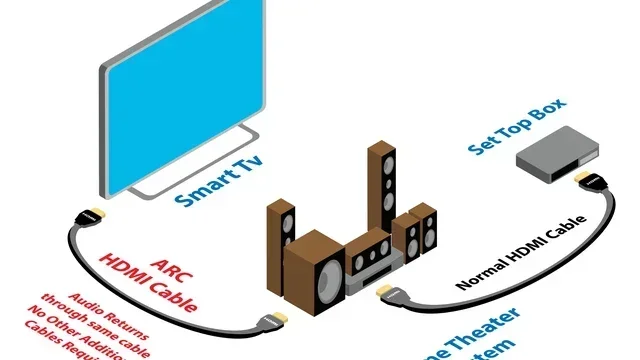
HDMI stands for High-Definition Multimedia Interface. ARC stands for Audio Return Channel. Together, they let your TV send audio signals back through the same HDMI cable that carries video. This means you do not need a second cable just for sound.
Before HDMI ARC existed, people had to use multiple cables. You needed one HDMI cable for video and a separate optical or RCA cable for audio. HDMI ARC simplified this. Now, one cable handles both video and audio in both directions.
How HDMI ARC Works in Practice
Here is a simple example. You watch Netflix on your TV. The TV sends the video to your display and the audio to your soundbar. All through a single HDMI cable. Your TV remote can even control the soundbar volume if CEC (Consumer Electronics Control) is turned on.
This is a big deal for home theater setups. It cuts down on cable clutter. It makes your setup cleaner and easier to manage. And it improves the overall viewing experience.
HDMI ARC vs. Standard HDMI
Standard HDMI cables carry video and audio from a source device to your TV. They go one way. HDMI ARC works both ways. The “return” part of the name means audio can travel back from the TV to an audio device.
Not all HDMI ports are labeled ARC. Some TVs have one or two ports with the ARC symbol next to them. Others have ARC built into every HDMI port. Check your TV manual or look for the ARC label on the back panel.
Can You Convert Regular HDMI to HDMI ARC?
This is the question most people ask. The answer depends on your TV and the devices you are using. Let us break it down into clear scenarios.
Scenario 1: Your TV Has an ARC Port
If your TV already has an HDMI ARC port, you do not need a converter at all. You just need the right cable. Plug one end into the ARC port on your TV and the other end into your soundbar or AV receiver. That is it.
Make sure you use a high-speed HDMI cable. Some older cables do not support ARC. Look for cables labeled “High Speed HDMI” or “Premium High Speed HDMI.” These will handle ARC without any issues.
Scenario 2: Your TV Does Not Have ARC
If your TV does not have an ARC port, you have a few options. You can use an HDMI ARC adapter or converter. These small devices plug into a standard HDMI port and convert the signal to include ARC functionality.
Some adapters are active, meaning they need power. Others are passive and work without any external power source. Active adapters tend to be more reliable, especially for 4K content and eARC support.
Scenario 3: You Want to Upgrade to eARC
eARC stands for Enhanced Audio Return Channel. It is a newer version of HDMI ARC. eARC supports uncompressed audio formats like Dolby Atmos and DTS:X. If you want the best possible audio quality, eARC is the way to go.
To get eARC, you need an HDMI 2.1 port on your TV. Not all TVs support HDMI 2.1, even if they have 4K resolution. Check your TV specifications carefully. If your TV does not have eARC, an HDMI converter may not add this feature.
Best Methods to Convert HDMI to HDMI ARC
There are several ways to convert HDMI to HDMI ARC. Each method has its pros and cons. Let us look at the most popular options.
Method 1: HDMI ARC Adapter
An HDMI ARC adapter is a small box that sits between your TV and your audio device. You plug the adapter into your TV’s HDMI port. Then you connect your soundbar or receiver to the adapter using another cable.
Adapters are easy to set up. Most of them are plug and play. You do not need any technical skills. Just make sure the adapter you buy supports ARC and the audio formats you need.
Some popular brands include Rankie, Mediabridge, and Cable Matters. Prices range from $15 to $50 depending on features and build quality.
Method 2: HDMI Splitter with ARC Support
An HDMI splitter takes one input and splits it into multiple outputs. Some splitters also support ARC. This is useful if you want to connect multiple audio devices to one TV.
You plug your TV into the splitter. Then you connect your soundbar and home theater system to the splitter’s outputs. The splitter passes the ARC signal through so your TV can send audio to both devices.
Keep in mind that not all splitters support ARC. Always check the product description before buying. A splitter without ARC support will not solve your problem.
Method 3: HDMI to Optical Converter
If your TV does not have HDMI ARC at all, an HDMI to optical converter is a solid backup option. These devices convert the HDMI signal to an optical audio signal. You then connect the optical cable to your soundbar or receiver.
Optical audio is reliable and widely supported. It does not carry as much data as HDMI ARC, but it handles most common audio formats well. You will not get Dolby Atmos over optical, but standard surround sound works fine.
This method is great for older TVs or budget setups. It is also a good option if you have already run optical cables through your walls and do not want to rewire.
Method 4: Use a Streaming Device with HDMI ARC
Some streaming devices like the Apple TV 4K or Roku Ultra support HDMI ARC directly. You can connect these devices to your TV’s ARC port and use them as the audio hub. The streaming device then sends audio to your soundbar or receiver.
This is a clever workaround if your TV lacks ARC. The streaming device essentially becomes the bridge. You get high-quality audio without buying a separate converter.
When choosing a streaming device, look for models that explicitly list HDMI ARC support. Check the specs on the manufacturer’s website or the product box.
Comparison Table: HDMI ARC Conversion Methods
| Method | Ease of Setup | Cost | Audio Quality | Best For |
|---|---|---|---|---|
| HDMI ARC Adapter | Very Easy | $15-$50 | High | Most users |
| HDMI Splitter with ARC | Moderate | $30-$80 | High | Multi-device setups |
| HDMI to Optical Converter | Easy | $10-$40 | Good | Older TVs |
| Streaming Device with ARC | Easy | $50-$200 | Excellent | Smart home setups |
Step-by-Step Guide to Setting Up HDMI ARC
Once you have the right equipment, setting up HDMI ARC is straightforward. Follow these steps for a smooth installation.
Step 1: Check Your TV’s HDMI Ports
Look at the back or side of your TV. Find the HDMI ports. Look for one labeled “ARC” or with a small ARC symbol next to it. If you see one, you are in luck. If not, you will need an adapter.
Make sure the port is not a standard HDMI port only. Some TVs have mixed ports where one supports ARC and others do not. The labeling is usually small, so shine a flashlight if needed.
Step 2: Connect the Cable
Plug one end of your HDMI cable into the ARC port on your TV. Plug the other end into your soundbar, AV receiver, or home theater system. Use a high-speed HDMI cable rated for at least HDMI 2.0.
If you are using an adapter, connect the adapter to the TV first. Then connect your audio device to the adapter. Make sure all connections are firm and secure.
Step 3: Enable HDMI ARC in TV Settings
Go to your TV’s settings menu. Look for “Sound” or “Audio” settings. Find the HDMI CEC or HDMI ARC option and turn it on. The exact name varies by brand. Samsung calls it “Anynet+.” LG calls it “SimpLink.” Sony uses “BRAVIA Sync.”
Once you enable ARC, your TV should automatically detect the connected audio device. You may need to restart your TV for the changes to take effect.
Step 4: Test the Audio
Play any content on your TV. Netflix, YouTube, or a live broadcast. The audio should now come through your soundbar or receiver. If it does not, double-check your cable connections and TV settings.
If you still have no sound, try unplugging the HDMI cable and plugging it back in. This resets the HDMI handshake between devices. Sometimes a simple reconnection fixes the problem.
Common HDMI ARC Problems and How to Fix Them
HDMI ARC is not always plug and play. You may run into issues. Here are the most common problems and their solutions.
No Sound Through the Audio Device
This is the number one complaint. The most common cause is that HDMI ARC is not enabled in the TV settings. Go into your sound settings and make sure ARC is turned on.
Another cause is using the wrong HDMI port. Your TV may have four HDMI ports, but only one supports ARC. Check which port is labeled ARC and make sure your cable is plugged into it.
Audio Cuts Out Intermittently
Intermittent audio drops are frustrating. They are often caused by a loose HDMI cable connection. Try a different cable or a different HDMI port on your TV.
Some HDMI cables are not built for ARC. Cheap cables may not have enough bandwidth. Invest in a certified high-speed HDMI cable. Brands like Belkin, Cable Matters, and Amazon Basics are reliable choices.
TV Remote Does Not Control Soundbar Volume
This happens when CEC is not enabled. CEC stands for Consumer Electronics Control. It allows devices connected via HDMI to communicate with each other.
Go to your TV settings and enable CEC. Different brands use different names for this feature. Once CEC is on, your TV remote should control the volume of your soundbar or receiver automatically.
HDMI ARC Not Working After TV Software Update
Sometimes a TV software update resets your settings. If HDMI ARC stops working after an update, check your sound and CEC settings again. Re-enable ARC and CEC if they were turned off.
You can also try power cycling all your devices. Unplug your TV, soundbar, and receiver from power for 30 seconds. Plug them back in and let them reconnect. This often fixes post-update issues.
Expert Tips for Getting the Most Out of HDMI ARC
We asked home theater enthusiasts and tech experts for their best tips. Here is what they shared.
Tip 1: Always use the HDMI port labeled ARC. It sounds obvious, but many people plug into any open port and wonder why ARC does not work. The ARC port is usually HDMI 1 or HDMI 2 on most TVs.
Tip 2: Update your TV firmware regularly. Manufacturers often fix HDMI ARC bugs in software updates. Keeping your TV up to date ensures the best compatibility.
Tip 3: Use a high-quality HDMI cable. A $5 no-name cable may cause problems. A $15 certified cable will save you hours of troubleshooting. Look for the “Premium High Speed HDMI” certification on the cable packaging.
Tip 4: Consider eARC if you want Dolby Atmos. Standard HDMI ARC does not support uncompressed surround sound. eARC does. If you have a Dolby Atmos soundbar, make sure your TV and cable support eARC.
Tip 5: Keep your cables short. Longer HDMI cables can cause signal loss. Try to keep your HDMI cable runs under 15 feet for the best performance. If you need a longer run, use an active HDMI cable or signal booster.
Quick Tips for HDMI ARC Success
- Always check ARC compatibility before buying any adapter or converter.
- Label your HDMI cables so you know which one is connected to the ARC port.
- Keep your TV and soundbar firmware updated for the best performance.
- Use the TV remote first to test audio before buying extra equipment.
- Power cycle all devices if HDMI ARC stops working unexpectedly.
- Buy from reputable brands to avoid cheap adapters that do not work reliably.
When to Consider Alternatives to HDMI ARC
HDMI ARC is great, but it is not the only option. Sometimes you need a different approach. Let us look at when alternatives make sense.
Using Optical Audio (TOSLINK)
Optical audio has been around for decades. It uses a thin cable with a square plug to send digital audio from your TV to your sound system. It is reliable and does not suffer from the same handshake issues as HDMI.
The downside is that optical audio does not support the latest formats like Dolby Atmos. It also does not carry video signals. But for standard surround sound, optical is a solid choice.
Bluetooth and Wireless Audio
If you do not want any cables at all, Bluetooth is an option. Many modern soundbars support Bluetooth connectivity. You can stream audio from your TV to the soundbar wirelessly.
Bluetooth audio has some drawbacks. There can be a slight delay between video and audio. The audio quality is also lower than HDMI ARC or optical. But for casual viewing, Bluetooth works well enough.
Wi-Fi Streaming and Smart Speakers
Smart speakers like Amazon Echo or Google Nest Audio can also receive audio from your TV. Some TVs support built-in Chromecast or AirPlay. You can stream audio directly to smart speakers without any cables.
This is a great option for multi-room audio setups. You can play TV audio in different rooms simultaneously. Just be aware that Wi-Fi streaming can introduce latency and audio sync issues.
For more information on alternative connectivity options for your TV setup, you can explore alternatives to traditional TV services and connectivity methods that may help you find the best solution for your home entertainment needs.
Conclusion
So, can we convert HDMI to HDMI ARC without any hassle? The answer is a clear yes. With the right adapter, cable, or converter, you can add HDMI ARC to almost any TV setup. The key is knowing which method works best for your specific situation.
If your TV has an ARC port, you just need the right cable. If it does not, an HDMI ARC adapter or splitter will do the job. For older TVs, an HDMI to optical converter is a reliable fallback. And if you want the best audio quality, consider upgrading to eARC with an HDMI 2.1 setup.
Remember to enable HDMI ARC and CEC in your TV settings. Use high-quality cables. And do not be afraid to power cycle your devices if something goes wrong. With these tips, your home theater setup will sound better than ever.
HDMI ARC is a simple but powerful feature. It makes your audio setup cleaner and your viewing experience better. Take the time to set it up correctly, and you will enjoy the difference every time you watch a movie or listen to music.
Frequently Asked Questions
Can I use any HDMI cable for HDMI ARC?
Not all HDMI cables support ARC. You need a High Speed HDMI cable or a Premium High Speed HDMI cable. Check the cable packaging for the ARC or High Speed label. Using the wrong cable is the most common reason HDMI ARC does not work.
Do I need a special adapter to convert HDMI to HDMI ARC?
It depends on your TV. If your TV has an ARC-labeled HDMI port, you do not need an adapter. You just need a compatible HDMI cable. If your TV lacks an ARC port, an HDMI ARC adapter or converter is necessary to add the feature.
Can I get Dolby Atmos with HDMI ARC?
Standard HDMI ARC does not support uncompressed Dolby Atmos. You need eARC (Enhanced Audio Return Channel) for full Dolby Atmos support. eARC requires an HDMI 2.1 port and compatible devices on both ends.
Why is my HDMI ARC not working even though the cable is connected?
The most common reason is that HDMI ARC is disabled in your TV settings. Go to your TV audio settings and turn on HDMI ARC and CEC. Also make sure your cable is plugged into the ARC-labeled HDMI port on your TV.
Can I connect multiple audio devices using HDMI ARC?
Yes, but you may need an HDMI splitter with ARC support. A standard HDMI cable connects your TV to one audio device. A splitter allows you to connect multiple soundbars or receivers to the same TV while maintaining ARC functionality.
Is HDMI ARC better than optical audio?
HDMI ARC is generally better because it supports higher-quality audio formats and handles both video and audio through one cable. Optical audio is a good backup option but does not support the latest formats like Dolby Atmos. HDMI ARC also allows your TV remote to control the volume of your audio device.