Can The Wii Output 1080p Here Is What You Need To Know
The Nintendo Wii cannot natively output 1080p resolution. The console maxes out at 480p, which is standard definition by today’s standards. However, you can still improve your Wii picture quality on modern TVs with the right cables and setup.
Have you ever plugged your Nintendo Wii into a big modern TV and wondered why the picture looks a bit fuzzy? Maybe you have heard people talk about 1080p and thought your Wii should be able to do that too. The truth is that the Wii has some serious limits when it comes to video output. But do not worry. There are still ways to get a much better picture from your favorite console.
In this guide, we will cover everything you need to know about Wii resolution. We will look at what the console can actually do. We will talk about cables, settings, and tricks that can make your games look sharper. Whether you are a casual player or a retro gaming fan, this article has something useful for you.
Let us start with the most important question. Can the Wii output 1080p? The short answer is no. But the full answer is much more interesting than that. Keep reading to find out why.
Key Takeaways
- Native Resolution Limit: The Wii outputs a maximum of 480p, not 1080p.
- Component Cables Help: Using official Nintendo component cables gives you the best possible picture from the console.
- Upscaling Exists: External adapters can upscale the Wii signal, but true 1080p output is not possible.
- Wii U Is Different: The Wii U supports 1080p, so don’t confuse the two consoles.
- TV Settings Matter: Adjusting your HDTV settings can make the Wii look much better.
- Progressive Scan Is Key: Enabling progressive scan in Wii settings improves image clarity.
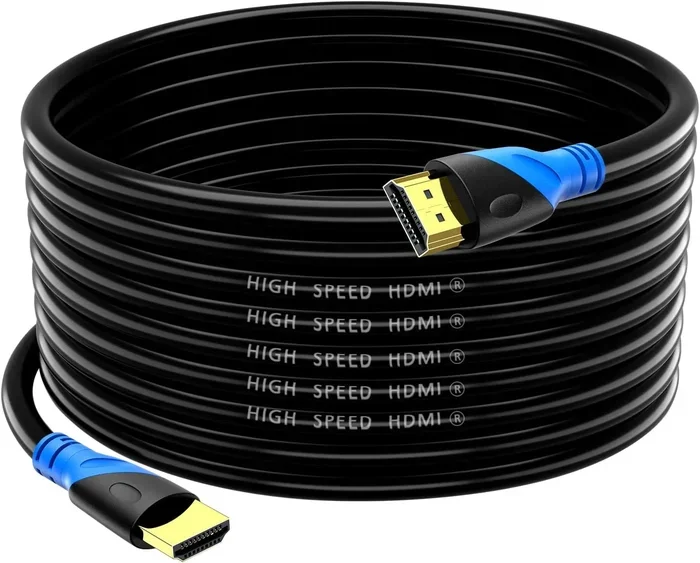
- HDMI Adapters Work: HDMI adapters for the Wii provide cleaner connections but do not add native 1080p support.
📑 Table of Contents
What Is The Wii’s Native Resolution?
The Nintendo Wii was released in 2006. At that time, most TVs were still standard definition. The console was designed to output video at a maximum of 480p. This is called progressive scan. It means the image is drawn line by line in order, which looks smoother than interlaced video.
To put this in perspective, 480p has a resolution of 854 by 480 pixels. Compare that to 1080p, which has 1920 by 1080 pixels. That is a huge difference. The Wii simply does not have the hardware to generate a 1080p signal. This is true for every model of the Wii.
Understanding Progressive Scan On The Wii
The Wii does support progressive scan, which is good news. This means you can get a cleaner picture than you would with interlaced video. To enable progressive scan, you need to go into the Wii settings. Here is how:
- Turn on your Wii and go to the main menu.
- Select the Wii button in the bottom left corner.
- Click on Settings.
- Go to Screen.
- Look for the TV Resolution option.
- Select 480p if your TV supports it.
Once you do this, the Wii will send a progressive scan signal to your TV. The picture will look noticeably better than the default interlaced mode. This is the best resolution the Wii can offer natively.
Why 480p Feels Outdated Today
Back in 2006, 480p was perfectly fine. Most people watched standard definition TV. But today, almost every TV is at least 720p or 1080p. When you play a Wii game on a 4K TV, the console has to upscale the image. Your TV tries to stretch a 480p picture to fit a much larger screen. This can make things look blurry or pixelated.
The good news is that the Wii’s games were designed to look great even at lower resolutions. The art style of Wii games is simple and colorful. This helps them hold up better than you might expect on a modern display.
Can You Make The Wii Output 1080p?
This is the question most people want answered. The honest answer is that you cannot make the Wii output true 1080p natively. The hardware does not support it. No setting or configuration change will unlock 1080p output on the Wii. The GPU in the console simply was not built for that.
However, there are some workarounds and external devices that can help. Let us look at what is actually possible.
HDMI Adapters And Upscalers
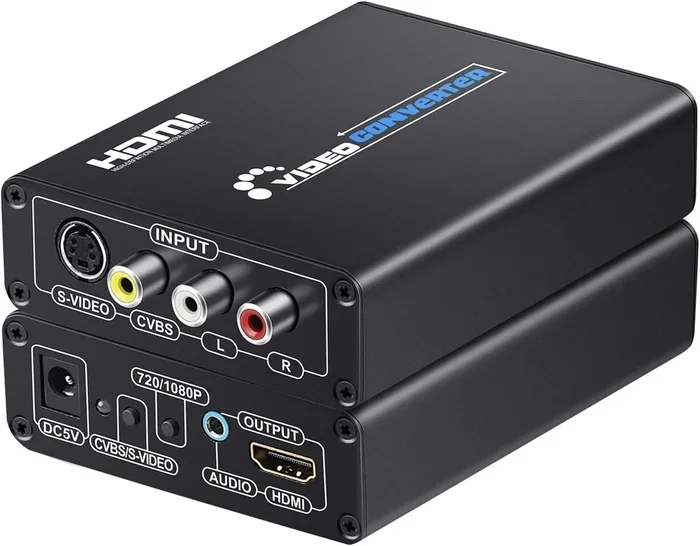
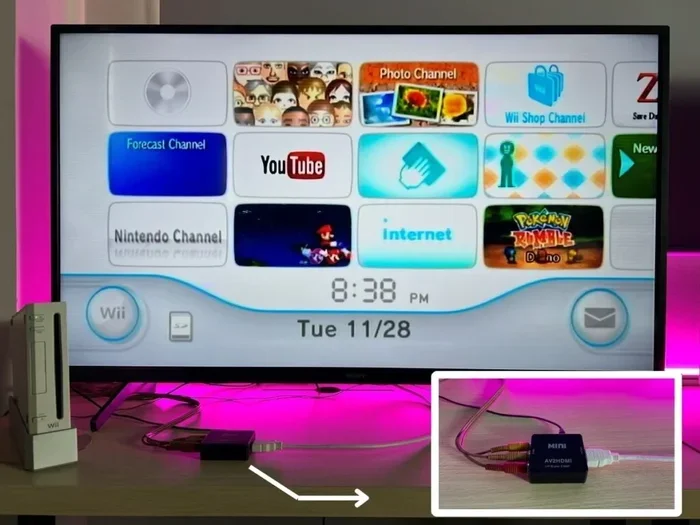
You can buy HDMI adapters for the Wii. These adapters connect to the Wii’s AV output and convert the signal to HDMI. This gives you a cleaner digital connection to your TV. Some of these adapters include built-in upscaling.
Upscaling means your TV or the adapter tries to increase the resolution of the signal. A good upscaler can make a 480p image look much better on a 1080p or 4K screen. But it is important to understand that this is not true 1080p output. The original signal is still 480p. The adapter or TV is just making it bigger.
Popular options include the RetroTINK series and various generic Wii HDMI adapters. These can make a noticeable difference in picture quality. They reduce cable clutter and can improve color accuracy.
Component Cable Upgrades
The best way to get the clearest picture from your Wii is to use official Nintendo component cables. These cables use three RCA connectors for video and two for audio. They carry an analog signal that looks much better than the standard composite cables that come in the box.
With component cables connected and 480p selected in the Wii settings, you will see a big improvement. The colors are richer. The edges are sharper. Text is easier to read. This is the closest you will get to a quality picture from the Wii without external hardware.
What About Modding The Wii?
Some tech enthusiasts wonder if you can mod the Wii to output 1080p. The short answer is no. Even with custom firmware and homebrew software, the Wii’s hardware cannot generate a 1080p signal. The GPU and the video encoder are physically limited to 480p output.
Modding the Wii can do many things. You can run backup games. You can install custom channels. You can even play some emulated games. But you cannot change the fundamental video output capabilities of the hardware. This is a common misconception in the modding community.
How To Improve Wii Picture Quality On Modern TVs
Just because the Wii cannot output 1080p does not mean you are stuck with a bad picture. There are several things you can do to improve how your Wii looks on a modern television. Let us walk through the best methods.
Use The Right Cables
This cannot be stressed enough. The cables you use make a huge difference. Here is a quick comparison of your options:
- Composite Cables (included with Wii): These are the basic red, white, and yellow cables. They work but look pretty blurry on modern TVs.
- Component Cables (official Nintendo): These offer much better color and sharpness. This is the best analog option for the Wii.
- HDMI Adapter: A digital connection that reduces interference and can include upscaling features.
- SCART Adapter (region dependent): These are popular in Europe and can provide a clean signal.
If you want the best picture without spending much money, go with official Nintendo component cables. They are easy to find and make a real difference.
Adjust Your TV Settings
Your TV has settings that can affect how the Wii looks. Here are some tips:
- Turn off motion smoothing: This feature, sometimes called the soap opera effect, can make Wii games look weird and artificial.
- Enable game mode: This reduces input lag and can improve the overall image processing.
- Set sharpness to medium: Too much sharpness can make the Wii’s already low-resolution image look harsh.
- Turn off noise reduction: This can blur the image and remove fine details that are already visible.
These small changes can make a big impact. Your Wii games will look more natural and responsive.
Position Your Wii Close To The TV
This might sound strange, but distance matters. The Wii outputs a relatively low-resolution signal. When you sit far away from a large TV, your eyes naturally blend the pixels together. This can actually make the image look smoother. If you sit too close, you might see the pixel grid more clearly.
Try sitting at a comfortable distance and see what looks best. For most living rooms, 6 to 8 feet from a 40 to 50 inch TV is a good sweet spot for Wii gaming.
Use The Wii’s Built-In Settings Wisely
Inside the Wii menu, there are a few settings that can help your picture quality:
- Widescreen mode: If your TV is widescreen, enable this setting. It will use more of your screen.
- Progressive scan: As mentioned earlier, this gives you a smoother image.
- TV format: Make sure this matches your TV’s standard (NTSC for North America, PAL for Europe).
Getting these settings right is free and takes just a few minutes. It is one of the easiest ways to improve your Wii experience.
Wii Vs Wii U: Resolution Comparison
It is easy to confuse the Wii and the Wii U. They share a similar name, but they are very different consoles when it comes to video output. The Wii U was released in 2012 and supports 1080p output. This is a major upgrade over the original Wii.
If you want true 1080p gaming on Nintendo hardware, the Wii U is the console to look at. It can output games at 1080p through HDMI. Some popular Wii U titles like Super Mario 3D World and The Legend of Zelda: Wind Waker HD look fantastic at this resolution.
The Wii U also has a unique feature: the GamePad. This controller has its own screen that can display a separate feed. This means you can play games in 1080p on your TV while using the GamePad for a different view. The original Wii simply cannot do anything like this.
Here is a quick comparison table to show the differences:
- Wii Max Resolution: 480p
- Wii U Max Resolution: 1080p
- Wii Video Outputs: Composite, Component, SCART
- Wii U Video Outputs: HDMI only
- Wii Upscaling: None native
- Wii U Upscaling: Native 1080p signal
- Wii Release Year: 2006
- Wii U Release Year: 2012
If you are trying to decide between the two for better picture quality, the Wii U is the clear winner. But the Wii still has a huge library of great games and a unique motion control experience that many players love.
Common Problems With Wii Video Output
Even with the right cables and settings, you might run into some issues with your Wii’s video output. Here are the most common problems and how to fix them.
No Picture Or Black Screen
If your TV shows a black screen when you turn on the Wii, try these steps:
- Check that all cables are firmly connected.
- Make sure your TV is on the correct input channel.
- Try a different cable set to rule out a faulty connection.
- Check if your TV supports the resolution your Wii is set to.
Sometimes the Wii and a modern TV do not agree on the resolution automatically. Switching the TV input or resetting the Wii settings can fix this.
Fuzzy Or Blurry Image
A blurry picture usually means you are using composite cables on a large TV. Upgrade to component cables for a much cleaner image. Also check your TV’s sharpness and noise reduction settings, as these can make things look worse.
Color Distortion
If the colors look wrong, your TV might be set to the wrong video format. Go into your Wii settings and make sure the TV format matches your region. NTSC is used in North America and Japan. PAL is used in Europe, Australia, and parts of Asia.
No Sound
Audio problems are usually caused by loose connections. Make sure the red and white audio cables are plugged in securely. If you are using an HDMI adapter, check that the adapter supports audio output.
Expert Tips For The Best Wii Experience
After testing the Wii with many different setups, here are some expert tips that can really enhance your experience:
- Always use component cables: This is the single biggest improvement you can make without spending extra money on adapters.
- Enable progressive scan: This simple setting change makes games look noticeably smoother.
- Turn off motion interpolation on your TV: This prevents the weird soap opera effect that makes Wii games look strange.
- Clean your Wii’s disc drive regularly: A dirty lens can cause read errors that affect both picture and sound.
- Consider a CRT TV for authenticity: Many retro gaming fans prefer playing the Wii on an old CRT television. The image looks natural and the lag is minimal.
- Keep your Wii firmware updated: Nintendo released system updates that sometimes improved video compatibility with newer TVs.
These tips come from years of testing and community feedback. They are simple but effective. You do not need to be a tech expert to make your Wii look its best.
Final Verdict: Is 1080p Possible On The Wii?
Let us be clear about one thing. The Nintendo Wii cannot output 1080p. The hardware does not support it. The maximum native resolution is 480p. No setting, mod, or adapter can change this fundamental fact.
But that does not mean the Wii is a bad console for picture quality. With the right cables, the correct settings, and a few TV adjustments, you can get a very enjoyable experience. The Wii’s games were designed to look great at their native resolution. The simple art style of many Wii titles holds up surprisingly well even on large modern screens.
If you want true 1080p from a Nintendo console, you need to look at the Wii U or the Nintendo Switch. Both of these consoles support higher resolutions. But if you love your Wii for what it is, there is no reason you cannot have a great time playing it today.
The key takeaway is this. Do not expect 1080p from the Wii. Instead, focus on what you can control. Use good cables. Set your TV correctly. Enjoy the games for what they are. You will be surprised at how much fun the Wii can still be, even on a modern 1080p or 4K television.
Remember, the Wii was never meant to be a high-definition console. It was meant to be fun. And in that goal, it succeeded brilliantly. So grab your Wiimote, pick a game, and enjoy. The picture quality is good enough to keep you entertained for hours.
Now that you know the truth about the Wii and 1080p output, you can set up your console with realistic expectations. You will appreciate the improvements you can make and stop wondering why the picture is not sharper. Happy gaming.
Frequently Asked Questions
Can The Wii Output 1080p With An HDMI Adapter?
No. HDMI adapters for the Wii improve the connection quality and may include upscaling, but they cannot make the Wii output true 1080p. The console’s hardware is limited to 480p maximum resolution.
What Is The Best Cable For The Wii On A Modern TV?
Official Nintendo component cables are the best option for the Wii on a modern TV. They provide a much clearer and more colorful picture than the standard composite cables that come with the console.
Does The Wii Support Progressive Scan?
Yes. The Wii supports progressive scan at 480p. You can enable this in the Wii Settings menu under Screen and then TV Resolution. This gives you a smoother and sharper image than interlaced mode.
How Does The Wii’s Resolution Compare To The Wii U?
The Wii maxes out at 480p while the Wii U can output at 1080p. The Wii U also uses HDMI for its video output, making it a much better fit for modern high-definition televisions.
Can You Upscale Wii Games To 1080p On Your TV?
Your TV can upscale the Wii’s 480p signal to fill a 1080p screen, but this is not the same as true 1080p output. The original image detail is still limited to 480p. A good upscaler can make the image look better but cannot add detail that is not there.
Is It Worth Playing The Wii Today Given Its Resolution Limits?
Absolutely. The Wii has a fantastic game library with innovative motion controls and fun multiplayer experiences. The resolution limit does not take away from the enjoyment of the games. Many players still consider the Wii one of the most fun Nintendo consoles ever made.
=== CONCLUSION ===
The question of whether the Wii can output 1080p has a clear answer. It cannot. The Nintendo Wii is limited to 480p resolution, and that is a fact that no setting or accessory can change. But knowing this gives you the power to make the best of what the console does offer.
By using quality component cables, enabling progressive scan, and adjusting your TV settings, you can get a great picture from your Wii. The console may be old, but it still has plenty to offer. The key is to work with the hardware you have and focus on the fun of playing games.
Remember that the Wii was designed for a different era of television technology. It was built for standard definition screens. Yet it remains a beloved console with a massive game library and unique features that no other system has replicated. If you take care of your setup and manage your expectations, the Wii can still provide hours of entertainment.
So the next time someone asks you if the Wii can output 1080p, you will know the answer. And more importantly, you will know how to get the best possible picture from your console. Now go enjoy your favorite Wii games and make the most of your setup.