Can Iphone Receive HDMI and How to Get It Working Now
Can iPhone receive HDMI? Yes, but the method depends on your iPhone model. Whether you have a lightning port or USB-C, you can mirror your screen to a TV using the right adapter or wireless technology. This guide covers every way to get your iPhone HDMI connection working right now.
Have you ever wanted to show something on your phone to a big screen? Maybe you want to watch a movie, share photos, or present a slide deck. The question is simple: can iPhone receive HDMI? The answer is yes. But how you do it depends on your phone model, the cable you use, and the TV you have.
In this guide, I will walk you through every method that works right now. No fluff. No confusing tech talk. Just clear steps you can follow today. Whether you have the latest iPhone 15 Pro or an older iPhone 12, you will find the solution that fits your setup.
Let us get started. By the end of this article, you will know exactly how to connect your iPhone to HDMI and why some methods work better than others.
Key Takeaways
- iPhones with USB-C (iPhone 15 and newer) can connect directly to HDMI using a simple USB-C to HDMI cable.
- Older iPhones need a Lightning to HDMI adapter or digital AV adapter to output video to a TV.
- AirPlay offers a wireless alternative that works with most smart TVs and Apple TV devices.
- MFi-certified adapters ensure compatibility and prevent connection issues.
- You can stream 4K and HDR content to your TV when using the right cable or adapter.
- Common mistakes like using cheap, uncertified cables are the top reason for HDMI failures.
📑 Table of Contents
- Can iPhone Receive HDMI? The Short Answer
- How iPhone 15 and Newer Models Connect to HDMI
- How Older iPhones with Lightning Connect to HDMI
- Wireless Alternatives: AirPlay and Smart TV Apps
- Best Cables and Adapters for iPhone HDMI
- Common Problems and How to Fix Them
- Expert Tips for the Best HDMI Experience
- Key Takeaways
- Conclusion
Can iPhone Receive HDMI? The Short Answer
The short answer is yes. iPhone HDMI output is possible on nearly every model. But the way you do it changes based on the port your iPhone uses. Apple has used two main ports over the years: Lightning and USB-C. Each port needs a different approach.
If you have an iPhone 15 or newer, you have a USB-C port. That means you can use a direct USB-C to HDMI cable. It is simple, fast, and works without any extra apps. If you have an older iPhone with a Lightning port, you will need a special adapter. But do not worry. I will cover every option below.
The key thing to remember is that iPhone screen mirroring to a TV is not just one trick. There are multiple paths to the same result. Some are wired. Some are wireless. And each has its own benefits. Let us explore them all.
Why HDMI Matters for iPhone Users
HDMI stands for High-Definition Multimedia Interface. It is the most common way to send video and audio from one device to another. When you connect your iPhone to HDMI, you get a clean, high-quality signal. No lag. No compression. Just sharp video and clear sound.
This matters because iPhone screens are small. Even the biggest iPhone display is only 6.7 inches. When you want to share content with a group, or just enjoy a movie on a 55-inch TV, you need a bigger picture. HDMI video output gives you that.
Also, many people still prefer a wired connection over wireless. A cable is more reliable. It does not drop frames. It does not buffer. And it works even if your Wi-Fi is slow. That is why knowing how to connect iPhone to TV with HDMI is such a useful skill.
How iPhone 15 and Newer Models Connect to HDMI
Starting with the iPhone 15 lineup, Apple switched to USB-C. This change made iPhone HDMI connection much easier. You no longer need a bulky adapter. A single cable can do the job.
Using a USB-C to HDMI Cable
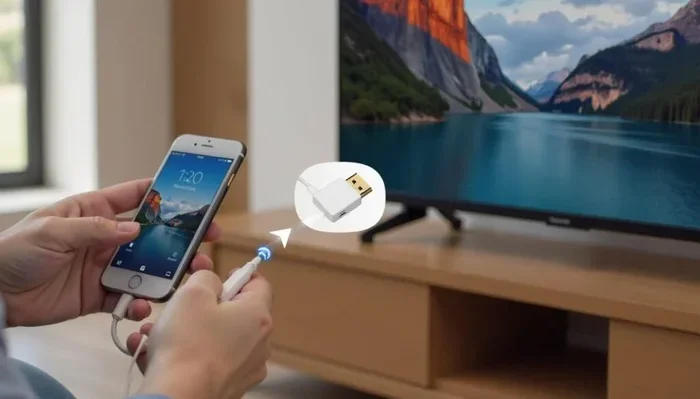
The simplest way to connect an iPhone 15 or newer to a TV is with a USB-C to HDMI cable. Here is how it works:
- Plug the USB-C end into your iPhone.
- Plug the HDMI end into your TV or monitor.
- Switch your TV to the correct HDMI input.
- Your iPhone screen should appear on the TV automatically.
That is it. No apps. No setup. No extra steps. The USB-C to HDMI method supports up to 4K resolution on compatible iPhones. The iPhone 15 Pro and Pro Max can even output HDR content through this connection.
Which iPhone Models Support Direct HDMI Output
Not all iPhones with USB-C are the same. Here is a quick look at what each model can do:
- iPhone 15 and 15 Plus: Support 4K HDMI output at 60Hz. Great for movies and presentations.
- iPhone 15 Pro and 15 Pro Max: Support 4K HDR HDMI output. These models also support ProRes video output to external displays.
- iPhone 16 and 16 Plus: Same as the iPhone 15 lineup but with improved processing for smoother mirroring.
- iPhone 16 Pro and 16 Pro Max: Full HDMI 2.1 support with higher bandwidth for the best image quality.
If you are shopping for a cable, look for one that is MFi certified. MFi stands for Made for iPhone. It means Apple has tested the cable to work safely with your device. Using uncertified cables can cause problems. They may not charge your phone while mirroring, or the video signal may drop out.
How Older iPhones with Lightning Connect to HDMI
If you have an iPhone 14 or older, your phone has a Lightning port. Connecting it to HDMI requires an adapter. But do not worry. This method has been around for years and works very well.
The Lightning to HDMI Adapter
Apple sells a Lightning to Digital AV Adapter. This is the official adapter that lets you connect your iPhone to an HDMI cable. Here is what you need to do:
- Plug the Lightning adapter into your iPhone.
- Connect a standard HDMI cable to the adapter.
- Plug the other end of the HDMI cable into your TV.
- Switch your TV to the right input source.
- Your iPhone screen will mirror to the TV.
This adapter also has a pass-through Lightning port. That means you can charge your iPhone while it is connected to the TV. This is very handy for long movie nights or presentations.
Third-Party Lightning to HDMI Adapters
You do not have to buy the Apple adapter. Many brands make Lightning to HDMI adapters that work just as well. Brands like Belkin, Anker, and Amazon Basics all offer reliable options. But there is one rule: always buy MFi certified adapters. Non-certified adapters can cause screen flickering, audio problems, or even damage your phone.
When shopping online, look for adapters that specifically mention iPhone HDMI support in the product title. Read the reviews too. Other users will tell you if the adapter works well or has issues. This saves you from buying a dud.
Why Some Lightning Adapters Have Audio Issues
One common problem people run into is no sound coming through the TV. This usually happens for two reasons. First, the TV might be set to the wrong audio output. Second, the adapter might not be fully compatible. Here is a quick fix:
- Go to Settings > Sounds & Haptics on your iPhone.
- Make sure the volume is turned up.
- Check that your TV is not muted.
- Try unplugging the adapter and plugging it back in.
If the sound still does not work, try a different adapter. Cheap, non-certified adapters are the most common cause of iPhone HDMI audio problems.
Wireless Alternatives: AirPlay and Smart TV Apps
Not everyone wants to deal with cables. And that is totally fine. Wireless iPhone to TV streaming is a great option if you have a smart TV or an Apple TV device.
Using AirPlay to Mirror Your iPhone Screen
AirPlay is Apple’s built-in wireless streaming technology. It lets you send your iPhone screen to a compatible TV without any cables. Here is how to use it:
- Make sure your iPhone and TV are on the same Wi-Fi network.
- Open the Control Center on your iPhone.
- Tap the Screen Mirroring button.
- Select your TV from the list.
- Your iPhone screen now appears on the TV.
AirPlay works with most modern smart TVs, including Samsung, LG, Sony, and Vizio models. If your TV supports AirPlay 2, you are good to go. You can also use an Apple TV box for the best wireless experience.
When to Use AirPlay vs. HDMI
So how do you choose between wireless and wired? Here is a simple comparison:
- Use AirPlay when: You want convenience, you do not have an adapter, or you are showing content casually.
- Use HDMI when: You need the best quality, you are gaming, you want zero lag, or you are presenting in a professional setting.
AirPlay is great, but it is not perfect. It can lag. It can drop frames. And it depends heavily on your Wi-Fi signal. If you need a rock-solid connection, a wired iPhone HDMI connection is the way to go.
Best Cables and Adapters for iPhone HDMI
Not all cables are created equal. If you want the best results, you need the right gear. Here are the top options I recommend.
Top Picks for USB-C iPhones
- Apple USB-C to HDMI Cable: The official Apple cable. It works perfectly and supports 4K HDR. It is also the most expensive option.
- Anker USB-C to HDMI Cable: A great budget alternative. It is MFi certified and supports 4K at 60Hz. It costs about half the price of the Apple cable.
- Belkin USB-C to HDMI Cable: Another trusted brand. Belkin cables are durable and well-built. They are a solid choice for daily use.
Top Picks for Lightning iPhones
- Apple Lightning to Digital AV Adapter: The official adapter. It is reliable and works with all Lightning iPhones. The pass-through charging port is a nice bonus.
- Anker Lightning to HDMI Adapter: A strong third-party option. It is MFi certified and costs less than Apple’s version.
- AmazonBasics Lightning to HDMI Adapter: A budget-friendly choice that works well for basic screen mirroring.
When you buy any of these, check for the MFi certification logo on the packaging. This ensures the accessory has been tested and approved by Apple. It is the single best way to avoid compatibility headaches.
Common Problems and How to Fix Them
Even with the right cable, you might run into issues. Here are the most common problems and how to solve them.
No Picture on the TV
If your TV shows a black screen, try these steps:
- Check that the HDMI cable is fully plugged in on both ends.
- Switch your TV to the correct HDMI input.
- Restart your iPhone and try again.
- Try a different HDMI cable. The cable might be faulty.
Flickering or Distorted Video
A flickering screen usually means the cable or adapter is low quality. Replace it with an MFi-certified option. Also, make sure your iPhone HDMI adapter is not loose. A loose connection causes intermittent signal drops.
Audio Does Not Play Through the TV
If the video works but there is no sound, check your TV’s audio settings. Make sure it is set to receive audio through HDMI. Also, check your iPhone volume and make sure it is not muted.
The Screen Mirrors But the Quality Is Low
Low quality usually means the cable does not support the resolution you are trying to use. Make sure you are using a cable rated for 4K. Also, check that your TV is set to its highest resolution input.
Expert Tips for the Best HDMI Experience
Here are some quick tips from my own experience that will help you get the most out of your iPhone HDMI setup.
Use a Short HDMI Cable
Shorter cables give you a better signal. If you can, keep your HDMI cable under 6 feet. Longer cables can lose signal strength, especially with 4K and HDR content.
Close Background Apps
When you are mirroring your screen, close any apps you are not using. This frees up processing power and makes the mirroring smoother. It also helps save battery life.
Keep Your iPhone Cool
Screen mirroring uses a lot of processing power. It can make your phone warm. If your iPhone gets too hot, it may slow down the video output. Take a break if you notice the phone getting warm.
Update Your iPhone Software
Apple regularly fixes bugs related to iPhone video output in its software updates. Make sure your iPhone is running the latest iOS version before you try to connect to HDMI.
Key Takeaways
- iPhones with USB-C (iPhone 15 and newer) can connect directly to HDMI using a simple USB-C to HDMI cable.
- Older iPhones need a Lightning to HDMI adapter or digital AV adapter to output video to a TV.
- AirPlay offers a wireless alternative that works with most smart TVs and Apple TV devices.
- MFi-certified adapters ensure compatibility and prevent connection issues.
- You can stream 4K and HDR content to your TV when using the right cable or adapter.
- Common mistakes like using cheap, uncertified cables are the top reason for HDMI failures.
Conclusion
So, can iPhone receive HDMI? Absolutely. Whether you have the newest iPhone 15 Pro or an older iPhone SE, there is a way to get your screen on a bigger display. The method is simple. Use a USB-C to HDMI cable for newer phones. Use a Lightning to Digital AV adapter for older phones. Or go wireless with AirPlay if you prefer not to use cables.
The most important thing is to use quality gear. Stick with MFi-certified cables and adapters. They cost a little more, but they save you from frustration. A good cable is a small investment for a big payoff.
Now that you know how to connect iPhone to HDMI, you can share your screen with anyone. Watch movies on a big TV. Present at work. Show your family photos on the living room wall. The possibilities are endless once you have the right setup.
Try it today. Pick the method that works for your iPhone model and give it a go. You will be glad you did.
Frequently Asked Questions
Can any iPhone connect to HDMI?
Yes, nearly any iPhone can connect to HDMI. iPhone 15 and newer models can use a USB-C to HDMI cable directly. Older models with a Lightning port need a Lightning to HDMI adapter. Both methods are simple and work with most TVs and monitors.
Do I need an MFi-certified adapter?
Yes, you should always use an MFi-certified adapter. MFi stands for Made for iPhone. These adapters are tested and approved by Apple. They are more reliable and less likely to cause audio or video problems. Cheap, uncertified adapters are the most common source of HDMI issues.
Can I charge my iPhone while using HDMI?
Yes, if you use an adapter with a pass-through port. The Apple Lightning to Digital AV Adapter has a built-in Lightning port for charging. Some USB-C to HDMI cables also support charging, but you may need a powered USB-C hub for the best results.
Does HDMI mirroring support 4K on iPhone?
Yes, iPhone 15 and newer models support 4K HDMI output. iPhone 15 Pro and Pro Max models can even output 4K HDR content. To get the best quality, use a high-speed HDMI cable rated for 4K and make sure your TV supports the same resolution.
Why is my iPhone HDMI connection not working?
The most common reason is a low-quality or non-certified cable or adapter. Try using an MFi-certified product. Also, make sure the HDMI cable is fully plugged in and your TV is on the correct input. Restarting your iPhone can also fix most connection problems.
Can I use AirPlay instead of HDMI?
Yes, AirPlay is a great wireless alternative. It works with most smart TVs and Apple TV devices. However, AirPlay can have more lag and lower quality than a wired HDMI connection. For gaming or professional presentations, HDMI is the better choice. For casual movie watching, AirPlay works perfectly fine.