Are Wi Fi Drivers A Thing And Do You Actually Need Them
Wi-Fi drivers are absolutely a real thing, and they serve as the essential bridge between your computer and your wireless network. Without the right wireless adapter driver, your device cannot connect to the internet through Wi-Fi. This guide explains what WiFi drivers do, when you need them, and how to keep them working properly.
You have probably heard the term “Wi-Fi driver” before. Maybe a tech-savvy friend mentioned it. Or perhaps a support agent asked you to “update your wireless driver” when your internet stopped working. But here is the real question: are Wi-Fi drivers even a thing? And do you actually need them?
The short answer is yes. Wi-Fi drivers are very much a thing, and they are essential for almost every device that connects to a wireless network. Think of a wireless adapter driver as the translator between your computer and your router. Without it, your device would have no idea how to send or receive Wi-Fi signals.
In this article, we will break down everything you need to know about WiFi drivers. We will cover what they are, how they work, when you need to update them, and the most common mistakes people make with their network adapter drivers. By the end, you will have a clear understanding of this important piece of networking software.
Key Takeaways
- Wi-Fi drivers are real software components that let your computer talk to wireless networks.
- Most devices come with pre-installed drivers, but updates improve performance and fix bugs.
- Outdated or missing drivers are a top cause of Wi-Fi problems like slow speeds and dropped connections.
- Windows, Mac, and Linux all handle wireless drivers differently, and each has its own update process.
- USB Wi-Fi adapters need their own drivers to work correctly with your system.
- Driver conflicts can cause major connectivity issues, but they are usually easy to fix.
📑 Table of Contents
What Exactly Are Wi-Fi Drivers?
A Wi-Fi driver is a small piece of software that tells your computer how to communicate with wireless hardware. Every device with a wireless connection has a wireless adapter, which is the physical chip or card that sends and receives radio signals. The driver is the software that makes that hardware functional.
Without a driver, your computer would see the wireless adapter but would not know what to do with it. It is like having a phone with no SIM card — the hardware is there, but it cannot do its job. The network driver fills that gap by translating your computer’s commands into signals the wireless adapter can understand.
How Do Wi-Fi Drivers Work?
When you click on a Wi-Fi network and hit connect, your operating system sends a signal through the wireless driver. The driver then talks to the wireless adapter, which broadcasts a signal to your router. The router responds, and the driver carries that response back to your computer.
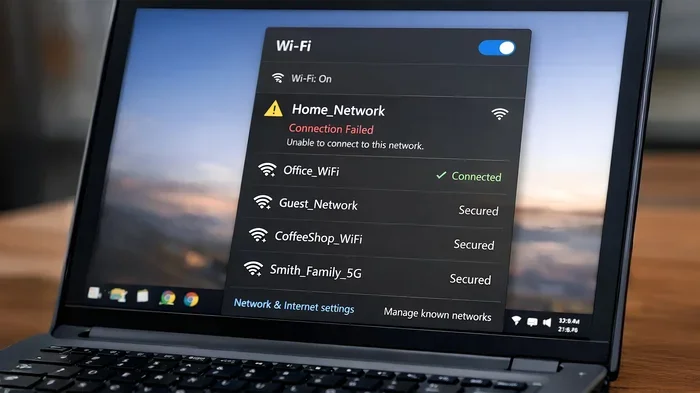
This whole process happens in milliseconds. But if the driver is missing, corrupted, or outdated, this communication breaks down. You might see a “No Internet Access” warning, or your device might not even detect available networks.
Why Do Wi-Fi Drivers Matter?
Wireless connectivity depends entirely on drivers. Here are a few reasons why they matter:
- Connection stability: A good driver ensures your Wi-Fi connection stays steady and does not drop randomly.
- Speed: Updated drivers often include optimizations that improve your wireless speed and signal strength.
- Security: Driver updates frequently patch vulnerabilities that could expose your wireless network to threats.
- Compatibility: New drivers help your device work with the latest routers and Wi-Fi standards like Wi-Fi 6 and Wi-Fi 7.
Quick Tip
If your Wi-Fi keeps disconnecting or your speeds are slower than expected, checking your wireless network driver should be one of the first things you try. It is a simple fix that many people overlook.
Do You Actually Need Wi-Fi Drivers?
The honest answer is yes, you need them. Every device that uses Wi-Fi relies on a driver of some kind. The question is not whether you need them — it is whether you need to manage them yourself.
Most modern computers come with pre-installed wireless drivers. When you buy a new laptop or desktop, the operating system usually detects the wireless hardware and installs the right driver automatically. This is why you can connect to Wi-Fi right out of the box most of the time.
However, there are situations where you need to install or update drivers manually. Let us look at when that happens.
When You Need to Install a Wi-Fi Driver Manually
There are several common scenarios where manual driver installation becomes necessary:
- You built your own PC: If you assembled a desktop computer yourself, the wireless network card might not come with a pre-installed driver. You will need to download it from the manufacturer’s website.
- You use a USB Wi-Fi adapter: These small plug-and-play devices often require a separate driver installation before they work. The adapter box usually includes a driver CD, or you can download it online.
- You reinstalled your operating system: After a fresh Windows or Linux install, your Wi-Fi driver might not be included. You will need internet access through a wired connection or another device to download it.
- Your driver got corrupted: Sometimes a failed update or a software conflict can damage your wireless adapter driver, requiring a fresh install.
Do Mac Computers Need Wi-Fi Drivers?
Mac computers handle drivers differently than Windows PCs. Apple manages wireless drivers through system updates. You rarely need to install a Mac Wi-Fi driver manually because macOS includes built-in support for Apple’s wireless hardware.
However, if you use a third-party USB Wi-Fi adapter on a Mac, you may need to download a specific driver. Apple also updates its internal wireless drivers through macOS updates, so keeping your system up to date is important.
How to Check and Update Your Wi-Fi Driver
Keeping your network driver up to date is one of the best things you can do for your wireless connection. Here is how to check and update your driver on different systems.
Updating Wi-Fi Drivers on Windows
Windows makes it relatively easy to manage wireless drivers. Here are the steps:
- Right-click the Start button and select Device Manager.
- Expand the Network adapters section.
- Right-click your Wi-Fi adapter and select Update driver.
- Choose Search automatically for drivers.
- Windows will check for the latest wireless driver and install it if available.
You can also visit the website of your laptop or motherboard manufacturer and download the latest Wi-Fi driver directly. This method often gives you the most recent version.
Updating Wi-Fi Drivers on macOS
On a Mac, wireless driver updates come through macOS system updates. To check for updates:
- Click the Apple menu and select System Settings.
- Go to General and then Software Update.
- If a driver update is available, it will be included in the update package.
For third-party adapters, visit the manufacturer’s website and download the driver specific to your Mac model.
Updating Wi-Fi Drivers on Linux
Linux users often have a different experience with wireless drivers. Many Linux wireless drivers are built into the kernel, which means they work out of the box. However, some Wi-Fi cards require proprietary drivers that you must install manually.
You can use your distribution’s package manager to search for and install network driver updates. The command varies depending on your Linux distribution, but it usually involves running a command like sudo apt update && sudo apt upgrade.
Quick Tip
If you are unsure whether your wireless driver is up to date, check the manufacturer’s support page for your device model. Enter your model number and look for the latest driver download. This is often faster than waiting for automatic updates to roll through.
Common Wi-Fi Driver Problems and How to Fix Them
Even with the best wireless adapter driver, problems can happen. Here are the most common issues and how to solve them.
Wi-Fi Adapter Not Showing Up
If your Wi-Fi adapter does not appear in Device Manager or System Settings, the driver might be missing or corrupted. Try these steps:
- Restart your computer and check again.
- In Device Manager, click Action and then Scan for hardware changes.
- If the adapter still does not appear, uninstall any related drivers and restart your PC.
- Download and install the latest driver from the manufacturer’s website.
Slow Wi-Fi Speeds
Sometimes a network driver update can dramatically improve your wireless speed. Older drivers may not support the latest Wi-Fi standards, which means you are leaving speed on the table. Check for updates and see if your internet connection improves.
Frequent Disconnections
If your Wi-Fi keeps dropping, an outdated or conflicting wireless driver could be the culprit. Try updating the driver first. If that does not work, check your router settings and signal strength as well.
Driver Conflicts
Sometimes installing a new wireless driver can conflict with existing software or another network adapter. This can cause wireless connectivity issues. To fix this:
- Open Device Manager and look for any devices with a yellow warning icon.
- Uninstall the conflicting driver and restart your computer.
- Reinstall the Wi-Fi driver cleanly from the manufacturer’s website.
Expert Insight
According to networking professionals, the majority of Wi-Fi troubleshooting cases they handle involve driver issues. Before you start blaming your router or internet service provider, make sure your wireless driver is up to date. It is the simplest fix and it is often overlooked.
Wi-Fi Drivers vs. Other Network Components
It helps to understand where Wi-Fi drivers fit into the bigger picture of your network setup. Here is a simple comparison of the key components involved in wireless connectivity.
| Component | Role | Needs Driver? |
|---|---|---|
| Wi-Fi Adapter | Physical hardware that sends and receives wireless signals | Yes, requires a driver to function |
| Wi-Fi Driver | Software that tells the adapter how to communicate | Already the driver itself |
| Router | Broadcasts the Wi-Fi signal and connects to the internet | Has its own firmware, not a driver |
| Operating System | Manages the connection between the driver and your applications | Includes built-in driver support for most adapters |
| USB Wi-Fi Adapter | External device that adds Wi-Fi capability to a computer | Yes, requires a separate driver to be installed |
As you can see, the Wi-Fi driver is the middleman. It sits between your wireless adapter hardware and your operating system, making sure everything communicates properly. Without it, none of the other components can work together to get you online.
Do Bluetooth Drivers Work the Same Way?
Bluetooth drivers are similar to Wi-Fi drivers in that they are both wireless communication drivers. However, they serve different purposes. Bluetooth handles short-range connections to devices like headphones, keyboards, and mice. Wi-Fi drivers handle your internet connection.
Some devices use a combined wireless adapter that handles both Wi-Fi and Bluetooth. In these cases, a single driver package manages both connections. If you have Bluetooth issues alongside Wi-Fi problems, a single driver update might fix both.
Common Mistakes People Make with Wi-Fi Drivers
There are several mistakes that people regularly make when dealing with wireless drivers. Avoiding these can save you a lot of frustration.
Skipping Driver Updates
Many people never think about updating their network adapter driver until something breaks. Regular updates improve performance, fix bugs, and patch security holes. Make it a habit to check for driver updates every few months.
Downloading Drivers from Untrusted Sources
The internet is full of websites offering free driver downloads, and many of them are risky. Some contain malware or outdated versions that can cause more harm than good. Always download Wi-Fi drivers from the manufacturer’s official website or through your operating system’s built-in update tool.
Ignoring Error Messages
If your system shows a driver error in Device Manager, do not ignore it. Error messages like “Device not working properly” or “Driver failed to load” are your computer telling you something is wrong. Address these issues early before they turn into a complete loss of wireless connectivity.
Assuming All Drivers Are the Same
Not all wireless drivers are created equal. Different wireless adapters require different drivers, even if they are from the same manufacturer. Always make sure you download the driver that matches your specific wireless card model and your operating system version.
Key Takeaways
- Wi-Fi drivers are essential software that enable wireless communication between your device and your router.
- Most modern devices have pre-installed drivers, but manual updates can improve performance.
- Driver problems are a leading cause of Wi-Fi issues like slow speeds, disconnections, and adapter detection failures.
- Always download drivers from official sources to avoid security risks and compatibility problems.
- Keeping your drivers updated is one of the simplest and most effective steps you can take for better wireless performance.
Conclusion
So, are Wi-Fi drivers a thing? Absolutely. They are one of the most important pieces of software on any device that connects to a wireless network. From your laptop to your desktop to that USB adapter sitting in your bag, Wi-Fi drivers make wireless connectivity possible.
The good news is that you do not need to be a tech expert to manage them. Most of the time, your operating system handles everything automatically. But knowing how WiFi drivers work gives you the power to troubleshoot problems, improve your connection speed, and keep your wireless network running smoothly.
Take a few minutes today to check your network driver status. If it has been a while since your last update, a simple driver update could make a noticeable difference in your internet connection experience. Your wireless adapter will thank you, and you will enjoy a faster, more stable connection as a result.
Wi-Fi drivers might not be glamorous, but they are the unsung heroes of your wireless setup. Give them the attention they deserve, and you will reap the rewards every time you connect to the internet.
Frequently Asked Questions
What happens if I uninstall my Wi-Fi driver?
Your computer will lose the ability to connect to any wireless network. The wireless adapter will still be physically present, but without the driver, your system cannot communicate with it. You can fix this by reinstalling the driver or restarting your computer, which often triggers an automatic reinstall.
How often should I update my Wi-Fi driver?
There is no strict rule, but checking for updates every two to three months is a good practice. If you notice Wi-Fi problems like slow speeds or disconnections, check for a driver update immediately. Major operating system updates sometimes also include wireless driver improvements.
Can I use my Wi-Fi without a driver?
No. A Wi-Fi driver is required for any device to connect to a wireless network. The driver acts as the translator between your operating system and the wireless hardware. Without it, your device simply cannot send or receive Wi-Fi signals.
Are Wi-Fi drivers the same for every computer?
No. Different computers use different wireless adapters, and each adapter requires its own specific driver. Even two computers from the same manufacturer can have different wireless hardware and need different network drivers. Always check your exact model before downloading a driver.
Do USB Wi-Fi adapters need special drivers?
Most USB Wi-Fi adapters do require a separate driver installation. Some older adapters are plug-and-play and work without a driver, but modern adapters with advanced features usually need a driver downloaded from the manufacturer’s website.
Will updating my Wi-Fi driver improve my internet speed?
It can. Updated wireless drivers often include performance optimizations and support for newer Wi-Fi standards. While a driver update will not magically turn a slow internet plan into a fast one, it can help you get the most out of your existing connection by fixing bottlenecks caused by outdated software.