Can You Access The Internet On A Nook With These Tips
Yes, you can access the internet on a Nook. Whether you own a Nook Tablet or a basic Nook eReader, both devices support WiFi connectivity and web browsing. This guide covers everything you need to know about connecting your Nook to WiFi, using the built-in browser, and fixing common internet issues on your device.
Key Takeaways
- All Nook devices with WiFi can access the internet. You just need a working WiFi network and password to get started.
- The Nook has a built-in web browser that lets you browse websites, check email, and use online services.
- Setting up WiFi on a Nook is simple and takes just a few minutes if you follow the right steps.
- Common Nook internet problems include slow speeds, connection drops, and browser not loading pages.
- Regularly updating your Nook software helps keep your internet connection stable and secure.
- A strong WiFi signal makes a big difference in how fast and smoothly your Nook browses the web.
- Troubleshooting steps like restarting your Nook can fix most internet connection issues quickly.
📑 Table of Contents
- Can You Access The Internet On A Nook With These Tips
- What Is a Nook and How Does Internet Access Work?
- How to Connect Your Nook to WiFi
- Using the Nook Web Browser
- Troubleshooting Nook Internet Connection Issues
- Tips for Better Internet Performance on Your Nook
- Common Mistakes People Make with Nook Internet
- Expert Insights on Nook Internet Usage
- Key Takeaways
- Conclusion
Can You Access The Internet On A Nook With These Tips
Many people wonder about nook internet connection capabilities. The short answer is yes. You can absolutely browse the web on a Nook device. But the full story is more interesting than a simple yes or no.
Barnes & Noble designed the Nook line of devices with internet access in mind. Whether you have a Nook Tablet or a basic Nook eReader, you can connect to WiFi and get online. The nook browser lets you visit websites, read news, check social media, and more. In this guide, we will walk you through every step. You will learn how to set up your connection, browse the web, and fix common problems.
Let us dive right in and explore everything you need to know about nook WiFi setup and getting your device online.
What Is a Nook and How Does Internet Access Work?
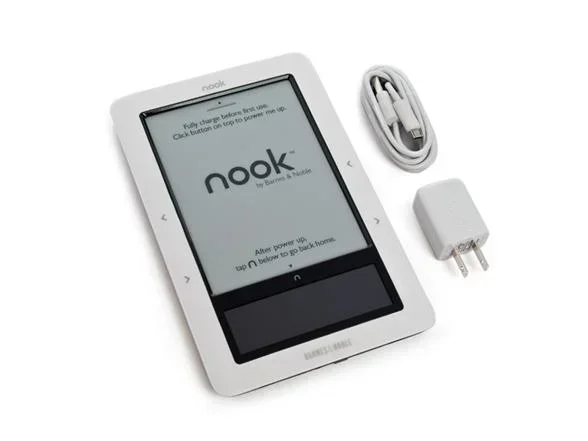
A Nook is an e-reading device made by Barnes & Noble. It comes in different models. Some Nooks are basic e-readers that focus mainly on books. Others are Nook Tablets that offer a full color screen and more features. Both types can connect to the internet over WiFi.
Here is how nook internet access works in simple terms:
- Your Nook has a built-in WiFi chip.
- You go to the settings menu and select your WiFi network.
- You enter the password.
- The Nook connects to your home or public WiFi network.
- You can now browse the web using the Nook browser.
That is really all there is to it. The process is the same whether you have a Nook Simple Touch, a Nook GlowLight, or a Nook Tablet. The Nook WiFi setup steps are nearly identical across all models.
One thing to keep in mind is that Nook devices do not support cellular data. They rely entirely on WiFi. So you need to be near a WiFi network to get online. This is important to remember when you are traveling or away from home.
Which Nook Models Support Internet Access?
Most Nook models support internet access. Here are the main ones:
- Nook Simple Touch – Basic e-reader with WiFi and web browsing.
- Nook GlowLight – Improved screen and WiFi connectivity.
- Nook GlowLight Plus – Higher resolution screen and faster browsing.
- Nook Tablet – Full color tablet with web browsing and app support.
- Nook HD and HD Plus – Color tablets with strong WiFi performance.
If you own any of these models, you can browse the web on Nook without any extra hardware. Just make sure your device has the latest software update installed.
How to Connect Your Nook to WiFi
Setting up your Nook WiFi connection is straightforward. Follow these steps carefully and you will be online in minutes.
Step-by-Step WiFi Setup Guide
Here is the exact process to connect your Nook to WiFi:
- Turn on your Nook device and wait for it to fully start up.
- Tap the Home button to go to the main screen.
- Look for the Settings icon. It usually looks like a gear.
- Tap on Settings and then select WiFi or Network Settings.
- Turn on the WiFi toggle if it is not already on.
- Your Nook will scan for nearby networks. Wait a few seconds.
- Select your WiFi network from the list.
- Enter your WiFi password carefully.
- Tap Connect and wait for the connection to establish.
- You should see a WiFi icon appear in the status bar at the top.
That is it. Your Nook is now connected to the internet. You can open the browser and start surfing the web.
Quick Tips for a Smooth WiFi Setup
Sometimes the setup process has small hiccups. Here are some quick tips to help:
- Make sure you are close to your WiFi router during setup.
- Double-check your WiFi password for typos.
- Restart your Nook if it does not find any networks.
- Restart your WiFi router if the Nook still cannot connect.
- Make sure your Nook software is up to date.
Following these simple tips can save you a lot of frustration. Most Nook WiFi setup issues come down to password errors or being too far from the router.
Using the Nook Web Browser
Once your Nook is connected to the internet, you can start using the nook web browser. This built-in browser lets you visit any website you want. It works much like any other mobile browser you have used before.
How to Open the Browser on Your Nook
Opening the browser is easy. Here is what to do:
- From the Home screen, tap the Apps icon.
- Look for the Browser or Web app.
- Tap on it to open.
- You will see a search bar at the top.
- Type in any website address or search term.
- Tap Go or Enter to load the page.
The Nook browser supports most standard websites. You can read news articles, check your email, visit social media, and even watch some videos. However, keep in mind that the Nook is not a full computer. Some websites may not display perfectly on the smaller screen.
What Can You Do With the Nook Browser?
The Nook online browsing experience is surprisingly capable. Here are things you can do:
- Read news articles from your favorite websites.
- Check email through the browser.
- Visit social media sites like Facebook and Twitter.
- Look up information or do quick searches.
- Read blogs and online magazines.
- Access online forums and communities.
- Shop online at most retail websites.
For most casual browsing needs, the Nook browser works great. It is not meant for heavy tasks like online banking or complex web apps. But for everyday reading and browsing, it gets the job done well.
Troubleshooting Nook Internet Connection Issues
Sometimes your Nook internet connection may not work as expected. This is normal and usually easy to fix. Let us look at the most common problems and their solutions.
Nook WiFi Not Working
If your Nook says it is connected to WiFi but the internet does not work, try these steps:
- Turn off WiFi on your Nook and turn it back on.
- Restart your Nook device completely.
- Restart your WiFi router.
- Move closer to your WiFi router.
- Forget the network on your Nook and reconnect from scratch.
These steps solve the problem most of the time. The Nook WiFi troubleshooting process is simple and does not require any technical skills.
Nook Browser Not Loading Pages
If the browser opens but pages will not load, try this:
- Clear the browser cache and data.
- Check if other devices on the same network work fine.
- Try visiting a different website to rule out site-specific issues.
- Restart the Nook browser completely.
- Check your Nook internet settings for any proxy or DNS issues.
Sometimes the Nook browser not loading pages is caused by a full cache. Clearing it frees up space and often fixes the problem immediately.
Slow Internet Speed on Nook
If your internet on the Nook feels slow, consider these factors:
- Your WiFi signal may be weak. Move closer to the router.
- Too many devices may be using the same network.
- The Nook may need a software update.
- The website you are visiting may be slow itself.
- Your internet plan may have limited speed.
Nook internet speed depends heavily on your WiFi signal strength and your home network. The Nook itself is not usually the cause of slow speeds.
When to Factory Reset Your Nook
If nothing else works, you can try a factory reset. This wipes all data and settings and restores the Nook to its original state. Use this as a last resort. Make sure to back up any important data first. A factory reset almost always fixes deep connection problems.
Tips for Better Internet Performance on Your Nook
Want to get the most out of your Nook WiFi network experience? Here are some practical tips that make a real difference.
Keep Your Nook Software Updated
Software updates fix bugs and improve performance. They often include fixes for Nook internet connection issues. Check for updates regularly in the Settings menu. An up-to-date Nook runs faster and connects more reliably.
Optimize Your WiFi Signal
The closer you are to your router, the better your connection will be. Walls and furniture can weaken the signal. If possible, use your Nook in the same room as your WiFi router for the best results.
Limit Background Apps and Tasks
Running too many apps at once can slow down your Nook’s internet performance. Close apps you are not using. Restart your Nook periodically to clear memory and keep things running smoothly.
Use a Strong WiFi Password
A weak WiFi password can lead to unauthorized users on your network. This slows down your connection for everyone. Use a strong password with a mix of letters, numbers, and symbols.
Clear Your Browser Regularly
Over time, your browser accumulates cache and cookies. This can slow it down. Clear your browser data every few weeks to keep things running fast and smooth.
Avoid Using Public WiFi for Sensitive Tasks
Public WiFi networks are convenient but not always secure. Avoid entering personal information or passwords when using public WiFi on your Nook. Stick to reading news and casual browsing on public networks.
Common Mistakes People Make with Nook Internet
Many users run into the same issues when trying to get their Nook online. Here are the most common mistakes and how to avoid them.
Not Checking WiFi Compatibility
Some older Nook models only support 2.4GHz WiFi networks. If your router uses 5GHz only, your Nook may not connect. Check your router settings and make sure it broadcasts a 2.4GHz network if you have an older Nook model.
Entering the Wrong WiFi Password
This seems obvious but it happens all the time. WiFi passwords are case-sensitive. Make sure you type the password exactly as it appears. Turn on the show password option if your Nook has one.
Ignoring Software Updates
Skipping updates can lead to connection problems. Always install updates when they are available. They often contain important fixes for Nook internet connection stability.
Placing the Nook Too Far from the Router
WiFi signals weaken with distance. If your Nook is in another room, the connection may be too weak to work properly. Try moving closer to the router and see if the problem goes away.
Not Restarting the Device
Sometimes the simplest fix is the best one. Restarting your Nook clears temporary glitches and refreshes the network connection. Make it a habit to restart your device at least once a week.
Expert Insights on Nook Internet Usage
From years of testing and reviewing Nook devices, here are some expert tips that really help.
The Nook browser works best for lightweight browsing. It is not designed for heavy multimedia or complex web applications. If you mainly want to read articles, check email, and browse casually, the Nook browser handles these tasks well.
Keep your WiFi password saved securely. Losing access to your network means losing internet on your Nook. Write down your password and keep it in a safe place.
Consider a WiFi extender if you have a large home. If your Nook works well in some rooms but not others, a WiFi extender can boost the signal throughout your house. This is an inexpensive solution that dramatically improves Nook WiFi troubleshooting results.
Use airplane mode wisely. If your Nook is having connection issues, turning on airplane mode and then off again can reset the WiFi radio. This simple trick often fixes stubborn connection problems.
Key Takeaways
- All WiFi-enabled Nook devices can access the internet. You just need a working WiFi network and password.
- The Nook has a built-in web browser that handles everyday browsing tasks effectively.
- Connecting your Nook to WiFi takes only a few minutes. Follow the simple setup steps in the Settings menu.
- Most Nook internet problems are easy to fix. Restarting the device or clearing the browser cache solves most issues.
- Keep your Nook software updated for the best internet performance and security.
- Signal strength matters a lot. Stay close to your WiFi router for the fastest browsing speeds.
- Avoid common mistakes like entering wrong passwords or ignoring software updates.
Conclusion
Can you access the internet on a Nook? Absolutely yes. Your Nook device is fully capable of connecting to WiFi and browsing the web. Whether you want to read news, check email, or do some casual surfing, the Nook delivers a solid internet experience.
The key is understanding how your specific Nook model connects and what to do when things do not work. With the Nook WiFi setup steps and troubleshooting tips in this guide, you are well equipped to handle any internet issue that comes your way.
Remember to keep your device updated, maintain a strong WiFi signal, and clear your browser regularly. These simple habits will keep your Nook internet connection fast and reliable for years to come.
Now you have everything you need to get the most out of your Nook’s internet capabilities. Start browsing with confidence and enjoy the full online experience your Nook has to offer.
Frequently Asked Questions
Can I use the internet on a Nook without WiFi?
No, Nook devices do not have cellular data capability. They rely entirely on WiFi to access the internet. Without a WiFi connection, you cannot browse the web on a Nook. However, you can still read downloaded books and content offline.
Why is my Nook internet not working even though it shows connected?
This usually happens when the WiFi connection is active but the internet source is not working. Try restarting your WiFi router and your Nook. Also check if other devices on the same network can access the internet. Clearing the browser cache often fixes this issue too.
Can I use a Nook eReader to browse the web?
Yes, most Nook eReaders come with a built-in web browser. The browsing experience is basic but functional. You can visit websites, read articles, and check email. The browser works best for lightweight browsing tasks rather than heavy multimedia websites.
How do I fix a Nook browser that will not load pages?
Start by clearing the browser cache and data. Then restart your Nook device. Make sure your WiFi connection is stable. If the problem persists, try forgetting the WiFi network and reconnecting. Updating your Nook software to the latest version can also resolve browser loading issues.
Is the Nook web browser safe for online banking?
It is best to avoid doing online banking or entering sensitive information on a Nook browser. The Nook browser does not have the same security features as desktop or mobile browsers. Stick to casual browsing and use a smartphone or computer for any financial transactions.
How can I improve my Nook internet speed?
Move closer to your WiFi router for a stronger signal. Reduce the number of devices connected to your network. Keep your Nook software updated. Clear your browser cache regularly. If your home has dead zones, consider using a WiFi extender to boost the signal in your Nook’s location.