Can I Extend A Usb Cable Without Losing Speed Or Signal
Yes, you can extend a USB cable without losing speed or signal. The key is choosing the right type of extension, such as an active repeater cable or a quality passive cable. With the proper setup, your devices will keep working at full speed and stay connected reliably.
If you have ever needed to move a device farther away from your computer, you know the frustration of a short USB cable. Maybe your printer sits on a far desk. Maybe your external hard drive is tucked behind a bookshelf. Or maybe your phone charger just does not reach the outlet. Whatever the reason, the question is the same: can you extend a USB cable without losing speed or signal?
The short answer is yes. You absolutely can extend a USB cable and keep it working well. But the longer answer matters just as much. Not all extension methods are created equal. Some will slow your data transfer. Some will kill your charging speed. And some will work perfectly fine. In this guide, you will learn exactly how to extend a USB cable the right way. You will find out what works, what does not, and how to avoid common pitfalls.
We will cover every type of USB extension solution. We will look at passive cables, active repeater cables, USB hubs, and even USB over Ethernet adapters. By the end, you will know exactly which option fits your needs. Let us get into it.
Key Takeaways
- You can extend a USB cable: Multiple solutions exist to safely lengthen your USB connection without sacrificing performance.
- Active cables are best for long distances: They boost the signal and prevent speed loss over extended runs.
- Cable quality matters a lot: Cheap, low-quality cables cause signal degradation and data transfer problems.
- USB version compatibility is critical: Using mismatched USB versions can limit your speed and power delivery.
- Avoid daisy chaining too many cables: Each connection adds resistance and weakens the signal further.
- Powered USB hubs help with charging: They maintain consistent power delivery across longer cable runs.
- Keep it under 5 meters for passive cables: Beyond that length, signal loss becomes a real problem.
📑 Table of Contents
- Why Would You Need to Extend a USB Cable?
- Can You Actually Extend a USB Cable?
- Types of USB Extension Solutions
- How to Extend a USB Cable Without Losing Speed
- Common Mistakes to Avoid When Extending USB Cables
- Best USB Extension Options for Every Need
- Quick Tips for Extending USB Cables
- Expert Insights on USB Cable Extensions
- Key Takeaways
- Conclusion
Why Would You Need to Extend a USB Cable?
USB cables come in standard lengths. Most are 3 feet, 6 feet, or 10 feet long. That works fine for many setups. But sometimes you need more reach. Here is why people look for ways to extend a USB cable.
Common Use Cases
- Home office setups: Your computer desk is far from your printer or scanner.
- Gaming setups: You want to place your external GPU or capture card in a different room.
- Studio equipment: Audio interfaces and MIDI controllers often sit far from the computer.
- Charging devices: Your phone or tablet charger does not reach the nearest outlet.
- Smart home devices: Webcams, sensors, or hubs need to be placed in awkward spots.
- Workshops and garages: You need to connect a 3D printer or CNC machine from a distance.
When a Short Cable Just Will Not Cut It
Sometimes the default cable length simply does not work. You might have a great setup, but the cable cannot reach where you need it to go. Running a device on a short cable also creates clutter. You end up with devices pushed against walls or tucked into tight spaces. That is not good for airflow or cable management. Extending a USB cable gives you flexibility and keeps your workspace clean.
Another reason is future-proofing. If you plan to rearrange your desk or add new devices, having a longer USB connection ready makes sense. It is much easier to set up a proper extension now than to deal with cable chaos later.
Can You Actually Extend a USB Cable?
This is the most important question. And the answer depends on a few factors. USB signals are electrical. They travel through copper wire inside the cable. As the signal travels, it weakens. This is called signal attenuation. The longer the cable, the more the signal degrades.
How USB Signals Work Over Distance
USB was never designed for long cable runs. The original USB 1.1 standard limited cables to just 3 meters, or about 9.8 feet. USB 2.0 bumped that up to 5 meters, or about 16.4 feet. USB 3.0 and 3.1 kept a similar limit of around 3 meters for best performance. So right out of the box, extending a USB cable beyond these limits can cause problems.
But here is the good news. Technology has come a long way. You can now use active cables, repeaters, and other tools to push USB signals much farther. The trick is knowing which tool to use for your situation.
The Science Behind Signal Loss
When an electrical signal moves through a wire, it loses strength. This happens because of resistance in the copper conductor. The longer the wire, the more resistance there is. For USB cables, this means data transfer speeds drop and power delivery weakens. You might notice slower file transfers. Or your device might not charge properly. In worst cases, the connection drops entirely.
USB cables also have a limited bandwidth. Think of bandwidth like a water pipe. A short, wide pipe lets water flow fast. A long, narrow pipe slows things down. When you extend a USB cable, you are making that pipe longer. Without help, the signal slows down or gets lost.
Types of USB Extension Solutions
There are several ways to extend a USB cable. Each has its own strengths and weaknesses. Let us look at the most common options.
Passive USB Extension Cables
A passive extension cable is the simplest option. It is just a cable with a USB plug on each end. You plug one end into your computer and the other into your device. These cables are affordable and easy to use. They work well for short extensions, typically up to 3 to 5 meters.
However, passive cables have limits. They do not boost the signal. They just carry it. So if you use a long passive cable, you will lose some speed and power. For short runs, a passive cable is perfectly fine. For longer runs, you need a better solution.
Active USB Repeater Cables
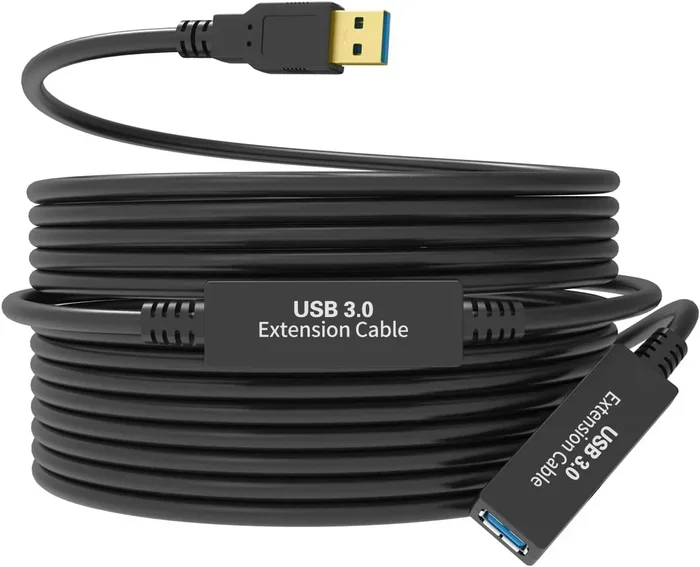
An active USB repeater cable contains a chip that boosts the signal. Think of it like a relay runner passing a baton. The signal gets a fresh push at regular intervals. This keeps data transfer speeds high and power delivery strong.
Active repeater cables can extend a USB connection up to 10 meters or more. They are the best choice for longer runs where speed matters. The downside is they cost more than passive cables. But for important devices, they are worth every penny.
USB Hub as an Extension Solution
A powered USB hub can also serve as an extension tool. You connect the hub to your computer with a short cable. Then you use longer cables from the hub to your devices. The hub provides a clean signal boost at the junction point.
This method works great when you need to connect multiple devices far from your computer. It also gives you extra ports. Just make sure you use a powered USB hub that plugs into an outlet. Unpowered hubs can struggle with power delivery over long distances.
USB Over Ethernet Adapters
For really long USB cable runs, USB over Ethernet adapters are a game changer. These kits let you run a USB connection over standard Ethernet cable. You can extend a USB connection up to 50 meters or more. That is perfect for setups where your device is in another room.
The setup requires two adapters and an Ethernet cable. One adapter plugs into your computer. The other plugs into your USB device. The signal converts to Ethernet, travels over the cable, and converts back to USB at the other end. It is simple and very effective.
How to Extend a USB Cable Without Losing Speed
Now that you know the options, let us talk about how to actually do it. Extending a USB cable the wrong way will cost you speed. Extending it the right way keeps everything running smoothly.
Choosing the Right Cable Length
The length of your extension cable matters a lot. Here are some general guidelines to follow.
- Under 3 meters: A passive cable works fine for most devices.
- 3 to 5 meters: Use a high-quality passive cable or an active repeater cable.
- 5 to 10 meters: An active repeater cable is the best choice.
- Over 10 meters: Consider a USB over Ethernet adapter or a powered USB hub setup.
Do not just grab the longest cable you can find. Longer cables mean more signal loss. Pick the shortest extension that meets your needs. This keeps your connection fast and reliable.
Using Quality Components
Not all USB cables are created equal. A cheap extension cable might save you a few dollars, but it will cost you in performance. Look for cables that are USB-IF certified. These cables meet strict quality standards. They use good shielding to protect the signal. They also have proper gauge wiring for consistent power delivery.
When shopping for an extension, check the specifications. Look for the USB version support, the cable gauge, and the build quality. A well-made cable from a reputable brand is always a smart investment.
Power Delivery Considerations
Extending a USB cable can affect how much power reaches your device. USB 2.0 delivers up to 2.5 watts of power. USB 3.0 delivers up to 4.5 watts. USB-C with Power Delivery can supply much more. But when you add an extension, some power is lost along the way.
If you are charging a device, use a powered USB extension or a hub with its own power supply. This ensures your device gets the full power it needs. For data-only devices like external hard drives, an active repeater cable will maintain both speed and power.
Common Mistakes to Avoid When Extending USB Cables
There are several mistakes people make when they try to extend a USB cable. Avoiding these pitfalls will save you headaches and keep your devices running smoothly.
Using Cheap, Low-Quality Cables
This is the number one mistake. A $3 extension cable from a discount store might seem like a great deal. But it often uses thin wires and poor shielding. The result is slow data transfer, dropped connections, and weak charging. Always invest in a quality cable that matches your USB version.
Daisy Chaining Too Many Cables
Some people plug one extension cable into another. This is called daisy chaining. It might seem like a good idea, but it is not. Each connection adds resistance and weakens the signal. After two or three chained cables, your speed and power drop significantly. If you need a long run, use one quality cable or a repeater instead.
Ignoring USB Version Compatibility
Not all USB cables support the same speeds. A USB 2.0 cable cannot carry USB 3.0 speeds, no matter how good it is. If you extend a USB 3.0 device with a USB 2.0 cable, you will be stuck at USB 2.0 speeds. Always check the USB version of your cables and devices. Match them for the best performance.
Forgetting About Cable Placement
Where you run your USB extension cable matters. Keep it away from power cords and electromagnetic sources. Running a USB cable right next to a power cable causes interference. This can degrade your signal and slow your connection. Use cable clips or ties to keep USB cables separated from power cables.
Best USB Extension Options for Every Need
Not sure which extension solution to choose? Here is a quick comparison of the most popular options.
| Solution | Max Distance | Speed Retention | Cost | Best For |
|---|---|---|---|---|
| Passive Extension Cable | Up to 3m | Good for short runs | Low | Simple, short extensions |
| Active Repeater Cable | Up to 10m | Excellent | Medium | Medium-length high-speed runs |
| Powered USB Hub | Up to 5m per port | Very Good | Medium | Multiple devices, charging |
| USB Over Ethernet Kit | Up to 50m+ | Good | Higher | Long-distance connections |
Budget-Friendly Options
If you are on a tight budget, a passive extension cable is your best bet. Look for a 1 to 2 meter cable from a trusted brand. Brands like Anker, Cable Matters, and Ugreen offer affordable options that work well. Just keep the length short to avoid signal loss.
Premium Picks for Best Performance
For the best results, invest in an active repeater cable or a USB over Ethernet kit. These solutions maintain full USB speed over longer distances. They cost more upfront, but they save you from the frustration of slow or dropped connections. A quality extension is worth the investment.
Quick Tips for Extending USB Cables
- Always check your USB version: Make sure your extension cable supports USB 3.0 or USB 3.1 if your device does.
- Keep extension runs as short as possible: The shorter the total cable length, the better your signal stays.
- Use a powered hub for charging devices: This ensures consistent power delivery across the extension.
- Avoid sharp bends in the cable: Sharp bends can damage the internal wiring and weaken the signal.
- Test your connection after setup: Run a speed test to make sure your extended connection performs as expected.
- Label your cables: If you have multiple extensions, label them so you know which one goes where.
Expert Insights on USB Cable Extensions
According to USB implementers, the official group behind USB standards, the maximum reliable length for a single passive USB cable is 5 meters for USB 2.0 and 3 meters for USB 3.0. Beyond these limits, you need signal boosting technology. This is why active repeater cables and USB hubs exist. They bridge the gap between your device and your computer without sacrificing performance.
Industry experts also recommend avoiding extensions longer than 5 meters unless you are using a signal booster or USB over Ethernet solution. The signal simply cannot travel far enough through copper wire without help. If you need a 20-meter USB connection, do not try to do it with one long cable. Use a repeater or an Ethernet-based adapter instead.
Another expert tip is to always match your cable connectors. USB-C to USB-C is different from USB-A to USB-C. Using the wrong connector type can cause compatibility issues. Check your device ports before buying an extension cable. A quick look at the connectors on your computer and device will save you a lot of trouble.
Key Takeaways
- You can extend a USB cable successfully: Whether you need 3 feet or 50 feet, there is a solution that works.
- Match your extension to your needs: Short extensions use passive cables. Long extensions need active repeaters or Ethernet adapters.
- Quality always wins: A good cable from a trusted brand outperforms a cheap one every time.
- Watch your USB version: Extension cables must support the same USB version as your devices for full speed.
- Power delivery needs attention: Use powered hubs or active cables when charging devices over long distances.
- Avoid common mistakes: Do not daisy chain cables, ignore compatibility, or use low-quality components.
- Test your setup: After extending your USB cable, verify that speed and power delivery are still working properly.
Conclusion
Extending a USB cable is something anyone can do. The key is picking the right method for your situation. If you only need a short extension, a simple passive cable works great. For longer runs, an active repeater cable or USB hub keeps your speed and signal strong. And for really long distances, a USB over Ethernet adapter is the best choice.
The most important thing to remember is quality. A well-made extension cable from a reputable brand will serve you for years. It keeps your devices connected, your data transferring fast, and your workspace organized. Do not let a short cable limit where you place your devices.
Now that you know how to extend a USB cable without losing speed or signal, you can set up your devices exactly where you need them. Take your time, choose the right solution, and enjoy a seamless USB experience no matter how far apart your devices are.
Frequently Asked Questions
Can I extend a USB cable and still get USB 3.0 speeds?
Yes, you can. You just need to use an extension cable that supports USB 3.0 or higher. Check the cable specifications before buying. A USB 3.0 certified extension cable will maintain the same fast speeds as your original cable.
How long can a USB extension cable be without losing speed?
For passive USB cables, keep the total length under 5 meters for USB 2.0 and under 3 meters for USB 3.0. Active repeater cables can go up to 10 meters without speed loss. For runs longer than that, use a USB over Ethernet adapter.
Does extending a USB cable affect charging speed?
It can. Longer cables have more resistance, which reduces the power reaching your device. To maintain full charging speed, use a short extension or a powered USB hub. This ensures your device gets the maximum power it needs.
Can I plug two USB extension cables together?
You can, but you should avoid it. Daisy chaining cables adds resistance and weakens the signal. If you need a longer run, use one quality cable instead of connecting two together. Your connection will be much more stable.
What is the difference between a passive and active USB extension cable?
A passive cable is just a wire with connectors on each end. It does not boost the signal. An active cable has a built-in chip that amplifies the signal as it travels. This keeps data speeds and power delivery strong over longer distances.
Do I need a powered USB hub for extensions?
If you are extending a connection for a power-hungry device like an external hard drive, yes. A powered hub draws power from an outlet and delivers it to your device. This prevents power loss over long cable runs and keeps your device working properly.