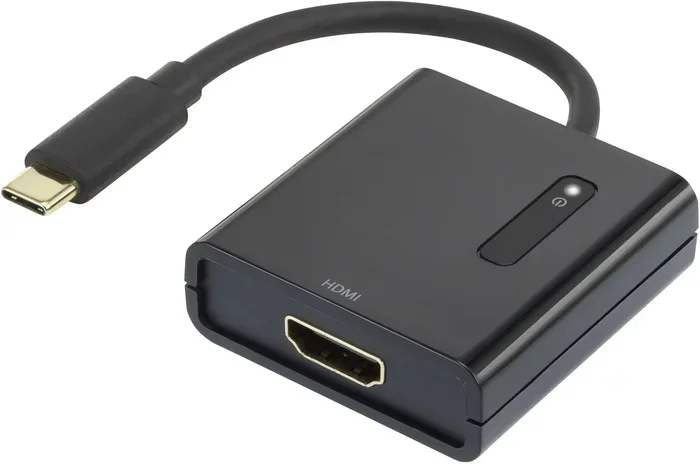
Can I Connect USB To HDMI Cable And Make It Work Now
You can absolutely connect a USB to an HDMI cable using the right adapter or converter. Whether you want to mirror your laptop screen, extend your display, or hook up a device to a TV, a USB to HDMI adapter makes it simple. This guide covers every method, adapter type, and troubleshooting tip you need to make it work today.
Can I Connect USB To HDMI Cable And Make It Work Now? Absolutely. If you have ever sat in front of a monitor, a TV, or a projector and wished your USB port could send video, you are not alone. The good news is that with the right USB to HDMI adapter, you can do exactly that.
This guide walks you through everything you need to know. We will cover the different types of adapters, how to set them up, common problems, and the best products on the market. By the end, you will know exactly how to connect USB to HDMI and get it working in minutes.
Let us get into it.
Key Takeaways
- USB to HDMI adapters are widely available: You can find them for USB-A, USB-C, and Micro USB ports.
- Plug-and-play options exist: Many adapters work instantly without installing extra software.
- USB-C to HDMI is the most popular: Modern laptops and phones often use USB-C for video output.
- Check compatibility first: Not every USB port supports video output. Make sure your device can send HDMI signals.
- Driver updates matter: Some adapters need drivers for full functionality on Windows and Mac.
- You can extend or mirror displays: Use your USB HDMI setup for presentations, gaming, or streaming.
📑 Table of Contents
What Is a USB to HDMI Connection?
A USB to HDMI connection lets you send video from a USB port to an HDMI display. Think of it as a bridge. Your computer, laptop, or tablet has a USB port. Your TV, monitor, or projector has an HDMI port. The adapter sits between them and translates the signal.
USB was originally designed for data transfer and charging. HDMI was built for high-definition video and audio. So these two technologies speak different languages. A USB HDMI adapter acts as a translator, converting the USB data signal into an HDMI video and audio output.
You might wonder why anyone would need this. Well, there are many reasons. Maybe your laptop has run out of HDMI ports. Perhaps you want to use a larger screen for a presentation. Or maybe you are traveling and need to connect your tablet to a hotel TV. Whatever the reason, connecting USB to HDMI is a practical solution.
How USB and HDMI Differ
USB and HDMI serve very different purposes. USB handles data and power. HDMI handles video and audio. Here is a quick look at how they differ.
- USB transfers data and delivers power to devices.
- HDMI carries uncompressed video and audio in one cable.
- USB comes in several shapes: USB-A, USB-B, USB-C, and Micro USB.
- HDMI has one main connector type for most consumer devices.
- USB speeds vary from USB 2.0 to USB 4.0.
- HDMI supports resolutions up to 8K in its latest versions.
Because of these differences, you cannot just plug a USB cable into an HDMI port and expect it to work. You need an adapter or a USB to HDMI cable that contains the right chip inside to convert the signal.
Why You Might Need a USB to HDMI Setup
There are many real-world situations where a USB HDMI adapter comes in handy. Here are some common ones.
- Presentations at work: You plug your laptop into a projector or conference room display using a USB-C to HDMI cable.
- Gaming on a big screen: Connect your laptop to a TV for a larger gaming experience.
- Streaming content: Use your USB port to output video to a smart TV.
- Extending your workspace: Add a second or third monitor through a USB display adapter.
- Travel setups: Connect a tablet or phone to a hotel room TV for movies or video calls.
- Older devices: Some older computers lack HDMI ports but have USB ports available.
As you can see, the reasons are plenty. And the good news is that setting up a USB to HDMI connection is easier than most people think.
Types of USB to HDMI Adapters and Cables
Not all adapters are the same. The type you need depends on your device and what you want to do. Let us break down the main options.
USB-A to HDMI Adapters
The USB-A port is the classic rectangular USB plug found on almost every desktop computer and older laptop. A USB-A to HDMI adapter plugs into this port and provides an HDMI output. These adapters often need a power source, usually from another USB port, because they draw extra power for video conversion.
These are great for desktop PCs and older laptops. If your device only has USB-A ports, this is your go-to option. Just make sure your computer supports HDMI output via USB before buying one.
USB-C to HDMI Cables and Adapters
USB-C is the modern standard. It is small, reversible, and found on most newer laptops, tablets, and smartphones. A USB-C to HDMI cable or adapter lets you connect directly to an HDMI display with minimal fuss.
Many USB-C to HDMI adapters support DisplayLink technology or use native DisplayPort Alt Mode. This means they can handle high resolutions, including 4K and even 8K in some cases. If you have a newer device, this is likely the adapter you need.
USB 3.0 vs USB 2.0 HDMI Adapters
Not all USB ports are created equal. Here is how they compare for video output.
- USB 3.0 offers faster data transfer speeds. It handles video better and supports higher resolutions.
- USB 2.0 is slower and may struggle with smooth video playback at high resolutions.
- USB 3.0 HDMI adapters are recommended for anything above 1080p.
- USB 2.0 adapters work fine for basic presentations or lower-resolution displays.
Always check which USB version your port supports before buying an adapter. Using a USB 2.0 HDMI adapter for 4K video will likely lead to frustration.
Micro USB to HDMI Adapters
Some older Android phones and tablets use Micro USB. A Micro USB to HDMI adapter can mirror your phone screen to a TV or monitor. However, not all phones support this feature. Check if your device has MHL (Mobile High-Definition Link) support before purchasing.
How to Connect USB to HDMI Step by Step
Setting up a USB to HDMI connection is straightforward. Follow these steps and you will be up and running in no time.
- Check your device: Make sure your computer or device has a USB port that supports video output.
- Buy the right adapter: Match the USB type on your device to the adapter. USB-A, USB-C, or Micro USB.
- Plug in the adapter: Insert the USB end into your device.
- Connect the HDMI cable: Plug one end of an HDMI cable into the adapter and the other into your display.
- Power on the display: Turn on your TV, monitor, or projector.
- Select the HDMI input: Use your display remote to switch to the correct HDMI channel.
- Install drivers if needed: Some adapters require drivers. Check the manufacturer website for instructions.
- Adjust display settings: Go to your device display settings to mirror or extend your screen.
That is it. In most cases, you will have video on your external display within minutes. The whole process is truly a plug and play HDMI experience with many modern adapters.
Quick Tips for a Smooth Setup
- Use a high-quality HDMI cable: Cheap cables can cause signal issues and lower resolution.
- Update your graphics drivers: Outdated drivers often cause display problems after connecting.
- Try a different USB port: Some USB ports on a computer are not designed for video output.
- Check the adapter’s maximum resolution: Make sure it supports the resolution of your display.
- Use a powered USB hub if needed: Some adapters need extra power and may not work from a single USB port alone.
Common Problems and How to Fix Them
Even with the right adapter, things can go wrong. Here are the most common issues people face when they connect USB to HDMI and how to solve them.
No Signal on the Display
This is the most common problem. If your screen shows nothing, try these fixes.
- Check the HDMI cable: Make sure it is firmly plugged in on both ends.
- Try a different HDMI port: Your display might have multiple inputs. Switch to another one.
- Restart your device: A simple reboot can fix detection issues.
- Update the adapter drivers: Go to the adapter manufacturer website and download the latest drivers.
- Check the USB port: Try a different USB port on your computer.
Flickering or Poor Video Quality
If the video works but looks bad, here is what to do.
- Lower the resolution: Set your display to 1080p instead of 4K to see if the adapter can handle it.
- Use a shorter HDMI cable: Longer cables can lose signal quality.
- Check the USB version: Make sure you are using a USB 3.0 port if your adapter requires it.
- Update your graphics card drivers: This often fixes flickering and quality issues.
Audio Not Working
Sometimes video works but there is no sound. Here is how to fix it.
- Check your display audio settings: Make sure the HDMI audio output is selected as the default device.
- Update audio drivers: Go to your sound settings and check for driver updates.
- Check the HDMI cable: Some cheap cables do not carry audio. Use a certified high-speed HDMI cable.
Adapter Not Recognized by the Computer
If your computer does not detect the USB HDMI adapter, try these steps.
- Unplug and replug the adapter: Sometimes the connection just needs to be reseated.
- Try another USB port: Avoid USB hubs for the initial connection. Plug directly into the computer.
- Install the driver manually: Download the driver from the manufacturer website instead of relying on Windows Update.
- Check for OS compatibility: Make sure the adapter supports your version of Windows, macOS, or Chrome OS.
Best USB to HDMI Adapters for 2024
Not all adapters are created equal. Here are some of the best USB to HDMI adapters available right now. These picks cover different needs and budgets.
Top Pick: USB-C to HDMI 4K Adapter
If you have a modern laptop or tablet, a USB-C to HDMI 4K adapter is the best choice. These adapters are compact, reliable, and support high resolutions. Look for ones that support DisplayPort Alt Mode for the best performance. Brands like Anker, Satechi, and UGREEN make excellent options.
Best for Desktops: USB-A to HDMI Adapter with Power
For desktop computers with USB-A ports, a USB-A to HDMI adapter that includes a power cable is ideal. The extra power ensures stable video output even at higher resolutions. These adapters often support 1080p or 4K output with no lag.
Best Budget Option: Basic USB-C to HDMI Cable
If you want something simple and affordable, a USB-C to HDMI cable works well for basic mirroring and 1080p output. These are great for occasional use and do not require any drivers in most cases.
Best for Multi-Display Setups: USB HDMI Docking Station
If you need multiple displays, a USB HDMI docking station is the way to go. These docks connect to a single USB port and provide one or more HDMI outputs. They are perfect for professionals who need an extended workspace with two or three monitors.
Comparison Table
| Adapter Type | Best For | Max Resolution | Drivers Needed | Price Range |
|---|---|---|---|---|
| USB-C to HDMI 4K | Modern laptops, tablets | 4K @ 60Hz | Sometimes | $15 – $40 |
| USB-A to HDMI | Desktop PCs, older laptops | 1080p – 4K | Usually yes | $20 – $50 |
| USB-C to HDMI Cable | Basic mirroring, travel | 1080p – 4K | Rarely | $10 – $25 |
| USB HDMI Docking Station | Multi-monitor setups | 4K per port | Usually yes | $80 – $200 |
| Micro USB to HDMI | Older Android devices | 1080p | Rarely | $10 – $20 |
Expert Tips for Getting the Most from Your USB HDMI Setup
Once you have your USB to HDMI adapter working, a few pro tips can make a big difference. These small adjustments improve your experience significantly.
Use DisplayLink Technology for Extended Desktops
DisplayLink is a technology that allows USB connections to support multiple displays. If you want to extend your desktop across three or more monitors, look for adapters that use DisplayLink chipsets. They offer great flexibility and work well on Windows and macOS.
Keep Your Cables Organized
A messy setup leads to accidental disconnections. Use cable ties or a cable management tray to keep your HDMI cable connection neat. This also helps with airflow if you are using a docking station on your desk.
Check for Firmware Updates
Some USB HDMI adapters receive firmware updates that improve compatibility and performance. Check the manufacturer website every few months to see if an update is available. This is especially important if you are using the latest version of Windows or macOS.
Use the Adapter for More Than Just Displays
Many modern USB HDMI adapters also support data transfer and charging through passthrough USB ports. This means you can connect your adapter to your laptop, use it for video output, and still charge your laptop and connect a USB drive at the same time.
Test Before Important Meetings
If you are using a USB to HDMI setup for a presentation or meeting, always test it beforehand. Nothing is worse than walking into a boardroom and discovering the connection does not work. Plug everything in the night before and make sure it is ready to go.
Key Takeaways
- You can connect USB to HDMI easily: With the right adapter, it is a simple process that anyone can do.
- Choose the right adapter type: USB-A, USB-C, or Micro USB adapters all serve different devices and needs.
- USB-C to HDMI is the most versatile: It works with most modern laptops, tablets, and phones.
- Driver updates solve most problems: If something goes wrong, updating drivers is the first thing to try.
- Quality matters: Invest in a reputable brand for reliable performance and better video quality.
- USB HDMI docking stations are great for productivity: They let you connect multiple displays through a single USB port.
- Always test before you need it: A quick test before a presentation or event saves a lot of stress.
Conclusion
Can I connect USB to HDMI cable and make it work now? Yes, you can. With the right USB to HDMI adapter, a simple setup process, and a little patience, you can connect any USB-equipped device to an HDMI display. Whether you want to mirror your screen, extend your workspace, or present to a group, the solution is within reach.
The key is choosing the right adapter for your specific device. Match the USB type, check for video output support, and install any necessary drivers. Once you do, you will wonder how you ever managed without a USB HDMI connection. It opens up your screen to bigger displays, better presentations, and a more flexible workflow.
Take the time to explore your options. Read reviews, compare adapters, and find the one that fits your needs best. With the tips and guidance in this article, you are fully equipped to connect USB to HDMI and get it working today. Do not let a missing HDMI port hold you back anymore.
Frequently Asked Questions
Can I Connect USB To HDMI Cable Without an Adapter?
No, you cannot connect USB directly to HDMI without an adapter. USB and HDMI use different signals and connectors. You need a USB to HDMI adapter or a USB HDMI cable that contains the conversion chip inside. Without it, the two technologies cannot communicate with each other.
Does a USB to HDMI Adapter Work on All Computers?
Most modern computers support video output through USB, but not all. Check if your device supports HDMI output via USB. USB 3.0 and USB-C ports on most newer laptops and desktops do support this. Older USB 2.0 ports on some devices may not. Always verify compatibility before purchasing an adapter.
Can I Use a USB to HDMI Adapter for Gaming?
Yes, you can use a USB to HDMI adapter for gaming, but there are some limitations. The adapter adds a small amount of latency, which may not be ideal for competitive or fast-paced games. For casual gaming or playing on a big screen, it works well. For competitive gaming, a direct HDMI connection is always better if available.
Do USB to HDMI Adapters Need Drivers?
Some USB HDMI adapters are plug and play and do not need drivers. Others, especially those using DisplayLink technology, require driver installation. Check the product specifications before buying. If drivers are needed, download them from the manufacturer website for the best compatibility with your operating system.
Can I Connect My Phone to a TV Using a USB to HDMI Adapter?
Yes, if your phone supports MHL (Mobile High-Definition Link) or uses USB-C with DisplayPort Alt Mode, you can connect it to a TV with the right adapter. Not all phones support this feature. Check your phone manufacturer specifications to confirm before buying an adapter.
What Resolution Can a USB to HDMI Adapter Support?
The resolution depends on the adapter and your USB port. Most USB-C to HDMI adapters support 4K at 60Hz. USB-A adapters typically max out at 1080p or 4K depending on the model. Always check the product specifications for the maximum supported resolution and refresh rate before purchasing.