Can I Connect A Printer With A Usb Cable Easy Guide Inside
Yes, you can connect a printer with a USB cable, and it is one of the simplest ways to get printing fast. This guide walks you through every step, from picking the right cable to fixing common problems. You will learn how to set up your printer, troubleshoot issues, and decide if USB or wireless is better for you.
So, can I connect a printer with a USB cable? The short answer is absolutely yes. Connecting a printer through a USB cable is one of the most reliable and straightforward methods available today. Whether you are setting up a new printer at home or configuring one in a small office, a USB connection gets the job done quickly and efficiently.
Many people assume that modern printers only work wirelessly. But the truth is, USB printer connections remain incredibly popular. They offer a direct, stable link between your computer and your printer. No Wi-Fi needed. No network setup required. Just plug in and print.
This guide will walk you through everything you need to know. We will cover what cables to use, how to install the right drivers, and how to troubleshoot common problems. By the end, you will feel confident connecting your printer with a USB cable like a pro.
Key Takeaways
- USB printing is reliable and fast: A direct USB connection offers stable printing without relying on Wi-Fi.
- You need the right cable and drivers: Using a USB-A to USB-B cable and installing printer drivers ensures a smooth setup.
- Troubleshooting is straightforward: Most USB printer issues can be fixed with simple steps like checking cable connections or updating drivers.
- USB works with most printers: Nearly all desktop printers support USB connectivity, from budget models to professional devices.
- USB vs wireless depends on your needs: USB is ideal for single-computer setups, while wireless suits multi-device households.
- Common mistakes are easy to avoid: Using the wrong cable or skipping driver installation are the top pitfalls to watch for.
📑 Table of Contents
Understanding USB Printer Connections
Before you grab a cable and start plugging things in, it helps to understand how USB printer connections actually work. A USB cable creates a direct link between your computer and your printer. This means data travels from your computer to the printer without any middleman, like a router or network.
What Is a USB Connection for Printers?
A USB connection uses a standard Universal Serial Bus cable to link your printer to your computer. The most common setup uses a USB-A connector on one end (the flat rectangular plug that goes into your computer) and a USB-B connector on the other end (the square-ish plug that goes into the printer).
This type of printer setup has been around for decades. It is simple, fast, and works with almost every desktop computer and laptop. Even if you are not very tech-savvy, you can handle a USB printer connection in just a few minutes.
Why USB Is Still a Popular Choice
You might wonder why USB is still relevant when wireless printing is everywhere. There are several good reasons:
- Reliability: A USB cable provides a consistent connection. You do not have to worry about Wi-Fi drops or signal interference.
- Speed: USB 3.0 connections offer fast data transfer, which means quick print jobs.
- Simplicity: No network configuration needed. Just plug in and go.
- Security: A wired connection is harder for outsiders to access compared to a wireless network.
- Compatibility: Nearly every printer supports USB connectivity.
If you value a stable and hassle-free print cable connection, USB is hard to beat. It is especially useful for people who print often and need dependable results every time.
What You Need Before You Start
Getting ready to connect your printer is easy, but you do need a few things in place first. Let us go over the basics so you are fully prepared.
Check Your Printer Compatibility
Most printers on the market today support USB connections. However, it is always a good idea to double-check. Look at your printer’s manual or visit the manufacturer’s website. Search for your specific model and confirm that it has a USB port.
Here are some quick things to verify:
- Does your printer have a USB-B port (the square one)?
- What USB cable type does it require?
- Is your operating system supported? (Windows, macOS, Linux)
- Do you need to download drivers beforehand?
Taking a few minutes to check printer compatibility saves you from frustration later. It ensures everything will work smoothly from the start.
Gather the Right USB Cable
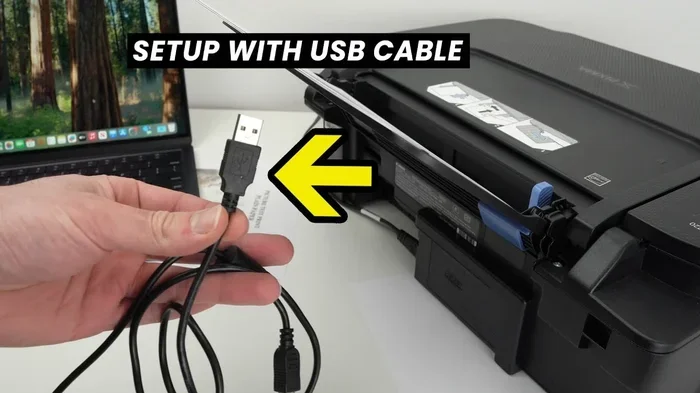
The right cable makes all the difference. For most printers, you need a USB-A to USB-B cable. The USB-A end plugs into your computer, and the USB-B end plugs into the printer.
Here is a quick look at the most common cable types:
| Cable Type | Use Case | Speed |
|---|---|---|
| USB-A to USB-B | Standard printer connection | USB 2.0 or 3.0 |
| USB-C to USB-B | Modern printers with USB-C ports | USB 3.0 or higher |
| USB-A to USB-C | Laptops with USB-C ports | USB 3.0 or higher |
Make sure your cable is in good condition. A damaged cable can cause connection problems and slow down your USB printing speed. If you are unsure which cable to buy, check your printer’s specifications or ask the retailer for help.
Step-by-Step Guide to Connecting Your Printer
Now comes the fun part. Let us walk through the process of connecting your printer with a USB cable. Follow these steps and you will be printing in no time.
Step 1: Install the Printer Drivers
Drivers are the software that tells your computer how to talk to your printer. Before you plug anything in, it is best to install the drivers first. You can usually find them on the printer manufacturer’s website.
Here is how to do it:
- Go to the manufacturer’s website (HP, Canon, Epson, Brother, etc.).
- Search for your printer model.
- Find the “Drivers” or “Downloads” section.
- Select your operating system (Windows 10, Windows 11, macOS, etc.).
- Download and install the driver package.
Some printers come with a driver CD, but most manufacturers now offer free downloads. Installing printer drivers before connecting the cable helps your computer recognize the printer immediately.
Step 2: Connect the USB Cable
Now it is time to plug things in. Follow these simple steps:
- Turn off your printer.
- Plug the USB-B end into the printer’s USB port.
- Plug the USB-A end into an available port on your computer.
- Turn on the printer.
Your computer should recognize the printer within a few seconds. You may see a notification saying a new device has been detected. If not, do not worry. We will cover troubleshooting in a later section.
Quick Tip: Avoid using USB hubs or extension cables. Plug the cable directly into your computer for the best connection. A USB printer adapter can work in a pinch, but a direct connection is always more reliable.
Step 3: Configure the Connection
Once your computer detects the printer, you may need to do a little configuration. Here is what to do:
- Windows users: Go to Settings > Devices > Printers & Scanners. Click “Add a printer” and follow the on-screen instructions.
- Mac users: Go to System Settings > Printers & Scanners. Click the “+” button and select your printer from the list.
Your computer should now recognize the printer as a USB port printer. Try printing a test page to confirm everything is working correctly. If the test page prints without issues, you are all set.
Troubleshooting Common USB Printer Issues
Even with a simple setup, you may run into occasional problems. Do not panic. Most printer USB troubleshooting issues have easy fixes. Let us look at the most common problems and how to solve them.
Printer Not Detected
This is the most common issue people face when they try to connect a printer to a computer via USB. If your computer does not recognize the printer, try these steps:
- Unplug the USB cable and plug it back in firmly.
- Try a different USB port on your computer.
- Check if the cable is damaged or worn out.
- Restart both your computer and printer.
- Reinstall the printer drivers.
Sometimes the simplest fix works best. A loose connection or a faulty port can prevent your computer from detecting the printer. Always make sure the cable clicks in securely.
Slow Print Speeds
If your prints are taking longer than usual, the USB connection might be the culprit. Here are some things to check:
- Are you using USB 2.0 or USB 3.0? USB 3.0 is much faster.
- Is the cable too long? Shorter cables generally provide better speeds.
- Are there other USB devices drawing power from the same hub?
- Is your printer driver up to date?
Expert Insight: Upgrading to a USB 3.0 cable can significantly improve your USB printing speed. If you are still using USB 2.0, the difference is noticeable, especially with large documents or high-resolution images.
Driver Conflicts
Sometimes installing a new printer driver can conflict with existing software. This can cause printing errors or system slowdowns. To fix driver conflicts:
- Open Device Manager (Windows) and look for yellow warning icons.
- Uninstall old or conflicting printer drivers.
- Restart your computer.
- Reinstall the latest driver from the manufacturer’s website.
Keeping your drivers up to date is one of the best ways to avoid problems. Set a reminder to check for driver updates every few months.
USB vs Wireless Printing
So you have learned how to connect a printer with a USB cable. But how does it compare to wireless printing? Let us break down the differences to help you decide which option is best for you.
When USB Makes More Sense
USB printing shines in certain situations. Here is when it is the better choice:
- Single computer setups: If you only print from one computer, USB is simple and efficient.
- Large print jobs: USB provides a stable, uninterrupted connection for big projects.
- Home offices: A wired connection eliminates Wi-Fi delays and dropped connections.
- Security-conscious users: A USB connection is more secure than a wireless network.
- Older computers: Not all computers have Wi-Fi capability, but almost all have USB ports.
When to Go Wireless Instead
Wireless printing has its advantages too. Consider going wireless if:
- You have multiple devices that need to print (phones, tablets, laptops).
- Your printer is far from your computer and running a long cable is impractical.
- You want the convenience of printing from anywhere in your home.
- You prefer a clutter-free desk setup.
Common Mistakes to Avoid: One big mistake is assuming wireless is always better. In many cases, a USB cable connection is faster and more reliable. Do not dismiss USB just because it is an older technology. It still works great for many people.
Expert Tips for a Smooth USB Printer Setup
Setting up a USB printer does not have to be complicated. A few expert tips can make the process even smoother. Here is what seasoned users recommend.
Quick Tips for Success
- Always update your drivers first: This ensures your computer can communicate with the printer properly.
- Use a high-quality cable: Cheap cables can cause connection issues and slow print speeds.
- Keep your cable length reasonable: Aim for under 6 feet for the best performance.
- Clean your USB ports: Dust and debris can interfere with the connection.
- Restart regularly: A simple restart of both devices can fix many minor issues.
Common Mistakes to Avoid
Even experienced users make mistakes sometimes. Here are the most common ones to watch out for:
- Using the wrong cable type: Not all USB cables are the same. Make sure you have the correct USB-A to USB-B cable for your printer.
- Skipping driver installation: Plugging in the cable without installing drivers first can cause your computer to fail to recognize the printer.
- Using a damaged cable: Frayed or bent cables lead to intermittent connections and frustration.
- Plugging into a faulty USB port: Try a different port if your computer does not detect the printer.
- Ignoring firmware updates: Printer firmware updates can improve compatibility and fix bugs.
Avoiding these mistakes saves you time and headaches. A little preparation goes a long way toward a successful computer printer setup.
Final Thoughts
So, can I connect a printer with a USB cable? The answer is a resounding yes. A USB connection is simple, reliable, and fast. It works with nearly every printer and computer on the market today. Whether you are a home user or a small business owner, USB printer connection remains one of the best ways to get your documents printed quickly and without hassle.
Remember to use the right cable, install your drivers first, and follow the steps in this guide. If you run into any issues, the troubleshooting tips above will help you get back on track. And if USB is not your style, you always have the option to go wireless later.
The beauty of a USB cable printer setup is its simplicity. No apps to download, no network to configure, no passwords to remember. Just a cable and a few clicks. Once you experience the ease of USB printing, you will wonder why you ever doubted it.
Now that you have all the information you need, go ahead and connect your printer. You will be printing your first page in just minutes. Happy printing!
Frequently Asked Questions
Can any printer be connected with a USB cable?
Most printers manufactured in the last 15 years support USB connections. However, it is always best to check your printer’s specifications before buying a cable. Some compact or specialty printers may only support wireless or Bluetooth connections.
Do I need to install drivers before connecting the USB cable?
It is highly recommended to install the printer drivers first. This ensures your computer recognizes the printer immediately after you plug in the cable. While some operating systems can install basic drivers automatically, having the official driver ready prevents most issues.
What is the difference between USB-A and USB-B cables?
A USB-A connector is the flat, rectangular plug that goes into your computer. A USB-B connector is the square-shaped plug that connects to the printer. The USB-A to USB-B cable is the standard cable used for most printer connections.
Can I use a USB hub to connect my printer?
You can, but it is not recommended. A USB hub can sometimes cause power or connection issues. For the most reliable USB printer connection, plug the cable directly into your computer’s USB port.
How do I know if my USB cable is USB 2.0 or USB 3.0?
USB 3.0 cables usually have a blue insert inside the USB-A connector. USB 2.0 cables have a black or white insert. USB 3.0 cables offer faster data transfer speeds, which can improve print job performance, especially for large files.
Is USB printing faster than wireless printing?
In most cases, yes. A direct USB connection eliminates the variables of Wi-Fi signal strength and network congestion. This means more consistent and often faster print speeds compared to wireless printing, especially for large documents.