Can You Just Install Bluetooth On Pc Without Any Hassle
Can you just install Bluetooth on PC? Yes, you absolutely can, and it is simpler than most people think. Whether your PC has built-in Bluetooth or needs a Bluetooth adapter, this guide walks you through every step. You will learn how to set up wireless connectivity, pair devices, and fix common problems fast. By the end, you will have your Bluetooth speaker, wireless headphones, or Bluetooth keyboard connected in no time.
Have you ever wanted to connect your wireless earbuds to your computer but felt stuck? Maybe you tried searching for answers and got overwhelmed by technical jargon. The truth is, Bluetooth on PC does not have to be complicated. You do not need to be a tech expert to get things working.
This guide breaks everything down into simple, easy-to-follow steps. Whether you are using Windows 10 or Windows 11, the process is straightforward. We will cover everything from checking if your PC supports Bluetooth to fixing issues when things go wrong. By the time you finish reading, you will feel confident connecting any Bluetooth device to your computer.
Let us start with the basics. Bluetooth is a wireless technology that lets devices talk to each other over short distances. Think of it like an invisible cable between your PC and your Bluetooth speaker or wireless mouse. It uses radio waves, and it has been built into most computers made in the last several years. If your PC does not have it, a small USB Bluetooth dongle can add it in seconds.
Key Takeaways
- Bluetooth on PC is easy: Most modern Windows PCs either have built-in Bluetooth or need a simple USB adapter.
- Built-in vs. adapter: Check your PC first to know which route you need to take.
- Driver updates matter: Outdated Bluetooth drivers are the number one cause of connection problems.
- Pairing is quick: Once Bluetooth is on, connecting devices takes just a few clicks.
- Troubleshooting is simple: Most Bluetooth not working issues can be fixed in under five minutes.
- Bluetooth range and version: Understanding these helps you get the best wireless connectivity experience.
📑 Table of Contents
- Check If Your PC Has Built-In Bluetooth
- How to Install Bluetooth on PC With an Adapter
- How to Turn On and Enable Bluetooth on Windows
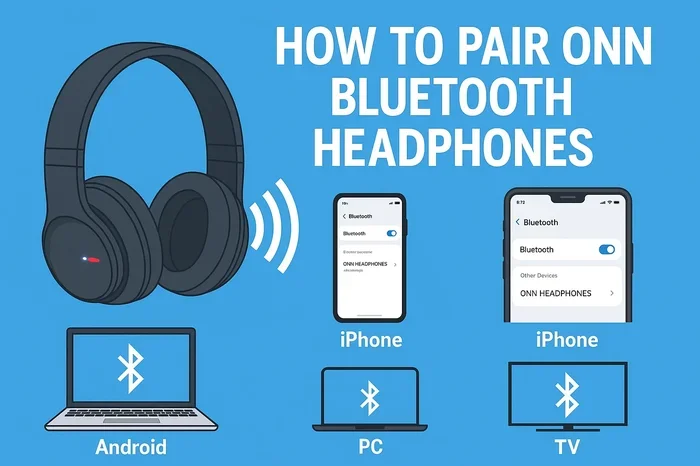
- Pairing Devices With Your PC
- Bluetooth Driver Updates and Troubleshooting
- Benefits of Using Bluetooth on Your PC
- Common Mistakes to Avoid When Setting Up Bluetooth on PC
- How to Remove or Forget a Bluetooth Device
- Final Thoughts on Installing Bluetooth on Your PC
Check If Your PC Has Built-In Bluetooth
Before you buy anything, you should check whether your computer already has Bluetooth. Many modern laptops come with it built right in. Desktop PCs sometimes have it too, but not always. Here is how to find out quickly.
Method One: Check Device Manager
Open the Start menu and type “Device Manager.” Click on it when it appears. Look for a section called “Bluetooth.” If you see it, your PC has Bluetooth hardware. You might also see the name of your Bluetooth adapter listed there. If there is no Bluetooth section, your PC likely does not have it built in.
Method Two: Check Settings
Go to Settings and then click on “Network and Internet” or “Bluetooth and devices.” If you see a Bluetooth settings option, your PC supports it. On Windows 11, you can also click the network icon in the taskbar and look for the Bluetooth toggle. If it is there, you are good to go.
Method Three: Look for Bluetooth Symbols
Check the bottom or side of your laptop for a Bluetooth symbol. It looks like a “B” made of two arrows. Some keyboards also have a dedicated Bluetooth key. If you see these symbols, your computer likely supports wireless connectivity right out of the box.
Quick Tip: If your PC does not have built-in Bluetooth, do not worry. You are not stuck. A Bluetooth adapter solves this problem easily and affordably. More on that below.
How to Install Bluetooth on PC With an Adapter
If your computer does not have built-in Bluetooth, a USB adapter is your best friend. These small devices plug right into your PC and add wireless connectivity instantly. They are also called Bluetooth dongles, and they cost between $10 and $30.
Step-by-Step Installation
Here is exactly how to set up a Bluetooth adapter on your PC:
- Buy a compatible Bluetooth adapter. Look for one that supports Bluetooth 5.0 or higher for the best range and speed.
- Plug the adapter into a USB port on your PC.
- Wait for Windows to recognize it. You should see a notification that a new device is being installed.
- If Windows does not install the driver automatically, go to the manufacturer’s website and download the latest Bluetooth driver.
- Once the driver is installed, go to Settings and click on “Bluetooth and devices.”
- Turn on the Bluetooth toggle.
That is it. Your PC now has Bluetooth capability. The whole process usually takes less than five minutes. No technical skills required.
Choosing the Right Adapter
Not all Bluetooth adapters are the same. Here are some quick tips for picking the right one:
- Bluetooth version: Go for version 5.0 or higher. It offers better range and lower power use.
- USB 3.0 compatibility: Make sure the adapter works with your PC’s USB ports.
- Brand reputation: Stick with trusted brands like TP-Link, ASUS, or Sabrent for reliable wireless connectivity.
- Size matters: If you need a portable option, choose a small nano-sized Bluetooth dongle.
Expert Insight: The Bluetooth version on your adapter affects how far your signal reaches and how fast data transfers. Bluetooth 5.0 can reach up to 800 feet in open space, while older versions may only work within 30 feet. This matters if you like to move around your room while listening to music through a Bluetooth speaker.
How to Turn On and Enable Bluetooth on Windows
Now that your PC has Bluetooth, let us make sure it is turned on and ready to go. The process is slightly different depending on your Windows version, but it is still very simple.
On Windows 11
Click the Start button and go to Settings. Select “Bluetooth and devices.” Toggle the switch at the top to turn Bluetooth on. You can also click the network or volume icon in your taskbar and look for the Bluetooth quick settings tile. Click it to enable wireless connectivity instantly.
On Windows 10
Click the Start menu and open Settings. Go to “Devices” and then click on “Bluetooth and other devices.” Flip the switch to turn Bluetooth on. You can also use the quick settings panel by clicking the notification icon in the bottom-right corner of your screen.
Quick Tip for Faster Access
Pin your Bluetooth settings to the taskbar or use a keyboard shortcut. On many laptops, pressing the Fn key plus a function key (often F2 or F12) toggles Bluetooth on and off. Check your laptop manual or look for the Bluetooth symbol on your function keys.
Common Mistakes: Many people turn on Bluetooth but forget to make their device discoverable. If you are trying to pair a wireless headset or Bluetooth keyboard, make sure that device is in pairing mode. Most devices have a blinking light or a voice prompt when they are ready to be found.
Pairing Devices With Your PC
This is the fun part. Once Bluetooth is enabled, you can connect all kinds of devices. From wireless headphones to Bluetooth mice, the possibilities are great. Let us walk through the pairing process step by step.
Pairing a Bluetooth Speaker
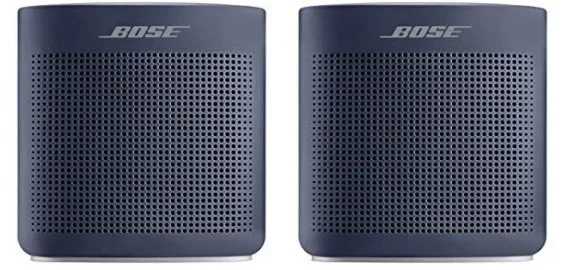
Turn on your Bluetooth speaker and put it in pairing mode. On your PC, go to Settings and click “Add Bluetooth or other device.” Select “Bluetooth” and wait for your speaker to appear in the list. Click on it, and your PC will connect. You should hear a confirmation sound from the speaker.
Pairing Wireless Headphones or Earbuds
The process for wireless earbuds is very similar. Put your earbuds in pairing mode, go to your PC’s Bluetooth settings, and click “Add device.” Your earbuds should show up in the list. Once paired, you can listen to music, watch videos, or join video calls with crystal clear audio.
Pairing a Bluetooth Keyboard or Mouse
For a Bluetooth keyboard or Bluetooth mouse, the same steps apply. Make sure the device is in pairing mode, go to Settings, and add it as a new Bluetooth device. These input devices are great for keeping your desk clean and clutter-free. You no longer need tangled cables getting in the way.
Pairing Your Phone for File Transfer
Bluetooth is not just for audio devices. You can also use it to transfer files between your phone and PC. Make sure both devices have Bluetooth turned on. On your phone, select “Share” and choose Bluetooth. Pick your PC from the list, and the file will transfer wirelessly. It is slower than Wi-Fi sharing, but it works without an internet connection.
Quick Tip: If you connect multiple Bluetooth devices, you can manage them all from one place. Go to Settings, then “Bluetooth and devices.” You will see a list of all paired devices. Click on any device to manage it, remove it, or troubleshoot issues.
Bluetooth Driver Updates and Troubleshooting
Sometimes things do not go as smoothly as we hope. If your Bluetooth not working, do not panic. Most issues have simple fixes. Let us look at the most common problems and how to solve them.
Bluetooth Driver Not Working
An outdated or missing Bluetooth driver is the most common reason for connection problems. To fix this, open Device Manager, expand the “Bluetooth” section, right-click your adapter, and select “Update driver.” Windows will search for the latest version automatically. You can also visit your PC manufacturer’s website to download the newest driver manually.
Bluetooth Keeps Disconnecting
If your Bluetooth device keeps disconnecting, try these fixes:
- Move closer to your PC. Bluetooth range is typically 30 feet indoors.
- Remove interference from other wireless devices like microwaves or baby monitors.
- Restart your PC and the Bluetooth device.
- Check for driver updates as mentioned above.
- Remove the device from your paired list and pair it again.
Bluetooth Not Showing Up in Settings
If you do not see Bluetooth in your settings at all, try running the Windows troubleshooter. Go to Settings, then “System,” then “Troubleshoot,” and select “Other troubleshooters.” Click “Run” next to Bluetooth. Windows will automatically scan for and fix common issues.
Bluetooth Latency and Audio Lag
If you notice a delay between audio and video, this is called Bluetooth latency. It happens because Bluetooth compresses audio data before sending it. To reduce lag, make sure your Bluetooth adapter supports the latest version. Using a Bluetooth 5.0 or higher adapter can significantly improve audio sync. Also, keep your Bluetooth device close to your PC for the strongest signal.
Expert Insight: Many people assume their PC is broken when Bluetooth stops working. In reality, 90% of the time it is a simple driver issue or a signal problem. Always try the basics first before assuming something is seriously wrong. A quick restart or driver update solves most Bluetooth troubleshooting cases.
Benefits of Using Bluetooth on Your PC
Now that you know how to set up and fix Bluetooth on PC, let us talk about why it is worth it. Wireless connectivity brings a lot of convenience to your daily computing experience.
First, it reduces cable clutter. No more tangled wires on your desk. A Bluetooth keyboard, Bluetooth mouse, and wireless headphones keep your workspace clean and organized. This is especially great for people who work from home and want a tidy setup.
Second, it gives you freedom of movement. You can walk around your room while talking on a Bluetooth headset or control your music from across the space with a Bluetooth speaker. This is perfect for video calls, gaming, or just relaxing with your favorite playlist.
Third, it is compatible with a huge range of devices. Almost every modern gadget supports Bluetooth, from smartphones and tablets to smartwatches and game controllers. Once you set up Bluetooth on your PC, you can connect to all of them seamlessly.
Finally, Bluetooth technology keeps improving. Newer versions offer faster data transfer, better battery life, and stronger connections. If you invest in a good Bluetooth adapter, your PC stays future-ready for years to come.
Key Takeaway: Setting up Bluetooth on your PC is one of the best upgrades you can make. It transforms how you use your computer by giving you wireless connectivity for audio, input devices, and file transfers. It is fast, affordable, and incredibly convenient.
Common Mistakes to Avoid When Setting Up Bluetooth on PC
Even though setting up Bluetooth is easy, some common mistakes can cause frustration. Here are a few to watch out for:
- Skipping driver updates: Always make sure your Bluetooth driver is up to date. Outdated drivers cause most connection problems.
- Pairing too many devices at once: While Bluetooth supports multiple connections, too many paired devices can slow things down. Keep your list clean.
- Ignoring Bluetooth version compatibility: Older Bluetooth versions may not work well with newer devices. Always check compatibility before buying an adapter.
- Not putting devices in pairing mode: Many people forget this step. If your device does not show up, make sure it is in discoverable or pairing mode.
- Placing the adapter in the wrong USB port: For best performance, plug your Bluetooth dongle into a USB 3.0 port. USB 2.0 ports work but may cause slower speeds.
By avoiding these mistakes, your Bluetooth setup will go smoothly every time. A little preparation saves a lot of frustration later.
How to Remove or Forget a Bluetooth Device
Sometimes you need to remove a device from your Bluetooth settings. Maybe you are selling your wireless headphones, or a device keeps causing problems. Here is how to do it:
- Go to Settings and click on “Bluetooth and devices.”
- Find the device you want to remove in the list.
- Click on the three dots next to the device name.
- Select “Remove device.”
- Confirm the removal.
Once removed, the device will no longer connect automatically. If you want to pair it again later, you will need to put it back in pairing mode and connect it fresh. This is a great way to keep your Bluetooth device list organized and your connections running smoothly.
Quick Tip: If you are selling or giving away your PC, always remove all paired Bluetooth devices first. This protects your privacy and ensures the new owner starts with a clean setup.
Final Thoughts on Installing Bluetooth on Your PC
Can you just install Bluetooth on PC? Absolutely. As you have seen, it is a simple process whether your PC has built-in Bluetooth or needs a USB Bluetooth adapter. The key steps are checking for hardware, enabling Bluetooth in settings, updating drivers, and pairing your devices. With just a few minutes of effort, you can enjoy wireless connectivity for all your favorite devices.
Remember to keep your Bluetooth driver updated and your Bluetooth device list tidy. These small habits prevent most problems before they start. And if something does go wrong, the troubleshooting tips in this guide will help you get back on track quickly.
Bluetooth technology has made our lives so much easier. No more cables, no more clutter, and no more limits on where you can sit while working or relaxing. Once you set it up, you will wonder how you ever lived without it. So go ahead, connect that Bluetooth speaker, pair your wireless earbuds, and enjoy the freedom of wireless connectivity on your PC today.
Frequently Asked Questions
Do all PCs have Bluetooth built in?
Most modern laptops have built-in Bluetooth, but many desktop PCs do not. You can check your Device Manager or Settings to see if your PC supports it. If not, a USB Bluetooth adapter is an inexpensive and easy solution.
How much does a Bluetooth adapter cost?
A basic Bluetooth adapter costs between $10 and $30. Higher-end models with Bluetooth 5.0 or newer may cost a bit more. They are widely available on Amazon, Best Buy, and most electronics stores.
Why is my Bluetooth not showing up in Windows Settings?
This usually happens when the Bluetooth driver is missing or outdated. Open Device Manager, find the Bluetooth section, and update the driver. You can also run the Windows troubleshooter to fix the issue automatically.
Can I connect multiple Bluetooth devices at the same time?
Yes, you can connect multiple Bluetooth devices to your PC at once. Just make sure they are all paired through your Bluetooth settings. However, keeping too many devices connected at once may cause slight delays or interference.
What is the difference between Bluetooth 4.0 and Bluetooth 5.0?
Bluetooth 5.0 offers twice the speed, four times the range, and better battery efficiency compared to Bluetooth 4.0. If you are buying a new Bluetooth adapter or Bluetooth device, choosing version 5.0 or higher is always a smart move.
Is Bluetooth safe to use on a PC?
Yes, Bluetooth is very safe. It uses low-power radio waves and has built-in security features like encryption and authentication. Keep your Bluetooth driver updated and only pair with trusted devices for the safest experience.
=== CONCLUSION ===
Can you just install Bluetooth on PC without any hassle? Yes, and now you know exactly how. From checking if your PC has built-in Bluetooth to choosing the right Bluetooth adapter, the entire process is simple and affordable. You learned how to enable Bluetooth settings, pair wireless headphones and Bluetooth speakers, update Bluetooth drivers, and troubleshoot common issues.
Remember, wireless connectivity is a game changer for your PC experience. It keeps your workspace clean, gives you freedom to move, and connects you to all your favorite devices. Keep your Bluetooth device list organized, update your drivers regularly, and you will enjoy a smooth Bluetooth setup for years to come.
Now it is your turn. Go ahead and connect that next Bluetooth device to your PC. You have got this!