Can You Connect An Iphone Directly To A Tv With Ease
Yes, you can connect an iPhone directly to a TV using either a wired HDMI adapter or wireless AirPlay. This guide covers both methods so you can mirror your screen, stream videos, and share photos on a bigger display. Learn the step-by-step process, troubleshoot issues, and find the best adapter for your iPhone model.
Have you ever wanted to show off vacation photos on the big screen? Or maybe you want to watch a movie from your phone on the living room TV. The good news is that you can connect an iPhone directly to a TV. It is easier than most people think. You do not need expensive equipment or a tech degree. This guide walks you through every method. You will learn about cables, wireless options, and quick fixes for common problems. By the end, you will know exactly how to get your iPhone content on any TV.
Many people ask, “Can you connect an iPhone directly to a TV?” The answer is a firm yes. You have two main paths. One uses a physical cable and an adapter. The other uses wireless technology called AirPlay. Both methods deliver crisp video and sound. The right choice depends on your TV, your iPhone model, and your personal preference. We will break down each option in simple, clear steps.
Whether you own an older iPhone with a Lightning port or the latest iPhone 15 with USB-C, there is a solution. Smart TVs, Apple TVs, Roku devices, and even basic HDMI monitors all work. This article covers everything you need to know about iPhone TV connection. You will discover the best HDMI adapter for your needs. You will also learn how to use wireless casting without any extra hardware. Let us dive in.
Key Takeaways
- Direct connection is simple: You can plug your iPhone into a TV with an HDMI adapter or cast wirelessly with AirPlay.
- Wired and wireless both work: Lightning to HDMI cables work for older iPhones, while USB-C to HDMI fits iPhone 15 and newer. AirPlay handles wireless casting.
- No Apple TV needed: Many smart TVs support AirPlay natively, and third-party devices like Roku or Chromecast offer alternatives.
- Check your TV input: Switching to the correct HDMI port solves most black screen problems.
- Update your devices: Keeping iOS and TV software current prevents connection errors.
- Audio issues are common: Adjusting sound output settings on your iPhone fixes most no-sound problems.
📑 Table of Contents
The Simple Answer: Can You Connect An Iphone Directly To A Tv
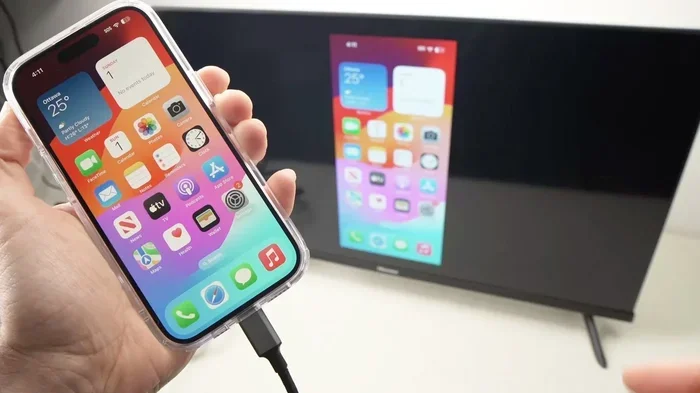
The short answer is yes. You can connect an iPhone directly to a TV with a cable or without one. A wired connection uses an HDMI adapter that plugs into your iPhone and then into the TV’s HDMI port. A wireless connection uses AirPlay to mirror your iPhone screen over Wi-Fi. Both methods let you display apps, photos, videos, and games on a larger screen.
Here is a quick look at what you need for each method.
- Wired connection: An Apple-certified Lightning to HDMI cable or a USB-C to HDMI cable for iPhone 15 and newer. You also need a standard HDMI cable.
- Wireless connection: A smart TV that supports AirPlay or a streaming device like Apple TV, Roku, or Chromecast. Both your iPhone and TV must be on the same Wi-Fi network.
Most modern smart TVs from Samsung, LG, Sony, and Vizio include built-in AirPlay. If your TV does not support AirPlay, you can still use a wired adapter or add a streaming stick. The direct cable link method works with any TV that has an HDMI input. This makes it the most universal option. You can use it to mirror iPhone content on any TV, even older models.
Quick Tip: Before you start, check your TV remote for an “Input” or “Source” button. You will need to switch to the correct HDMI port after plugging in the cable. This simple step solves the “black screen” problem for many users.
Wired Connections: HDMI Adapters and Cables
A wired connection gives you a reliable, lag-free link between your iPhone and TV. It works even if your TV does not have Wi-Fi or smart features. You just need the right adapter and cable. Let us look at the two main types of wired setups.
Lightning to HDMI for Older iPhones
If your iPhone has a Lightning charging port (models before iPhone 15), you need a Lightning to HDMI adapter. Apple sells its own official adapter, and many third-party options work too. The adapter plugs into your iPhone’s Lightning port. Then you connect a standard HDMI cable from the adapter to the TV. That is it. Your iPhone screen appears on the TV instantly.
This method supports video output up to 1080p or 4K on newer adapters. You can watch movies, play games, and show slideshows with great quality. The adapter also carries audio to your TV’s speakers. You do not need any extra apps. The direct cable link works with all iPhones that have a Lightning port.
Common Mistakes with Cables: Some users buy cheap, non-certified adapters. These often cause flickering, no sound, or a black screen. Always look for “Made for iPhone” or MFi certification. Also, make sure the HDMI cable is fully inserted into both the adapter and the TV. A loose cable is the number one cause of connection failure.
USB-C to HDMI for iPhone 15 and Newer
The iPhone 15 and iPhone 16 lines use a USB-C port. This is great news because USB-C to HDMI adapters are widely available and often cheaper than Lightning adapters. You can use a simple USB-C to HDMI cable or a USB-C adapter with a full-size HDMI plug. Plug the USB-C end into your iPhone and the HDMI end into the TV. Switch the TV to the right input, and your screen appears.
Apple’s own USB-C to HDMI adapter works flawlessly with all iPhone 15 models. It supports 4K video output at 60Hz. Many third-party adapters also work well. Look for ones that support video output and charging pass-through if you want to charge your phone while watching.
Quick Tip: If you have an iPhone 15 Pro or Max, you can use a USB-C hub with multiple ports. This lets you connect HDMI, charge your phone, and plug in a USB drive all at once. It is a great way to expand your video output options.
Quick Tips for Wired Setup
- Always use an Apple-certified or MFi-approved adapter to avoid compatibility issues.
- Keep your iPhone software updated. iOS updates often improve TV compatibility with adapters.
- If the TV shows no signal, try a different HDMI cable or port. The cable might be faulty.
- Turn off “Auto-Brightness” on your iPhone if the TV image looks too dark. This is a rare but known issue.
Common Mistakes with Wired Connections
Many people assume any HDMI cable will work. But the adapter must support video output from the iPhone. Some cheap cables only charge the phone and do not send video. Another mistake is forgetting to switch the TV input source. Your TV will not show anything until you select the correct HDMI port. Also, avoid bending the adapter or cable sharply. Physical damage can break the connection over time.
Wireless Options: AirPlay and Screen Mirroring
Wireless connections offer freedom from cables. You can cast your iPhone screen to a TV from across the room. The technology behind this is called AirPlay. It is Apple’s built-in wireless streaming protocol. AirPlay sends video and audio over Wi-Fi with minimal delay. Most people use screen mirroring to share their iPhone display on a TV.
Using Apple TV or a Smart TV with AirPlay
If you have an Apple TV, AirPlay works perfectly. Open the Control Center on your iPhone. Tap the Screen Mirroring icon. Choose your Apple TV from the list. Enter the code that appears on the TV if prompted. Your iPhone screen is now on the big screen. You can navigate apps, play videos, and show photos just like on your phone.
Many modern smart TVs support AirPlay natively. Samsung, LG, Sony, and Vizio TVs from the last few years all include this feature. Look for the AirPlay icon in your TV’s input menu or settings. Once enabled, your iPhone can discover the TV automatically when both are on the same Wi-Fi network. This is the easiest wireless casting method for most households.
Quick Tip: If your TV does not show up in the AirPlay list, make sure both devices are on the same Wi-Fi network. Also, check that AirPlay is turned on in the TV’s settings. Some TVs call it “Screen Sharing” instead of AirPlay.
Using Third-Party Devices Like Roku or Chromecast
You do not need an Apple TV or a smart TV to use wireless casting. Devices like Roku, Amazon Fire TV, and Google Chromecast can also receive your iPhone screen. Each uses a slightly different method, but they all rely on screen mirroring or dedicated apps.
- Roku: Download the Roku app on your iPhone. Tap the Remote tab, then the Screen Mirroring icon. Select your Roku device. Your iPhone content appears on the TV.
- Amazon Fire TV: Look for the AirPlay icon in the Fire TV’s quick settings. Enable AirPlay and Screen Mirroring. Then use the Control Center on your iPhone to cast to the Fire TV.
- Google Chromecast: Chromecast does not support native AirPlay. You need to use apps that have a Cast icon. Open a video in YouTube or Netflix, tap the Cast icon, and select your Chromecast. You can also use the Google Home app to mirror your entire screen.
These devices let you use iPhone to TV without Apple TV easily. They are affordable and work with almost any TV that has an HDMI port. The wireless casting experience is smooth as long as your Wi-Fi signal is strong.
Quick Tips for Wireless Casting
- Keep your iPhone and TV close to the Wi-Fi router for the best performance.
- Use a 5GHz Wi-Fi network if available. It reduces lag and improves video quality.
- If the audio and video are out of sync, restart your router and both devices.
- Turn off Bluetooth on your iPhone if you experience audio delays. Bluetooth can interfere with AirPlay.
Common Mistakes with Wireless Connections
A weak Wi-Fi signal causes the most wireless problems. If your TV is far from the router, the stream may stutter or drop. Another mistake is trying to cast when the TV and iPhone are on different networks. For example, if your iPhone uses cellular data and the TV is on home Wi-Fi, they cannot see each other. Always connect both to the same Wi-Fi network. Also, do not lock your iPhone during wireless casting. Some apps pause the stream when the screen locks. Keep your iPhone awake to maintain a steady connection.
Step-by-Step Guide: How to Connect iPhone to TV
Now that you know the options, let us walk through the actual setup. Follow these steps for a wired or wireless connection. Each guide is designed for beginners and takes only a few minutes.
Wired Setup (Lightning to HDMI)
- Get a Lightning to HDMI adapter and a standard HDMI cable.
- Plug the HDMI cable into the adapter and into your TV’s HDMI port.
- Connect the Lightning end of the adapter to your iPhone.
- Switch your TV to the correct HDMI input using the remote.
- Your iPhone screen should appear on the TV. If not, try a different HDMI port or cable.
That is all you need. You can now display any app, photo, or video on the TV. The adapter draws power from your iPhone, so you do not need a separate power source. However, if you plan to use it for a long time, you might want to keep your iPhone plugged in to avoid battery drain.
Wireless Setup (AirPlay)
- Make sure your iPhone and TV are connected to the same Wi-Fi network.
- On your iPhone, swipe down from the top-right corner to open the Control Center.
- Tap the Screen Mirroring icon (two overlapping rectangles).
- Select your TV or Apple TV from the list.
- Enter the on-screen code if prompted.
- Your iPhone screen is now mirrored on the TV.
To stop mirroring, open the Control Center again and tap Screen Mirroring, then choose “Stop Mirroring.” You can also use the AirPlay icon inside apps like YouTube or Netflix to stream content directly without mirroring the entire screen. This saves battery and gives a smoother experience.
Expert Insight: Many people do not know that you can use the TV as a second display for your iPhone. You can keep your phone in your pocket while controlling the TV screen. This is great for presentations or sharing photos with a group. Just make sure your TV supports AirPlay and you are on the same network.
Troubleshooting Common Connection Issues
Even with the right setup, you might run into problems. Most issues have simple fixes. Here are the most common ones and how to solve them.
No Sound or Audio Issues
If your iPhone shows video but there is no sound on the TV, check the audio output settings. Swipe into the Control Center and tap the audio output icon. It looks like a speaker with a triangle. Select your TV or AirPlay device from the list. If you are using a wired adapter, make sure the adapter supports audio output. Some cheap adapters only carry video. Also, check your TV’s volume and make sure it is not muted.
Black Screen or iPhone Not Recognized
A black screen usually means the TV is on the wrong input or the cable is not seated properly. Switch to the correct HDMI input. Try a different HDMI cable. If you are using wireless casting, restart both your iPhone and TV. Make sure AirPlay is enabled on the TV. Sometimes a simple restart fixes the connection. Also, check that your TV firmware is up to date. Outdated software can cause compatibility issues with iOS screen share.
Lag or Delay in Screen Mirroring
Wireless mirroring can lag if the Wi-Fi signal is weak. Move closer to your router or use a mesh Wi-Fi system. Avoid using the internet heavily on other devices while streaming. If you are using a wired adapter, a loose connection can cause brief delays. Unplug and replug the cable firmly. For wireless casting, closing background apps on your iPhone can free up resources and reduce lag.
Wired vs Wireless: Which Is Right for You?
Here is a quick comparison to help you decide.
| Feature | Wired (HDMI Adapter) | Wireless (AirPlay) |
|---|---|---|
| Setup Speed | Very fast, plug and play | Fast, but requires Wi-Fi |
| Reliability | Very reliable, no signal drops | Depends on Wi-Fi strength |
| Video Quality | Up to 4K, no compression | Up to 4K, may compress slightly |
| Cable Needed | Yes, adapter and HDMI cable | No cables needed |
| Best For | Older TVs, gaming, presentations | Smart TVs, casual streaming |
| Cost | $10-$35 for adapter and cable | Free if TV supports AirPlay |
The wired method wins for reliability and quality. The wireless method wins for convenience. Many people use both depending on the situation. If you have a smart TV with AirPlay, try wireless first. If you need a rock-solid connection for gaming or a long movie, go wired.
Expert Insights: Why Some TVs Reject iPhone Signals
Sometimes a TV simply will not show the iPhone screen, even with the right cable or Wi-Fi. This can happen for a few reasons. First, the TV may not support the resolution your iPhone is sending. Older TVs with only 720p or 1080p inputs can struggle with 4K output. Second, the adapter may not be certified. Non-certified adapters often fail to handshake with the TV. Third, some TVs have strict HDMI licensing rules. They may block signals from devices that do not follow the HDMI standard exactly. Using an Apple-certified adapter almost always solves these problems. If you still have issues, try connecting your iPhone to a different TV. This helps isolate whether the problem is with the TV or the adapter.
Conclusion: Final Thoughts on Connecting iPhone to TV
Connecting your iPhone directly to a TV opens up a world of possibilities. You can watch your favorite shows on a larger screen, share memories with family, or give a presentation with confidence. Whether you choose a wired HDMI adapter or wireless casting with AirPlay, the process is straightforward and works with almost any TV. The key is to pick the right method for your setup and follow the simple steps outlined here.
Remember to use certified adapters, keep your devices updated, and check your Wi-Fi network for wireless connections. With a little patience, you will have your iPhone screen on the TV in no time. The ability to mirror iPhone content on a TV is one of the most useful features of modern technology. It brings your digital life into the living room. So grab your adapter or fire up AirPlay and start enjoying your iPhone content on the big screen today.
Frequently Asked Questions
Do I need an Apple TV to connect my iPhone to a TV?
No, you do not need an Apple TV. You can use a wired HDMI adapter for a direct cable connection. For wireless, many smart TVs support AirPlay natively. You can also use Roku, Fire TV, or Chromecast as alternatives.
Why is there no sound when I connect my iPhone to the TV with a cable?
This usually happens because the adapter does not support audio or the TV input is set wrong. Check that your adapter is certified for audio output. Also, open the Control Center on your iPhone and make sure the audio output is set to the TV, not the phone speakers.
Can I charge my iPhone while mirroring the screen to the TV?
Yes, you can. Use a USB-C to HDMI adapter with pass-through charging for iPhone 15 and newer. For older iPhones with Lightning, you can plug a power adapter into the Lightning port of the adapter while the HDMI cable is connected.
Does screen mirroring work on non-smart TVs?
Yes, as long as the TV has an HDMI port. You can use a wired HDMI adapter to connect your iPhone directly. For wireless, you can add a streaming device like Chromecast or Roku to give a non-smart TV smart features.
Is AirPlay the same as screen mirroring?
AirPlay is the technology that enables screen mirroring. When you use the Screen Mirroring feature in Control Center, you are using AirPlay to send your iPhone screen to the TV. You can also use AirPlay to stream specific content from apps without mirroring the whole screen.
What is the best HDMI adapter for iPhone?
The best adapter is the Apple-certified one for your port type. For Lightning iPhones, the Apple Lightning to HDMI adapter is reliable. For iPhone 15 and newer, the Apple USB-C to HDMI adapter works perfectly. Third-party adapters with MFi certification also work well and cost less.