Can Quickbooks Be Used As A Cash Register For Business
Yes, QuickBooks can work as a cash register when paired with the right tools and setup. Many small business owners use QuickBooks as a point of sale system to track sales, manage inventory, and process payments. This guide breaks down everything you need to know about using QuickBooks as a digital register for your business.
Running a small business means wearing many hats. You are the accountant, the salesperson, and sometimes even the person standing behind the register. If you have ever wondered whether QuickBooks can be used as a cash register, you are not alone. Many business owners look for ways to simplify their tools and cut down on extra software costs.
The short answer is yes. QuickBooks can serve as a cash register with the right setup. But it is not a traditional register out of the box. QuickBooks is primarily an accounting tool. However, its features overlap with what a point of sale system does. This makes it a powerful option for small businesses that want to handle sales and bookkeeping in one place.
In this article, we will walk you through everything you need to know. We will cover how QuickBooks works as a register, what you need to add, and where it falls short. You will also learn about the best setup options, common mistakes to avoid, and expert tips to get the most out of your QuickBooks cash register setup. Let us dive in.
Key Takeaways
- QuickBooks can function as a cash register: With the right add-ons, it handles sales tracking, payment processing, and receipt generation.
- It is not a full POS system on its own: You need additional hardware or software integrations to replace a traditional register completely.
- Sales tracking and bookkeeping merge seamlessly: Every transaction in QuickBooks updates your financial records automatically.
- Inventory management is a strong feature: QuickBooks tracks stock levels, sales trends, and reorder points alongside register activity.
- Payment processing requires extra setup: You can connect merchant services or use integrated payment tools within the QuickBooks ecosystem.
- Small retailers and service businesses benefit most: It works best for businesses with moderate transaction volumes and simple sales needs.
📑 Table of Contents
- Understanding QuickBooks As A Cash Register
- How To Set Up QuickBooks As Your Register
- QuickBooks POS: The Built-In Register Solution
- Using QuickBooks Online With Third-Party POS Tools
- Benefits Of Using QuickBooks As Your Register
- Common Mistakes To Avoid
- Expert Tips For Running Your Register In QuickBooks
- Conclusion
Understanding QuickBooks As A Cash Register
Before you start using QuickBooks as a digital register, it helps to understand what it can and cannot do. QuickBooks was built for accounting. But over the years, Intuit has added features that make it useful at the point of sale. The key is knowing how to set it up properly.
A traditional cash register does one main job. It records sales and holds money. QuickBooks does all of that and more. It tracks every sale, categorizes it, updates your inventory, and generates financial reports. But it does not have a physical cash drawer or a built-in barcode scanner. You need to add those pieces yourself.
What A Cash Register Does vs. What QuickBooks Does
Let us compare the two side by side. A standard register handles cash intake, prints receipts, and calculates totals. QuickBooks handles all of those tasks digitally. It also adds accounting integration, tax calculations, and sales reporting that a regular register cannot match.
Here is a quick look at the differences:
- Sales Recording: A register logs each sale. QuickBooks logs each sale and links it to your accounts.
- Receipts: A register prints paper receipts. QuickBooks can send email receipts or print them through a connected printer.
- Cash Handling: A register holds physical cash. QuickBooks tracks cash flow but does not store money.
- Tax Calculation: Some registers calculate sales tax. QuickBooks calculates tax automatically based on your settings.
- Reporting: A register gives basic sales totals. QuickBooks gives detailed reports on revenue, profit, taxes, and more.
As you can see, QuickBooks goes far beyond a basic register. It turns every sale into a bookkeeping entry. This saves you time and reduces errors. But it also means you need a bit of setup to make it work like a register at the point of sale.
How To Set Up QuickBooks As Your Register
Setting up QuickBooks as a cash register is straightforward. You do not need to be a tech expert. The process involves a few key steps that connect your sales tools to your accounting software.
Step 1: Choose The Right QuickBooks Version
Not all QuickBooks versions are equal for this purpose. QuickBooks Online is the most flexible option. It works with many third-party POS tools and integrations. QuickBooks Desktop also works but is more limited in real-time syncing. If you want to use QuickBooks as a register, the Online version gives you the most freedom.
Here are the main versions to consider:
- QuickBooks Online Simple Start: Great for very small businesses with basic sales needs.
- QuickBooks Online Plus: Includes inventory tracking, which is essential for retail register use.
- QuickBooks Desktop Pro: A solid option if you prefer offline access and local data storage.
- QuickBooks Point of Sale: A dedicated POS tool by Intuit that pairs directly with QuickBooks.
Step 2: Connect Your Payment Processing
You need a way to accept payments. QuickBooks Payments is built right into the platform. It lets you process credit cards, debit cards, and even cash payments. When a customer pays, the transaction syncs directly to your QuickBooks register. No manual entry is needed.
If you already use a payment processor like Square or Stripe, you can still connect it. Many payment tools integrate with QuickBooks. Just make sure your processor supports QuickBooks POS integration or QuickBooks Online syncing.
Step 3: Add Hardware For A Register Feel
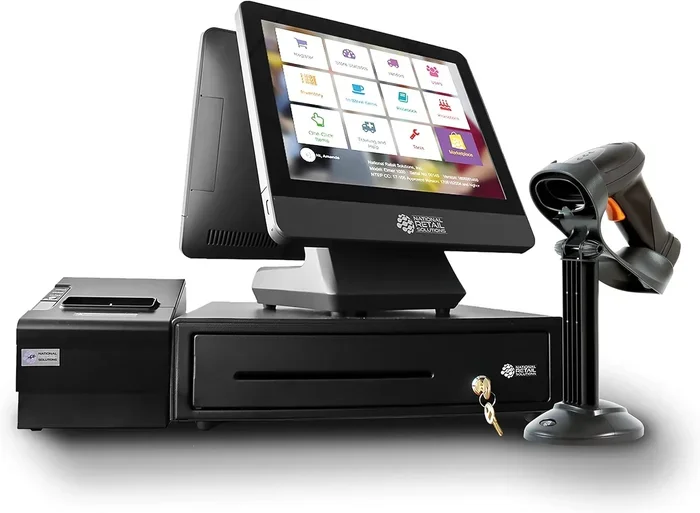
To make QuickBooks feel like a real cash register, you need some hardware. A tablet or laptop runs the software. A receipt printer gives customers their paper receipts. A barcode scanner speeds up sales. And a cash drawer keeps your register experience familiar.
Here is a simple hardware checklist:
- Tablet or Computer: Runs QuickBooks on screen.
- Receipt Printer: Prints customer receipts instantly.
- Barcode Scanner: Speeds up product lookup and sales entry.
- Cash Drawer: Holds cash and coins for daily transactions.
- Card Reader: Accepts tap, chip, and swipe payments.
These items are affordable and easy to set up. Many come as all-in-one POS hardware kits that work with QuickBooks right out of the box.
QuickBooks POS: The Built-In Register Solution
Intuit offers a dedicated tool called QuickBooks Point of Sale. This is the closest thing to a full cash register within the QuickBooks family. It is designed specifically for retail businesses that already use QuickBooks for accounting.
QuickBooks POS handles sales, inventory, and customer management. It also connects directly to your QuickBooks accounting file. This means every sale at the register flows into your books automatically. No double entry. No missed transactions.
Features Of QuickBooks POS
The QuickBooks POS system comes with several features that make it a strong register replacement:
- Sales Tracking: Records every sale with date, time, item, and payment method.
- Inventory Sync: Updates stock levels the moment a product is sold.
- Receipt Printing: Prints professional receipts with your business logo.
- Customer Profiles: Stores customer details and purchase history for repeat business.
- Sales Tax Handling: Calculates and reports sales tax based on your location.
- Offline Mode: Keeps working even if your internet goes down.
One of the biggest advantages of QuickBooks POS is the seamless connection to your accounting. You do not need to export data or manually transfer numbers. Everything lives in one place. This makes cash flow management much easier for small business owners.
Using QuickBooks Online With Third-Party POS Tools
If you prefer not to use QuickBooks POS, you have another great option. Many third-party point of sale systems connect directly to QuickBooks Online. These tools give you a full register experience while keeping your accounting in QuickBooks.
Popular options include Square for QuickBooks, Shopify POS, and Lightspeed. Each of these tools handles the register side of things. They process sales, print receipts, and manage inventory. Then they send all the data to QuickBooks for bookkeeping.
Comparing QuickBooks POS vs. Third-Party POS Tools
Not sure which route to take? Here is a simple comparison to help you decide:
| Feature | QuickBooks POS | Third-Party POS (e.g., Square) |
|---|---|---|
| Accounting Integration | Built-in, seamless | Connects via app or sync |
| Cost | Monthly subscription | Free or low-cost plans |
| Inventory Management | Full-featured | Basic to moderate |
| Hardware Options | Intuit-branded kits | Wide variety of compatible devices |
| Offline Capability | Yes | Varies by provider |
| Setup Complexity | Moderate | Easy to moderate |
Both options work well. Your choice depends on your budget, business type, and how much control you want over your register transactions. If you want the tightest integration, QuickBooks POS is the way to go. If you want flexibility and lower costs, a third-party tool is a great fit.
Benefits Of Using QuickBooks As Your Register
There are many reasons small business owners choose to use QuickBooks as a cash register. Let us look at the biggest benefits.
All Your Data In One Place
When your register and your accounting are the same system, everything stays organized. You do not need to reconcile sales from one tool with expenses in another. Every register transaction becomes a bookkeeping entry automatically. This saves hours of manual work every week.
Better Sales Reporting
QuickBooks gives you detailed sales reporting that goes far beyond a basic register readout. You can see which products sell best, which times of day are busiest, and how your revenue compares month over month. These insights help you make smarter business decisions.
Simplified Tax Season
Because QuickBooks tracks every sale and calculates tax automatically, tax season becomes much easier. Your sales tax reports are ready to go. You can export them directly or share them with your accountant. No scrambling to gather receipts from a separate register system.
Inventory Control
Running out of stock hurts sales. QuickBooks helps you avoid that. It tracks inventory levels in real time as sales happen at your register. You can set up alerts for low stock and reorder points. This keeps your shelves stocked and your customers happy.
Common Mistakes To Avoid
Setting up QuickBooks as a cash register is not without its challenges. Many business owners make avoidable mistakes that cause problems down the road. Here are the most common ones to watch out for.
Skipping Proper Setup
The biggest mistake is jumping in without proper setup. You need to configure your products, tax rates, payment methods, and accounts before you start processing sales. Taking the time to set everything up correctly saves you from headaches later.
Not Backing Up Your Data
Digital systems can fail. Internet connections drop, devices crash, and data can be lost. Always back up your QuickBooks register data regularly. QuickBooks Online does this automatically in the cloud. But if you use QuickBooks Desktop, you need to set up your own backup routine.
Ignoring Reconciliation
Even with automated syncing, you should still reconcile your accounts regularly. Compare your QuickBooks sales records with your actual bank deposits. This catches any discrepancies early and keeps your books accurate.
Using The Wrong Version
Not every QuickBooks version handles register duties well. Using the wrong tier can limit your features or force you into workarounds. Make sure you are on a plan that supports inventory tracking and POS integration if you plan to use QuickBooks as a register.
Expert Tips For Running Your Register In QuickBooks
We asked experienced small business owners and accountants for their best tips on using QuickBooks as a register. Here is what they had to say.
Use Shortcuts And Templates
Set up product templates with preset prices, tax codes, and income accounts. This speeds up every sale at your register. You do not have to enter the same details over and over again. A few minutes of setup saves hours of work each week.
Train Your Team On The System
Even the best setup fails if your team does not know how to use it. Take the time to train everyone who handles the register. Make sure they understand how to process sales, accept different payment types, and handle returns properly.
Keep A Daily Cash Reconciliation Routine
Even though QuickBooks tracks everything digitally, you still need to count your physical cash drawer each day. Match the register totals in QuickBooks with the actual cash on hand. This catches any discrepancies and keeps your records accurate.
Leverage The Mobile App
The QuickBooks mobile app lets you run your register from a phone or tablet. This is perfect for pop-up shops, farmers markets, or food trucks. You can process sales, print receipts, and check inventory from anywhere.
Conclusion
Can QuickBooks be used as a cash register? Absolutely. With the right setup, QuickBooks handles everything a traditional register does and much more. It tracks sales, processes payments, prints receipts, manages inventory, and keeps your books up to date in real time.
Whether you use QuickBooks POS or connect a third-party tool, the result is the same. You get a powerful digital register that doubles as a bookkeeping system. This saves you time, reduces errors, and gives you better control over your business finances.
If you are a small business owner looking to simplify your tools, using QuickBooks as your cash register is a smart move. Start with the setup steps in this guide, avoid the common mistakes, and take advantage of the tips from experienced users. You will wonder how you ever ran your business without it.
Give it a try today. Set up your QuickBooks register, connect your payment tools, and start processing sales with confidence. Your business will thank you for it.
Frequently Asked Questions
Can QuickBooks replace a physical cash register completely?
Yes, it can with the right setup. You need QuickBooks software, a device to run it on, a receipt printer, and a payment processor. Together, these replace a traditional register. Many small businesses have made the switch successfully.
Do I need QuickBooks POS to use QuickBooks as a register?
No, you do not. QuickBooks Online alone can handle basic register functions. But QuickBooks POS gives you a more complete experience with built-in inventory and hardware support. It is the best option if you want everything integrated.
Is QuickBooks as a register good for restaurants and cafes?
It works well for many food service businesses. However, restaurants with complex ordering needs may benefit from a dedicated restaurant POS. QuickBooks handles simple to moderate restaurant transactions very effectively.
Can I accept credit card payments through QuickBooks?
Yes, you can. QuickBooks Payments is built into the platform. You can also connect third-party processors like Square or Stripe. Both options allow you to accept cards directly through your register setup.
Does using QuickBooks as a register cost extra?
The base QuickBooks subscription covers most features. Third-party POS tools or additional hardware may add costs. But compared to buying a separate POS system and accounting software, using QuickBooks saves money overall.
How does QuickBooks handle returns and refunds at the register?
QuickBooks makes processing returns easy. You can issue a refund directly from the sales screen. The system updates your inventory and financial records automatically. This keeps your books accurate even when customers return items.