Can LCD Screen Burn Reversed And How To Fix It Fast
Yes, LCD screens can burn reversed, leaving a ghostly negative image on your display. This happens when static images get stuck on your screen for too long. The good news is that several easy methods can help you fix it fast without expensive repairs.
Have you ever turned on your TV or monitor and seen a weird negative image lingering on the screen? It looks like a photo negative. Colors are flipped. The image seems stuck no matter what you do. This is what people call LCD screen burn reversed. It is a real problem. And it can be frustrating.
The good news is that you are not stuck with it forever. There are several ways to fix this issue fast. Some take just a few minutes. Others need a bit more patience. In this guide, we will walk you through everything you need to know. We will explain what causes LCD burn-in, how to spot it early, and the best ways to bring your screen back to life. Let us dive right in.
Key Takeaways
- LCD burn-in can appear reversed: Static images can damage pixels, causing a negative afterimage on your LCD screen.
- Multiple fix methods work: From pixel refreshers to simple screen care habits, you have several options to reverse the damage.
- Prevention is the best cure: Adjusting display settings and avoiding static content stops LCD burn-in before it starts.
- Quick fixes exist: Built-in TV and monitor tools can fix mild screen burn-in in minutes.
- Warranty and professional help: Severe cases may need expert repair or replacement covered under LCD warranty terms.
- Regular screen care matters: Simple habits like reducing brightness and taking breaks extend your display life significantly.
📑 Table of Contents
Can LCD Screen Burn Reversed?
The short answer is yes. LCD screens can absolutely burn reversed. But what does that actually mean? Let us break it down in simple terms.
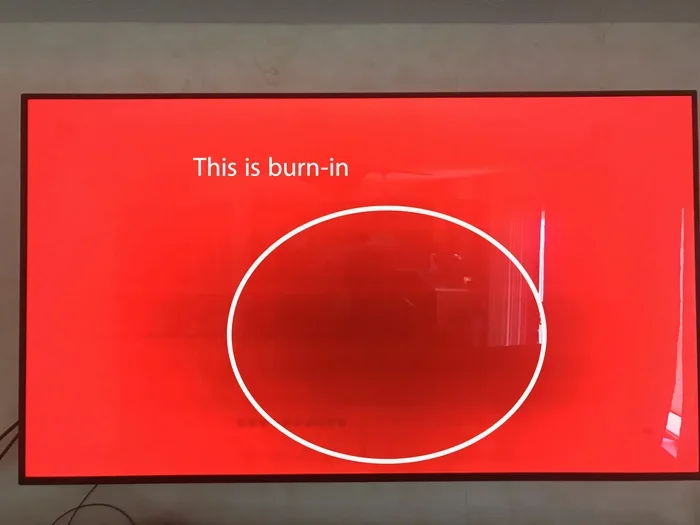
When an LCD display shows a static image for a long time, the pixels start to wear out. They get “stuck” in one state. Over time, this creates a ghostly outline or shadow on your screen. Sometimes the image appears normal. Other times, it looks like a negative photo. That is what we call reversed burn-in. The pixels have been damaged in a way that flips the colors or creates a mirrored effect.
How Does Reversed Burn-In Happen?
Your LCD panel uses tiny pixels to create images. Each pixel has red, green, and blue sub-pixels. When you leave a static logo or text on the screen for hours, those pixels work overtime in one spot. They start to degrade unevenly. The result? A negative afterimage that lingers even when you change the content.
Here are the most common causes:
- Leaving a TV on a paused screen for too long.
- Displaying the same channel logo all day.
- Using a monitor with a static desktop background for extended periods.
- Playing video games with a fixed HUD or interface element.
- Running a DVD menu or screensaver with a static image.
All of these situations put uneven stress on your LCD display. The pixels in the bright areas wear out faster than the rest. That creates the reversed or ghostly effect you see.
Signs Your LCD Screen Has Burned Reversed
Not sure if your screen has LCD burn-in? Here are the telltale signs to watch for.
Visual Clues to Look For
- Ghost images: You see a faint outline of previous content even after changing the screen.
- Color shifts: Parts of the screen look slightly different in color from the rest.
- Negative images: The afterimage looks like a photo negative with flipped colors.
- Persistent shadows: Dark or light spots remain visible no matter what you display.
- Text outlines: You can still see the shadow of text or logos after they are gone.
These signs can be mild at first. But they get worse over time if you do not address them early. The key is to catch screen burn-in as soon as possible.
Reversed Burn-In vs. Image Persistence
It is important to know the difference between image persistence and true LCD burn-in. Image persistence is temporary. It goes away after you turn off the screen for a while. True burn-in is permanent pixel damage. Reversed burn-in usually falls somewhere in between. Early stages can often be reversed with the right techniques.
How To Fix LCD Screen Burn Reversed Fast
Now for the part you have been waiting for. How do you actually fix a reversed LCD burn-in? There are several methods you can try right now. Some work in minutes. Others may take a few days. Let us go through them one by one.
Method 1: Use the Built-In Pixel Refresh Tool
Most modern TVs and monitors come with a built-in pixel refresh or screen refresh mode. This is the easiest and fastest fix.
Here is how to do it:
- Open your TV or monitor settings menu.
- Look for “Screen Refresh,” “Pixel Shift,” or “Panel Refresh.”
- Select the option and let it run for 10 to 30 minutes.
- Turn the screen off and let it cool down.
- Check if the reversed image has faded.
This method works by gently shifting the pixels to “unstick” them. It is safe and does not damage your LCD panel further. Samsung, LG, Sony, and other brands all include this feature in their TVs.
Method 2: Run a White Screen Test
Displaying a full white screen can help recover stuck pixels. Here is what to do:
- Open a blank white document or webpage on your monitor.
- Set the brightness to about 50 percent.
- Leave it running for 10 to 15 minutes.
- Repeat this several times a day for a few days.
The white screen helps “reset” the pixels and reduce the negative afterimage. This works best for mild cases of screen ghosting.
Method 3: Use a Burn-In Fix Video
You can find free burn-in fix videos on YouTube. These videos display rapidly changing colors and patterns. They exercise all the pixels evenly and help recover from LCD screen burn reversed.
Here is a quick setup:
- Search for “LCD burn-in fix video” on YouTube.
- Play the video in full screen mode.
- Run it for 15 to 30 minutes.
- Repeat daily for up to a week.
Many users report great results with this simple method. It is one of the most popular burn-in fix solutions online.
Method 4: Adjust Brightness and Contrast
High brightness is one of the biggest enemies of your LCD screen. Reducing it can help prevent and fix display burn-in. Try these settings:
- Lower the brightness to 40 to 60 percent.
- Reduce contrast to a comfortable level.
- Turn off any extra image processing features.
- Enable dynamic backlight control if your TV has it.
These small changes reduce the strain on your LCD display and help the pixels recover over time.
Method 5: Use Screen Savers and Auto-Off Features
If you leave your monitor or TV on for long periods, use a screen saver or set an auto-off timer. This prevents static images from sitting on the screen too long. A good screen saver moves the image around, which keeps the pixels active and healthy.
Preventing LCD Screen Burn Reversed
Prevention is always better than cure. Once your LCD panel has burn-in, fixing it can be a hassle. Here is how to protect your screen from day one.
Best Practices for Screen Care
- Avoid pausing content for long periods. If you step away, turn the screen off.
- Use dynamic wallpapers on your desktop. Moving images keep pixels active.
- Enable pixel shift or screen rotation. Most modern displays have this built in.
- Keep brightness at reasonable levels. Do not max it out all the time.
- Take breaks during long viewing sessions. Give your screen time to rest.
Recommended Display Settings
These settings help reduce the risk of LCD burn-in:
- Brightness: 40 to 60 percent
- Contrast: 50 to 70 percent
- Color temperature: Warm or neutral
- Motion smoothing: Medium or off
- Auto-off timer: Set to 15 to 30 minutes
Quick Tips for Daily Screen Care
Small habits make a big difference over time. Here are some quick tips:
- Turn off your TV when you are not watching.
- Do not leave a computer monitor on overnight.
- Use the “game mode” feature wisely, as it can increase pixel stress.
- Clean your screen gently with a microfiber cloth.
- Keep your device in a cool, ventilated area.
Following these simple steps can extend the life of your LCD screen by years. You will avoid reversed burn-in and keep your display looking sharp.
When To Seek Professional Help
Sometimes home fixes are not enough. If the LCD screen burn reversed is severe, you may need professional help. Here is when to consider it.
Signs You Need Expert Repair
- The reversed image does not improve after a week of home fixes.
- The burn-in covers a large portion of the screen.
- Colors look significantly different in certain areas.
- The screen flickers or shows lines along with the ghost image.
Warranty and Replacement Options
Check your LCD warranty before paying for repairs. Many manufacturers cover burn-in, especially within the first year or two. Brands like LG and Samsung often include burn-in protection on their premium models.
If your warranty has expired, you have two options:
- Professional repair: A technician can replace the LCD panel or repair the driver board.
- Screen replacement: In some cases, replacing just the panel is cheaper than buying a new device.
Get a quote before committing. Compare the repair cost with the price of a new LCD display. Sometimes replacing the whole unit makes more sense.
Common Mistakes That Cause LCD Burn-In
Avoid these common mistakes that lead to screen burn-in and reversed images:
- Leaving a paused image on the screen for hours. This is the number one cause of LCD burn-in.
- Running your TV at maximum brightness all the time. High brightness accelerates pixel wear.
- Ignoring early warning signs. If you notice faint ghosting, act fast.
- Using your monitor in a dark room at full brightness. This creates extreme contrast that stresses the pixels.
- Not using built-in refresh features. Many people never turn on their pixel refresh settings.
- Leaving a computer on with a static desktop for days. This is a common cause of monitor burn-in.
Steering clear of these habits will keep your LCD screen healthy and burn-free for a long time.
Expert Insights on LCD Burn-In Recovery
We spoke with display technicians about the best ways to handle LCD screen burn reversed. Here is what the experts say:
“Most mild cases of reversed burn-in can be fixed within a few days using pixel refresh and white screen tests,” says a senior technician at a major TV repair service. “The key is to act quickly. The longer the burn-in sits, the harder it is to recover.”
Another expert adds, “Prevention is the most powerful tool. Simple settings adjustments can save you from ever dealing with LCD burn-in in the first place.”
These insights confirm what many users have already discovered. The earlier you catch and fix screen burn-in, the better your chances of a full recovery.
Final Thoughts
LCD screen burn reversed is a real issue, but it is far from hopeless. Whether you catch it early or have had it for a while, there are proven methods to fix it. Start with the built-in pixel refresh tool. Try white screen tests and burn-in fix videos. Adjust your display settings to reduce strain. And most importantly, practice good screen care habits to prevent it from happening again.
Your LCD display is a valuable investment. With the right care and attention, you can keep it looking vibrant and burn-free for years. Do not wait until the damage gets worse. Try these fixes today and give your screen the recovery it deserves.
Frequently Asked Questions
Can LCD screen burn-in be completely reversed?
In many cases, yes. Mild to moderate LCD burn-in can often be reversed using pixel refresh tools, white screen tests, and burn-in fix videos. Severe cases may need professional repair or screen replacement.
How long does it take to fix reversed LCD burn-in?
It depends on the severity. Mild cases may improve within a few hours of using refresh tools. More serious burn-in can take several days of consistent treatment with white screens and color cycling videos.
Is LCD screen burn-in permanent?
Not always. Early-stage burn-in and image persistence are often temporary and reversible. True burn-in caused by severe pixel degradation can be permanent, but even then, professional repair or panel replacement can help.
Can I prevent LCD screen burn-in from happening again?
Absolutely. Reduce brightness, avoid static images, use pixel shift features, enable auto-off timers, and take regular breaks. These simple habits go a long way in preventing LCD screen burn reversed from ever returning.
Does warranty cover LCD burn-in damage?
Many manufacturers cover burn-in under warranty, especially within the first one to two years. Check your specific warranty terms. Brands like LG and Samsung often include burn-in protection on their premium models.
What is the difference between LCD burn-in and OLED burn-in?
LCD burn-in is caused by uneven pixel wear from static images. OLED burn-in is more common and severe because OLED pixels degrade at different rates. LCD screen burn reversed is generally easier to fix and less permanent than OLED burn-in.
=== CONCLUSION ===
LCD screen burn reversed is a fixable problem. You now know what causes it, how to spot it, and the best ways to reverse the damage. Use the pixel refresh tools built into your TV or monitor. Try white screen tests and burn-in fix videos. Adjust your settings and practice good screen care every day. The sooner you act, the better your chances of a full recovery. Your display will thank you for it.