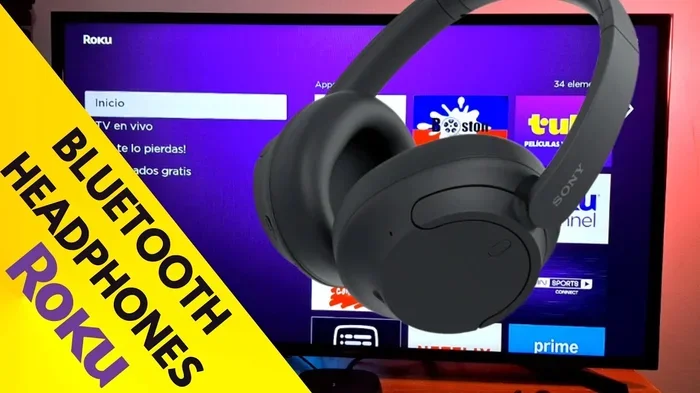
Can I Use Bluetooth Headphones With Roku For Streaming
Yes, you can use Bluetooth headphones with Roku for a private and immersive streaming experience. Most modern Roku devices support built-in Bluetooth, while older models can use the Roku app or a Bluetooth transmitter. This guide covers every method, compatible models, and expert tips to get the best wireless audio from your Roku setup.
If you love watching movies or shows late at night, you know how annoying it can be when the sound wakes up everyone else in the house. The good news is that Bluetooth headphones with Roku can solve this problem completely. You can enjoy your favorite content with crystal-clear audio without bothering a single person nearby. Many people ask, “Can I use Bluetooth headphones with Roku,” and the answer is a confident yes.
Roku has made big strides in wireless audio support over the past few years. Whether you own a Roku Ultra, a basic Roku Express, or a Roku Streaming Stick, there is a way to connect your wireless headphones. This guide walks you through every method, every compatible model, and every tip you need for the best private listening experience.
Key Takeaways
- Multiple Connection Methods: You can connect Bluetooth headphones with Roku using built-in Bluetooth, the Roku remote headphone jack, the Roku app, or a Bluetooth transmitter.
- Not All Roku Models Are Equal: Newer models like the Roku Ultra and Roku Streaming Stick 4K have native Bluetooth support, while older models like the Roku Express need a workaround.
- Private Listening Is a Game-Changer: The Roku app lets you route audio to your wireless headphones through your phone, enabling private listening on any Roku device.
- Bluetooth Transmitters Solve Old-Model Problems: Affordable transmitters plug into your Roku TV audio output and add Bluetooth capability to any Roku device.
- Low Latency Matters: Choose headphones and transmitters that support aptX Low Latency to avoid audio delay during your Roku streaming sessions.
- Troubleshooting Is Simple: Most Bluetooth connectivity issues with Roku can be fixed by restarting devices, updating firmware, or moving closer to the Roku device.
📑 Table of Contents
- How Does Bluetooth Work With Roku?
- Which Roku Models Support Bluetooth Headphones?
- How to Connect Bluetooth Headphones to Your Roku Device
- Using the Roku App for Private Listening
- Bluetooth Transmitters: A Workaround for Older Roku Models
- Troubleshooting and Tips for the Best Wireless Audio Experience
- Tips for Getting the Best Wireless Audio Experience
- Conclusion
How Does Bluetooth Work With Roku?
Understanding how Bluetooth connectivity works with your Roku device helps you get the most out of your setup. Bluetooth is a short-range wireless technology that sends audio from one device to another without any cables. When you pair wireless headphones with a Roku, the audio signal travels directly from the Roku to your headphones.
Built-In Bluetooth vs. External Solutions
Not all Roku devices have built-in Bluetooth. Some newer models include this feature right out of the box. Older models may need an external Bluetooth transmitter to work with wireless headphones. The Roku OS handles the connection differently depending on your device type.
Here is a quick look at how Bluetooth pairing works on different Roku devices:
| Roku Model | Built-In Bluetooth | Private Listening Supported |
|---|---|---|
| Roku Ultra (2020+) | Yes | Yes, via Roku remote |
| Roku Streaming Stick 4K | Yes | Yes, via Roku remote |
| Roku Premiere | Yes | Yes, via Roku remote |
| Roku Express | No | No (needs transmitter) |
| Roku Express 4K+ | Yes | Yes, via Roku remote |
| Roku TV (Select Models) | Yes | Yes, via Roku remote |
This table shows that newer Roku models generally support Bluetooth natively. If you have an older device, do not worry. There is still a simple workaround that works great.
Which Roku Models Support Bluetooth Headphones?
When you search for “Bluetooth headphones with Roku,” the first thing you need to know is which Roku model you own. Not every device handles wireless audio the same way. Some streaming devices connect easily, while others need a little extra help.
Roku Ultra and Streaming Stick 4K
The Roku Ultra and Roku Streaming Stick 4K are among the best devices for wireless audio. Both include built-in Bluetooth support and a headphone jack built into the Roku remote. This means you can use the Roku remote app or the physical remote to enable private listening mode. The audio goes straight to your headphones without any delay.
Roku Premiere and Premiere+
The Roku Premiere and Roku Premiere+ also support Bluetooth audio. These are great mid-range Roku devices that offer solid wireless audio performance. You can pair your headphones using the remote’s headphone jack or through the Roku settings menu.
Roku Express and Older Models
If you own a Roku Express or an older model, you might not have native Bluetooth support. However, you can still use wireless headphones with a Bluetooth transmitter. This small device plugs into the Roku TV audio output and sends the signal to your headphones. It is an affordable and effective solution.
How to Connect Bluetooth Headphones to Your Roku Device
Connecting Bluetooth headphones with Roku is easier than most people think. The process takes just a few minutes, and you will be watching your favorite shows in no time. Follow these steps based on your device type.
Method 1: Using the Roku Remote Headphone Jack
Many Roku remotes have a small headphone jack on the bottom. This is the simplest way to connect wired or wireless headphones that use the remote as a bridge.
- Plug your headphones into the remote’s headphone jack.
- Go to Roku settings on your TV screen.
- Select Audio or Private Listening.
- Choose the option to route audio to the remote.
- Your headphones will now play all Roku audio.
Method 2: Pairing Bluetooth Headphones Directly
If your Roku device has built-in Bluetooth, you can pair your wireless headphones directly. Here is how:
- Put your headphones in pairing mode.
- Go to Roku settings on your TV.
- Select System and then Audio.
- Choose Bluetooth and select “Pair new device.”
- Select your headphones from the list.
- Wait for the connection to complete.
Once paired, your Roku device will remember your headphones. You will not need to pair them again unless you reset the connection.
Method 3: Using the Roku Mobile App
The Roku app is a powerful tool for controlling your streaming experience. You can use it for private listening even if your Roku device does not have built-in Bluetooth.
- Download the Roku app on your smartphone.
- Make sure your phone and Roku are on the same Wi-Fi network.
- Open the app and select your Roku device.
- Go to Remote settings.
- Enable Private Listening and connect your Bluetooth headphones to your phone.
This method routes audio through your phone to your headphones. It works with any Roku model and gives you full control over volume and playback.
Using the Roku App for Private Listening
Private listening is one of the best features of using Bluetooth headphones with Roku. It lets you watch movies, sports, or late-night shows without anyone else hearing the audio. The Roku app makes this feature easy to access and use.
Setting Up Private Listening Through the App
Setting up private listening takes just a few simple steps. First, download the Roku app from the App Store or Google Play Store. Open the app and make sure it is connected to your Roku device. Tap the Remote icon at the bottom of the screen. Look for the headphone icon or the private listening option. When you enable it, the audio will route to your connected wireless headphones through your phone.
Benefits of Using the Roku App for Audio
Using the Roku app for audio has several great benefits. You get full volume control right from your phone. You can also use the app to search for content, launch channels, and manage your Roku Channel library. The app works as a full replacement for the physical remote. Plus, it supports Bluetooth connectivity with any headphones your phone can pair with.
One thing to keep in mind is that this method uses your phone as a bridge. If you get a phone call or leave the room, the audio might pause. But for most users, this is a small trade-off for the flexibility it provides.
Bluetooth Transmitters: A Workaround for Older Roku Models
If your Roku device does not support Bluetooth natively, a Bluetooth transmitter is your best friend. This small device plugs into the audio output on your Roku TV or Roku player and creates a wireless bridge to your headphones.
How Bluetooth Transmitters Work
A Bluetooth transmitter takes the audio signal from your Roku and sends it wirelessly to your headphones. It works like a middleman between your Roku device and your wireless headphones. Most transmitters plug into the 3.5mm audio jack or connect via optical cable.
Top Bluetooth Transmitters for Roku
Not all transmitters are the same. Here are some popular options that work well with Bluetooth headphones with Roku:
- 1Mii B06 Bluetooth Transmitter – Supports aptX Low Latency for minimal audio delay.
- Avantree Oasis Plus – Great range and supports multiple headphone connections.
- TaoTronics TT-BA07 – Budget-friendly and easy to set up.
- 1Mii B07 – Offers excellent range and strong signal stability.
When choosing a transmitter, look for one that supports low-latency codecs. This reduces audio latency, which is the delay between what you see on screen and what you hear. Low latency is essential for watching action movies or sports where timing matters.
Setting Up a Bluetooth Transmitter with Roku
Setting up a transmitter is straightforward. Plug the transmitter into your Roku’s audio output. Put your headphones in pairing mode. Press the pairing button on the transmitter. Wait for the LED light to show a solid connection. Your Roku TV audio will now stream wirelessly to your headphones.
Troubleshooting and Tips for the Best Wireless Audio Experience
Even with the best setup, you might run into occasional issues. Bluetooth connectivity problems are common but usually easy to fix. Here are the most frequent issues and how to solve them.
Audio Latency or Delay
Audio latency is the most common complaint with wireless headphones and Roku. You see the lips move, but the sound comes a split second later. This is especially noticeable during dialogue-heavy scenes. To reduce latency, make sure your Roku device and headphones support low-latency Bluetooth codecs like aptX or aptX Low Latency. Using the Roku remote headphone jack also eliminates this problem entirely.
Headphones Not Showing Up in the Pairing List
If your wireless headphones do not appear in the Roku Bluetooth menu, try these steps. Make sure your headphones are in pairing mode. Restart your Roku device and try again. Move closer to the Roku device to improve signal strength. Check that no other devices are connected to your headphones. Sometimes a simple restart of both devices solves the problem.
Audio Cutting Out Intermittently
Intermittent audio dropouts can be frustrating. This usually happens when you are too far from the Roku device or when other wireless signals interfere. Stay within 30 feet of your Roku for the best connection. Keep your Roku device away from other Bluetooth devices that might cause interference. If you use a transmitter, make sure it has a strong signal and is fully charged.
Volume Not Syncing Properly
Sometimes the volume on your headphones does not match what you see on the Roku screen. You can fix this by adjusting the volume through the Roku remote or the Roku app. If you use the app, the phone’s volume controls also affect the headphone volume. Make sure your phone is not on mute or at a very low volume.
Tips for Getting the Best Wireless Audio Experience
Getting the most out of your Bluetooth headphones with Roku comes down to a few smart choices. Follow these tips for the best wireless audio experience every time.
Choose Headphones with Low Latency Support
Not all wireless headphones are created equal. Look for models that support aptX, aptX Low Latency, or AAC codecs. These reduce the delay between video and audio significantly. Popular choices include the Sony WH-1000XM5, Bose QuietComfort 45, and Apple AirPods Pro. Any of these work great with Roku streaming setups.
Keep Your Roku Device Firmware Updated
Roku regularly releases Roku OS updates that improve Bluetooth connectivity and fix bugs. Go to Settings > System > System Update on your Roku to check for the latest firmware. Keeping your device updated ensures the best performance with your wireless headphones.
Use the Roku Remote for Volume Control
When using the Roku remote headphone jack, you get the most seamless volume control experience. The remote’s volume buttons control the headphone output directly. This is much more convenient than adjusting volume through your phone or the TV itself.
Charge Your Headphones Before Watching
Nothing ruins a movie night like headphones dying halfway through. Make it a habit to charge your wireless headphones before you start watching. Most modern headphones last 20 to 30 hours on a single charge, but it is always better to be safe. Keep them on the charging stand when not in use.
Experiment with Different Placement
The position of your Roku device can affect Bluetooth signal strength. Place your Roku near the center of your entertainment setup. Avoid putting it inside a closed cabinet or behind thick walls. Better placement means a stronger, more stable connection to your wireless headphones.
Consider a Dedicated Bluetooth Adapter
If you use your Roku TV for more than just streaming, consider a dedicated Bluetooth adapter. These plug into the TV’s audio output and provide a permanent wireless audio solution. They work independently of your Roku device and give you more flexibility. You can even use them with other devices like gaming consoles or cable boxes.
Conclusion
The answer to “Can I use Bluetooth headphones with Roku” is a clear and resounding yes. Whether you own the latest Roku Ultra or a basic Roku Express, there is a way to enjoy private, wireless audio while streaming. You can pair directly, use the Roku app, or add a Bluetooth transmitter for older models.
Bluetooth headphones with Roku open up a world of convenience. You can watch late-night movies, enjoy sports without disturbing the family, or simply listen at your own comfort level. The methods covered in this guide give you options no matter what Roku model you own.
Take some time to try the different methods and find what works best for your setup. With the right wireless headphones and a little patience, your Roku streaming experience will never be the same. Happy watching!
Frequently Asked Questions
Can I use any Bluetooth headphones with Roku?
Most Bluetooth headphones work with Roku, but compatibility depends on your Roku model. Newer devices like the Roku Ultra and Roku Streaming Stick 4K support direct Bluetooth pairing. Older models may need the Roku app or a Bluetooth transmitter to connect wirelessly.
Why is there a delay in audio when using Bluetooth headphones with Roku?
Audio latency, or delay, happens because Bluetooth transmits data at a slight delay. This is more noticeable on action movies or sports. To fix this, use headphones that support aptX Low Latency, or connect through the Roku remote headphone jack which eliminates delay completely.
Can I connect multiple Bluetooth headphones to one Roku device?
Most Roku devices only support one Bluetooth headphone connection at a time. However, some Bluetooth transmitters allow multiple headphone connections, so you and a partner can both listen privately from the same Roku.
Do I need Wi-Fi to use Bluetooth headphones with Roku?
For direct Bluetooth pairing, you do not need Wi-Fi. However, if you use the Roku app for private listening, both your phone and Roku must be on the same Wi-Fi network. A Bluetooth transmitter also does not require Wi-Fi to work.
Will using Bluetooth headphones affect my Roku streaming quality?
No, using Bluetooth headphones does not affect video quality. The audio is simply redirected from your TV speakers to your headphones. Your streaming quality remains the same as long as your internet connection is stable.
What is the best Bluetooth transmitter for Roku?
The 1Mii B06 and Avantree Oasis Plus are two of the best options. They support low-latency codecs, have long range, and are easy to set up. Choose one that fits your budget and check that it supports the audio codecs your headphones use.