How to Pair Your Aluratek Bluetooth Transmitter with iPhone
Connecting your Aluratek Bluetooth transmitter to your iPhone is simple and fast. This guide walks you through every step of the Bluetooth pairing process so you can enjoy wireless audio in minutes. You will learn setup, troubleshooting, and pro tips for the best Bluetooth connectivity.
You just got your Aluratek Bluetooth transmitter and your iPhone ready. You want to cut the cord and enjoy wireless audio. But how do you actually make the two devices talk to each other? The good news is that pairing an Aluratek transmitter with your iPhone is a straightforward process. You do not need to be a tech expert to get it working.
In this guide, we walk you through every single step. From initial setup to fixing common problems, you will find everything you need right here. Whether you want to connect wireless speakers, headphones, or your car audio system, this guide covers it all. By the end, you will be streaming Bluetooth audio from your iPhone with confidence.
Let us get started. No fluff, no confusing jargon. Just clear, simple steps that work.
Key Takeaways
- Easy Pairing Process: The Aluratek Bluetooth transmitter pairs quickly with your iPhone using simple Bluetooth settings.
- Wireless Audio Freedom: Once connected, you can stream music, podcasts, and calls without any cables.
- Troubleshooting Tips Included: Common connection issues have clear, actionable solutions.
- Compatibility Matters: Understanding Bluetooth version and compatibility ensures smooth performance.
- Quick Setup Time: Most users complete the pairing in under five minutes.
- Multiple Use Cases: Works with speakers, headphones, car audio, and more.
📑 Table of Contents
- What Is an Aluratek Bluetooth Transmitter?
- Before You Start: What You Need
- Step-by-Step Guide to Pairing Your Aluratek Bluetooth Transmitter with iPhone
- Common Problems and How to Fix Them
- Tips for the Best Bluetooth Performance
- What Can You Do with a Paired Aluratek Transmitter and iPhone?
- Aluratek Bluetooth Transmitter vs. Other Options
- Quick Tips for First-Time Users
- Final Thoughts
What Is an Aluratek Bluetooth Transmitter?
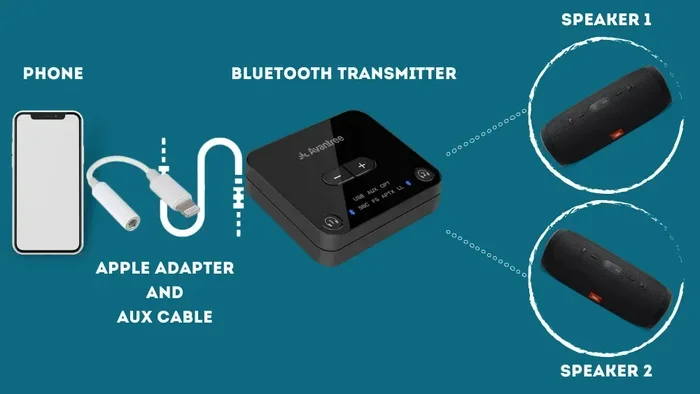
An Aluratek Bluetooth transmitter is a small device that sends audio wirelessly from one source to another. Think of it as a bridge between your iPhone and your speakers or headphones. It uses Bluetooth technology to transmit sound without any wires.
These transmitters are popular because they make non-Bluetooth devices Bluetooth-ready. You can plug one into a car stereo, a TV, or any device with a 3.5mm jack or USB port. Then your iPhone connects to it just like any other Bluetooth device.
How Does Bluetooth Transmitter Technology Work?
Bluetooth transmitters use radio waves to send audio signals. Your iPhone sends a signal, and the receiver picks it up. This happens in seconds. The latest Bluetooth versions offer better range and sound quality. Most Aluratek models support Bluetooth 5.0 or higher, which means a stronger and more stable wireless connection.
The transmitter acts as a middleman. It takes the audio output from your iPhone and broadcasts it to a compatible receiver nearby. This is how you get wireless audio streaming in your car, your living room, or anywhere else.
Before You Start: What You Need
Before you begin the pairing process, make sure you have everything ready. Preparation makes the setup faster and smoother. Here is what you need:
- Your Aluratek Bluetooth transmitter
- A fully charged iPhone
- The charging cable for the transmitter
- A Bluetooth-compatible device to receive audio (speakers, headphones, car system)
- A quiet space to test the connection
Also, check that your iPhone is running a recent version of iOS. Most Bluetooth transmitters work best with updated software. If you are unsure, go to Settings and check for any available updates. Keeping your device updated ensures the best Bluetooth compatibility.
Step-by-Step Guide to Pairing Your Aluratek Bluetooth Transmitter with iPhone
Now comes the fun part. You will connect your devices in just a few minutes. Follow each step carefully for the best results.
Step 1: Power On the Transmitter
Plug your Aluratek Bluetooth transmitter into a power source. Use the included USB cable or adapter. You should see a light indicator turn on. This tells you the transmitter is ready. Some models flash a blue or red LED when they are in pairing mode.
If your transmitter came with a USB cable, you can plug it into a wall adapter or a computer USB port. Make sure the connection is secure. A loose cable can cause power issues and interrupt the Bluetooth device setup.
Step 2: Put the Transmitter into Pairing Mode
Most Aluratek transmitters have a dedicated pairing button. Press and hold it for about three to five seconds. The LED light should start flashing. This means the transmitter is ready to be discovered by other devices.
If you are not sure which button to press, check the user manual that came with your transmitter. Some models enter pairing mode automatically when you first power them on. Look for any indicator that shows the device is ready for device pairing process.
Step 3: Open Bluetooth on Your iPhone
On your iPhone, go to Settings. Tap on Bluetooth. Make sure the toggle is turned on. Your iPhone will start scanning for nearby Bluetooth devices.
You should see a list of available devices appear on the screen. Wait a few seconds. Your Aluratek transmitter should show up in the list. It might appear as “Aluratek BT” or a similar name depending on your model.
Step 4: Select the Transmitter and Connect
Tap on the name of your Aluratek transmitter in the Bluetooth list. Your iPhone will attempt to connect. You may see a spinning animation while the devices pair. Once connected, the status will change to “Connected.”
Some transmitters require you to enter a PIN code. The default PIN is usually 0000 or 1234. Check your transmitter manual if a code is needed. This is a standard security step for Bluetooth connectivity.
Step 5: Test the Connection
Play some music on your iPhone. You should hear it coming through the connected speaker or headphones. Try adjusting the volume from both your iPhone and the transmitter. This confirms that the audio signal is flowing properly.
If you hear sound, congratulations. Your Aluratek Bluetooth transmitter iPhone connection is working. If not, do not worry. Move on to the troubleshooting section below.
Common Problems and How to Fix Them
Even with the best instructions, you might run into issues. Bluetooth connections can sometimes be finicky. Here are the most common problems and their solutions.
iPhone Does Not Find the Transmitter
This is the most common issue. First, make sure the transmitter is in pairing mode. The LED should be flashing. If it is not, turn the transmitter off and on again. Then try the pairing process from Step 3.
Also, check that Bluetooth is turned on in your iPhone settings. Sometimes a simple toggle off and on fixes the problem. Restarting your iPhone can also help refresh the Bluetooth settings and clear any temporary glitches.
Audio Cuts Out or Keeps Disconnecting
Interference can cause audio dropouts. Keep the transmitter close to your iPhone. Bluetooth works best within 30 feet. Walls and other electronic devices can weaken the signal.
If you are using the transmitter in a car, try placing it closer to the iPhone holder. Also, make sure the transmitter firmware is up to date. Check the Aluratek website for any firmware updates that improve Bluetooth audio streaming stability.
Poor Sound Quality
If the sound sounds muffled or distorted, check the volume levels on both devices. Set the iPhone volume to about 75 percent and adjust from the speaker or headphone side. This prevents audio clipping.
Also, make sure you are using a good quality audio cable between the transmitter and the output device. A cheap or damaged cable can hurt sound quality. If you are in a crowded area with many Bluetooth devices, interference might be the cause. Moving to a quieter spot can help.
Transmitter Will Not Turn On
Check the charging cable first. Try a different USB port or wall adapter. Sometimes the included cable is faulty. Let the transmitter charge for at least 30 minutes before trying again.
If it still does not turn on, the battery might be completely drained. Give it more time to charge. A fully dead battery can take a while to show any signs of life. This is normal and not a defect.
Tips for the Best Bluetooth Performance
Want to get the most out of your Aluratek transmitter? Here are some expert tips that make a big difference.
Keep Your Devices Close
Bluetooth works best when devices are within range. Keep your iPhone and the transmitter within 10 to 15 feet for the strongest signal. Walls and furniture can weaken the connection. If you are streaming audio in another room, consider using a Wi-Fi extender to boost your overall network. You can learn more about extending your Wi-Fi range to improve overall connectivity in your home.
Update Your iPhone Software
Apple regularly releases iOS updates that improve Bluetooth performance. Go to Settings, then General, then Software Update. Install any pending updates. This keeps your iPhone Bluetooth settings optimized and secure.
Reset the Bluetooth Connection
If you are having persistent issues, try resetting the Bluetooth connection. Turn Bluetooth off on your iPhone. Turn the transmitter off. Wait 30 seconds. Then turn both back on and try pairing again. This clears any stuck connections and often solves stubborn problems.
Use the Transmitter with Multiple Devices
Many Aluratek transmitters can connect to more than one device. You can pair your iPhone and an iPad to the same transmitter. This is great for households with multiple users. Just make sure you disconnect one device before connecting another to avoid confusion.
Check for Interference
Other wireless devices can interfere with Bluetooth signals. Microwaves, baby monitors, and even other Bluetooth devices can cause issues. If you notice problems, move away from other wireless devices and try again. This simple step often solves connection issues.
What Can You Do with a Paired Aluratek Transmitter and iPhone?
Once your transmitter and iPhone are connected, the possibilities are wide open. Here are some popular ways people use this setup.
- Car Audio: Stream music and phone calls through your car speakers. No more aux cable clutter.
- Home Speakers: Connect any speaker with a 3.5mm input to your iPhone for wireless music playback.
- Wireless Headphones: Use your favorite wired headphones wirelessly by connecting them through the transmitter.
- TV Audio: Send TV audio to Bluetooth headphones so you can watch late-night shows without disturbing anyone.
- Gaming: Get wireless audio while playing games on your iPhone or iPad.
If you are interested in exploring other Bluetooth audio setups, check out how Alexa can work as a Bluetooth speaker for your TV for more wireless audio ideas.
Aluratek Bluetooth Transmitter vs. Other Options
There are many Bluetooth transmitters on the market. Here is how the Aluratek model compares to other common options.
| Feature | Aluratek Transmitter | Generic Bluetooth Adapter | Built-in Car Bluetooth |
|---|---|---|---|
| Ease of Setup | Very Easy | Easy | Easy (Already Built-in) |
| Compatibility | iPhone, Android, iPad | Most Devices | iPhone and Android |
| Range | Up to 30 Feet | Up to 25 Feet | Varies |
| Price | Affordable | Very Affordable | Free (Already Included) |
| Sound Quality | High | Good | Good |
| Portability | Highly Portable | Portable | Not Portable |
The Aluratek transmitter stands out for its balance of price, quality, and ease of use. It works with your iPhone right out of the box. You do not need any special apps or technical knowledge. It is a great choice for anyone who wants simple wireless audio streaming.
Quick Tips for First-Time Users
- Always charge the transmitter fully before your first use.
- Keep your iPhone near the transmitter during pairing.
- Restart both devices if you encounter connection issues.
- Update the transmitter firmware if available on the Aluratek website.
- Use a 3.5mm audio cable that is short and high quality for best results.
- Label your paired devices so you can easily identify them later.
Final Thoughts
Pairing your Aluratek Bluetooth transmitter with your iPhone is easier than you might think. In just a few minutes, you can enjoy wireless audio in your car, at home, or anywhere else. The process is simple, and the results are excellent. You get freedom from cables and a better listening experience.
If you run into any issues, refer back to the troubleshooting section. Most problems have quick and easy fixes. Keep your devices updated, stay within range, and you will have a smooth Bluetooth connection every time.
Now that you know how to connect your devices, go ahead and enjoy your wireless audio. Stream your favorite music, take hands-free calls, and experience the convenience of Bluetooth technology. Your Aluratek transmitter and iPhone are a perfect pair.
For more connectivity tips and guides, explore our other articles on wireless devices and Bluetooth setup. We have plenty of resources to help you get the most from your tech gear.
Frequently Asked Questions
How long does it take to pair an Aluratek Bluetooth transmitter with an iPhone?
Most users complete the pairing process in under five minutes. The actual steps are simple and fast. You just need to power on the transmitter, enable Bluetooth on your iPhone, and select the device from the list.
Why won’t my iPhone find the Aluratek Bluetooth transmitter?
This usually happens when the transmitter is not in pairing mode. Make sure the LED light is flashing. Also check that Bluetooth is turned on in your iPhone settings. Restarting both devices often fixes this issue.
Can I connect multiple devices to my Aluratek Bluetooth transmitter?
Yes, many Aluratek models support multiple paired devices. You can switch between them easily. However, only one device can stream audio at a time. Disconnect one device before connecting another for the best results.
What is the range of the Aluratek Bluetooth transmitter?
The transmitter works best within 30 feet of your iPhone. Walls and obstacles can reduce this range. For the strongest connection, keep the devices close together and away from other wireless interference.
Do I need any special app to pair the Aluratek transmitter with my iPhone?
No, you do not need any special app. The iPhone’s built-in Bluetooth settings handle the pairing process. Just go to Settings, tap Bluetooth, and follow the on-screen instructions.
Can I use the Aluratek transmitter with non-Apple devices?
Yes, the Aluratek Bluetooth transmitter works with most Bluetooth-enabled devices. This includes Android phones, tablets, laptops, and more. The pairing process is similar across different devices.