How Do I Connect Echo Dot Without Alexa App Easily
You can set up your Echo Dot without the Alexa app by using Wi-Fi through a web browser, Bluetooth pairing, or a computer connection. This guide walks you through every simple method so you can start using your Amazon smart speaker right away. Follow these easy steps to get your Echo Dot connected in minutes.
Key Takeaways
- Method 1: You can set up Echo Dot using a web browser on any device connected to the same network.
- Method 2: Bluetooth pairing lets you connect Echo Dot without needing a phone or app at all.
- Method 3: A computer or laptop can act as your control center for the full setup process.
- Wi-Fi matters: A strong and stable connection is essential for a smooth Echo Dot setup experience.
- Troubleshooting is simple: Most common issues have quick fixes you can do in under five minutes.
- No app needed: Amazon provides multiple alternative paths to get your Alexa voice service running.
- Smart home ready: Once connected, your Echo Dot works just like it would with the app installed.
📑 Table of Contents
- How Do I Connect Echo Dot Without Alexa App Easily?
- What Is Echo Dot and Why Skip the Alexa App?
- Setting Up Echo Dot Without the Alexa App Using Wi-Fi
- Using Bluetooth to Connect Echo Dot Without the App
- Connecting Echo Dot Through a Computer or Browser
- Troubleshooting Common Echo Dot Setup Issues
- Quick Tips for a Smooth Echo Dot Setup
- What Can You Do With Echo Dot After Setup?
- Final Thoughts on Connecting Echo Dot Without the App
How Do I Connect Echo Dot Without Alexa App Easily?
Setting up an Amazon Echo Dot should feel simple. But what happens when you do not have the Alexa app? Maybe your phone is broken. Maybe you do not own a smartphone. Or maybe you just do not want to download another app on your device. Whatever the reason, you are not stuck.
The good news is that you can connect Echo Dot without Alexa app using several straightforward methods. You can use a web browser, Bluetooth, or even a computer to get everything running. Each method works well and does not require advanced tech skills.
In this guide, we will walk through every option step by step. You will learn how to handle Echo Dot setup the easy way. We will also cover Wi-Fi configuration, Bluetooth pairing, and common troubleshooting tips. By the end, your smart speaker will be up and running without touching the app store.
Let us get started. No fluff, no complicated jargon. Just clear, practical steps you can follow right now.
What Is Echo Dot and Why Skip the Alexa App?
The Amazon Echo Dot is a small smart speaker that uses Alexa voice service to respond to your commands. It plays music, answers questions, controls smart home devices, and sets reminders. It is one of the most popular Amazon Echo devices on the market today.
So why would someone want to skip the Alexa app? Here are a few common reasons:
- Your phone storage is full and you cannot install more apps.
- You are setting up the device on a computer or tablet instead of a phone.
- You prefer a browser-based setup for privacy reasons.
- Your phone is not working or you do not have a smartphone at all.
- You want a faster setup without creating an Amazon account through the app.
No matter the reason, Amazon knows that people need flexibility. That is why they built multiple paths into the Echo Dot Wi-Fi configuration process. You are never locked into one single method.
The Alexa App Is Convenient But Not Required
Let us be clear. The Alexa app makes setup easier for most people. It guides you through every step with pictures and prompts. But it is not the only way. Think of the app as a helpful helper, not a requirement. Your smart home device setup can happen just as well through a browser or Bluetooth connection.
Setting Up Echo Dot Without the Alexa App Using Wi-Fi
The most common way to connect Echo Dot without the app is through a web browser. This method works on any device that has a browser and is connected to the same Wi-Fi network you want the Echo Dot to join.
Step-by-Step Wi-Fi Setup Process
Follow these steps carefully. They are designed to be simple and foolproof.
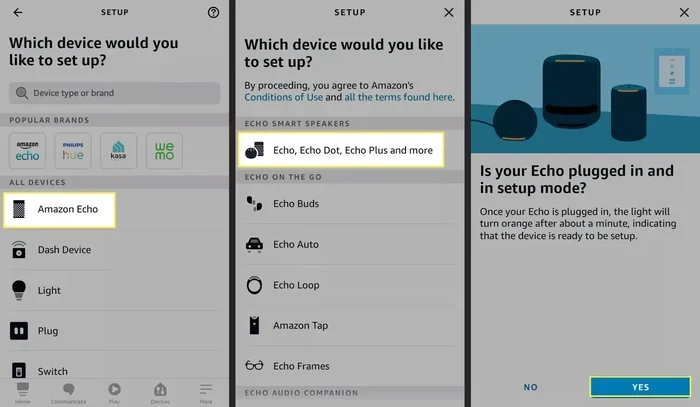
- Plug in your Echo Dot and wait for the light ring to turn orange. This means it is ready for setup.
- On your computer, tablet, or phone, open any web browser.
- Go to alexa.amazon.com in your browser.
- Sign in with your Amazon account. If you do not have one, you will need to create one first.
- The website will detect your Echo Dot automatically. Click on it when it appears.
- Select your Wi-Fi network from the list and enter the password.
- Wait for the light ring to turn solid blue. This means the connection is complete.
That is it. Your Echo Dot is now connected to Wi-Fi and ready to use. You did not need the Alexa app at any point.
What If the Website Does Not Detect Your Echo Dot?
Sometimes the browser setup does not find the device right away. Do not worry. Here is what to check:
- Make sure your computer and Echo Dot are on the same network.
- Check that the Echo Dot light ring is orange, meaning it is in setup mode.
- Try refreshing the browser page or clearing your cache.
- Move your Echo Dot closer to your router for a stronger Wi-Fi signal.
- If you are at a hotel or office, the network may require extra steps like accepting terms on a login page first.
Using Bluetooth to Connect Echo Dot Without the App
Bluetooth is another great option for Echo Dot setup without the app. This method works well if you want to stream audio from your computer or another device directly to the Echo Dot.
How Bluetooth Pairing Works
Bluetooth lets two devices talk to each other wirelessly over short distances. Your Echo Dot can act as a Bluetooth speaker. You simply pair it with your computer, tablet, or phone.
Here is how to do it:
- Say “Alexa, pair” or press the Bluetooth button on the Echo Dot.
- The light ring will flash blue, showing it is ready to pair.
- On your computer or device, go to Bluetooth settings.
- Find “Echo Dot” in the list of available devices.
- Click on it to connect.
- Once connected, any audio from your device will play through the Echo Dot.
This method is especially useful when you want to use Bluetooth headphones with Echo Dot or stream audio from a laptop. It is quick, simple, and does not require any app downloads.
When to Use Bluetooth vs Wi-Fi
Bluetooth is great for audio streaming, but it has limits. Wi-Fi gives you full access to Alexa voice service, smart home controls, and music streaming from services like Amazon Music or Spotify. Bluetooth is mainly for playing audio from your device.
| Feature | Bluetooth | Wi-Fi |
|---|---|---|
| Audio Streaming | Yes, from your device | Yes, from streaming services |
| Voice Commands | Limited | Full Alexa support |
| Smart Home Control | No | Yes |
| Setup Speed | Very fast | A few minutes |
| Range | About 30 feet | Depends on Wi-Fi coverage |
For the full Amazon smart speaker experience, Wi-Fi is the better choice. But Bluetooth works perfectly for quick audio needs.
Connecting Echo Dot Through a Computer or Browser
If you do not have a phone at all, a computer is your best friend for Echo Dot setup. The browser method we covered earlier is essentially this approach. But let us go deeper into how a computer can serve as your full control center.
Using the Amazon Alexa Website
The website alexa.amazon.com gives you nearly all the same features as the app. You can manage devices, create routines, set alarms, and control smart home gadgets. Here is how to get started:
- Open Chrome, Safari, Firefox, or Edge on your computer.
- Navigate to alexa.amazon.com.
- Sign in with your Amazon credentials.
- Click the “Devices” tab at the top of the page.
- Select “Echo & Alexa” and then choose your Echo Dot.
- Follow the on-screen prompts to complete Echo Dot Wi-Fi configuration.
Why a Computer Setup Works Well
A larger screen makes it easier to read instructions and see your Wi-Fi network options clearly. You also have a keyboard for typing passwords quickly. Many people find the browser setup faster than using a small phone screen.
Plus, if you are already working on your computer, you do not need to switch devices. Everything stays in one place. This is a big advantage for people who work from home or spend most of their time on a laptop.
Troubleshooting Common Echo Dot Setup Issues
Even with simple methods, things can go wrong sometimes. Here are the most common problems and how to fix them fast.
Echo Dot Will Not Connect to Wi-Fi
This is the number one issue people face. The fix is usually simple:
- Check that your Wi-Fi password is correct. Passwords are case-sensitive.
- Restart your router by unplugging it for 30 seconds.
- Move the Echo Dot closer to the router.
- Make sure you are using a 2.4 GHz network, not 5 GHz. Echo Dot works best on 2.4 GHz.
- Try setting up again from the beginning by putting the device back into setup mode.
Echo Dot Keeps Saying “Sorry, Something Went Wrong”
This error usually means there is a connection problem. Try these steps:
- Check your internet connection on another device first.
- Clear your browser cookies if you are using the website method.
- Restart the Echo Dot by unplugging it and plugging it back in.
- If the problem persists, you may need to do a factory reset on the Echo Dot.
Bluetooth Pairing Fails
If your Echo Dot will not pair with another device:
- Make sure Bluetooth is turned on in your device settings.
- Turn off Bluetooth on other nearby devices to avoid interference.
- Put the Echo Dot back into pairing mode by saying “Alexa, pair.”
- Move the devices closer together.
When to Check Your Wi-Fi Signal Strength
A weak signal can cause all kinds of setup problems. If your Echo Dot keeps dropping connection, check your Wi-Fi signal strength in the area where the device sits. You can use a simple signal checker app on your phone or computer. If the signal is weak, consider moving the router closer or using a Wi-Fi extender.
Quick Tips for a Smooth Echo Dot Setup
Here are some expert tips that make the whole process smoother. Keep these in mind before you start.
- Have your Wi-Fi password ready before you begin setup. You will need it within the first minute.
- Place your Echo Dot in a central location away from walls and metal objects for the best signal.
- Use a 2.4 GHz network for the most reliable connection during setup.
- Keep your Amazon account details handy. You will need your email and password to sign in.
- Update your browser before using the website method. An outdated browser can cause issues.
- Be patient during the orange light phase. The Echo Dot needs about 30 seconds to enter setup mode fully.
- Test your setup by asking Alexa a simple question like “What time is it?” once connected.
Common Mistakes to Avoid
Here are mistakes that slow people down during setup:
- Trying to set up on a 5 GHz network when the Echo Dot only supports 2.4 GHz.
- Using a public Wi-Fi network that blocks device setup (like in hotels or airports).
- Not putting the Echo Dot into setup mode before opening the browser.
- Using a VPN or proxy that blocks the Alexa website from detecting the device.
- Giving up too quickly when the first attempt fails. Try again after a simple restart.
Avoiding these simple mistakes saves a lot of frustration. Most setup problems happen because of one small thing that is easy to fix.
What Can You Do With Echo Dot After Setup?
Once your Echo Dot is connected, the real fun begins. Here are some things you can do right away:
- Play music from Amazon Music, Spotify, or other streaming services.
- Set timers, alarms, and reminders using voice commands.
- Control smart home devices like lights, plugs, and thermostats.
- Get news updates, weather forecasts, and traffic reports.
- Make calls and send messages to other Alexa users.
- Use it as a Bluetooth speaker for your phone or computer.
Your Amazon smart speaker becomes a useful part of your daily routine once it is set up. And none of this requires the Alexa app on your phone.
Final Thoughts on Connecting Echo Dot Without the App
Connecting Echo Dot without the Alexa app is easier than most people think. Whether you use a web browser, Bluetooth, or a computer, you have real options that work well. The key is to follow the steps carefully and make sure your Wi-Fi network is stable and ready.
Remember, the Alexa app is just one path to the same destination. Amazon built multiple setup methods because they know people have different needs and situations. You should use whatever method works best for you.
Take your time, follow the steps in this guide, and your Echo Dot will be connected in no time. If you run into trouble, come back to the troubleshooting section. Most issues have simple fixes. Now go set up your Echo Dot and start enjoying all the things a voice assistant can do for you.
Frequently Asked Questions
Can I set up Echo Dot without any phone at all?
Yes, you can. Use a computer or tablet with a web browser to access alexa.amazon.com and complete the setup. You just need an Amazon account and a Wi-Fi network to get started.
Do I need an Amazon account to connect Echo Dot?
Yes, an Amazon account is required for all setup methods. It is free to create one at amazon.com if you do not already have one. This account links your Alexa voice service to your device.
Why does my Echo Dot only show an orange light during setup?
An orange light means the Echo Dot is in setup mode and waiting for a Wi-Fi connection. If it stays orange for more than a few minutes, try restarting the device and beginning the setup process again.
Can I connect Echo Dot to Wi-Fi without knowing the password?
No, you need the Wi-Fi password to connect Echo Dot to your network. If you do not know it, check your router or contact the network administrator. Some routers also have the password printed on a sticker on the device itself.
Is Bluetooth setup as good as Wi-Fi for Echo Dot?
Bluetooth is great for audio streaming, but Wi-Fi gives you full access to Alexa voice service, smart home features, and music streaming. Use Bluetooth for quick audio needs and Wi-Fi for the complete experience.
What should I do if the Alexa website does not find my Echo Dot?
Make sure your computer and Echo Dot are on the same network. Check that the Echo Dot light ring is orange. Try a different browser or clear your cache. You can also move the Echo Dot closer to your router to improve the Wi-Fi signal during setup.