Can I Make My TV Have Bluetooth Easy Step By Step Guide
Want to know can I make my TV have Bluetooth? Yes, you absolutely can! This guide shows you simple methods like Bluetooth adapters, soundbars, and firmware updates to add wireless audio to any TV.
Key Takeaways
- Check built-in Bluetooth first: Many modern smart TVs already support Bluetooth, so check your settings before buying anything.
- Bluetooth adapters are affordable: A simple USB or optical Bluetooth receiver can add wireless capability to any TV for under $30.
- Pairing is straightforward: Once you have the right hardware, connecting Bluetooth headphones or speakers takes just a few minutes.
- Audio delay can be an issue: Some Bluetooth devices introduce slight lag, so look for low-latency codecs or lip-sync features.
- Soundbars offer a two-in-one solution: They boost your TV’s sound quality and add Bluetooth connectivity at the same time.
- Firmware updates matter: Keeping your TV and Bluetooth devices updated ensures the best performance and compatibility.
📑 Table of Contents
- Can I Make My TV Have Bluetooth? Here’s Everything You Need to Know
- Why Would You Want Bluetooth on Your TV?
- How to Check if Your TV Already Has Bluetooth
- How to Make Your TV Have Bluetooth (Step-by-Step)
- Comparing Methods to Add Bluetooth to Your TV
- Setting Up Bluetooth Devices with Your TV
- Common Mistakes When Adding Bluetooth to Your TV
- Expert Insights for the Best Bluetooth Experience on Your TV
- Quick Tips for Getting Started
- Conclusion: Can I Make My TV Have Bluetooth?
Can I Make My TV Have Bluetooth? Here’s Everything You Need to Know
You’re sitting on the couch, ready to binge your favorite show. But the sound is coming out of that tiny built-in speaker, and it sounds terrible. You wish you could just plug in your wireless headphones or connect a Bluetooth speaker. So you ask yourself: can I make my TV have Bluetooth? The good news is yes. You really can. And it’s way easier than most people think.
Whether your TV is brand new or a few years old, there are several simple ways to add Bluetooth connectivity. You don’t need to be a tech wizard. You don’t need expensive gear. Just a little know-how and the right tools. This guide walks you through everything step by step. By the end, you’ll be streaming wireless audio from your TV in no time.
We’ll cover how to check if your TV already has Bluetooth, the best adapters to use, how to pair devices, and how to avoid common problems. Let’s dive right in.
Why Would You Want Bluetooth on Your TV?
Before we get into the “how,” let’s talk about the “why.” A lot of people wonder why Bluetooth for TV even matters. The answer is simpler than you might think.
Better Sound Without the Wires
Most TVs have okay sound at best. But that’s not the main reason people want Bluetooth audio. It’s about freedom. Imagine watching a movie late at night with wireless headphones. No one else hears a thing. You enjoy every scene in peace.
Or maybe you want to place a Bluetooth speaker in another room. You can hear your TV while cooking in the kitchen. The wires just get in the way. Wireless streaming makes life simpler.
More Device Options
When your TV has Bluetooth enabled, you can connect so much more. Think about:
- Wireless headphones for private listening
- Bluetooth soundbars for richer sound
- Portable speakers for outdoor movie nights
- Game controllers that pair via Bluetooth
- Phone audio for sharing media with guests
The options go on. Adding Bluetooth to your TV opens up a whole world of entertainment possibilities.
How to Check if Your TV Already Has Bluetooth
Here’s a secret many people miss. Your TV might already have Bluetooth. You just haven’t looked. Before spending money on adapters, always check first.
Check Your TV’s Settings Menu
Grab your remote. Go to your TV’s settings. The exact steps depend on your brand, but generally:
- Press the Home or Settings button on your remote.
- Look for “Sound” or “Audio” settings.
- Search for “Bluetooth” or “Sound Output.”
- If you see a Bluetooth option, your TV supports it.
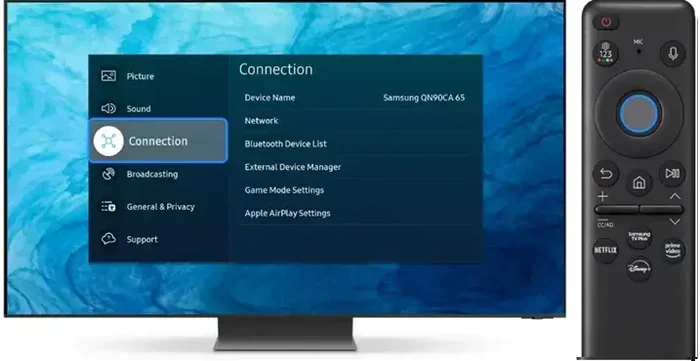
On Samsung TVs, look under Settings > Sound > Sound Output. On LG TVs, go to Settings > Sound > LG Sound Sync. On Sony TVs, check Settings > Bluetooth Settings. If Bluetooth connectivity is listed, you’re in luck.
Check Your TV’s Manual or Model Info
Can’t find it in settings? Look up your TV model online. Visit the manufacturer’s website. Search for your exact model number. The specs page will list whether Bluetooth is enabled on that model. Many smart TVs from the last five years support it but bury the setting deep in menus.
Quick Tip
Quick Tip: Try going to Settings > Connections or Network on some TVs. Some brands hide Bluetooth under network accessories rather than sound settings. Spend a few extra minutes searching. You might save money by not buying an adapter you don’t need.
How to Make Your TV Have Bluetooth (Step-by-Step)
If your TV doesn’t have built-in Bluetooth, don’t worry. There are easy and affordable ways to add it. Let’s walk through the most popular methods.
Method 1: Use a Bluetooth Audio Transmitter
This is the most popular option. A Bluetooth audio transmitter connects to your TV’s audio output. Then it sends the sound wirelessly to your headphones or speaker.
Here’s how it works:
- Plug the transmitter into your TV’s 3.5mm audio jack, optical port, or RCA output.
- Put your Bluetooth headphones or speaker into pairing mode.
- The transmitter pairs with your device.
- Enjoy wireless audio streaming.
These little gadgets cost between $15 and $30. They work with almost any TV that has at least one audio output. Brands like Avantree, TaoTronics, and 1Mii make great ones.
Method 2: Connect a Bluetooth Soundbar
A Bluetooth soundbar does two things at once. It improves your TV’s sound quality and adds Bluetooth connectivity. Most soundbars can work in two ways:
- Wired connection through HDMI ARC or optical cable for regular use.
- Bluetooth pairing for wireless audio when you want it.
This is a great option if you find TV speakers too weak but don’t want a full home theater setup. Soundbars from brands like Vizio, Samsung, and Sonos all support Bluetooth sound systems.
Method 3: Use a Bluetooth Adapter with USB
Some TVs have USB ports. You can use a small Bluetooth receiver that plugs right into USB. These adapters are tiny and almost invisible. They turn any TV with a USB port into a Bluetooth-enabled device.
Just insert the adapter, switch your TV’s audio output to the USB device, and pair your audio device. It’s that simple.
Method 4: Update Your TV’s Firmware
Sometimes the fix is free. TV manufacturers release firmware updates that add new features. Your TV might gain Bluetooth support after an update. Check your TV’s settings for a software update option. Or visit the manufacturer’s website for download instructions.
This doesn’t always work. But it’s worth trying before buying anything. A simple firmware update could solve everything.
Comparing Methods to Add Bluetooth to Your TV
Not sure which method fits you best? Here’s a comparison to help you decide:
| Method | Cost | Difficulty | Best For |
|---|---|---|---|
| Bluetooth Transmitter | $15-$30 | Easy | Using wireless headphones with any TV |
| Bluetooth Soundbar | $50-$300 | Easy | Better sound plus wireless capability |
| USB Bluetooth Adapter | $10-$25 | Very Easy | TVs with USB ports and basic Bluetooth needs |
| Firmware Update | Free | Very Easy | TVs that might already support Bluetooth |
Each method works well. Your choice depends on your budget and what you want to achieve. A Bluetooth transmitter is perfect for headphone users. A soundbar is better if you want richer audio overall.
Setting Up Bluetooth Devices with Your TV
Once you’ve picked your method, it’s time to set things up. The process is pretty straightforward, but a few tips help avoid headaches.
Pairing Your Bluetooth Headphones
Want to use wireless headphones with your TV? Here’s the general process:
- Put your headphones into pairing mode. Usually, you hold the power button for 5 seconds until a light flashes.
- Go to your TV’s Bluetooth settings or activate your Bluetooth transmitter.
- Select your headphones from the list of available devices.
- Once connected, audio plays through your headphones.
If your TV doesn’t show Bluetooth settings, you’ll pair through the transmitter instead. The transmitter handles the connection while your TV just sends audio through its output port.
Pairing a Bluetooth Speaker
Connecting a Bluetooth speaker follows the same idea:
- Power on the speaker and enter pairing mode.
- Access your TV’s or transmitter’s Bluetooth menu.
- Select the speaker from the device list.
- You should hear a confirmation sound.
Pro Tip: Place the speaker close to the TV during the first pairing. Once connected, you can move it further away. Most Bluetooth devices work well within 30 feet.
Fixing Audio Delay or Lag
One common issue with Bluetooth audio is delay. You see the video, but the sound comes a half-second later. It’s annoying. But fixable.
Try these solutions:
- Look for low-latency codecs like aptX LL on your transmitter.
- Use a transmitter with a built-in lip-sync or audio delay adjustment.
- Connect through optical cable instead of 3.5mm for faster transmission.
- Keep the Bluetooth device close to the TV to reduce interference.
Most modern transmiters handle audio delay well. But if you still notice lag, a small adjustment in settings usually does the trick.
Common Mistakes When Adding Bluetooth to Your TV
People run into problems often when setting up Bluetooth on their TV. Here are the most common mistakes and how to avoid them.
Buying the Wrong Adapter
Not all Bluetooth adapters work with every TV. Some need a 3.5mm jack. Others need optical or HDMI ARC. Always check your TV’s output options before buying.
Common Mistake: Buying a transmitter that only supports one audio format when your TV uses another. Double-check compatibility before ordering.
Ignoring Distance and Obstacles
Bluetooth signals weaken through walls and metal objects. If your headphones keep cutting out, move closer to the TV or remove obstacles between devices.
Not Putting Devices in Pairing Mode
This sounds silly but happens all the time. Your headphones or speaker must be in pairing mode before your TV can find them. Look for a flashing light indicator. No flashing light means it’s not ready to pair.
Forgetting to Update
Old firmware on your TV or Bluetooth device causes connection problems. Always update both before troubleshooting. A simple update often fixes everything.
Quick Tips to Avoid Problems
Quick Tip: Restart both your TV and Bluetooth device before troubleshooting further. A fresh restart clears temporary glitches and fixes most connection issues fast.
Expert Insights for the Best Bluetooth Experience on Your TV
Want to get the most out of your TV Bluetooth setup? Here are tips from people who know their stuff.
Choose Devices That Support aptX or aptX HD
Standard Bluetooth audio compresses sound. But codecs like aptX and aptX HD deliver much better quality. When buying headphones or a transmitter, look for these codec names in the specs.
You’ll hear the difference. Music sounds fuller. Dialogue sounds clearer. It’s a simple upgrade that makes a big impact.
Use an Optical Connection for Critical Audio
If you want zero lag, connect your Bluetooth transmitter through your TV’s optical output instead of the 3.5mm jack. Optical carries a cleaner audio signal. The result is better sound quality and less delay.
Keep a Backup Wired Connection
Even the best wireless audio setups can hiccup. Keep a 3.5mm cable handy. If Bluetooth fails during an important game or movie scene, plug in and keep watching. It’s a simple backup plan that saves frustration.
Group Devices for Multi-Room Audio
Some advanced setups let you connect multiple Bluetooth speakers to one source. This creates multi-room audio. You hear your TV sound throughout the house. Check if your transmitter supports multi-point or speaker grouping features.
Quick Tips for Getting Started
- Start with a cheap transmitter to test if you like Bluetooth audio before investing in expensive gear.
- Read reviews before buying. Focus on reviews that test with your specific TV model.
- Keep your devices charged. Low battery causes weak Bluetooth connections and audio dropouts.
- Place your transmitter near the TV’s audio output for the strongest signal path.
- Use a transmitter with a built-in amplifier if connecting passive speakers. It boosts the audio signal without extra equipment.
Conclusion: Can I Make My TV Have Bluetooth?
So can I make my TV have Bluetooth? Absolutely yes. Whether your TV already has it built in or needs a little help, the solution is within reach. A simple Bluetooth adapter, a smart soundbar, or even a free firmware update can do the trick.
The process is easy. Check your TV first. Pick the right method. Pair your device. Enjoy wireless audio without the hassle of cords. The steps in this guide work for every budget and every TV type.
Bluetooth connectivity makes your TV experience better. Sound better. Watch better. Live better. Take a few minutes today to set it up. You’ll wonder why you didn’t do it sooner.
Frequently Asked Questions
Can any TV be made Bluetooth compatible?
Almost any TV can get Bluetooth capability. Even older models without built-in support can use an external Bluetooth audio transmitter. You just need an available audio output like a 3.5mm jack, optical port, or USB port to connect the adapter.
How much does it cost to add Bluetooth to a TV?
A basic Bluetooth transmitter costs between $15 and $30. A Bluetooth soundbar ranges from $50 to $300 depending on features. Some TVs may not need anything at all if they already support Bluetooth audio through their settings menu.
Does adding Bluetooth affect TV sound quality?
It can actually improve it. Using a Bluetooth speaker or soundbar often sounds better than built-in TV speakers. However, standard Bluetooth compresses audio slightly. Choose devices with aptX or aptX HD codecs for the best wireless streaming quality.
Can I connect Bluetooth headphones to a TV without Bluetooth?
Yes. Use a Bluetooth audio transmitter plugged into the TV’s audio output. The transmitter sends the audio signal wirelessly to your wireless headphones. It’s a simple plug-and-play setup that works in minutes.
Is there a delay when using Bluetooth with a TV?
Some Bluetooth devices introduce slight audio delay. Modern transmitors with low-latency codecs like aptX LL minimize this. You can also adjust audio delay settings in some transmitters or use an optical connection to reduce lag significantly.
Can I connect multiple Bluetooth devices to one TV?
It depends on your hardware. Some Bluetooth transmitters support connecting two devices at once. Bluetooth soundbars with multipoint support can handle multiple sources. For connecting several speakers, look for transmitters with multi-device pairing features.