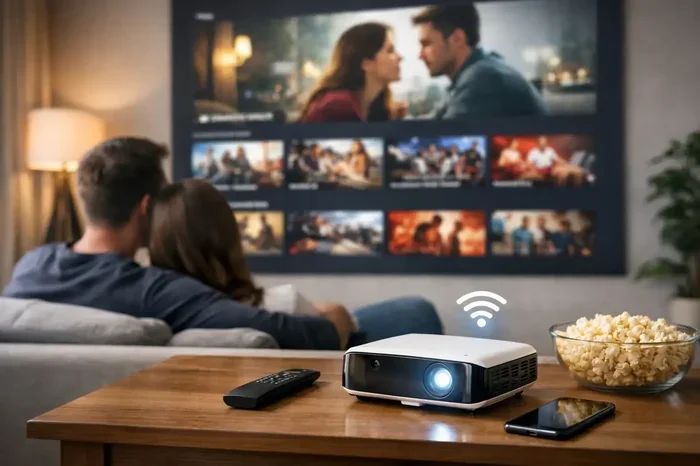
How Can I Stream To My Projector Without Hdmi Easily
You can stream to your projector without HDMI using wireless options like Chromecast, Miracast, or a streaming stick. You can also use VGA, USB, or Bluetooth connections depending on your projector model. This guide covers every easy method so you can start watching big screen content right away.
Want to watch your favorite shows on a big screen but your projector does not have an HDMI port? You are not alone. Many people run into this problem when they try to set up a home theater or give a presentation. The good news is that streaming to your projector without HDMI is totally doable. There are several simple methods that work great and do not require a tech degree.
Whether you want to cast Netflix from your phone, mirror your laptop screen, or connect a streaming stick, this guide has you covered. We will walk through every option step by step. By the end, you will know exactly which method works best for your setup. Let us get started.
Key Takeaways
- Wireless streaming is the easiest way to connect your device to a projector without HDMI using built-in features like Miracast or Chromecast.
- Adapters and converters like USB to HDMI or VGA cables offer reliable wired alternatives when wireless is not an option.
- Streaming sticks and media players such as Roku or Amazon Fire Stick can plug directly into compatible projector ports.
- Screen mirroring works with most modern devices including phones, laptops, and tablets without extra hardware.
- Bluetooth audio options let you stream sound separately if your projector has limited audio features.
- Setting up your projector correctly ensures the best picture quality regardless of the connection method you choose.
📑 Table of Contents
- Why You Might Not Have HDMI on Your Projector
- Method 1: Wireless Screen Mirroring
- Method 2: Using a Streaming Stick or Media Player
- Method 3: VGA Connection with Audio
- Method 4: Bluetooth and Audio Streaming
- Method 5: Using a Laptop as a Bridge
- Troubleshooting Common Streaming Issues
- Quick Tips for the Best Streaming Experience
- Comparing Streaming Methods
- Final Thoughts
Why You Might Not Have HDMI on Your Projector
Older projectors often came with VGA ports or USB inputs instead of HDMI. Some budget projectors still skip HDMI to keep costs low. If you bought a used projector or a basic model, you might not have that single cable option. But that does not mean you are stuck watching small screens.
Modern projectors also sometimes have limited ports. You might find one HDMI port already taken by a game console or cable box. In these cases, finding an HDMI alternative for projector becomes essential. The good thing is technology has given us many ways to send video and audio without a single HDMI cable.
Common Projector Input Types
Before we dive into streaming methods, it helps to know what ports your projector might have. Here are the most common inputs you will find:
- VGA — An older analog connection that carries video only. You will need a separate audio cable.
- USB — Some projectors accept video files directly from a USB drive. Others support USB display adapters.
- AV/RCA — The classic red, white, and yellow ports found on older TVs and projectors.
- SD Card Slot — Found on some portable projectors for direct media playback.
- Wireless Built-In — Newer projectors come with WiFi and screen mirroring built right in.
Knowing your projector’s inputs helps you pick the right streaming method. Each option below matches a different set of available ports.
Method 1: Wireless Screen Mirroring
Wireless screen mirroring is the easiest way to stream without HDMI. Most modern phones, laptops, and tablets can cast their screen to a projector. You do not need any cables at all. This method works great for casual movie nights and quick presentations.
How Wireless Mirroring Works
Screen mirroring sends your device’s display over a WiFi connection to your projector. Both devices need to be on the same network. Once connected, everything you do on your phone or laptop appears on the big screen instantly.
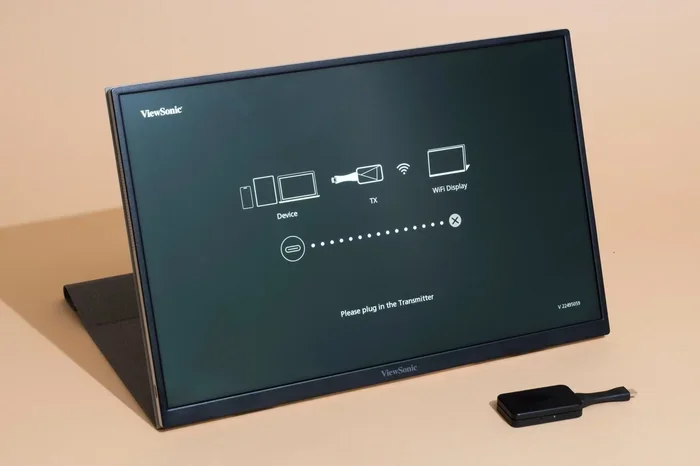
If your projector has built-in WiFi and screen mirroring, you are in luck. Just go to your device’s cast or screen mirror feature and select your projector. It is really that simple. If your projector does not have built-in wireless, you can add a wireless display adapter that plugs into the VGA or USB port.
Devices That Support Mirroring
- Android phones — Use the built-in Cast or Smart View feature.
- iPhones — Use AirPlay to mirror to compatible projectors or adapters.
- Windows laptops — Use the Connect or Project feature in Windows.
- MacBooks — Use AirPlay or a third-party adapter for non-Apple projectors.
- Chromebooks — Use the Cast icon in Chrome browser or built-in casting tools.
If you want to mirror your Mac to your TV without Apple TV, you can use the same AirPlay approach with a compatible adapter. The process is nearly identical for projectors. You just need to make sure your adapter supports the input your projector has.
One thing to keep in mind: wireless mirroring can sometimes have a slight delay. This is normal and usually not noticeable when watching movies. For gaming or live content, a wired connection might feel smoother.
Method 2: Using a Streaming Stick or Media Player
Streaming sticks are small devices that plug directly into your projector’s available port. They turn any projector into a smart projector with access to Netflix, YouTube, Hulu, and more. This is one of the most popular ways to stream without HDMI.
Best Streaming Sticks for Projectors
- Amazon Fire TV Stick — Works with HDMI and also has models that support VGA or USB adapters.
- Google Chromecast — Great for casting from your phone or Chrome browser wirelessly.
- Roku Streaming Stick — Simple to use and works with many projector models.
- Apple TV — Best for Apple users who want a premium streaming experience.
Some projectors have a USB port that can power a streaming stick directly. Others need a separate power source. Check your projector’s manual to see what it supports. If your projector only has VGA, you can use a USB to HDMI cable or adapter to connect a streaming stick that requires HDMI.
The Can I Connect USB to HDMI Cable guide on our site covers this process in detail. It explains which adapters work and how to set them up properly. A good adapter ensures you get clear video and sound through your projector.
Setting Up Your Streaming Stick
Setting up a streaming stick is straightforward. Plug the stick into your projector’s port or adapter. Connect it to your WiFi network. Follow the on-screen setup instructions. Once configured, you can open any app and start streaming right away.
Pro tip: place your streaming stick close to your WiFi router for the strongest signal. A weak connection can cause buffering and poor picture quality. If your projector is far from the router, consider using a WiFi extender to boost the signal.
Method 3: VGA Connection with Audio
If your projector only has a VGA port, you can still stream content. VGA carries video but not audio, so you need a separate way to get sound. This method works well for presentations and movie watching with a small extra setup.
What You Need for VGA Streaming
- A VGA cable to connect your device to the projector.
- A 3.5mm audio cable to connect your device’s headphone jack to the projector or external speakers.
- An adapter if your device does not have a VGA output (most laptops need a VGA adapter).
To set this up, connect the VGA cable from your laptop or streaming device to the projector. Then plug in the audio cable. Some projectors have a built-in audio output on the VGA port that you can route to external speakers.
The picture quality on VGA is not as sharp as HDMI, but it works perfectly fine for most uses. If you want better resolution, consider upgrading to a projector with HDMI or using a converter. You can also convert VGA to HDMI using an active adapter that improves signal quality.
Improving VGA Picture Quality
VGA signals can degrade over long cable runs. Keep your cable as short as possible for the best image. If you notice flickering or a blurry picture, try a higher-quality cable or a different adapter. Sometimes a simple cable swap makes a big difference.
For the clearest image, set your device’s display resolution to match your projector’s native resolution. This prevents scaling issues and keeps text and images sharp. Most projectors work best at 1024×768 or 1920×1080 depending on the model.
Method 4: Bluetooth and Audio Streaming
Not all streaming needs to be about video. If your projector has decent video but weak audio, you can use Bluetooth to send sound to external speakers or headphones. This works great when you want to keep the video on the projector but improve the sound quality.
How Bluetooth Audio Works with Projectors
Many modern projectors support Bluetooth audio output. You can pair your Bluetooth speaker or headphones directly to the projector. The video plays on the big screen while the audio streams wirelessly to your speaker.
If your projector does not have Bluetooth, you can add a Bluetooth transmitter. These small devices plug into the projector’s audio output or USB port and broadcast sound to any Bluetooth speaker within range. It is an affordable upgrade that makes a huge difference.
You can also pair Bluetooth headphones to your LG TV using a similar method if you are using a TV as a temporary projector screen. The concept is the same — send audio wirelessly while the video plays on the display.
Method 5: Using a Laptop as a Bridge
If you have a laptop with HDMI output and your projector does not, you can use the laptop as a bridge. Connect the laptop to the projector using whatever port is available. Then stream content on the laptop and let it display on the projector screen.
Setting Up the Laptop Bridge
- Connect your laptop to the projector using VGA, USB, or the available port.
- Open your streaming app on the laptop (Netflix, YouTube, etc.).
- Set the laptop display to mirror or extend to the projector.
- Adjust the audio output to play through the projector or external speakers.
This method gives you the most flexibility because your laptop can handle any streaming service. You are not limited by what apps a streaming stick supports. You just need a reliable connection between the laptop and projector.
If you are using a Mac, you might wonder how to get your screen on the projector without Apple TV. The good news is that you can use AirPlay with a compatible adapter. Just like mirroring your Mac to your TV without Apple TV, the same adapter approach works for projectors too.
Troubleshooting Common Streaming Issues
No matter which method you choose, you might run into some issues along the way. Here are the most common problems and how to fix them.
No Picture on the Projector
- Check that all cables are securely plugged in.
- Make sure your projector is on the correct input source.
- Restart both your streaming device and the projector.
- Try a different cable or adapter to rule out a hardware issue.
Poor Picture Quality
- Lower the resolution of your streaming source to match the projector’s native resolution.
- Use shorter cables to reduce signal loss.
- Clean the projector lens with a soft cloth.
- Check for interference from other wireless devices if using a wireless connection.
No Sound
- Check that the audio cable is plugged into the correct jack.
- Make sure your device’s volume is not muted.
- Set the audio output to the projector or external speaker in your device settings.
- Try a different audio cable or Bluetooth connection.
Delay or Lag During Streaming
- Move closer to your WiFi router or use a wired connection.
- Reduce the number of devices using your WiFi network.
- Lower the streaming quality in the app settings.
- Use a streaming stick with a strong processor for smoother performance.
Quick Tips for the Best Streaming Experience
Here are some expert tips to get the most out of your projector streaming setup:
- Darken the room for the best picture contrast and color accuracy.
- Use a high-quality cable or adapter to avoid signal degradation.
- Keep your streaming device updated with the latest firmware and apps.
- Position your projector correctly for the right screen size and focus.
- Use an external speaker for better audio than most built-in projector speakers.
- Test your setup before your big event to work out any issues in advance.
- Clean your projector filter regularly to prevent overheating and maintain brightness.
For more tips on setting up your projector, check out our guide on using a projector on your wall. It covers wall projection setup and tips for getting the best image on any surface.
Comparing Streaming Methods
Not sure which method is right for you? Here is a quick comparison of the main options:
| Method | Best For | Setup Difficulty | Picture Quality | Cost |
|---|---|---|---|---|
| Wireless Mirroring | Casual viewing, quick setup | Easy | Good | Free (if supported) |
| Streaming Stick | Smart features, app access | Easy | Excellent | $30-$80 |
| VGA + Audio | Older projectors | Medium | Fair | $5-$15 |
| Bluetooth Audio | Improved sound only | Easy | Same as source | $15-$40 |
| Laptop Bridge | Full flexibility | Medium | Excellent | Free (if you have a laptop) |
Each method has its strengths. Wireless mirroring is the fastest to set up. A streaming stick gives you the most apps and features. VGA works when nothing else is available. Choose the one that fits your projector and your needs best.
Final Thoughts
Streaming to your projector without HDMI is easier than you think. You have wireless mirroring, streaming sticks, VGA connections, Bluetooth audio, and laptop bridging at your disposal. No single method is perfect for everyone, but there is definitely a solution that fits your setup.
Start by checking what ports your projector has. Then pick the method that matches those ports and your budget. You will be watching your favorite content on the big screen in no time. Do not let a missing HDMI port stop you from enjoying a great viewing experience.
For more helpful tech guides, visit our site for tips on connecting devices, setting up smart home equipment, and getting the most from your gadgets. Happy streaming!
If you want to learn more about projector setups, check out our article on turning your iPhone into a projector for creative ways to use your phone as a display source.
Frequently Asked Questions
Can I stream to my projector without any extra equipment?
If your projector has built-in WiFi and screen mirroring, you can stream wirelessly without any extra gear. Most modern projectors and smart projectors support this feature natively. Just connect both devices to the same WiFi network and use the cast or mirror function on your phone or laptop.
What is the cheapest way to stream to a projector without HDMI?
The cheapest option is wireless screen mirroring, which costs nothing if your devices support it. If your projector only has VGA, a basic VGA cable costs under $10. You can also use a USB streaming stick if your projector has a USB port that supports media playback.
Can I use a streaming stick with a projector that has no HDMI?
Yes, you can use a streaming stick with a non-HDMI projector by using an adapter. A USB to HDMI adapter or a VGA to HDMI converter lets you connect most streaming sticks to older projectors. Make sure the adapter supports the resolution and audio you need.
Does wireless streaming to a projector have lag?
Wireless streaming can have a slight delay compared to wired connections. This lag is usually barely noticeable when watching movies or shows. For gaming or live content, a wired connection will feel much smoother and more responsive.
Can I use Bluetooth to stream video to my projector?
Bluetooth typically handles audio only, not video. You can use Bluetooth to send sound to external speakers while the video plays on the projector through a wired or wireless video connection. Some newer projectors may support Bluetooth video streaming, but this is still uncommon.
Which streaming method gives the best picture quality?
A streaming stick connected through a quality adapter or HDMI cable gives the best picture quality. Wireless mirroring is close behind but can vary based on WiFi strength. VGA connections offer the lowest resolution but still work well for most everyday viewing needs.