How Can I Reset My Bluetooth Connection Fast and Easy
Resetting your Bluetooth connection is simpler than you think. This guide shows you exactly how to reset my Bluetooth on phones, laptops, TVs, and speakers in just a few easy steps. Whether your Bluetooth is glitchy, won’t pair, or keeps dropping, we have the fix for you right now.
Bluetooth technology has become a part of our daily lives. We use it for wireless headphones, speakers, car audio, smartwatches, and so much more. But here is the frustrating truth. Sometimes Bluetooth just stops working. It won’t pair. It keeps disconnecting. Or it connects but there is no sound. When that happens, you need to know how to fix it fast.
This guide will walk you through exactly how to reset my Bluetooth connection on every popular device. We will cover soft resets, hard resets, and everything in between. By the end, you will have the skills to troubleshoot and fix almost any Bluetooth problem in minutes. No tech degree required.
Let us be real for a second. Bluetooth issues can ruin your whole day. You are trying to listen to music, take a call, or watch your favorite show, and suddenly nothing works. The good news is that most Bluetooth problems are easy to solve with a simple reset. Let us dive in and get your wireless connection back on track.
Key Takeaways
- Soft Reset vs Hard Reset: Know the difference between a quick toggle reset and a full factory-level Bluetooth reset on any device.
- Device-Specific Steps: Follow tailored instructions for Android, iPhone, Windows, Mac, Smart TVs, and Bluetooth speakers.
- Common Causes of Bluetooth Problems: Understand why your Bluetooth keeps disconnecting or failing to pair in the first place.
- Pro Tips for Lasting Fixes: Learn maintenance habits that prevent Bluetooth issues from coming back.
- When to Seek Help: Know when a reset isn’t enough and it’s time to contact support or replace hardware.
📑 Table of Contents
- Why Does Bluetooth Need a Reset?
- Types of Bluetooth Resets You Should Know
- How to Reset Bluetooth on Android Devices
- How to Reset Bluetooth on iPhone and iPad
- How to Reset Bluetooth on Windows PC
- How to Reset Bluetooth on Mac and MacBook
- How to Reset Bluetooth on Smart TVs and Streaming Devices
- How to Reset Bluetooth on Speakers and Audio Devices
- Quick Tips to Prevent Bluetooth Problems
- Common Bluetooth Reset Mistakes to Avoid
- When Should You Contact Support?
- Final Thoughts
Why Does Bluetooth Need a Reset?
Before we get into the steps, it helps to understand why Bluetooth problems happen in the first place. Bluetooth is a wireless technology that uses radio waves to connect devices. It works over short distances and handles a lot of data. But like any wireless system, it can run into hiccups.
Here are the most common reasons your Bluetooth might need a reset:
- Software Glitches: Sometimes the Bluetooth software on your device just gets stuck. A simple reset clears the glitch and gets things running again.
- Pairing Conflicts: If your device remembers too many old connections, it can get confused. Resetting clears out old pairings and frees up memory.
- Firmware Issues: Outdated firmware can cause compatibility problems. A reset often forces the device to refresh its connection protocols.
- Interference: Other wireless devices, Wi-Fi networks, and even microwaves can interfere with Bluetooth signals. A reset helps the device re-scan for the best channel.
- Battery or Power Issues: Low battery levels on either device can weaken the Bluetooth signal. A reset after charging often fixes this.
Understanding the root cause helps you choose the right type of reset. And that is exactly what we will cover next.
Types of Bluetooth Resets You Should Know
Not all Bluetooth resets are the same. Depending on the problem you are facing, you might need a quick soft reset or a more thorough hard reset. Let us break down each type so you can pick the right approach.
Soft Reset (Quick Toggle Method)
A soft reset is the fastest way to reset my Bluetooth. It simply turns Bluetooth off and back on again. This clears minor glitches and refreshes the connection without deleting any saved pairings.
Here is how a soft reset works on most devices:
- Turn off Bluetooth from your settings menu.
- Wait about 10 to 15 seconds.
- Turn Bluetooth back on.
- Try reconnecting your device.
This method works great for minor hiccups. If your Bluetooth headphones suddenly stop playing or your speaker disconnects randomly, try this first. It takes less than a minute and solves the problem more often than you would think.
Hard Reset (Factory-Level Reset)
A hard reset goes much deeper. It clears all Bluetooth settings, removes saved pairings, and restores Bluetooth to its original factory state. Use this when a soft reset does not work or when you are dealing with persistent connection problems.
A hard reset is especially useful when:
- Your device refuses to pair with anything new.
- You keep getting error messages during pairing.
- Bluetooth connects but there is no audio or data transfer.
- Your device lists Bluetooth options but nothing responds.
Just be aware that a hard reset will remove all previously paired devices. You will need to re-pair everything after the reset. We will show you the exact steps for each device below.
Network Settings Reset
On some devices, especially smartphones and tablets, you can reset all network settings. This clears Bluetooth, Wi-Fi, and cellular settings all at once. It is a more aggressive approach but very effective for stubborn Bluetooth problems.
This option is available on most Android phones and iPhones. We will cover the exact steps in the device-specific sections coming up. Just keep in mind that resetting network settings will also erase your saved Wi-Fi passwords.
How to Reset Bluetooth on Android Devices
Android phones and tablets are the most popular mobile devices in the world. They also happen to have some of the most straightforward Bluetooth reset options. Here is exactly how to do it.
Soft Reset on Android
Follow these simple steps for a quick Bluetooth reset on your Android device:
- Open the Settings app on your phone.
- Tap on Connected Devices or Bluetooth & Device Connection.
- Find the Bluetooth toggle switch and tap it to turn it off.
- Wait 15 seconds.
- Tap the toggle again to turn Bluetooth back on.
- Go to your Bluetooth device and try reconnecting.
This quick toggle method works on almost every Android phone, from Samsung to Google Pixel to OnePlus. If the soft reset does not fix your issue, move on to the hard reset steps below.
Hard Reset on Android
If a soft reset does not work, try a full Bluetooth reset through your settings:
- Open Settings.
- Go to Connected Devices or Bluetooth.
- Tap the gear icon or Settings next to Bluetooth.
- Look for an option that says Reset Bluetooth or Clear Paired Devices.
- Confirm the reset.
- Restart your phone.
- Go back to Bluetooth settings and re-pair your device.
Some Android brands like Samsung have a slightly different path. On Samsung phones, you might need to go to Settings > Connections > Bluetooth > More (three dots) > Reset. The steps are similar across brands but the menu names might vary slightly.
Network Settings Reset on Android
For stubborn Bluetooth problems, you can reset all network settings:
- Open Settings.
- Go to General Management or System.
- Tap Reset or Reset Options.
- Select Reset Network Settings.
- Confirm the reset.
- Restart your phone.
This will clear all saved Wi-Fi networks, Bluetooth pairings, and mobile data settings. Make sure you know your Wi-Fi passwords before doing this. After the reset, you will need to reconnect to your Wi-Fi network and re-pair all your Bluetooth devices.
How to Reset Bluetooth on iPhone and iPad
Apple devices are known for their smooth Bluetooth experience, but they are not immune to problems. When your iPhone or iPad Bluetooth acts up, here is what to do.
Soft Reset on iPhone
The quickest way to reset my Bluetooth on an iPhone is through the Control Center:
- Swipe down from the top-right corner of your screen to open Control Center.
- Tap the Bluetooth icon to turn it off. The icon will turn gray.
- Wait 15 to 30 seconds.
- Tap the Bluetooth icon again to turn it back on.
- Try reconnecting your device.
Alternatively, you can go to Settings > Bluetooth and toggle the switch off and on. Both methods work equally well.
Hard Reset on iPhone
If the soft reset does not solve your problem, try forgetting the device and re-pairing it:
- Open Settings.
- Go to Bluetooth.
- Find the device you want to reset.
- Tap the Info icon (the “i” in a circle) next to the device name.
- Tap Forget This Device.
- Confirm the action.
- Restart your iPhone.
- Put your Bluetooth device back in pairing mode.
- Re-pair the device from your iPhone.
Reset Network Settings on iPhone
For persistent Bluetooth issues, resetting network settings is your best bet:
- Open Settings.
- Go to General.
- Tap Transfer or Reset iPhone.
- Select Reset.
- Tap Reset Network Settings.
- Enter your passcode if prompted.
- Confirm the reset.
- Restart your iPhone.
After the reset, you will need to reconnect to Wi-Fi and re-pair all your Bluetooth devices. This is a comprehensive fix that resolves most Bluetooth issues on iPhones and iPads.
How to Reset Bluetooth on Windows PC
Windows laptops and desktops rely on Bluetooth for wireless headphones, speakers, mice, and keyboards. When your Bluetooth stops working on a Windows PC, the fix is usually straightforward.
Soft Reset on Windows
Here is the fastest way to reset my Bluetooth on a Windows computer:
- Click the Start button.
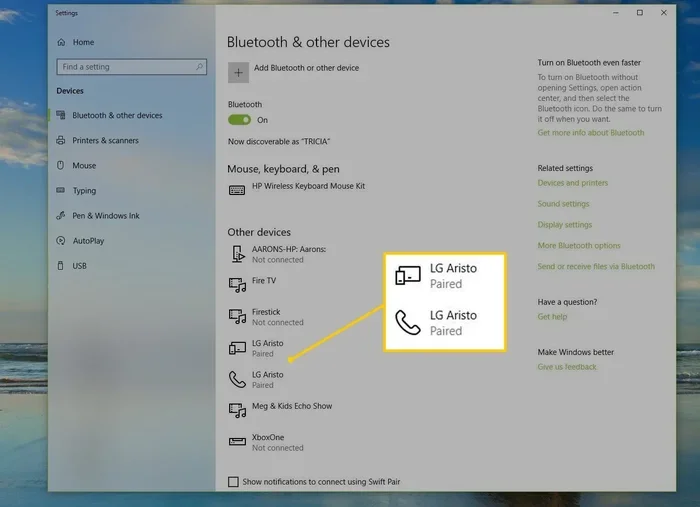
- Go to Settings > Devices > Bluetooth & Other Devices.
- Toggle Bluetooth off.
- Wait 10 seconds.
- Toggle Bluetooth back on.
- Try connecting your device again.
You can also use the quick action in the Action Center. Click the notification icon in the bottom-right corner and click the Bluetooth tile to turn it off and on.
Hard Reset on Windows
For a deeper reset, try removing and re-adding the Bluetooth device:
- Go to Settings > Devices > Bluetooth & Other Devices.
- Click on the device you want to reset.
- Click Remove Device.
- Confirm the removal.
- Restart your computer.
- Put your Bluetooth device in pairing mode.
- Click Add Bluetooth or Other Device and follow the prompts.
Reinstall Bluetooth Driver on Windows
If the reset above does not work, your Bluetooth driver might be the culprit:
- Right-click the Start button.
- Select Device Manager.
- Expand the Bluetooth section.
- Right-click your Bluetooth adapter.
- Select Uninstall Device.
- Check the box that says Delete the Driver Software.
- Click Uninstall.
- Restart your computer.
- Windows will automatically reinstall the Bluetooth driver.
This is one of the most effective ways to fix Bluetooth problems on Windows. It clears out corrupted drivers and gives you a fresh start.
How to Reset Bluetooth on Mac and MacBook
Mac users have a slightly different process for resetting Bluetooth. Apple keeps things simple, but sometimes you need to go a step further to fix stubborn issues.
Soft Reset on Mac
Start with the basics:
- Click the Apple menu in the top-left corner.
- Go to System Preferences > Bluetooth.
- Turn Bluetooth off.
- Wait 15 seconds.
- Turn Bluetooth back on.
- Try reconnecting your device.
Hard Reset on Mac
If the soft reset does not work, try this sequence:
- Turn off Bluetooth from System Preferences.
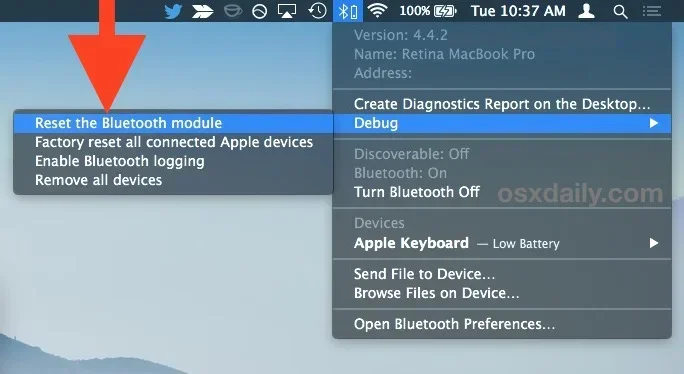
- Hold down the Shift and Option keys simultaneously.
- While holding those keys, click the Bluetooth icon in the menu bar.
- A hidden menu will appear. Click Reset the Bluetooth module.
- Restart your Mac.
- Turn Bluetooth back on and re-pair your device.
This hidden reset option is one of the most powerful tools for fixing Bluetooth issues on Mac. It clears the Bluetooth module completely and forces a fresh start.
How to Reset Bluetooth on Smart TVs and Streaming Devices
Smart TVs, Roku devices, and streaming sticks use Bluetooth for wireless headphones and audio devices. When your TV Bluetooth acts up, the reset process depends on your specific device.
Reset Bluetooth on Samsung Smart TV
- Press the Home button on your remote.
- Go to Settings > Sound > Sound Output.
- Select Bluetooth Speaker List.
- Find the device you want to reset.
- Select Delete Device or Unregister.
- Restart your TV.
- Put your Bluetooth speaker or headphones back in pairing mode.
- Re-pair the device from your TV.
Reset Bluetooth on Roku
If you are using Bluetooth headphones with your Roku device, you can reset the connection through the Roku app or the TV settings. For detailed steps on pairing Bluetooth headphones with Roku, check out our guide on Can I Use Bluetooth Headphones With Roku. It covers pairing, troubleshooting, and reset options specific to Roku devices.
Reset Bluetooth on LG TV
LG TVs have built-in Bluetooth support for audio devices. To reset the connection, go to Settings > Sound > LG Sound Sync or Bluetooth Speaker List. Remove the paired device and re-pair it after restarting the TV. For more details on pairing Bluetooth headphones to your LG TV, visit our guide on Can I Pair Bluetooth Headphones To My Lg Tv.
Television Bluetooth issues are often caused by firmware updates or too many saved devices. A simple reset usually clears these problems right up.
How to Reset Bluetooth on Speakers and Audio Devices
Bluetooth speakers, headphones, and audio devices each have their own reset methods. These are usually built into the device itself rather than through a menu.
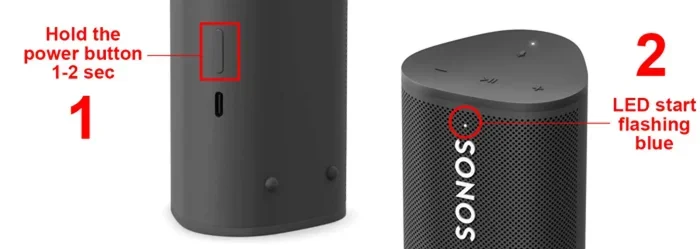
Factory Reset Bluetooth Speakers
Most Bluetooth speakers have a factory reset function. The exact method varies by brand, but here are the most common approaches:
- JBL Speakers: Press and hold the Power button and Volume Down button together for 5 to 10 seconds.
- Sony Speakers: Hold the Power button and the Bluetooth button simultaneously for a few seconds.
- Bose Speakers: Some Bose models require you to hold the Power button for 10 seconds. Check your specific model in the user manual.
- Anker Speakers: Press and hold the Bluetooth button and the Volume Up button together for 5 seconds.
After the factory reset, the speaker will forget all previous pairings. You will need to put it back in pairing mode and reconnect it to your device.
Factory Reset Bluetooth Headphones
Bluetooth headphones also have their own reset methods:
- Wireless Earbuds (AirPods, etc.): Put them back in the case, press and hold the setup button for 15 seconds, then re-pair.
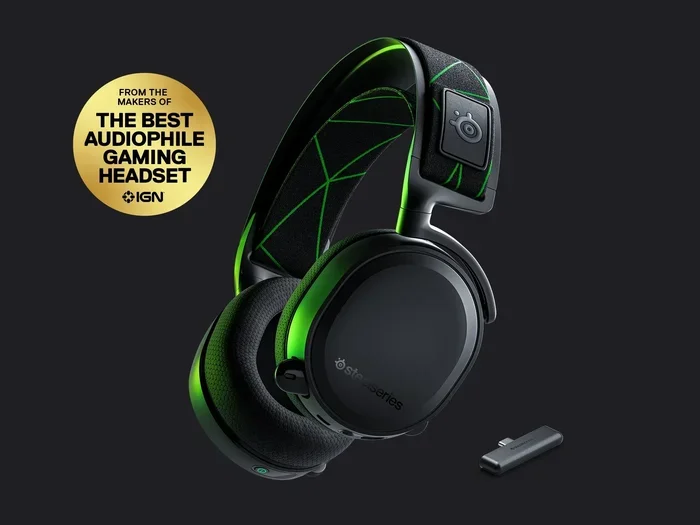
- Over-Ear Headphones: Usually, holding the Power button and Volume buttons together for 5 to 10 seconds triggers a reset.
- Bone Conduction Headphones: These often require a specific button combination. Check the manufacturer’s website for exact steps.
For more tips on using and troubleshooting Bluetooth headphones, check out our article on Can I Talk Through My Bluetooth Headphones. It covers common audio issues and how to fix them.
Quick Tips to Prevent Bluetooth Problems
Once you have reset your Bluetooth and everything is working again, you want to keep it that way. Here are some simple tips to prevent Bluetooth problems in the future:
- Keep Your Devices Updated: Software updates often include Bluetooth fixes and improvements. Check for updates regularly on all your devices.
- Stay Within Range: Bluetooth works best within 30 feet. The further away you are, the weaker the signal gets. Keep your devices close for the best connection.
- Reduce Interference: Keep your Bluetooth device away from Wi-Fi routers, microwaves, and other wireless devices that can cause signal interference.
- Charge Your Devices: Low battery levels can weaken Bluetooth signals. Keep your Bluetooth devices charged for reliable connections.
- Limit Connected Devices: Too many paired devices can slow down your Bluetooth. Regularly clean up old pairings you no longer use.
- Restart Regularly: A simple restart of your phone, laptop, or TV can clear out minor Bluetooth glitches before they become big problems.
These habits take just a few seconds each and can save you a lot of frustration down the road. Prevention is always easier than troubleshooting.
Common Bluetooth Reset Mistakes to Avoid
Even when you know how to reset my Bluetooth, it is easy to make mistakes that waste your time or make the problem worse. Here are the most common errors people make:
- Not Putting the Device in Pairing Mode: After a reset, your Bluetooth device needs to be in pairing mode to connect. If it is not, you will not see it on your phone or computer.
- Skipping the Restart: Many people reset Bluetooth but forget to restart the device. Always restart after a reset for the best results.
- Resetting Too Quickly: Give your device time between steps. Wait at least 10 to 15 seconds before moving to the next step.
- Ignoring Firmware Updates: If your Bluetooth keeps acting up, check if there is a firmware update available for your device. Outdated firmware is a common cause of Bluetooth issues.
- Not Checking the Other Device: Sometimes the problem is not with your phone or computer but with the Bluetooth speaker or headphones themselves. Try resetting both devices.
Avoiding these mistakes will make your Bluetooth reset process much smoother and more effective.
When Should You Contact Support?
Most Bluetooth problems are solved with a simple reset. But sometimes the issue is deeper and needs professional help. Here are signs that you should contact support:
- Your Bluetooth device still will not connect after multiple resets.
- You see error messages that do not go away after troubleshooting.
- Your Bluetooth hardware seems physically damaged or broken.
- The Bluetooth function completely disappears from your device settings.
- Your device overheats when you try to use Bluetooth.
If you are using a Bluetooth hearing aid or medical device, always contact the manufacturer’s support team before attempting any resets. Some devices have specific reset procedures that should only be done under guidance.
For general Bluetooth troubleshooting tips and device-specific advice, visit our resources at Smart Lab Technology. We have detailed guides on everything from Can I Use Bluetooth On My Hearing Aid to connecting all types of wireless devices. Our goal is to help you solve tech problems quickly and confidently.
Final Thoughts
Resetting your Bluetooth connection does not have to be complicated. Whether you are dealing with a wireless speaker that will not connect, headphones that keep disconnecting, or a TV that will not find your Bluetooth audio device, the steps in this guide will help you fix the problem fast.
Start with a soft reset. If that does not work, move to a hard reset. If the problem persists, try resetting network settings or reinstalling drivers. And always remember the prevention tips to keep your Bluetooth running smoothly in the future.
The next time someone asks you how to reset my Bluetooth, you will know exactly what to do. Share this guide with friends and family who struggle with wireless connection problems. A simple reset can save hours of frustration and get you back to enjoying your favorite wireless devices in no time.
Stay connected, stay wireless, and keep enjoying the freedom that Bluetooth technology brings to your everyday life.
Frequently Asked Questions
How long does it take to reset Bluetooth on any device?
A soft reset takes less than a minute. A hard reset or factory reset might take 3 to 5 minutes including the restart time. Network settings resets on phones can take a bit longer since you will need to re-enter Wi-Fi passwords afterward.
Will resetting Bluetooth delete my saved music or files?
No. Resetting Bluetooth only affects your wireless connections and paired devices. Your music, photos, apps, and files remain completely safe. The reset only clears Bluetooth pairing data and connection settings.
Why does my Bluetooth keep disconnecting even after a reset?
This could be caused by interference from other wireless devices, low battery levels, outdated firmware, or distance between devices. Try moving closer to the Bluetooth device, checking for software updates, and reducing the number of active wireless connections in your area.
Do I need to reset both devices when Bluetooth pairing fails?
Yes, it is a good practice to reset both devices. Sometimes the issue is on one side and sometimes on the other. Resetting both ensures a clean slate for a fresh pairing attempt.
Can I reset Bluetooth without losing my Wi-Fi settings?
Yes, if you only reset the Bluetooth settings specifically. However, if you choose to reset all network settings on your phone or computer, it will also clear your saved Wi-Fi networks and passwords. Always back up your Wi-Fi passwords before doing a full network reset.
Is it safe to reset Bluetooth on my device every day?
While it is safe, there is no need to reset Bluetooth daily. Frequent resets can actually cause more issues by clearing pairing data repeatedly. Only reset Bluetooth when you are experiencing connection problems. Regular updates and proper device care are better for long-term Bluetooth health.