How Can I Mirror My Iphone To My Tv Without Apple Tv
You can mirror your iPhone to your TV without Apple TV using several simple methods. Whether you use AirPlay over Wi-Fi, an HDMI adapter, or a streaming device like Chromecast, this guide covers every option. You will learn the fastest, cheapest, and most reliable ways to share your iPhone screen on a bigger display today.
How many times have you wanted to show someone a photo or video on your iPhone but wished it were bigger? Maybe you want to watch a show on the couch or share your screen during a meeting. Mirroring your iPhone to your TV is the answer, and you do not need an expensive Apple TV to make it happen.
The good news is that there are several simple ways to cast your iPhone screen to a TV. Some methods are wireless, and some use a cable. Each one works with different types of TVs and setups. In this guide, I will walk you through every option so you can pick what works best for you.
Let us dive into the world of screen mirroring and get your iPhone content playing on the big screen.
Key Takeaways
- AirPlay is the easiest method: Most smart TVs support AirPlay natively, so you can mirror your iPhone wirelessly without any extra hardware.
- HDMI adapters work for older TVs: A Lightning or USB-C to HDMI adapter lets you mirror your iPhone to any TV with an HDMI port, even without Wi-Fi.
- Third-party apps offer flexibility: Apps like Replica, AirScreen, and LetsView give you more control and work on TVs that lack native AirPlay support.
- Streaming devices are great alternatives: Chromecast, Roku, and Fire TV Stick can all receive your iPhone screen without needing Apple TV.
- Troubleshooting is simple: Most mirroring issues come from Wi-Fi problems, outdated software, or incorrect settings, and they are easy to fix.
📑 Table of Contents
- What Is iPhone Screen Mirroring?
- Why Mirror Without Apple TV?
- Method 1: Use AirPlay for Wireless Mirroring
- Method 2: Use an HDMI Adapter (Wired Mirroring)
- Method 3: Use a Streaming Device
- Method 4: Use Third-Party Apps
- Which Method Should You Choose?
- Common Mistakes to Avoid
- Expert Tips for the Best Mirroring Experience
- Final Thoughts
What Is iPhone Screen Mirroring?
Screen mirroring means copying everything on your iPhone screen and showing it on your TV in real time. Whatever you tap, swipe, or type on your phone appears on the TV instantly. It is like looking at a bigger version of your phone.
Mirroring is different from casting. When you cast, you send a video or photo from your phone to the TV, and the TV plays it independently. With mirroring, the TV is just a mirror of your phone. This matters because mirroring shows everything, including notifications and apps, while casting only sends specific content.
Most people use wireless mirroring because it is convenient. But cable-based mirroring has its place too, especially when you need a stable connection or your Wi-Fi is slow. Both methods are worth knowing about.
Why Mirror Without Apple TV?
Apple TV is a great device, but not everyone owns one. It costs extra money, and some people already have a smart TV that can do the job. Mirroring your iPhone to your TV without Apple TV saves you money and keeps things simple.
Here are a few reasons you might skip Apple TV:
- Cost savings: Apple TV starts at around $129. Free or cheaper alternatives work just as well for most users.
- You already own a smart TV: Many modern TVs have built-in AirPlay or screen mirroring features.
- You only need it occasionally: Buying a dedicated device for rare use does not make sense.
- You want a cable solution: Some people prefer a wired connection for stability and zero lag.
No matter your reason, you have plenty of options. Let us explore them one by one.
Method 1: Use AirPlay for Wireless Mirroring
AirPlay is Apple’s built-in wireless streaming technology. It lets you mirror your iPhone screen to any AirPlay-compatible device, including many modern smart TVs. This is the most popular and easiest method for most people.
How to Mirror Using AirPlay
Follow these steps to mirror your iPhone screen using AirPlay:
- Make sure your iPhone and your TV are on the same Wi-Fi network.
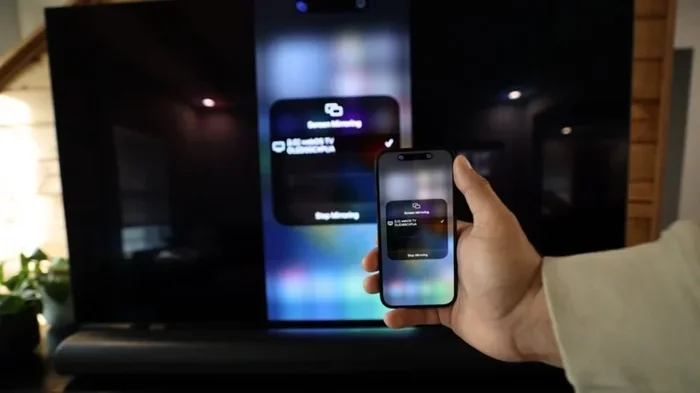
- Open the Control Center on your iPhone by swiping down from the top-right corner.
- Tap the Screen Mirroring button (it looks like two overlapping rectangles).
- Select your TV from the list of available devices.
- Enter the AirPlay code on your TV if prompted.
- Your iPhone screen is now showing on your TV!
That is it. You are done. No cables, no extra apps, no extra hardware. Just a few taps and your phone screen is on the big display.
Which TVs Support AirPlay?
Most Samsung, LG, Sony, and Vizio smart TVs made after 2018 support AirPlay natively. You can check your TV’s manual or settings menu for an AirPlay option. If your TV does not support AirPlay, do not worry. There are other methods below.
If you also mirror a Mac, you might wonder how that compares. You can find details on mirroring a Mac to your TV without Apple TV as well.
Troubleshooting AirPlay Mirroring Issues
Sometimes AirPlay does not work right away. Here are common fixes:
- Restart both devices: Turn off your iPhone and TV, wait 30 seconds, and turn them back on.
- Check Wi-Fi: Make sure both devices are on the same network.
- Update your software: Go to Settings > General > Software Update on your iPhone.
- Disable VPN: A VPN can block AirPlay connections. Turn it off temporarily.
- Reboot your router: Unplug it for 10 seconds and plug it back in.
These quick fixes solve most AirPlay problems. If none of them work, try a different method below.
Method 2: Use an HDMI Adapter (Wired Mirroring)
If your TV does not support AirPlay or you want a rock-solid connection, a wired HDMI adapter is the way to go. This method works with any TV that has an HDMI port, which is almost every TV made in the last 15 years.
What You Need
You need one of these adapters depending on your iPhone model:
- Lightning to HDMI adapter: For iPhones with a Lightning port (iPhone 5 through iPhone 14).
- USB-C to HDMI adapter: For iPhone 15 and iPhone 16 models.
- A standard HDMI cable: To connect the adapter to your TV.
These adapters cost between $10 and $30. You can buy them on Amazon, at electronics stores, or directly from Apple. Look for certified adapters to avoid compatibility issues.
How to Set Up Wired Mirroring
Setting up a wired connection is straightforward:
- Plug the adapter into your iPhone’s charging port.
- Connect the HDMI cable to the adapter.
- Plug the other end of the HDMI cable into your TV.
- Switch your TV to the correct HDMI input using your remote.
- Your iPhone screen should appear on the TV immediately.
Wired mirroring has zero lag and no Wi-Fi dependency. It is perfect for presentations, gaming, or watching videos where smooth playback matters. One downside is that your phone is tethered to the TV, so you cannot move around freely.
If you have an older TV without HDMI, you might need a different connection. Some adapters work with VGA ports, but the quality will be lower. You can also look into converting your TV’s USB port to HDMI if your TV has a USB port but no HDMI port.
Method 3: Use a Streaming Device
Streaming devices are small boxes or sticks that plug into your TV’s HDMI port. They add smart features to any TV, including the ability to receive your iPhone screen. You do not need Apple TV to use them.
Chromecast with Google Home
Google Chromecast is a popular and affordable option. It costs around $30 and works with iPhones through the Google Home app. Here is how it works:
- Plug the Chromecast into your TV’s HDMI port.
- Download the Google Home app on your iPhone.
- Connect the Chromecast to your Wi-Fi network.
- Use the app to cast your screen or specific content to the TV.
Chromecast does not use AirPlay, but it does a great job of streaming content from your phone to the TV. It is especially good for watching YouTube, Netflix, and other apps directly on the big screen.
Roku Streaming Stick
Roku is another excellent choice. Many Roku devices support screen mirroring from iPhones. To use it:
- Plug the Roku Streaming Stick into your TV’s HDMI port.
- Set up the Roku device using the Roku app on your iPhone.
- Go to Settings > System > Screen Mirroring on the Roku and set it to “Prompt” or “Always Allow.”
- Use the Screen Mirroring option from your iPhone’s Control Center.
Roku is a solid alternative if you want a dedicated streaming device without the Apple ecosystem. You can also pair Bluetooth headphones to your TV for private listening while you watch.
Amazon Fire TV Stick
The Fire TV Stick is Amazon’s answer to Chromecast and Roku. It supports screen mirroring and works well with iPhones. You just need the Fire TV app, connect to the same Wi-Fi, and use the mirroring feature. It is a budget-friendly option that adds lots of streaming apps to any TV.
Method 4: Use Third-Party Apps
Not all TVs support AirPlay or built-in screen mirroring. In those cases, third-party apps come to the rescue. These apps install on both your iPhone and your TV (or a connected streaming device) and create a bridge between the two.
Top Apps for iPhone-to-TV Mirroring
Here are some of the best apps you can try:
- Replica: A simple app that mirrors your iPhone screen to your TV over Wi-Fi. It works on many smart TV brands and is easy to set up.
- AirScreen: This app turns your TV into an AirPlay receiver. It is great for TVs that do not have native AirPlay support.
- LetsView: A free app that supports screen mirroring on multiple platforms. It works well for casual use and presentations.
- Screen Mirroring – Cast: Another reliable option that supports various TV brands and streaming devices.
How to Use Third-Party Mirroring Apps
The general setup process is similar for most apps:
- Download the app on your iPhone from the App Store.
- Install the corresponding app on your TV or streaming device (if applicable).
- Make sure both devices are on the same Wi-Fi network.
- Open the app on your iPhone and select your TV.
- Start mirroring and enjoy your content on the big screen.
Third-party apps are a great backup plan when built-in options do not work. They add flexibility and work with a wider range of TV models.
Which Method Should You Choose?
Every method has its strengths. Here is a quick comparison to help you decide:
| Method | Cost | Setup Difficulty | Best For | Needs Wi-Fi? |
|---|---|---|---|---|
| AirPlay | Free | Very Easy | Smart TV owners with AirPlay support | Yes |
| HDMI Adapter | $10–$30 | Easy | Older TVs or stable connections | No |
| Chromecast | ~$30 | Easy | Budget streaming and casting | Yes |
| Roku | ~$30–$50 | Easy | Broad app selection and mirroring | Yes |
| Fire TV Stick | ~$25–$55 | Easy | Amazon ecosystem users | Yes |
| Third-Party Apps | Free–$10 | Easy | TVs without native mirroring | Yes |
If you have a modern smart TV, start with AirPlay. It is free, fast, and requires no extra gear. If your TV is older or does not support AirPlay, grab an HDMI adapter for a plug-and-play solution. Streaming devices like Chromecast or Roku are great if you also want access to tons of apps beyond mirroring.
Common Mistakes to Avoid
Even with the right method, things can go wrong. Here are mistakes that trip people up:
- Not being on the same Wi-Fi network: AirPlay and most mirroring apps require both devices to share the same network. Check this first.
- Using a cheap, uncertified adapter: Knock-off HDMI adapters often cause flickering, no sound, or dropped connections. Buy certified products.
- Ignoring software updates: Outdated iOS or TV firmware can break compatibility. Always keep both devices updated.
- Overheating your iPhone: Long mirroring sessions can heat up your phone. Take breaks if your device feels warm.
- Expecting perfect quality: Wireless mirroring may have slight lag or lower resolution compared to wired connections. This is normal.
Avoiding these mistakes will save you frustration and help you get the best mirroring experience every time.
Expert Tips for the Best Mirroring Experience
Want to take your mirroring setup to the next level? Here are some pro tips:
- Use a 5 GHz Wi-Fi network: It is faster and less crowded than 2.4 GHz, which reduces lag during mirroring.
- Close unused apps: This frees up memory and processing power, making mirroring smoother.
- Keep your phone charged: Mirroring drains battery fast. Plug in your iPhone while using it.
- Use a quality HDMI cable: A good cable ensures clear picture and sound with wired setups.
- Check your TV’s refresh rate: Some TVs have settings that affect how smoothly mirrored content plays.
These small tweaks make a big difference, especially if you mirror often or use it for presentations and gaming.
Final Thoughts
Mirroring your iPhone to your TV without Apple TV is easier than most people think. You have at least five different methods to choose from, and most of them are free or very affordable. Whether you prefer wireless AirPlay, a simple HDMI adapter, a streaming device, or a third-party app, there is a solution that fits your TV and your budget.
Start with the method that matches your setup best. If you have a smart TV from the last few years, AirPlay is your fastest path to big-screen fun. If your TV is older, an HDMI adapter or a streaming stick will do the trick. No matter which route you choose, you will be enjoying your iPhone content on the TV in minutes.
Try one of these methods today and see how simple it really is. Once you start mirroring, you will wonder how you ever lived without it. Happy streaming!
Frequently Asked Questions
Can I mirror my iPhone to any TV without Apple TV?
Yes, you can mirror your iPhone to almost any TV. If your TV is a smart TV made after 2018, it likely supports AirPlay natively. For older TVs, you can use an HDMI adapter, a streaming device like Chromecast or Roku, or a third-party mirroring app. There is always a way to get your iPhone screen on the big display.
Is wireless mirroring as good as wired mirroring?
Wireless mirroring is more convenient, but wired mirroring offers a more stable connection with no lag. For most everyday uses like watching videos or sharing photos, wireless mirroring works great. If you need perfect performance for gaming or presentations, a wired HDMI connection is the better choice.
Do I need Wi-Fi to mirror my iPhone to my TV?
It depends on the method. AirPlay and most third-party apps require Wi-Fi. However, if you use an HDMI adapter, you do not need Wi-Fi at all. The wired connection handles everything on its own, which makes it ideal for situations where Wi-Fi is weak or unavailable.
Why is my iPhone screen lagging when mirrored to my TV?
Lag usually happens because of a weak or crowded Wi-Fi network. Try switching to a 5 GHz network, moving closer to your router, or closing apps running in the background. If you use a wireless method and still experience lag, switching to a wired HDMI connection will eliminate the problem entirely.
Can I mirror my iPhone to a non-smart TV?
Absolutely. If your TV is not a smart TV, you can still mirror your iPhone using an HDMI adapter or a streaming device like Chromecast or Roku. Both options turn any TV with an HDMI port into a screen that can receive your iPhone’s display. You do not need a smart TV to enjoy mirroring.
Are there any free apps for mirroring my iPhone to my TV?
Yes, several free apps work well for mirroring. LetsView and AirScreen are both free and support many TV brands. Some apps have premium features, but the free versions handle basic mirroring just fine. You can also use AirPlay for free if your TV supports it natively, which requires no app at all.