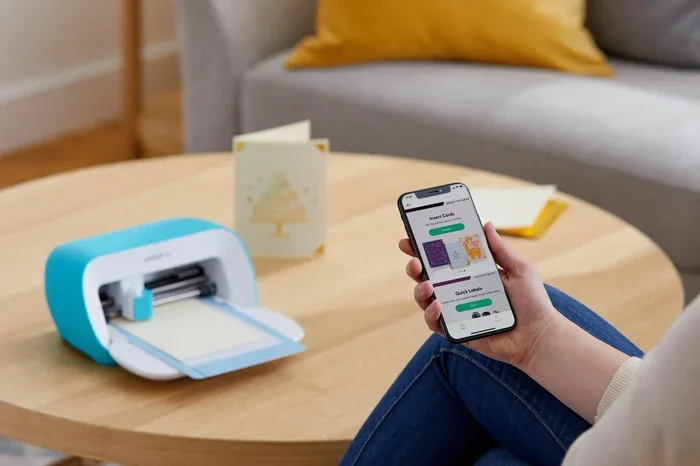
Can I Make My Cricut Wireless Here Is What You Need
Yes, you can make your Cricut wireless by using Bluetooth or Wi-Fi connectivity options available on newer models. This guide covers everything you need, from checking compatibility to troubleshooting common issues. Going wireless with your Cricut opens up a world of cable-free crafting and portable creativity.
Key Takeaways
- Not all Cricuts are wireless-ready: Only newer models like the Maker, Explore, and Joy support Bluetooth or Wi-Fi out of the box.
- Bluetooth is the most common method: Most wireless Cricut setups rely on Bluetooth pairing between the machine and your device.
- You can retrofit older models: Some older Cricuts can be made wireless using a USB Bluetooth adapter, though results may vary.
- Firmware updates matter: Keeping your Cricut firmware updated ensures smooth wireless performance and new features.
- Range and interference are real concerns: Expect reliable performance within about 30 feet, but thick walls can weaken the signal.
- Wireless cutting is not always necessary: A USB cable connection is still reliable and often faster for large projects.
- Setup takes about 10-15 minutes: The process is straightforward if you follow the right steps.
📑 Table of Contents
- Can I Make My Cricut Wireless? Here Is What You Need to Know
- What Does It Mean to Make Your Cricut Wireless?
- Why Would You Want a Wireless Cricut?
- Which Cricut Models Support Wireless Connectivity?
- How to Make Your Cricut Wireless: Step-by-Step Guide
- Common Problems and Troubleshooting
- Expert Tips for Getting the Most From Your Wireless Cricut
- Is Going Wireless Worth It? Final Thoughts
Can I Make My Cricut Wireless? Here Is What You Need to Know
The Dream of Cable-Free Crafting
There is something deeply satisfying about setting up your Cricut and diving into a creative project. But let us be honest. Wrangling cables can be annoying. If you have ever wished your cutting machine could just work without being plugged into your computer, you are not alone.
The good news is that many Cricut users can go wireless. Whether you have a brand-new machine or an older model, there are ways to cut the cord and craft from a distance. This guide walks you through everything step by step.
What This Guide Will Teach You
You will learn which Cricut models support wireless features, how to set up Bluetooth or Wi-Fi, and what to do when things go wrong. We also share expert tips to help you get the best results. By the end, you will know exactly how to make your Cricut wireless and start crafting freely.
What Does It Mean to Make Your Cricut Wireless?
When people say they want a wireless Cricut, they usually mean one of two things. First, they want to connect the machine to a computer or tablet without a USB cable. Second, they want to send cutting designs directly from a mobile device or cloud-based software.
A wireless cutting machine uses Bluetooth or Wi-Fi to communicate with your design software. This means you can place your Cricut on a table across the room and still send it jobs. You do not need to sit next to it the whole time.
Some newer Cricut models come with built-in wireless capability. Others need a little help. Let us break it all down so you know exactly where you stand.
Bluetooth vs. Wi-Fi Connectivity
Understanding the difference helps you choose the right setup.
- Bluetooth works over short distances, usually about 30 feet. It uses very little power and is easy to pair. Most Cricut wireless setups use Bluetooth.
- Wi-Fi lets you connect over longer ranges. Some Cricut models can connect to your home network. This allows for more flexible placement.
For most crafters, Bluetooth is plenty. It is reliable, fast, and simple to set up. Wi-Fi is nice if you want to place the machine in another room entirely.
Why Wireless Matters for Digital Crafting
Modern crafting is about convenience. You want to start a project on your laptop, send it to the Cricut, and walk away. Cable-free crafting gives you that freedom. It also makes shared spaces look neater and lets you move the machine around easily.
Why Would You Want a Wireless Cricut?
You might be wondering if going wireless is really worth the effort. The answer is usually yes. Here is why so many crafters are making the switch.
Freedom of Placement
A wireless Cricut does not need to sit right next to your desk. You can set it up on a crafting table, a shelf, or even a cart. As long as it is within range, it works perfectly. This is a huge deal for small craft spaces where every inch counts.
Cleaner, More Organized Workspaces
Let us face it. USB cables get tangled. They collect dust. They get in the way. Removing the cable clutter makes your workspace feel more professional and inviting. Smart cutting with wireless technology keeps things tidy.
Use Your Cricut with a Tablet or Phone
One of the biggest perks is mobile crafting. With a wireless connection, you can design in the Cricut Design Space app on your iPad or Android tablet. Then send the project straight to your machine. No computer needed. This is perfect for on-the-go projects or crafting with kids.
Multi-Device Sharing
If your family shares a craft space, wireless connectivity makes it easy. Multiple people can send jobs to the same Cricut from different devices. You just pair your laptop or tablet and go. This kind of portable Cricut setup is great for workshops and group events.
Which Cricut Models Support Wireless Connectivity?
Not every Cricut is built the same. Some models have wireless features built right in. Others need extra accessories. Here is a breakdown of the most popular models and their wireless capabilities.
New Models with Built-In Wireless
- Cricut Maker 3: Supports Bluetooth and USB. Sends wireless signals to connected devices easily.
- Cricut Explore 3: Equipped with Bluetooth for Wi-Fi enabled crafting sessions.
- Cricut Joy: A compact, wireless cutting machine designed for quick projects at home.
- Cricut Maker: The original Maker model also supports Bluetooth connectivity.
- Cricut Explore Air 2: Has Bluetooth built in for wireless design transfers.
Older Models That May Need Help
Older Cricuts, like the original Cricut Explore or the Cricut Cake, typically do not have Bluetooth. You may need to add a wireless adapter to connect them to modern devices. We cover how to do this later in the article.
Quick Model Comparison
| Model | Built-In Wireless | Connection Type | Ease of Setup |
|---|---|---|---|
| Cricut Maker 3 | Yes | Bluetooth + USB | Very Easy |
| Cricut Explore 3 | Yes | Bluetooth + USB | Very Easy |
| Cricut Joy | Yes | Bluetooth + USB | Very Easy |
| Cricut Maker | Yes | Bluetooth + USB | Easy |
| Cricut Explore Air 2 | Yes | Bluetooth | Easy |
| Cricut Explore (Original) | No | USB Only | Needs Adapter |
| Cricut Cake | No | USB Only | Needs Adapter |
How to Make Your Cricut Wireless: Step-by-Step Guide
Ready to cut the cord? Here is a detailed walkthrough for setting up your Cricut wirelessly. The process is fairly similar across all compatible models.
Step 1: Check That Your Model Supports Wireless
First, confirm your Cricut has Bluetooth or Wi-Fi. Check the box, manual, or Cricut website. If your model does not have built-in wireless, skip to the section on adapters below.
Step 2: Update Your Firmware
Before pairing, make sure your machine has the latest Cricut firmware. Open Cricut Design Space on your computer and let the software check for updates. Firmware updates often improve wireless stability and fix bugs. This step is important and should not be skipped.
Step 3: Turn On Bluetooth on Your Device
On your computer, tablet, or phone, open your Bluetooth settings. Make sure Bluetooth is turned on and discoverable. Your device needs to see the Cricut as an available pairing option.
Step 4: Put Your Cricut in Pairing Mode
On your Cricut, navigate to the Bluetooth settings. The exact steps vary by model. Usually, you go to Settings and then Bluetooth. Select “Pair” or “Add Device.” The machine will broadcast its name so your computer or tablet can find it.
Step 5: Pair the Devices
Back on your device, look for your Cricut in the list of available Bluetooth devices. Click on it to pair. You may see a confirmation code on both screens. Accept the pairing on both ends. Once paired, the devices will remember each other in the future.
Step 6: Test the Connection
Open Cricut Design Space and load a simple project. Hit “Make It” and send the cut job to your Cricut. If the machine starts cutting, congratulations. Your wireless setup is working. If not, check the troubleshooting tips below.
Using a USB Bluetooth Adapter for Older Models
If your Cricut is an older model without built-in Bluetooth, you can still go wireless. Buy a small USB Bluetooth adapter. Plug it into an open USB port on your Cricut. Then follow the same pairing steps. Not all adapters work perfectly, so look for ones recommended by other Cricut users online.
Common Problems and Troubleshooting
Wireless setups are usually smooth. But sometimes hiccups happen. Here are the most common issues and how to fix them quickly.
The Cricut Will Not Pair
This is the most common complaint. Try these fixes:
- Restart both your Cricut and your device.
- Make sure Bluetooth is enabled on both devices.
- Move your device closer to the Cricut. Stay within 30 feet.
- Forget the device in your Bluetooth settings and try pairing again.
- Check for firmware updates on your Cricut.
Connection Drops Mid-Project
A dropped connection can ruin a cut job. Here is what to do:
- Remove objects between the Cricut and your device. Walls and metal appliances weaken the Bluetooth pairing signal.
- Stay close to the machine during long cuts.
- Turn off other Bluetooth devices nearby. They can cause interference.
- Consider switching to a USB cable for very large or complex projects.
Slow or Laggy Design Transfers
Sometimes sending a design to the machine takes too long. This often happens when your device has too many apps running. Close unused programs. Keep your Cricut Design Space software updated. A simple restart often clears the lag.
Firmware Update Failures
If your machine will not update over Bluetooth, try using a USB cable connection instead. Plug in, open Design Space, and run the update. Afterward, try wireless mode again.
Quick Tips for Troubleshooting
- Always keep your devices charged. Low battery weakens Bluetooth signals.
- Restart your router if you are using a Wi-Fi connection.
- Update your computer or tablet operating system. Old software can cause pairing issues.
- Check the Cricut community forums. Other users often share fixes for rare issues.
Expert Tips for Getting the Most From Your Wireless Cricut
Going wireless is great. But you can make it even better with a few pro tips. These insights come from experienced crafters and Cricut community leaders.
Keep Your Craft Space Clutter-Free
One of the biggest advantages of a wireless Cricut setup is a cleaner space. Use a cable management tray for the power cord. Keep your Bluetooth adapter hidden. A tidy space helps you focus on your projects.
Use Offline Cutting When Possible
Offline cutting means running your Cricut without an internet connection. You can store designs directly on your device and send them to the machine via Bluetooth. This saves time and avoids internet delays. It also keeps your projects private.
Invest in a Good Bluetooth Adapter
If you are retrofitting an older model, do not cheap out. A quality wireless adapter gives you a stronger, more stable connection. Look for adapters with Bluetooth 4.0 or higher. They offer better range and use less power.
Explore the Mobile App for On-the-Go Crafting
The Cricut Design Space mobile app is a gem. It lets you design and cut right from your phone or tablet. Pair it with your wireless machine and craft anywhere in your home. This is true digital crafting freedom.
Schedule Regular Firmware Updates
Set a reminder to check for Cricut firmware updates every month. Updates add new features, improve wireless reliability, and patch security issues. It takes just a few minutes and keeps your machine running great.
Consider a Rolling Cart for Portability
Since your Cricut does not need a fixed cable connection, you can move it easily. A rolling cart lets you reposition your crafting station. Move the machine to the kitchen table for big projects or to a corner for quiet time.
Is Going Wireless Worth It? Final Thoughts
So, can you make your Cricut wireless? Absolutely. Most modern Cricut models support Bluetooth or Wi-Fi right out of the box. Older models can still go wireless with a simple adapter. The setup takes about 10 to 15 minutes and opens up a whole new way to craft.
Wireless Cricut crafting gives you freedom, portability, and a cleaner workspace. You can design on a tablet, send cuts from across the room, and share your machine with the whole family. Just be mindful of range limits and interference. For very large projects, a USB cable connection can still be the most reliable option.
Whether you are a hobbyist or a seasoned crafter, going wireless is a worthwhile upgrade. Follow the steps in this guide, troubleshoot any issues, and enjoy your new cable-free creative life. Happy crafting!
Frequently Asked Questions
Can any Cricut be made wireless?
Not all of them, unfortunately. Newer models like the Cricut Maker 3, Explore 3, and Joy come with built-in Bluetooth. Older models without wireless hardware can use a USB Bluetooth adapter, though performance may not be perfect. Check your specific model before buying any accessories.
How far can my wireless Cricut be from my device?
Most Bluetooth-enabled Cricuts work reliably within 30 feet. Walls, metal objects, and other electronics can reduce that range. For best results, keep your device within the same room as your Cricut. If you need more distance, consider a Wi-Fi capable model.
Do I need internet to use my Cricut wirelessly?
No. Once your Cricut is paired via Bluetooth, you do not need an internet connection. You can use offline cutting with designs saved on your device. However, you will need internet access to download new fonts, images, and projects from Cricut Design Space.
Is Bluetooth cutting slower than USB?
There can be a slight difference in speed, but it is usually minimal for most projects. Bluetooth sends data quickly enough for standard cuts. Very large or complex projects with hundreds of cuts may transfer faster over a direct USB connection. For everyday crafting, Bluetooth works great.
Can I connect my Cricut to multiple devices wirelessly?
Yes, but with a small catch. Your Cricut can pair with multiple devices via Bluetooth. However, only one device can send a cutting job at a time. You simply switch the active device in Cricut Design Space. This is handy when sharing a wireless cutting machine with family members.
What is the best Bluetooth adapter for older Cricuts?
Look for a USB Bluetooth adapter version 4.0 or higher. Popular choices among crafters include adapters from brands like TP-Link, ASUS, and Avantree. Make sure the adapter is small enough to fit in your Cricut’s USB port. Check online Cricut communities for the latest recommendations and user experiences.
Conclusion
Making your Cricut wireless is one of the best upgrades you can make for your crafting setup. Whether you have a brand-new Cricut Maker or an older model needing a little help, the path to cable-free crafting is clearer than you might think. The process is simple, the tools are affordable, and the freedom you gain is well worth the effort. Start by checking your model’s compatibility, update your firmware, and follow our step-by-step pairing guide. Soon, you will be enjoying the convenience of a smart, wireless cutting machine that fits right into your creative lifestyle.