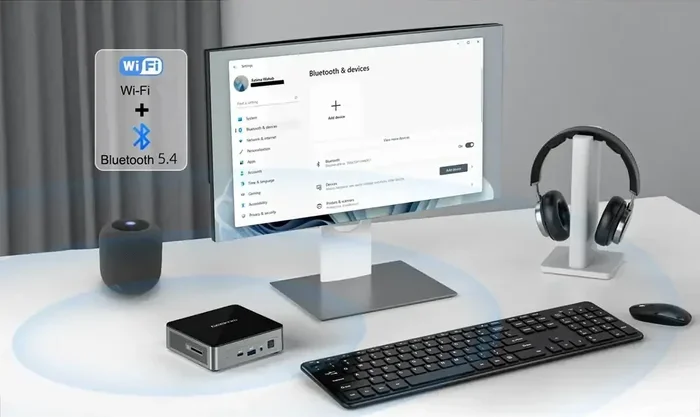
Does My Pc Not Have Bluetooth Here Is How To Fix It
Many PCs do not come with built-in Bluetooth, and that can be frustrating when you want to connect wireless devices. The good news is that adding Bluetooth to your PC is simple and affordable. Whether you need a Bluetooth adapter, a driver update, or a quick settings fix, this guide covers everything you need to know.
You sit down at your computer ready to connect your favorite wireless headphones or transfer files from your phone. You look for the Bluetooth option. And then it hits you. Your PC does not have Bluetooth. This is a more common problem than you might think. Many desktop computers ship without wireless capabilities built in. Even some older laptops lack this feature. But here is the good news. Fixing this issue is easier and cheaper than you probably expect.
In this guide, we will walk you through every step. You will learn how to check if your PC truly lacks Bluetooth. You will discover why it might be missing. And most importantly, you will find out exactly how to fix it. Whether you need a quick driver update or a new Bluetooth adapter, we have you covered. Let us get your PC connected wirelessly.
Key Takeaways
- Check First: Most modern laptops have Bluetooth built in, but many desktop PCs do not.
- Easy Fix: A USB Bluetooth adapter is the simplest and cheapest way to add wireless capability to any PC.
- Driver Matters: Outdated or missing Bluetooth drivers are the most common cause of connectivity problems.
- Settings Can Help: Sometimes the fix is as simple as turning Bluetooth on in Windows settings.
- Version Counts: Newer Bluetooth versions offer better range, speed, and stability.
📑 Table of Contents
How To Check If Your PC Has Bluetooth
Before you jump to solutions, you need to confirm whether your PC actually has Bluetooth. Sometimes the feature is there but disabled. Other times it is hidden in your system settings. Here is how to find out for sure.
Check Your Device Manager
Open the Device Manager on your Windows PC. Right-click the Start button and select Device Manager from the menu. Look for a category called Bluetooth. If you see it with devices listed underneath, your PC has Bluetooth hardware. If the category is missing entirely, your PC likely does not have built-in Bluetooth.
Look In Your System Tray
Click the small arrow icon in the bottom right corner of your screen. This is your system tray. Look for a Bluetooth icon. If you see it, your PC supports Bluetooth. If there is no icon, Bluetooth might not be available or it could be turned off.
Open Windows Settings
Go to Settings and then click Devices. If you see a Bluetooth option on the left side, your PC supports it. If you do not see it at all, your computer probably does not have Bluetooth capability. This is especially common with desktop towers.
Why Your PC Might Not Have Bluetooth
There are several reasons why your PC might not have Bluetooth. Understanding the cause helps you pick the right fix. Let us look at the most common reasons.
Desktop PCs Often Lack Wireless Features
Desktop computers are designed primarily for stationary use. Manufacturers often leave out wireless features like Bluetooth and Wi-Fi to save costs. Many desktop PCs rely on wired connections for keyboards, mice, and internet access. This means Bluetooth is not included on the motherboard or any expansion card.
Older Computers Do Not Support Modern Bluetooth
If your PC is several years old, it might not have Bluetooth at all. Bluetooth became a standard feature on laptops around 2010 and later. Older machines simply were not built with this technology. Even if they had early Bluetooth, it might be outdated and unreliable.
The Bluetooth Adapter Was Removed Or Disabled
Sometimes a Bluetooth adapter gets accidentally disabled in the BIOS settings. Other times a Windows update might hide the Bluetooth driver. In rare cases, the adapter hardware itself fails. Before you assume your PC does not have Bluetooth, make sure it is not simply turned off or hidden.
Your Laptop Has Wi-Fi But Not Bluetooth
This is less common but it does happen. Some laptops include Wi-Fi chips that do not support Bluetooth. The Wi-Fi antenna handles wireless internet, but Bluetooth requires a separate radio. This is more frequent in budget laptops or older models.
How To Add Bluetooth To Your PC
If your PC does not have Bluetooth, you are not stuck. There are simple and effective ways to add this feature. You do not need to be a tech expert. Here are the best methods.
Option One: Use A USB Bluetooth Adapter
This is by far the easiest and most popular solution. A USB Bluetooth adapter is a small dongle that plugs directly into your PC. It adds Bluetooth capability instantly. Most adapters cost between $10 and $30. You simply plug it in, wait for Windows to install the driver, and you are good to go.
Look for a Bluetooth 5.0 or higher adapter for the best performance. These offer faster speeds, longer range, and better stability. Some adapters also support connecting multiple devices at once, which is great if you use wireless headphones, a mouse, and a keyboard all at the same time.
Option Two: Use A PCIe Bluetooth Card
If you have a desktop PC with an open expansion slot, you can install a PCIe Bluetooth card. This card goes inside your computer and connects to your motherboard. It offers a more permanent and stable connection than a USB adapter. However, it requires opening your PC case and some basic installation skills.
PCIe Bluetooth cards are a great choice if you use a desktop tower regularly. They tend to have better antennas and stronger signals than USB dongles. They also free up a USB port for other devices.
Option Three: Update Your Bluetooth Driver
If your PC has Bluetooth hardware but it is not working, a driver update might fix the problem. Go to your PC manufacturer’s website and search for the latest Bluetooth driver for your model. Download and install it. Restart your PC. This simple step resolves many Bluetooth issues.
You can also use Windows Update to find the latest drivers. Go to Settings, then Update and Security, and click Check for Updates. Sometimes Windows will automatically detect and install the missing or outdated Bluetooth driver.
Option Four: Use A Bluetooth Dongle With A Built-in USB Hub
If you are low on USB ports, consider a Bluetooth dongle that also works as a USB hub. These devices plug into one USB port and give you extra ports for other devices. They are a smart choice if you have a laptop or compact desktop with limited port availability.
Many of these combo devices support Bluetooth 5.0 and offer solid range. They are a practical solution for people who need both wireless connectivity and extra ports.
How To Fix Common Bluetooth Problems On Your PC
Even after adding Bluetooth to your PC, you might run into issues. Bluetooth connections can be finicky sometimes. Here are the most common problems and how to solve them.
Bluetooth Is Not Showing Up In Settings
If Bluetooth does not appear in your Windows Settings, the driver might be missing or corrupted. Open Device Manager and look for any devices with a yellow warning icon. Right-click the Bluetooth entry and select Update Driver. If that does not work, try uninstalling the device and then restarting your PC. Windows will reinstall the driver automatically.
Bluetooth Keeps Turning Off By Itself
This is a common issue on Windows 10 and 11. Go to Settings, then Devices, then Bluetooth. Make sure Bluetooth is turned on. Also check your Power Options settings. Some power-saving modes turn off Bluetooth to save battery. Change the setting to prevent this from happening.
Your Device Will Not Pair
If a device will not connect, try turning Bluetooth off and back on. Remove the device from your paired list and try pairing again. Make sure the device you are trying to connect is in pairing mode. Sometimes simply restarting both devices solves the problem.
Bluetooth Works But The Sound Quality Is Poor
Poor audio quality is often caused by interference or an outdated Bluetooth version. Move closer to your PC to reduce signal loss. If you are using a Bluetooth speaker or headphones, make sure they support a recent Bluetooth version. Bluetooth 5.0 and above offer much better audio quality than older versions.
You can also check if your wireless headphones work better with a different audio codec. Some codecs like aptX or LDAC provide higher quality sound than the standard SBC codec. Check your device settings to see if this option is available.
Quick Tips For Better Bluetooth Performance
Want to get the most out of your Bluetooth connection? Here are some quick tips that make a real difference.
- Keep Your PC Close: Bluetooth works best within 30 feet. Walls and obstacles weaken the signal.
- Update Your Drivers Regularly: New driver updates often fix bugs and improve performance.
- Avoid USB 3.0 Interference: USB 3.0 ports can sometimes interfere with Bluetooth signals. Try plugging your adapter into a USB 2.0 port if you experience issues.
- Turn Off Unused Devices: Too many connected Bluetooth devices can slow things down. Disconnect devices you are not using.
- Restart Your PC Regularly: A simple restart clears temporary glitches that can affect Bluetooth connectivity.
Expert Insights On PC Bluetooth
Bluetooth technology has come a long way over the years. The latest Bluetooth 5.3 standard offers faster data transfer, lower power consumption, and more stable connections. If you are buying a new Bluetooth adapter, look for one that supports at least Bluetooth 5.0. This ensures compatibility with modern devices and a much better user experience.
Many people wonder if they can use their Bluetooth devices with other gadgets. For example, you might ask can I use Bluetooth headphones with Roku or can I pair Bluetooth headphones to my LG TV. The answer is yes for both. Bluetooth is a universal wireless standard. Once you add Bluetooth to your PC, you can connect a wide range of devices including speakers, headphones, keyboards, mice, game controllers, and even printers.
If you are someone who enjoys wireless audio, adding Bluetooth to your PC opens up new possibilities. You can stream music wirelessly, take calls through your headphones, and even connect to a Bluetooth speaker for louder sound. The can I use Alexa as a Bluetooth speaker for my TV question also comes up often, and the answer is yes. Alexa devices can act as Bluetooth speakers, and the same Bluetooth adapter that works for your PC can connect to many smart home devices.
Some users also explore ways to add Bluetooth to older audio equipment. For instance, many people ask about making older devices Bluetooth capable. The concept is similar to adding Bluetooth to a PC. A small Bluetooth receiver can transform almost any speaker or audio device into a wireless one. This same idea applies to PCs as well.
One more thing to keep in mind. When you connect wireless devices to your PC, you want reliable performance. If you are wondering can I talk through my Bluetooth headphones, the answer is absolutely yes. Most Bluetooth headphones have a built-in microphone. You can use them for calls, voice chats, and video conferences once they are paired with your PC.
Final Thoughts
Dealing with a PC that does not have Bluetooth can feel like a setback. But it really is not a big deal. You have plenty of options to get wireless connectivity working on your computer. A USB Bluetooth adapter is the fastest and most affordable solution. A driver update might fix existing hardware that is not working properly. And in some cases, a simple settings change can bring Bluetooth back to life.
The key is to first confirm whether your PC truly lacks Bluetooth. Then choose the right solution based on your needs and budget. Whether you are a casual user who just wants to connect wireless headphones or a power user who needs stable connections for multiple devices, there is a Bluetooth solution for you.
Take action today. Check your PC for Bluetooth. Try a simple adapter. Update your drivers. You will be wirelessly connected in no time. The frustration of missing Bluetooth is temporary. The convenience of wireless connectivity lasts for years.
Frequently Asked Questions
Why does my desktop PC not have Bluetooth?
Most desktop PCs do not include Bluetooth because manufacturers leave out wireless features to save costs. Desktop computers are designed for stationary use and typically rely on wired connections. You can easily add Bluetooth with a USB adapter or a PCIe card.
How much does a Bluetooth adapter cost?
A basic USB Bluetooth adapter costs between $10 and $30. More advanced adapters with Bluetooth 5.0 or higher may cost a bit more. They are widely available online and at electronics stores.
Can I add Bluetooth to any PC?
Yes, you can add Bluetooth to almost any PC. USB Bluetooth adapters work with both desktop and laptop computers. PCIe Bluetooth cards work with desktop towers that have an open expansion slot. The process is simple and does not require advanced technical skills.
Is Bluetooth safe to use on my PC?
Yes, Bluetooth is safe. It uses low-power radio waves that are well within safety guidelines. Bluetooth connections are encrypted, which helps protect your data. As long as you keep your drivers updated, Bluetooth is a secure and reliable way to connect wireless devices.
What is the difference between Bluetooth 4.0 and Bluetooth 5.0?
Bluetooth 5.0 offers faster data transfer speeds, longer range, and better battery efficiency compared to Bluetooth 4.0. It also supports connecting multiple devices at once. If you are buying a new Bluetooth adapter, choose one with Bluetooth 5.0 or higher for the best performance.
Can I connect my Bluetooth headphones to my PC without built-in Bluetooth?
Yes, you can. Simply plug in a USB Bluetooth adapter, wait for it to install, and pair your headphones. This works just like built-in Bluetooth. You can connect wireless headphones, speakers, and other audio devices to any PC with an adapter.