Does Bluetooth Need To Be Enabled For Wireless Devices
Yes, Bluetooth must be enabled on both devices to establish a wireless connection. Whether you are pairing headphones, streaming audio, or connecting peripherals, having Bluetooth turned on is the first and most important step. This guide walks you through everything you need to know about Bluetooth connectivity, from basic setup to troubleshooting common issues.
This is a comprehensive guide about Does Bluetooth Need To Be Enabled.
Key Takeaways
- Bluetooth must be active: Both sending and receiving devices need Bluetooth turned on to connect.
- Enabling Bluetooth is simple: You can turn it on through quick settings, the control center, or the settings app.
- Bluetooth range matters: Most devices connect within 30 feet, but obstacles can reduce this.
- Pairing mode is different from being enabled: A device can have Bluetooth on but still need to be put into discovery mode to pair.
- Turning off Bluetooth saves battery: Keeping it off when not in use extends device battery life.
- Bluetooth versions affect performance: Newer versions offer faster speeds and better range.
- Troubleshooting is easy: Restarting devices and toggling Bluetooth off and on fixes most connection issues.
[FEATURED_IMAGE_PLACEHOLDER]
Does Bluetooth Need To Be Enabled For Wireless Devices?
The short answer is yes. Bluetooth needs to be enabled on any device that wants to send or receive a wireless signal. Without it turned on, your phone, tablet, laptop, or TV simply cannot find or talk to other Bluetooth devices. It is the most basic requirement for any Bluetooth connectivity to work.
Think of Bluetooth like a walkie-talkie. If one person is not holding the button to transmit, no message gets through. Similarly, if Bluetooth is off on your phone, it cannot discover a Bluetooth speaker, headphones, or keyboard nearby. Both devices need to be “listening” for the connection to happen.
Many people assume their device is broken when a wireless connection fails. In most cases, the real issue is simply that Bluetooth was never turned on, or it was turned off by accident. This article explains exactly when and why you need Bluetooth enabled, how to check its status, and what to do when things go wrong.
Whether you are trying to pair Bluetooth headphones to your TV, connect a keyboard to your tablet, or stream music from your phone to a speaker, the same basic rule applies. Bluetooth must be active. Let us dive into the details so you never have to guess again.
What Is Bluetooth and Why Does It Need to Be On?
Bluetooth is a short-range wireless technology that lets devices exchange data without cables. It uses radio waves to send information between devices over short distances. You use it every day, even if you do not think about it.
When Bluetooth is enabled, your device broadcasts a signal that says “I am here, and I am ready to connect.” Other nearby devices can pick up that signal and respond. This is called device discovery, and it only happens when Bluetooth is turned on.
How Bluetooth Discovery Works
Here is a simple way to understand the process:
- You turn on Bluetooth on Device A.
- Device A starts broadcasting a signal.
- Device B, which also has Bluetooth on, detects Device A.
- You select Device B from the list on Device A.
- The two devices pair and can now share data.
If Bluetooth is off on either device, step 1 or step 2 never happens. The whole process stops. That is why enabling Bluetooth is the single most important step in any device pairing process.
Bluetooth vs. Other Wireless Technologies
Bluetooth is not the only wireless technology out there. Wi-Fi, NFC, and infrared are all different ways devices can connect. Here is how they compare:
- Bluetooth: Short range, low power, great for audio and peripherals.
- Wi-Fi: Longer range, higher power, used for internet and streaming.
- NFC: Very short range, used for tap-to-pay and quick pairing.
- Infrared: Line-of-sight only, mostly found in old remote controls.
For most everyday tasks like connecting Bluetooth headphones to your phone or streaming audio to a speaker, Bluetooth is the right choice. But it only works when it is enabled.
When Do You Need to Enable Bluetooth?
You need Bluetooth enabled in many everyday situations. Here are the most common scenarios where turning on Bluetooth is essential.
Connecting Wireless Headphones and Earbuds
Every time you want to listen to music or take a call wirelessly, Bluetooth must be on. This applies to all brands and models. Whether you are using Bluetooth headphones with your phone, laptop, or TV, the connection starts with Bluetooth being enabled on both devices.
For example, if you want to pair Bluetooth headphones to your LG TV, you need to go into the TV settings, turn on Bluetooth, and then search for available devices. If Bluetooth is off, your TV will not see the headphones at all.
Using Bluetooth with Smart Home Devices
Many smart home gadgets rely on Bluetooth to communicate. Smart speakers, fitness trackers, and even some light bulbs use Bluetooth for setup and control. If Bluetooth is disabled, these devices cannot connect to your phone or hub.
Some people also use Alexa as a Bluetooth speaker for their TV. In this case, Alexa needs Bluetooth enabled to receive audio from the television. Without it, the connection simply will not form.
Connecting to Car Audio Systems
Most modern cars support Bluetooth for hands-free calling and music streaming. You must enable Bluetooth on both your phone and the car’s infotainment system. Once paired, you can make calls and play music without touching your phone.
Using Bluetooth Peripherals
Wireless keyboards, mice, and game controllers all require Bluetooth to be on. If your wireless mouse stops working, the first thing to check is whether Bluetooth is enabled. This simple step solves the problem more often than people realize.
Streaming Audio to Speakers
Portable Bluetooth speakers are hugely popular. To stream music from your phone to a speaker, Bluetooth must be active on both devices. The same goes for connecting a record player to speakers wirelessly. You need Bluetooth enabled for the signal to travel.
How to Enable Bluetooth on Different Devices
Turning on Bluetooth is different depending on what device you are using. Here is a simple guide for the most common devices.
On Smartphones (iPhone and Android)
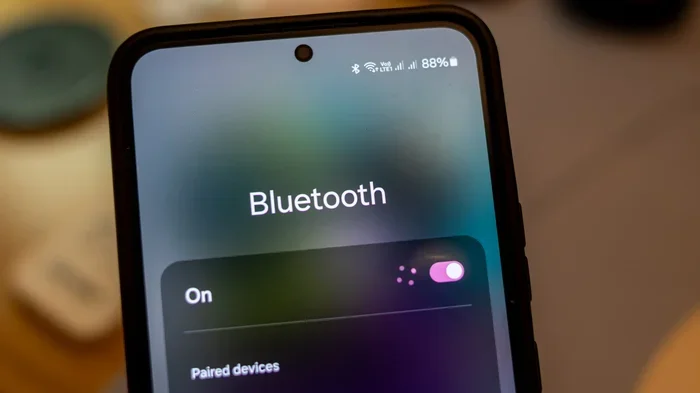
On an iPhone, swipe down from the top right corner to open the Control Center. Tap the Bluetooth icon. It turns blue when Bluetooth is on. You can also go to Settings, then Bluetooth, and toggle it on.
On Android phones, swipe down from the top of the screen to open Quick Settings. Tap the Bluetooth icon. Or go to Settings, then Connected Devices, then Bluetooth. The toggle switch turns Bluetooth on or off.
On Windows Laptops and PCs
Click the Start button, then go to Settings. Select Devices, then Bluetooth and other devices. Toggle Bluetooth on. You can also click the Bluetooth icon in the taskbar for quick access.
On Mac Computers
Click the Apple menu, then System Settings. Select Bluetooth and toggle it on. You can also click the Bluetooth icon in the menu bar at the top of the screen for fast access.
On Smart TVs
Most smart TVs have Bluetooth buried in the settings menu. Go to Settings, then Sound or Network, and look for Bluetooth. Turn it on. Some TVs also let you make your TV have Bluetooth by adding a Bluetooth adapter if it does not have built-in support.
On Tablets
iPads and Android tablets follow the same process as their phone counterparts. Swipe down for quick settings or go to the Settings app and toggle Bluetooth on.
Common Bluetooth Problems and How to Fix Them
Even when Bluetooth is enabled, you can still run into connection issues. Here are the most common problems and simple fixes.
Bluetooth Is On but Devices Will Not Pair
This is frustrating but common. The fix is often to toggle Bluetooth off and back on again. Restarting both devices also helps clear up temporary glitches. Make sure the device you are trying to connect to is in discovery mode or pairing mode. Some devices only broadcast their signal for a short time after you activate pairing mode.
Bluetooth Keeps Disconnecting
If your connection drops often, distance might be the culprit. Most Bluetooth devices work best within 30 feet of each other. Walls, furniture, and other electronics can weaken the Bluetooth signal. Moving closer to the connected device often solves this problem.
Bluetooth Will Not Turn On
Sometimes the Bluetooth option is grayed out or will not switch on. Try restarting your device first. If that does not work, check for software updates. Outdated software can cause Bluetooth to malfunction. On some devices, a low battery can also prevent Bluetooth from turning on.
Too Many Devices Connected
Bluetooth can connect to multiple devices, but only a few at a time. If you have too many devices paired, disconnect the ones you are not using. This frees up bandwidth and improves connection quality for the devices you are actively using.
Expert Insight
Bluetooth low energy (BLE) is a newer version of Bluetooth that uses much less power. Many modern fitness trackers and smartwatches use BLE. If you notice your battery draining fast, check if your device supports BLE and use it when possible. It is designed to stay connected without draining your battery quickly.
Does Bluetooth Drain Battery Life?
One of the biggest concerns people have is whether leaving Bluetooth on wastes battery. The answer depends on how you use it.
When Bluetooth is enabled but not actively connected to a device, it uses very little power. Modern devices are smart about managing Bluetooth in the background. They keep the radio low-power when no data is being transferred.
However, if you are actively streaming audio or transferring large files, Bluetooth uses more energy. The difference is small for most users. You probably will not notice a big change in battery life from having Bluetooth on all day.
If you are trying to stretch your battery, you can turn off Bluetooth when you are not using it. This is especially helpful during long trips or when your battery is low. But for everyday use, leaving Bluetooth on is perfectly fine.
Bluetooth Versions and Why They Matter
Not all Bluetooth is the same. Different versions offer different speeds, ranges, and features. Here is a quick look at the most common versions:
- Bluetooth 4.0: Introduced Bluetooth low energy. Good for fitness trackers and beacons.
- Bluetooth 4.2: Faster than 4.0 and better for smart home devices.
- Bluetooth 5.0: Double the speed and four times the range of Bluetooth 4.2. Great for audio streaming.
- Bluetooth 5.3: The latest version. Offers improved stability and lower power consumption.
If you are buying new wireless devices, look for Bluetooth 5.0 or higher. These versions provide a much better experience. They connect faster, stay connected more reliably, and work over longer distances.
Older devices with Bluetooth 4.0 or earlier still work fine for most tasks. But you may notice shorter range or slower transfers. This does not mean you need to enable Bluetooth differently. The process is the same. The difference is in the hardware inside the device.
Quick Tips for Better Bluetooth Performance
Follow these simple tips to get the most out of your Bluetooth connections:
- Keep devices close: Stay within 30 feet for the best connection.
- Remove obstacles: Walls and large objects can weaken the signal.
- Restart devices regularly: A quick restart fixes most minor glitches.
- Update your software: New updates often include Bluetooth improvements.
- Turn off Bluetooth when not in use: This saves battery and reduces interference.
- Forget old pairings: Remove devices you no longer use to keep your list clean.
- Check for interference: Wi-Fi routers and microwaves can disrupt Bluetooth signals.
Common Mistakes People Make with Bluetooth
Avoid these mistakes to save time and frustration:
- Forgetting to turn on Bluetooth on both devices: This is the number one reason connections fail. Always check both devices.
- Not putting the device in pairing mode: Bluetooth being on is not enough. The device must also be discoverable.
- Ignoring distance limits: Bluetooth has a range. Going too far away will disconnect you.
- Leaving too many devices paired: This can slow down connections and cause confusion.
- Assuming all Bluetooth is the same: Older versions are slower and have shorter range.
- Not restarting before troubleshooting: A simple restart solves most Bluetooth issues quickly.
One mistake that catches people off guard is thinking that Bluetooth headphones will work with any device. Compatibility matters. Some older TVs or computers do not support Bluetooth at all. In those cases, you may need a Bluetooth adapter. But when both devices support Bluetooth, simply enabling it on both sides is all you need to do.
The Future of Bluetooth in Everyday Devices
Bluetooth technology keeps getting better. New versions bring faster speeds, longer range, and smarter power management. As more devices adopt the latest Bluetooth standards, the user experience continues to improve.
We are seeing Bluetooth become standard in more products every year. From cars and TVs to kitchen appliances and fitness gear, wireless connectivity is everywhere. Enabling Bluetooth is becoming as routine as turning on Wi-Fi.
Some newer devices now support Bluetooth mesh networking. This lets many devices talk to each other in a network. It opens up possibilities for smart homes and large-scale audio systems. But the basic rule remains the same. Bluetooth must be enabled for any of these features to work.
As technology evolves, the process of turning on Bluetooth will only get simpler. Some devices now connect automatically when they are nearby. You barely have to do anything. But under the hood, Bluetooth is still being enabled behind the scenes. Understanding how it works gives you more control over your devices.
Conclusion
Bluetooth needs to be enabled for wireless devices to connect and communicate. It is the foundation of every Bluetooth interaction, from simple audio streaming to complex device networks. Without it turned on, nothing happens. The connection simply does not exist.
The good news is that enabling Bluetooth is easy. Whether you are on a phone, laptop, TV, or tablet, it takes just a few taps. And once it is on, pairing devices is usually quick and painless. Just remember to put the receiving device in discovery mode when needed.
Most Bluetooth problems come down to simple fixes. Toggle it off and on, restart your devices, check the distance, and make sure both devices support Bluetooth. These steps solve the vast majority of issues people encounter.
Now that you understand how Bluetooth works and why it must be enabled, you can troubleshoot connections with confidence. Keep your devices updated, manage your paired devices, and enjoy the freedom of wireless technology. Bluetooth makes our lives more convenient every day, and knowing how to use it properly makes all the difference.
Next time your wireless device will not connect, the first thing to check is Bluetooth. Make sure it is on. You will be surprised how often that simple step is all it takes to get everything working again.
FAQs
Do both devices need Bluetooth enabled to connect?
Yes, absolutely. Both the sending device and the receiving device must have Bluetooth turned on. If either one has Bluetooth off, the connection cannot be made. Always check both devices first when a connection fails.
Can I use Bluetooth if it is disabled on my device?
No, you cannot. A disabled Bluetooth radio cannot send or receive signals. You must enable Bluetooth through your device settings before any pairing or connection can happen. It is the most basic requirement for wireless communication.
How do I know if Bluetooth is enabled on my phone?
On most phones, you can check the quick settings panel. The Bluetooth icon will be highlighted or colored when it is on. You can also go to Settings and look for the Bluetooth section. If the toggle is in the on position, Bluetooth is enabled.
Does leaving Bluetooth on drain my battery?
Not significantly. When Bluetooth is enabled but not actively connected, it uses very little power. Modern devices manage Bluetooth efficiently in the background. You will only notice a meaningful battery difference if you are actively streaming audio or transferring files over Bluetooth for long periods.
What is the difference between Bluetooth being on and being in pairing mode?
Bluetooth being on means your device is broadcasting a signal and ready to be discovered. Pairing mode is a special state where the device actively looks for new connections. You need Bluetooth on first, and then you enter pairing mode to connect a new device.
Can I connect Bluetooth headphones to my TV if Bluetooth is off?
No, you cannot. Both the TV and the headphones must have Bluetooth enabled. On most TVs, you can turn on Bluetooth in the Settings menu under Sound or Network. Once both are on, you can search for and pair the headphones.
Frequently Asked Questions
What is Does Bluetooth Need To Be Enabled?
Does Bluetooth Need To Be Enabled is an important topic with many practical applications.