Can I Connect My Phone To A Projector Without Cables
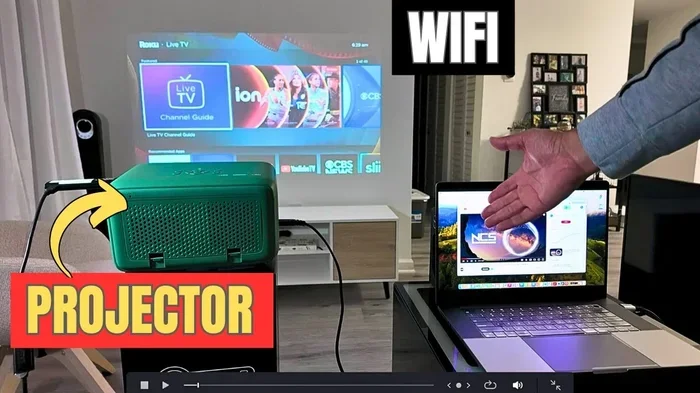
Yes, you can connect your phone to a projector without cables. You can use wireless methods like screen mirroring, Chromecast, AirPlay, or Wi-Fi Direct to stream content from your mobile device to a big screen. This guide covers every method, tip, and workaround you need for a cable-free connection.
Have you ever wanted to show your phone screen on a big projector but hated the idea of tangled cords? You are not alone. Many people ask, Can I Connect My Phone To A Projector Without Cables? The short answer is yes. You absolutely can.
Whether you are giving a presentation at work, hosting a movie night, or just want a bigger screen for gaming, wireless projection has you covered. Modern phones and projectors support several cable-free connection methods. You do not need any fancy equipment either. Most solutions are simple, affordable, and work in minutes.
In this guide, we will walk through every way you can cast your phone to a projector wirelessly. We will cover screen mirroring, popular apps, adapters, and even troubleshooting tips. By the end, you will know exactly which method fits your setup best. Let us dive right in.
Key Takeaways
- Wireless screen mirroring lets you project your phone screen without any cords.
- Chromecast and AirPlay are the most popular wireless projection tools for Android and iPhone users.
- Wi-Fi Direct and Miracast work even without a router or internet connection.
- HDMI adapters offer a semi-wired option if your projector lacks wireless features.
- Smart projectors with built-in apps make phone-to-projector connections effortless.
- Latency and resolution can vary, so choose the right method for your needs.
- Bluetooth projectors exist but are less common than Wi-Fi-based options.
📑 Table of Contents
- Why Go Wireless With Your Projector Setup?
- Method 1: Use Chromecast For Android And iPhone
- Method 2: AirPlay For iPhone And iPad Users
- Method 3: Wi-Fi Direct And Miracast For Cable-Free Streaming
- Method 4: Use A Wireless HDMI Adapter Or Dongle
- Method 5: Connect Through A Smart Projector With Built-In Apps
- Common Problems And How To Fix Them
- Expert Tips For The Best Phone-to-Projector Experience
- Which Method Should You Choose?
- Final Thoughts
Why Go Wireless With Your Projector Setup?
Wired connections still work. But wireless projection offers real benefits that cables simply cannot match. First, it keeps your space clean and clutter-free. No more running HDMI cords across the room. Second, it gives you flexibility. You can move around freely while presenting or streaming.
Third, wireless methods support mobile device integration in ways cables cannot. You can switch between phones easily. You can share content from multiple devices without unplugging anything. And fourth, many modern smart projector models come with built-in wireless features. This makes setup faster than ever before.
Who Benefits Most From Wireless Projection?
- Professionals who give frequent presentations and need quick setup.
- Home theater fans who want a cinematic experience without wires.
- Teachers and educators sharing content from their phones in classrooms.
- Gamers who want to play mobile games on a big screen.
- Event hosts who need to display content from multiple guest phones.
No matter who you are, wireless projection can make your life easier. It removes friction and lets you focus on the content, not the cords.
Method 1: Use Chromecast For Android And iPhone
Chromecast is one of the easiest ways to cast your phone to a projector. Google built this little device to make wireless display simple. You plug it into your projector’s HDMI port, connect it to Wi-Fi, and you are ready to go.
How To Set Up Chromecast With A Projector
Setting up Chromecast takes only a few minutes. Follow these simple steps:
- Plug the Chromecast dongle into your projector’s HDMI port.
- Connect the Chromecast to your Wi-Fi network using the Google Home app.
- Open the casting app on your phone or use the built-in cast button in apps like YouTube and Netflix.
- Select your Chromecast device from the list.
- Your phone screen now mirrors to the projector wirelessly.
Tips For The Best Chromecast Experience
- Use a strong Wi-Fi signal for smooth streaming and minimal lag.
- Keep your phone and Chromecast on the same network.
- Close background apps on your phone to improve performance.
- Use the Google Home app to adjust display settings.
Chromecast works great for both Android and iPhone users. It supports most popular apps and delivers solid projection quality. If you want a reliable and affordable wireless solution, Chromecast is hard to beat.
Method 2: AirPlay For iPhone And iPad Users
If you use an iPhone or iPad, AirPlay is your built-in wireless projection tool. Apple designed AirPlay to make screen mirroring effortless. You can stream your device screen to any AirPlay-compatible projector or display.
How AirPlay Works With Projectors
Not all projectors natively support AirPlay. But you have a couple of workarounds. You can use an Apple TV box connected to your projector via HDMI. Apple TV supports AirPlay natively. Alternatively, some smart projectors come with AirPlay built right in.
To mirror your iPhone using AirPlay:
- Make sure your iPhone and the AirPlay device are on the same Wi-Fi network.
- Open the Control Center by swiping down from the top right of your screen.
- Tap the Screen Mirroring button.
- Select your projector or Apple TV from the list.
- Your iPhone screen now appears on the big screen.
Limitations To Keep In Mind
- AirPlay works best with Apple devices and compatible receivers.
- Some apps may block screen mirroring due to copyright restrictions.
- Video quality depends on your Wi-Fi strength and projector resolution.
Overall, AirPlay is a smooth and reliable option for iPhone users. It handles photos, videos, presentations, and even live streaming with ease.
Method 3: Wi-Fi Direct And Miracast For Cable-Free Streaming
Wi-Fi Direct and Miracast are powerful standards for cable-free connection. They let your phone talk directly to your projector without needing a router or internet. This is perfect for situations where Wi-Fi is unavailable or unreliable.
What Is Wi-Fi Direct?
Wi-Fi Direct creates a direct wireless link between two devices. Your phone connects straight to the projector as if they were paired via Bluetooth. But the transfer speed is much faster. This makes it ideal for video and high-quality screen casting.
What Is Miracast?
Miracast is a standard built on Wi-Fi Direct. It is essentially wireless HDMI. Many modern projectors and smart TVs support Miracast natively. Android devices use Miracast for wireless projection through a feature often called “Smart View” or “Wireless Display.”
How To Use Miracast For Phone-to-Projector Connection
- Check if your projector supports Miracast. Look for “Screen Mirroring” or “Wireless Display” in the settings.
- On your Android phone, go to Settings > Connected Devices > Connection Preferences > Wireless Display.
- Turn on Wireless Display and wait for your projector to appear.
- Tap your projector name to pair the devices.
- Your phone screen now mirrors to the projector instantly.
Miracast works without any extra hardware. It is free and straightforward. However, it requires both devices to support the standard. Check your projector manual or manufacturer website to confirm compatibility.
Method 4: Use A Wireless HDMI Adapter Or Dongle
If your projector does not have smart features or Wi-Fi, you can still go wireless. Wireless HDMI adapters bridge the gap. These small dongles plug into your projector’s HDMI port and receive a wireless signal from your phone.
Popular Wireless HDMI Options
- Amazon Fire TV Stick — Affordable and supports casting from both Android and iPhone.
- Roku Streaming Stick — Simple interface and good projection quality for movies and presentations.
- Microsoft Wireless Display Adapter — Works well with Windows devices and supports Miracast.
- Belkin Miracast Adapter — A dedicated wireless display solution for projectors.
Pros And Cons Of Wireless Adapters
| Pros | Cons | |
|---|---|---|
| Works with almost any projector | Requires a power source | |
| No internet needed for some models | Slight latency compared to wired | |
| Easy to set up | Additional cost ($30-$100) | |
| Supports multiple devices | May need firmware updates |
Wireless adapters are a great middle ground. They give you the freedom of wireless projection without replacing your existing projector. Just plug in the adapter, connect your phone, and you are good to go.
Method 5: Connect Through A Smart Projector With Built-In Apps
Smart projectors are changing the game. These projectors come with built-in operating systems, Wi-Fi, and app support. You can stream content directly from the projector or mirror your phone screen without any extra devices.
What Makes A Projector “Smart”?
A smart projector runs on an operating system like Android TV or a proprietary OS. It has Wi-Fi built in. It can access streaming apps like Netflix, YouTube, and Hulu directly. Many models also support screen mirroring protocols like Miracast, AirPlay, and Chromecast.
Popular Smart Projectors To Consider
- Anker Nebula Capsule — A portable projector with Android TV and built-in Chromecast.
- XGIMI MoGo — Compact and smart with auto-focus and keystone correction.
- Samsung The Freestyle — Supports AirPlay and smart TV features in a portable design.
- ViewSonic M2e — Built-in Harman Kardon speakers and wireless casting support.
With a smart projector, you can cast from your phone using the same methods described earlier. The projector handles the wireless reception internally. This means fewer devices, less setup time, and a cleaner experience overall.
Common Problems And How To Fix Them
Wireless projection is not always perfect. Sometimes you run into issues. Here are the most common problems and how to solve them.
Lag Or Latency During Screen Mirroring
Latency is the delay between your phone action and what appears on the projector screen. It can be frustrating, especially during gaming or live presentations.
- Check your Wi-Fi speed. A slow connection causes lag. Use a 5GHz network if possible.
- Move closer to the router. Distance weakens the signal and increases delay.
- Close other apps. Background apps consume bandwidth and processing power.
- Lower the resolution. Casting at 1080p instead of 4K reduces latency significantly.
Phone And Projector Will Not Connect
If your devices refuse to connect, try these steps:
- Restart both your phone and the projector.
- Make sure both devices are on the same Wi-Fi network.
- Turn off Bluetooth temporarily — it can sometimes interfere with Wi-Fi casting.
- Update your phone software and projector firmware.
- Reset network settings on your phone if the issue persists.
Poor Image Quality Or Flickering
Flickering or blurry images usually come from signal interference or resolution mismatch. Try these fixes:
- Switch to a less crowded Wi-Fi channel.
- Keep your phone within 10 feet of the projector for best results.
- Adjust the projector’s resolution settings to match your phone’s output.
- Avoid placing the projector near microwaves or other wireless devices.
Expert Tips For The Best Phone-to-Projector Experience
Want to get the most out of your wireless setup? Here are some expert-backed tips that make a real difference.
- Use a dedicated Wi-Fi network. If your projector supports it, create a separate network just for casting. This prevents interference from other devices.
- Invest in a high-quality projector. Not all projectors handle wireless signals equally. Look for models with dual-band Wi-Fi and low latency specs.
- Keep your phone charged. Screen mirroring drains battery fast. Plug in your phone or use a portable power bank during long sessions.
- Use landscape mode for presentations. Rotate your phone to match the projector’s aspect ratio for a better viewing experience.
- Test before the big event. Always do a trial run before any important presentation or movie night. This helps you catch issues early.
- Consider a Bluetooth speaker setup. Some projectors have weak built-in audio. Pairing a Bluetooth speaker improves the overall home theater experience.
These small tweaks can transform your wireless projection setup from frustrating to flawless. Take a few minutes to optimize your setup, and you will enjoy a much smoother experience every time.
Which Method Should You Choose?
With so many options, choosing the right one can feel overwhelming. Here is a quick guide to help you decide based on your situation.
Quick Comparison Table
| Method | Best For | Needs Extra Hardware? | Works Without Internet? | Setup Difficulty | |
|---|---|---|---|---|---|
| Chromecast | General streaming and presentations | Yes (Chromecast dongle) | No | Easy | |
| AirPlay | iPhone and iPad users | Yes (Apple TV or AirPlay projector) | No | Easy | |
| Miracast / Wi-Fi Direct | Android users without extra devices | No | Yes | Easy | |
| Wireless HDMI Adapter | Older projectors without smart features | Yes (adapter dongle) | Depends on model | Medium | |
| Smart Projector | All-in-one convenience | No | No | Very Easy |
Think about your projector model, phone type, and how often you will use wireless projection. That will guide your choice. For most people, Chromecast or Miracast offers the best balance of simplicity and performance.
Final Thoughts
So, can I connect my phone to a projector without cables? Absolutely. You have multiple wireless options at your fingertips. Whether you use Chromecast, AirPlay, Miracast, a wireless adapter, or a smart projector, going cable-free is easier than ever.
Each method has its strengths. Choose the one that fits your devices, your projector, and your needs. With the right setup, you can enjoy seamless screen mirroring anytime. No cords, no clutter, no hassle.
Start with one method from this guide. Test it out. See what works best for you. Once you experience the freedom of wireless projection, you will never want to go back to cables. Your phone and projector are ready to work together. All you need to do is hit that cast button.
Now go ahead and try it. Set up your wireless connection tonight. Stream a movie, share a presentation, or just enjoy your favorite photos on a big screen. The cable-free experience is waiting for you.
Frequently Asked Questions
Can I connect my iPhone to any projector wirelessly?
You can connect your iPhone wirelessly to any projector that supports AirPlay or has a compatible adapter like Apple TV or a wireless HDMI dongle. If your projector is a smart model with built-in AirPlay, the connection is even simpler. Just make sure both devices are on the same Wi-Fi network.
Is wireless projection as good as a wired HDMI connection?
Wired HDMI connections generally offer better stability and zero latency. However, modern wireless methods like Chromecast and Miracast have improved significantly. For most uses like movies, presentations, and casual gaming, wireless projection delivers excellent quality with minimal noticeable delay.
Do I need Wi-Fi to cast my phone to a projector?
Not always. Methods like Miracast and Wi-Fi Direct create a direct connection between your phone and projector without needing a router or internet. However, streaming services like Netflix and YouTube do require an active internet connection regardless of the casting method.
Why is my screen mirroring lagging or delayed?
Lag usually happens due to a weak Wi-Fi signal, network congestion, or distance between devices. Try moving closer to your router, switching to a 5GHz network, or closing background apps. Lowering the cast resolution can also reduce latency significantly.
Can I connect multiple phones to one projector wirelessly?
Yes, many smart projectors and wireless adapters support multiple device connections. You can switch between phones by selecting each device from the casting menu. This is great for group presentations or movie nights where different people want to share content.
What is the best budget option for wireless phone-to-projector connection?
A basic Chromecast or a Miracast-compatible projector offers the best value. A Chromecast dongle costs around $30 and works with most HDMI projectors. If your Android phone supports Miracast, you can cast for free with no extra hardware at all.
=== CONCLUSION ===
Connecting your phone to a projector without cables is not just possible — it is simple and convenient. You now know all the major methods, from Chromecast and AirPlay to Miracast, wireless adapters, and smart projectors. Each option gives you the freedom to share your screen without dealing with cords and adapters.
Remember, the best method depends on your phone, your projector, and your specific needs. Start with the option that matches your setup. Test it out. Fine-tune your settings. And enjoy the seamless wireless projection experience.
Share this guide with friends who are still tangled in cords. Help them discover the joy of cable-free screen mirroring. The technology is here, it works great, and it is waiting for you to try it today.