Do Jumper Laptops Have Bluetooth and Wireless Built In
Yes, most Jumper laptops come with Bluetooth and wireless connectivity built right in. These affordable budget laptops offer solid wireless features that let you connect headphones, printers, mice, and more without wires. In this guide, we break down exactly which Jumper models support Bluetooth, how to set it up, and how to fix common problems.
If you own a Jumper laptop or are thinking about buying one, you might wonder about wireless connectivity. Do Jumper laptops have Bluetooth and wireless built in? The short answer is yes. Most Jumper laptops come packed with Bluetooth and Wi-Fi capabilities that make everyday use a breeze. Whether you want to pair wireless headphones, connect a printer, or use a wireless mouse, these laptops have you covered.
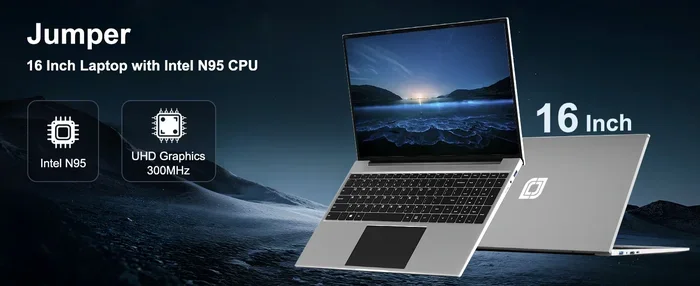
Jumper is a brand known for offering affordable yet functional laptops. They target students, home users, and anyone who needs a reliable machine without spending a fortune. But affordability doesn’t mean you have to sacrifice wireless features. In fact, Jumper laptop Bluetooth support is standard across most of their lineup. This article dives deep into everything you need to know about wireless connectivity on Jumper laptops.
We will walk you through which models support Bluetooth, how to connect devices, what to do when things go wrong, and which wireless peripherals work best. By the end, you will feel confident using the wireless features on your Jumper laptop. Let us get started.
Key Takeaways
- Built-In Wireless: Most Jumper laptops include Bluetooth and Wi-Fi right out of the box.
- Easy Setup: Connecting Bluetooth devices to a Jumper laptop takes just a few simple steps.
- Driver Matters: Keeping your Bluetooth drivers updated solves most connectivity issues.
- Range and Version: Jumper laptops typically support Bluetooth 4.0 or higher, giving you a reliable wireless range.
- Peripheral Friendly: You can pair wireless keyboards, mice, headphones, and printers with ease.
- Troubleshooting Is Simple: Most Bluetooth problems on Jumper laptops have quick and easy fixes.
📑 Table of Contents
- Do Jumper Laptops Have Bluetooth Built In?
- How to Connect Bluetooth Devices to Your Jumper Laptop
- Common Bluetooth Problems on Jumper Laptops and How to Fix Them
- Best Bluetooth Devices for Jumper Laptops
- How to Get the Most From Bluetooth on Your Jumper Laptop
- Expert Insights on Jumper Laptop Wireless Features
- Frequently Asked Questions
- Conclusion
Do Jumper Laptops Have Bluetooth Built In?
The answer is a clear yes. Do Jumper laptops have Bluetooth and wireless built in? Almost every Jumper laptop model ships with Bluetooth enabled. You do not need to buy any extra hardware or dongles to get wireless working. The Bluetooth module is built into the laptop’s motherboard from the factory.
Jumper laptops are designed to be practical and user-friendly. That means they include essential wireless features right out of the box. Bluetooth support allows you to connect a wide range of devices. From wireless headphones to Bluetooth keyboards, the possibilities are plenty.
Which Jumper Models Support Bluetooth?
Most current Jumper laptop models support Bluetooth connectivity. Here is a quick look at what you can expect:
- Jumper Breeze Series: These slim laptops include Bluetooth 4.0 or higher. They are great for everyday tasks and media consumption.
- Jumper EZBook Series: Popular budget laptops that come with full wireless support including Bluetooth and Wi-Fi.
- Jumper Spark Series: Compact and portable, these models also feature built-in Bluetooth for wireless device pairing.
When you buy a Jumper laptop, you can safely assume it has Bluetooth. Always check the product specifications on the listing to confirm. But in nearly every case, Jumper laptop wireless features are included as standard.
What Bluetooth Versions Do Jumper Laptops Use?
Most Jumper laptops use Bluetooth 4.0 or Bluetooth 5.0. The version matters because it affects range and speed. Here is a quick comparison:
- Bluetooth 4.0: Offers a range of about 30 feet. Works well for headphones, mice, and keyboards.
- Bluetooth 5.0: Provides a longer range of up to 80 feet. It also offers faster data transfer speeds.
For most users, Bluetooth 4.0 is more than enough. You can stream audio, connect peripherals, and transfer files without any issues. If you need a longer range, look for a Jumper model with Bluetooth 5.0.
How to Connect Bluetooth Devices to Your Jumper Laptop
Setting up Bluetooth on Jumper laptops is simple and straightforward. You do not need any technical skills. Follow these steps to get your devices connected in minutes.
Step-by-Step Connection Guide
- Turn on Bluetooth on your Jumper laptop. Click the Start menu and go to Settings. Then select Devices and toggle Bluetooth on.
- Put your device in pairing mode. Whether it is a headset, mouse, or keyboard, make sure it is discoverable.
- Click Add Bluetooth or other device. Your Jumper laptop will scan for nearby devices.
- Select your device from the list. Wait for the connection to establish.
- Test the connection. Play some audio or move your mouse to confirm everything works.
That is it. The process is the same whether you are connecting wireless headphones or a Bluetooth printer. The simplicity of Jumper laptop Bluetooth setup is one of the best things about these machines.
Quick Tips for Smooth Pairing
- Keep your device close to the laptop during pairing.
- Make sure your device is fully charged before pairing.
- Restart both devices if the pairing fails the first time.
- Remove old pairings from your device list to avoid confusion.
These small tips can save you a lot of frustration. Most pairing issues are caused by simple things like distance or low battery.
Common Bluetooth Problems on Jumper Laptops and How to Fix Them
Even though Jumper laptops are reliable, you might run into Bluetooth issues from time to time. Laptop Bluetooth not working is a common concern, but the fixes are usually simple. Let us look at the most frequent problems and their solutions.
Bluetooth Won’t Turn On
If Bluetooth won’t turn on, the first thing to check is your drivers. Outdated or missing drivers are the number one cause of Bluetooth issues on Jumper laptops. Go to Device Manager, find your Bluetooth adapter, right-click it, and select Update Driver. Windows will search for the latest driver online.
Another common fix is to restart your laptop. A simple reboot can clear temporary glitches and refresh your wireless connections. Try this before diving into more complex solutions.
Device Not Showing Up in the Pairing List
If your device does not appear when you scan for Bluetooth, try these steps:
- Make sure the device is in pairing mode.
- Turn Bluetooth off and back on again.
- Move closer to the laptop.
- Restart both the laptop and the device.
Sometimes other wireless signals can interfere with Bluetooth. Moving away from routers or microwaves can help. Bluetooth interference is more common than people think.
Audio Keeps Cutting Out
If your Bluetooth headphones keep disconnecting, the issue might be distance. Stay within 30 feet of your laptop for the best experience. Also, check if other devices are connected to the same Bluetooth adapter. Too many devices can strain the connection.
Updating your audio drivers can also help. Go to your laptop manufacturer’s website and download the latest drivers for your specific model. This is especially important for Jumper laptop Bluetooth audio issues.
When to Update Your Bluetooth Driver
Driver updates fix many Bluetooth problems. You should update your drivers:
- After a major Windows update.
- If Bluetooth stops working suddenly.
- When a new device fails to connect.
- If you notice slow transfer speeds.
Keeping your drivers current is one of the easiest ways to maintain smooth wireless connectivity on your Jumper laptop.
Best Bluetooth Devices for Jumper Laptops
One of the great things about Jumper laptop Bluetooth support is the wide range of devices you can connect. Let us explore some of the best options for different needs.
Wireless Headphones and Earbuds
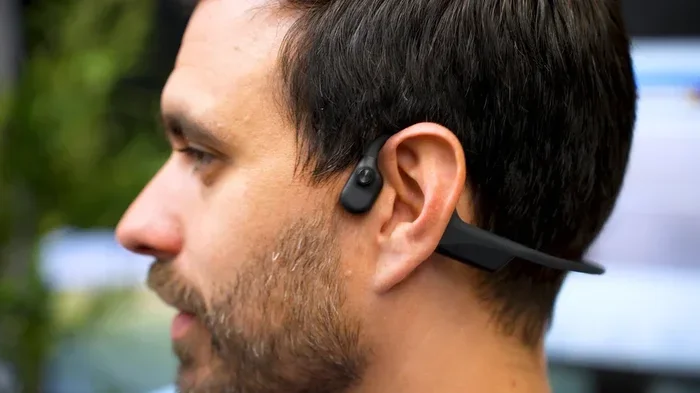
Bluetooth headphones are the most popular peripheral for Jumper laptops. You can listen to music, watch videos, and take calls without any wires. If you want to use headphones while watching content on your TV, you might also check if your setup supports Bluetooth headphones with streaming devices like Roku. This gives you even more flexibility in your home entertainment setup.
When choosing headphones, look for ones with good battery life and comfortable fit. Most modern Bluetooth headphones work seamlessly with Jumper laptops. Gaming headsets are also a great option if you use your laptop for entertainment or light gaming.
Wireless Keyboards and Mice
A wireless keyboard and mouse combo can make your Jumper laptop feel like a desktop setup. This is especially useful if you use your laptop on a desk or table for long periods. Bluetooth keyboards and mice eliminate cable clutter and give you more freedom.
Look for ergonomic options if you type a lot. A comfortable keyboard can make a big difference in your daily productivity. The same goes for a good wireless mouse that tracks smoothly on any surface.
Bluetooth Printers
Need to print something without plugging in a cable? A Bluetooth printer works great with Jumper laptops. You can print documents and photos from across the room. If you are curious about wireless printing options, you can also explore using a Bluetooth printer without Wi-Fi for even more flexibility.
Just make sure your printer supports Bluetooth and is compatible with Windows. Most modern printers offer both Wi-Fi and Bluetooth connectivity options.
Gaming Controllers
Want to play games on your Jumper laptop with a wireless controller? Many Bluetooth gaming controllers work perfectly. You can connect Xbox or PlayStation-style controllers and enjoy your favorite games without being tethered to a wire. If you are into console-style gaming, check out Bluetooth headphone compatibility with PS5 as well for a full wireless gaming experience.
How to Get the Most From Bluetooth on Your Jumper Laptop
Once you have Bluetooth working on your Jumper laptop, you want to make the most of it. Here are some practical tips to enhance your wireless experience.
Keep Your Devices Close
Bluetooth works best within a 30-foot range. The further you move away, the weaker the signal becomes. For the best experience, keep your connected devices in the same room as your laptop.
Manage Connected Devices
Your Jumper laptop can connect to multiple devices at once. But too many active connections can slow things down. Disconnect devices you are not using to free up bandwidth. This keeps your wireless experience fast and smooth.
Use Bluetooth for Streaming
Bluetooth is perfect for streaming audio and video. You can connect your headphones and watch movies without disturbing anyone. If you want to extend your streaming setup, you might also explore pairing Bluetooth headphones with your TV for an even more immersive experience.
Enable Fast Pairing
Some Jumper laptops support quick pair features. This lets you reconnect previously paired devices instantly. Make sure this feature is turned on in your Bluetooth settings to save time.
Protect Your Connection
Keep your Bluetooth devices in a safe place when not in use. Avoid leaving them in areas with heavy wireless traffic. This helps maintain a stable and secure connection on your Jumper laptop.
Expert Insights on Jumper Laptop Wireless Features
Jumper laptops offer surprisingly good wireless features for their price point. The brand focuses on delivering value, and that includes solid Bluetooth and Wi-Fi support. Most users find the wireless experience smooth and reliable for everyday tasks.
If you are coming from a premium laptop brand, you might notice small differences in Bluetooth range or speed. But for the price, Jumper laptops deliver excellent wireless performance. They handle audio streaming, peripheral connections, and file transfers with ease.
The key to a great experience is keeping your drivers updated and managing your connected devices wisely. With these simple habits, your Jumper laptop will serve you well for years.
Why Wireless Matters on Budget Laptops
Wireless connectivity is not a luxury anymore. It is a necessity. Even on budget laptops like Jumper models, Bluetooth and Wi-Fi are essential features. They let you stay connected without cables cluttering your workspace.
Whether you are a student writing papers, a home user streaming content, or a professional working remotely, wireless connectivity makes your life easier. Jumper understands this and includes these features across their lineup.
Frequently Asked Questions
Do All Jumper Laptops Have Bluetooth?
Yes, almost all Jumper laptops come with Bluetooth built in. It is a standard feature across their product lineup. Always check the specific model specifications to confirm, but Bluetooth is included in virtually every Jumper laptop.
Can I Connect Wireless Headphones to My Jumper Laptop?
Absolutely. Jumper laptops support Bluetooth audio devices. You can connect wireless headphones, earbuds, and speakers easily through the Bluetooth settings. Just put your headphones in pairing mode and select them from the available devices list.
Why Is My Bluetooth Not Working on My Jumper Laptop?
The most common reason is outdated or missing drivers. Update your Bluetooth driver through Device Manager and try again. Also check that Bluetooth is turned on and your device is in pairing mode. Restarting both devices often fixes the issue too.
How Far Can Bluetooth Reach on a Jumper Laptop?
Bluetooth on Jumper laptops typically works within a 30-foot range. Bluetooth 5.0 models can reach up to 80 feet under ideal conditions. Walls and other wireless signals can reduce the effective range.
Can I Connect a Bluetooth Printer to My Jumper Laptop?
Yes, you can connect a Bluetooth printer to your Jumper laptop. Make sure the printer supports Bluetooth and is in pairing mode. Go to your laptop’s Bluetooth settings, find the printer, and follow the on-screen prompts to complete the connection.
Is Bluetooth Safe to Use on Jumper Laptops?
Yes, Bluetooth is completely safe. It uses low-power radio waves that are well within safety standards. Jumper laptops include all necessary security protocols to keep your wireless connections private and secure.
Conclusion
Do Jumper laptops have Bluetooth and wireless built in? Yes, they absolutely do. From the Breeze series to the EZBook and Spark lines, every Jumper laptop comes with Bluetooth support ready to go. You can connect wireless headphones, keyboards, mice, printers, and more without any extra hardware.
Setting up Bluetooth on a Jumper laptop is quick and easy. Even if you run into issues, the fixes are straightforward. Update your drivers, check your settings, and keep your devices close for the best experience.
Jumper laptops prove that you do not need to spend a fortune to get solid wireless features. They offer everything you need for a connected, cable-free workspace. So go ahead, pair your favorite devices, and enjoy the freedom of wireless connectivity on your Jumper laptop.