Can I Connect My iPhone to a Mini Projector Wirelessly
Yes, you can connect your iPhone to a mini projector wirelessly using AirPlay, Wi-Fi-enabled projectors, or third-party streaming devices. This guide walks you through every method so you can stream movies, share photos, and present from your iPhone without any cables. Whether you own an Apple TV, a Wi-Fi projector, or a Bluetooth adapter, you will find the simplest wireless connection that works for your setup.
Key Takeaways
- Wireless iPhone projection is simple: You can use AirPlay, Wi-Fi projectors, or streaming sticks to connect your iPhone to a mini projector without cables.
- AirPlay is the easiest method: If your projector supports AirPlay or you use an Apple TV, screen mirroring your iPhone takes just a few taps.
- Not all projectors work the same way: Some projectors have built-in Wi-Fi, while others need an HDMI adapter or a wireless display dongle.
- Quick Tips can save you time: Keeping your devices on the same network and updating software prevents most connection problems.
- Resolution and brightness matter: Choose a mini projector with at least 720p resolution and 200 ANSI lumens for a clear wireless viewing experience.
- Common mistakes are easy to avoid: Forgetting to enable screen mirroring, using outdated firmware, or ignoring Wi-Fi bandwidth limits are the top pitfalls.
📑 Table of Contents
- How Wireless Connection Works Between iPhone and Mini Projector
- Best Methods to Connect iPhone to a Mini Projector Wirelessly
- Top Mini Projectors for iPhone Users
- Step-by-Step Setup Guide for Wireless Connection
- Common Issues and How to Fix Them
- Tips for the Best Wireless Viewing Experience
- Frequently Asked Questions
- Conclusion
How Wireless Connection Works Between iPhone and Mini Projector
Connecting your iPhone to a mini projector wirelessly might feel like magic, but the technology behind it is straightforward. Your iPhone sends a video or photo signal through your home Wi-Fi network or a direct wireless connection to the projector. The projector then displays that signal on its lens, turning any wall or screen into a big display.
The process relies on wireless projection technology. Think of it like sharing a photo with a friend, except the photo is a live video stream. Your iPhone encodes the screen content, sends it over the air, and the projector decodes and displays it in real time.
Wireless screen sharing between an iPhone and a projector works through a few different protocols. The most common ones are AirPlay for Apple devices, Wi-Fi Direct for projectors with built-in receivers, and third-party dongles like Chromecast or Roku. Each method has its own strengths, and we will explore them all below.
One of the biggest advantages of cable-free connection is convenience. You do not need to fumble with cables, adapters, or limited cord lengths. You can move around the room, adjust the projector, and still control what appears on the big screen from your iPhone.
What Makes Wireless Projection Possible
Every wireless connection needs three things to work. First, a sender, which is your iPhone. Second, a receiver, which is the mini projector or a device plugged into it. Third, a network or signal path that connects them. When all three pieces are in place, iPhone projection happens almost instantly.
Most modern mini projectors come with built-in Wi-Fi chips. These chips communicate with your iPhone using the same wireless standards your phone uses to connect to the internet. The difference is that the data being sent is video and audio, not just web pages or emails.
Latency, or the slight delay between your iPhone action and the projector display, is something to keep in mind. For watching movies, a small delay is barely noticeable. For presentations or gaming, you want the lowest latency possible. We will cover how to minimize this later in the article.
Best Methods to Connect iPhone to a Mini Projector Wirelessly
There are several ways to connect iPhone to mini projector wirelessly, and each method suits different situations. Some work best at home, while others are great for travel or business meetings. Let us break down each option so you can pick the one that fits your needs.
Method 1: AirPlay and Apple TV
AirPlay is Apple’s native wireless streaming technology. It lets you mirror your iPhone screen or stream content directly to a compatible device. If you own an Apple TV or an AirPlay-enabled projector, this is the smoothest method available.
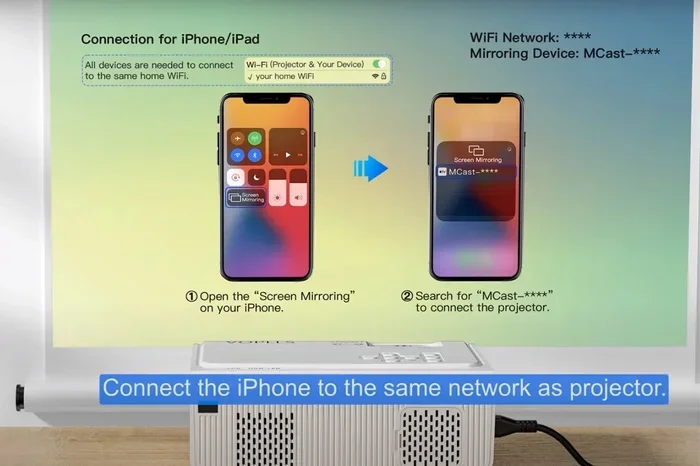
Here is how it works. Make sure your iPhone and the Apple TV or projector are on the same Wi-Fi network. Open the Control Center on your iPhone by swiping down from the top right corner. Tap the Screen Mirroring button, which looks like two overlapping rectangles. Select your projector or Apple TV from the list.
Within seconds, your iPhone screen appears on the projector. You can now watch Netflix, show slides, or share any app. The quality is excellent because AirPlay uses optimized compression to keep the video smooth and the audio synced.
Quick Tips:
- Restart both your iPhone and the projector before trying AirPlay for the first time.
- Keep your iPhone close to the projector for a stronger signal.
- If AirPlay does not show up, make sure both devices are signed in with the same Apple ID.
Method 2: Wi-Fi-Enabled Mini Projectors
Many modern portable projectors come with built-in Wi-Fi and dedicated apps. These projectors create their own wireless network or connect to your existing one. You can then mirror your iPhone screen directly to the projector without any extra hardware.
Brands like Wanbo, XGIMI, and Anker make mini projectors with native Wi-Fi support. These projectors often have a companion app that lets you cast content from your iPhone. Some even support screen mirroring natively, which means you do not need an Apple TV or any dongle.
The setup process is usually simple. Download the projector’s app from the App Store, connect your iPhone to the projector’s Wi-Fi network, and follow the on-screen prompts. Within a few minutes, you are projecting wirelessly.
Method 3: Wireless Display Dongles and Streaming Sticks
If your mini projector only has an HDMI port, a wireless display dongle is your best friend. These small devices plug into the projector’s HDMI port and connect to your iPhone over Wi-Fi or a proprietary protocol.
Popular options include the Google Chromecast, Amazon Fire TV Stick, and Roku Streaming Stick. Each of these devices turns any projector with an HDMI input into a smart projector that can receive content from your iPhone.
For Chromecast, you simply open a supported app on your iPhone, tap the Cast icon, and select your Chromecast device. The content streams directly from the internet through the Chromecast, not from your iPhone, which frees up your phone for other tasks.
Method 4: Bluetooth Projectors
Some mini projectors support Bluetooth connectivity. While Bluetooth is not ideal for high-quality video streaming, it works well for audio. You can pair your iPhone with a Bluetooth projector and stream music or watch videos with minimal setup.
The trade-off is that Bluetooth has lower bandwidth than Wi-Fi. This means video quality may not be as sharp, and there might be a slight delay. For casual movie watching or presenting slides, Bluetooth projection works fine. For high-definition video, Wi-Fi-based methods are better.
Method Comparison Table
| Method | Hardware Needed | Setup Difficulty | Best For | Video Quality |
|---|---|---|---|---|
| AirPlay + Apple TV | Apple TV, Wi-Fi | Easy | Apple ecosystem users | Excellent |
| Wi-Fi Projector | Wi-Fi projector | Very Easy | Home entertainment | Very Good |
| Wireless Dongle | Chromecast, Fire Stick, HDMI | Easy | Projectors without Wi-Fi | Good to Excellent |
| Bluetooth | Bluetooth projector | Very Easy | Audio streaming | Fair |
| HDMI Adapter (Wired) | Lightning to HDMI cable | Easy | No Wi-Fi situations | Excellent |
Top Mini Projectors for iPhone Users
Not all mini projectors are created equal when it comes to iPhone compatibility. Some projectors work flawlessly with AirPlay, while others need extra steps or adapters. Here are some of the best options for users who want to project from their iPhone wirelessly.
What to Look for in a Projector for iPhone
Before buying a projector, check for a few key features. Projector compatibility with iOS devices is the most important factor. Look for projectors that explicitly mention AirPlay support or built-in Wi-Fi screen mirroring.
Projector resolution matters too. For the sharpest image when streaming from your iPhone, aim for at least 720p (HD) or 1080p (Full HD). Higher resolution means crisper text and more detailed images, which is especially important for presentations.
Projector brightness is measured in ANSI lumens. For indoor use, 200 to 500 ANSI lumens is usually enough. If you plan to use the projector in a bright room, go higher. For outdoor evening use, even 100 lumens can work on a dark surface.
Battery-powered projectors are a great choice for portability. You can take them camping, to the beach, or to a backyard party. Just remember that battery life varies, so check the runtime before you buy.
Recommended Models
- Anker Nebula Capsule III: This compact projector has built-in Wi-Fi, Android TV built-in, and full AirPlay support. It is about the size of a soda can and delivers surprisingly bright images.
- Wanbo T2 Max: An affordable option with Wi-Fi connectivity and a dedicated app for iPhone screen mirroring. Great for casual movie nights.
- XGIMI MoGo 2 Pro: A premium portable projector with excellent color accuracy, built-in Harman Kardon speakers, and native AirPlay support.
- AAXA P300: A pocket-sized projector that works well with iPhones through its built-in Wi-Fi and screen mirroring features.
Step-by-Step Setup Guide for Wireless Connection
Now that you know the different methods, let us walk through the actual setup process. Follow these steps to get your iPhone connected to a mini projector in no time.
Step 1: Prepare Your Devices
Start by making sure your iPhone is updated to the latest iOS version. Go to Settings, tap General, then Software Update. Similarly, check if your projector has a firmware update available. Updated software ensures smooth iPhone connectivity and reduces the chance of bugs.
Next, connect both your iPhone and the projector to the same Wi-Fi network. This is essential for AirPlay and most wireless projection methods. If your projector creates its own Wi-Fi network, connect your iPhone to that network instead.
Step 2: Choose Your Connection Method
Decide which method works best for your setup. If your projector supports AirPlay natively, skip to Step 3A. If you are using a wireless dongle, skip to Step 3B. For Bluetooth audio, go to Step 3C.
- For AirPlay: Open Control Center on your iPhone, tap Screen Mirroring, and select your projector.
- For a wireless dongle: Plug the dongle into the projector’s HDMI port, connect the dongle to Wi-Fi, and use the dongle’s app on your iPhone to cast content.
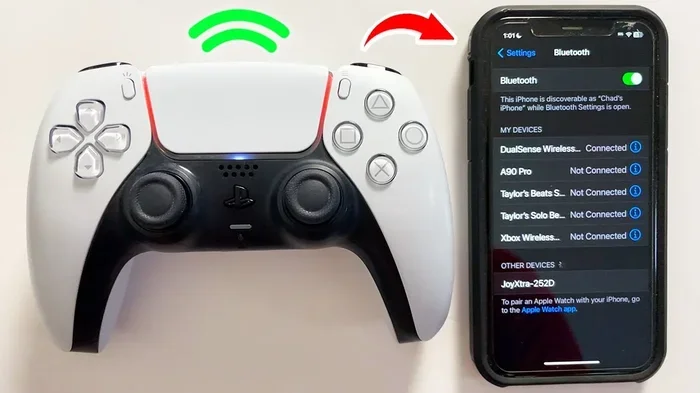
- For Bluetooth: Go to Settings on your iPhone, tap Bluetooth, and select your projector from the list of available devices.
Step 3: Adjust Projector Settings
Once the connection is established, adjust the projector settings for the best image. Most projectors let you tweak brightness, contrast, and color balance. For streaming from iPhone, a slightly warmer color tone often looks more natural on a big screen.
If you notice any latency issues, try moving closer to the projector or reducing the number of devices connected to your Wi-Fi network. A crowded network can slow down wireless projection and cause stuttering or lag.
Quick Tips:
- Turn off other devices that are streaming heavy content while projecting from your iPhone.
- Use a dedicated Wi-Fi network for your projector if your router supports dual-band.
- Place the projector on a stable surface to avoid blurry images from vibration.
Common Issues and How to Fix Them
Even with the best setup, you might run into hiccups when wirelessly projecting from your iPhone. Most problems are easy to solve. Here are the most common issues and their fixes.
iPhone Does Not Detect the Projector
This is the most common problem. Usually, it happens because the devices are not on the same network. Double-check that your iPhone and projector are connected to the same Wi-Fi network. Restart both devices if needed. Also, make sure your projector’s wireless feature is turned on.
Screen Mirroring Is Laggy or Stuttering
Lag usually comes from a weak Wi-Fi signal or network congestion. Move your router closer to the projector, or use a Wi-Fi extender to boost the signal. If you are using a wireless dongle, try placing it closer to the router.
Audio and Video Are Out of Sync
This can happen with Bluetooth connections or when the network is overloaded. Switch from Bluetooth to Wi-Fi-based projection for better sync. If the problem persists, restart both devices and try again.
Projector Shows a Black Screen
A black screen often means the projector is not receiving the signal. Check that your iPhone is actually mirroring its screen. On some projectors, you need to select the correct input source. Look for an HDMI or Wi-Fi input option on the projector’s menu.
Common Mistakes to Avoid:
- Trying to connect to a projector on a different Wi-Fi network.
- Forgetting to enable screen mirroring on the iPhone.
- Using an outdated projector firmware that does not support the latest iOS version.
- Placing the projector too far from the router, causing signal loss.
- Ignoring the projector’s maximum supported resolution, which can result in poor image quality.
Expert Insights: According to tech reviewers at ProjectorCentral and Wirecutter, the key to a flawless wireless projection experience is a strong, stable Wi-Fi connection. They recommend using a dual-band router (2.4 GHz and 5 GHz) and connecting your projector to the 5 GHz band for the fastest data transfer. This simple step eliminates most lag and sync issues.
Tips for the Best Wireless Viewing Experience
Once you have your iPhone connected to your mini projector, a few extra steps can make the experience much better. These tips help you get the most out of wireless iPhone projection.
Optimize Your Room Setup
Place the projector at the right distance from the wall or screen. Most mini projectors work best at a distance of 4 to 8 feet. Too close and the image will be too small. Too far and it will be dim and blurry. Test a few distances to find the sweet spot.
Block ambient light as much as possible. Even a small amount of light can wash out the projected image. Close curtains, turn off overhead lights, or use a projector screen with a matte white surface for the best results.
Use the Right Apps for Streaming
Not all apps support wireless casting equally. Apps like Netflix, YouTube, Disney+, and Apple TV+ have built-in Cast or AirPlay buttons. This means the content streams directly from the internet to the projector, giving you the best quality and freeing up your iPhone.
For apps that do not support casting, use the screen mirroring method. Your entire iPhone screen will be displayed on the projector, which works well for photos, presentations, and most games.
Manage Your iPhone’s Battery
Streaming from iPhone to a projector uses a lot of battery power. Keep your iPhone plugged in during long viewing sessions. You can also lower your iPhone’s screen brightness while projecting, since the projector is doing the displaying work.
Improve Audio Quality
Most mini projectors have small built-in speakers that sound decent but not great. For a better audio experience, connect external speakers to the projector via Bluetooth or a 3.5mm audio cable. You can also use your iPhone’s Bluetooth to connect to a speaker, but this adds an extra step.
Quick Tips for Better Projection:
- Clean the projector lens before each use for a sharper image.
- Use a white wall or a dedicated projector screen instead of a colored surface.
- Keep the projector ventilated to prevent overheating during long sessions.
- Download content for offline viewing to avoid buffering during wireless playback.
- Update your projector’s firmware regularly for the best iPhone compatibility.
Frequently Asked Questions
Can I connect my iPhone to any mini projector wirelessly?
Not every mini projector supports wireless connection. You need a projector with built-in Wi-Fi or an AirPlay receiver. If your projector only has HDMI inputs, you can use a wireless display dongle like Chromecast or Fire TV Stick to add wireless capability. Always check the projector’s specifications before purchasing to confirm it supports wireless iPhone projection.
Do I need an Apple TV to mirror my iPhone to a projector?
No, you do not always need an Apple TV. If your projector supports AirPlay natively, you can mirror directly without an Apple TV. However, if your projector does not support AirPlay, an Apple TV or a compatible wireless dongle serves as a bridge between your iPhone and the projector for screen mirroring.
Why is my wireless connection between iPhone and projector lagging?
Lag usually happens because of a weak Wi-Fi signal, network congestion, or using Bluetooth instead of Wi-Fi for video. To fix this, move your router closer to the projector, reduce the number of devices on your network, or switch from Bluetooth to Wi-Fi-based projection. A dual-band router can also help by giving your projector a dedicated, faster connection.
Can I use my iPhone while it is projecting wirelessly?
Yes, when you use screen mirroring, everything on your iPhone screen appears on the projector. You can open other apps, check messages, or browse the web while content plays on the big screen. However, keep in mind that heavy phone usage might cause the projection to stutter if your Wi-Fi network is slow.
What is the best mini projector for iPhone wireless connection?
The best projector depends on your budget and needs. The Anker Nebula Capsule III is a top pick for its compact size and full AirPlay support. The XGIMI MoGo 2 Pro offers excellent image quality and built-in speakers. For a budget-friendly option, the Wanbo T2 Max provides solid iPhone connectivity at an affordable price. All three support wireless projection without extra hardware.
Does projecting from iPhone wirelessly reduce video quality?
Wireless projection can cause a slight reduction in quality compared to a wired HDMI connection, but the difference is usually minimal with modern projectors and strong Wi-Fi networks. Using a 5 GHz Wi-Fi band and a projector with high resolution helps maintain excellent picture quality. For most users, the convenience of cable-free connection far outweighs any minor quality difference.
Conclusion
Connecting your iPhone to a mini projector wirelessly is easier than you might think. Whether you choose AirPlay, a Wi-Fi-enabled projector, a wireless dongle, or Bluetooth, there is a method that fits every situation and budget. The key is to match your projector’s capabilities with the right connection method and to keep both devices updated and on the same network.
With the right setup, you can turn any room into a home theater, a presentation space, or a photo-sharing hub. The freedom of cable-free projection means you can set up in minutes and enjoy your content on a big screen without any hassle.
Start by checking your projector’s wireless features, pick the method that works best for you, and follow the setup steps in this guide. You will be projecting from your iPhone in no time. The experience of watching your favorite shows, sharing memories, or presenting ideas on a big screen is truly worth the effort of setting it up.
Remember to keep your Wi-Fi network strong, choose a projector with good resolution and brightness, and follow the quick tips we shared. With these practices, your wireless iPhone projection will be smooth, reliable, and enjoyable every single time.