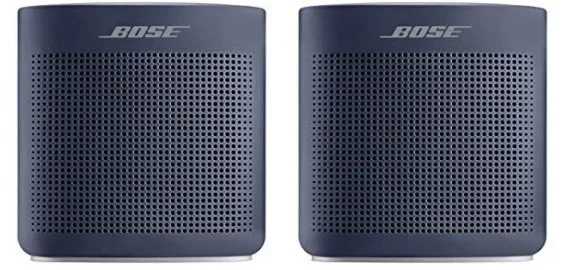
Do All Bose Speakers Have Party Mode On Every Model
Not all Bose speakers have Party Mode. Party Mode is available on select Bose models like the SoundLink Max, Portable Smart Speaker, and certain Home Speaker series. Understanding which Bose speakers support this feature helps you plan the perfect gathering.
Key Takeaways
- Party Mode is not universal: Only specific Bose speaker models support Party Mode, so always check before buying.
- Compatible models include: Bose SoundLink Max, Portable Smart Speaker, and select Home Speaker 500 and 300 units.
- Setup is simple: You can activate Party Mode through the Bose app or by pressing a dedicated button on supported speakers.
- Multiple speakers connect easily: Party Mode lets you pair two or more Bose speakers for synchronized sound across a room.
- Common issues exist: Bluetooth range limits and firmware updates can affect Party Mode performance.
- Alternatives are available: If your Bose speaker lacks Party Mode, you can use Bluetooth pairing or the Bose app for multi-speaker setups.
📑 Table of Contents
- What Is Bose Party Mode And How Does It Work?
- Which Bose Speaker Models Support Party Mode?
- How To Set Up Party Mode On Your Bose Speaker
- Bose Party Mode Features You Should Know About
- Comparing Party Mode Across Different Bose Models
- Troubleshooting Common Party Mode Issues
- Final Thoughts On Bose Party Mode
What Is Bose Party Mode And How Does It Work?
Bose Party Mode is a feature that lets you connect multiple Bose speakers together. When you turn it on, all linked speakers play the same music at the same time. This creates a bigger, louder sound that fills a room fast.
The idea behind Party Mode is simple. You pair two or more compatible Bose speakers using Bluetooth or the Bose app. Once connected, they act as one system. This is perfect for backyard gatherings, birthday parties, or even casual get-togethers at home.
But here is the big question many people ask: do all Bose speakers have Party Mode? The short answer is no. Party Mode is only available on certain models. If you own an older Bose speaker or a budget model, you might not have access to this feature. That is why it is so important to know which speakers support it before you plan your next event.
When Party Mode works, it is a game changer. You get wireless speaker sound that fills a large space without any wires or extra equipment. The speakers share the audio signal and stay in sync. You do not need to set each speaker separately or adjust levels by hand. Everything happens automatically once the mode is active.
How Party Mode Connects Speakers
Party Mode uses Bluetooth technology to link speakers together. Each speaker acts as both a receiver and a transmitter. This means they talk to each other and share the audio stream in real time. The result is seamless sound with no noticeable delay between speakers.
Most Bose speakers that support Party Mode can connect up to two or more units at once. The exact number depends on the model. Newer speakers tend to allow more connections than older ones. Always check your speaker manual or the Bose app for the latest details.
Which Bose Speaker Models Support Party Mode?
Not every Bose speaker on the market has Party Mode. Bose has a wide lineup, and the feature is spread across specific product families. Here is a closer look at the models that support it.
Bose SoundLink Series
The Bose SoundLink Max is one of the most popular speakers with Party Mode support. It delivers rich, room-filling sound and connects easily to other SoundLink speakers. The SoundLink Revolve and SoundLink Revolve+ also support Party Mode in many cases, though you should verify your specific model.
Older SoundLink models like the SoundLink Mini may not have Party Mode. Bose has updated its software and app over the years, and older devices sometimes fall behind. If you are unsure about your model, open the Bose app and check for available features.
Bose Portable Smart Speaker
The Bose Portable Smart Speaker fully supports Party Mode. This is a newer model that combines smart assistant features with powerful Bluetooth speaker capabilities. You can pair two Portable Smart Speakers together for a wider soundstage at parties and outdoor events.
This speaker also works with voice assistants, so you can control music hands-free. That makes it a great choice for party setups where you do not want to keep reaching for your phone.
Bose Home Speaker Series
The Bose Home Speaker 500 and Home Speaker 300 also support Party Mode. These are designed more for indoor use, but they work well for medium-sized gatherings. They offer solid sound quality and easy setup through the Bose app.
If you already own a Bose Home Speaker, check the Bose app to see if Party Mode appears in your settings. Some older firmware versions may not include it, but a simple update can add the feature.
Models That Do Not Have Party Mode
Some Bose speakers do not support Party Mode at all. Budget models and very old speakers often lack this feature. For example, many entry-level Bose Bluetooth speakers only support basic stereo pairing, not full Party Mode.
Also, some Bose smart soundbars and home theater systems use different connectivity features. They may support Bose’s multi-room audio system instead of Party Mode. It is important to understand the difference between these features so you do not get confused.
How To Set Up Party Mode On Your Bose Speaker
Setting up Party Mode on a compatible Bose speaker is straightforward. You do not need any special equipment or technical skills. Follow these steps to get started.
Step 1: Update Your Bose App
Before you do anything, make sure your Bose app is up to date. Open the App Store or Google Play Store and check for updates. The Bose app is the central hub for controlling your speakers. It also manages all wireless speaker features, including Party Mode.
Step 2: Power On Your Speakers
Turn on all the Bose speakers you want to connect. Make sure they are fully charged or plugged in. Low battery can sometimes cause connection issues during setup. Place the speakers in the same room or area where you want the music to play.
Step 3: Open the Bose App
Launch the Bose app on your phone or tablet. Make sure Bluetooth is turned on. The app should detect your nearby speakers automatically. Select the speakers you want to pair together.
Step 4: Activate Party Mode
Look for the Party Mode option in the app settings. On some models, you can also press and hold the Bluetooth button on the speaker itself to activate Party Mode. The speakers will sync up, and you will hear a confirmation sound.
Quick Tips for Smooth Setup
- Keep all speakers within 30 feet of each other during setup.
- Make sure no other Bluetooth devices are interfering with the connection.
- Restart your phone if the app does not detect your speakers right away.
- For best results, use speakers from the same product line.
If you run into trouble, you can also check the Bose support website or refer to your speaker manual. Sometimes a simple reset fixes most connection problems.
Bose Party Mode Features You Should Know About
Party Mode offers more than just connecting speakers. There are several features that make it a great choice for social gatherings.
Synchronized Audio Playback
The main benefit of Party Mode is synchronized audio. Both speakers play the same track at the same time. There is no echo or delay. The sound feels unified, as if you have one big speaker system instead of two separate ones.
Shared Volume Control
When Party Mode is active, you can control the volume from one device. You do not need to adjust each speaker separately. This makes it easy to turn the music up or down without walking over to each speaker.
Seamless Bluetooth Connectivity
Party Mode uses Bluetooth 5.0 or later on supported models. This provides a strong, stable connection over a longer range. You can move around the room or even step outside without losing the audio stream.
If you are also wondering about connecting other devices, you might want to check if you can plug speakers into your laptop for even more flexibility. This works well alongside Party Mode when you need to connect a non-Bluetooth source.
Battery Life Considerations
Running Party Mode on multiple speakers can drain batteries faster. Each speaker is working hard to produce sound and maintain the Bluetooth connection. For long parties, keep your speakers plugged in or have backup batteries ready.
The Bose SoundLink Max offers excellent battery life, which makes it a top choice for extended use. If battery life is a concern, you might also want to compare how long different Bose models last on a single charge.
Comparing Party Mode Across Different Bose Models
Not all Bose speakers are created equal when it comes to Party Mode. Here is a quick comparison of popular Bose speaker models and their Party Mode support.
| Model | Party Mode Support | Max Speakers Paired | Bluetooth Version |
|---|---|---|---|
| Bose SoundLink Max | Yes | 2 | 5.0 |
| Bose Portable Smart Speaker | Yes | 2 | 5.0 |
| Bose Home Speaker 500 | Yes | 2 | 4.2 |
| Bose SoundLink Revolve | Yes | 2 | 4.2 |
| Bose SoundLink Mini | No | N/A | 4.0 |
| Bose SoundLink Color | No | N/A | 3.0 |
As you can see, newer models tend to support Party Mode while older ones do not. This is because Bose updates its software and app features over time. Older speakers may not have the hardware or firmware needed to run Party Mode.
If you are considering buying a new Bose speaker for parties, always confirm Party Mode support before you purchase. Check the product page on the Bose website or read the Bose speaker manual that comes in the box.
You might also be interested in whether Bose speakers work well in other environments. For example, if you enjoy music outdoors, you may wonder if you can use a Bose speaker in the shower. While that is a different topic, it shows how versatile Bose speakers can be across different settings.
Party Mode vs. Stereo Mode
It is worth noting the difference between Party Mode and Stereo Mode. Stereo Mode pairs two speakers so one plays the left channel and the other plays the right channel. This creates a wider, more immersive sound field. Party Mode, on the other hand, plays the same audio on both speakers for louder coverage.
Which mode you choose depends on what you need. For a big backyard party, Party Mode is better. For a small room where you want quality stereo sound, Stereo Mode is the way to go. Some Bose speakers let you switch between the two modes easily through the app.
Troubleshooting Common Party Mode Issues
Even on compatible models, Party Mode can sometimes give you trouble. Here are the most common problems and how to fix them.
Speakers Will Not Connect
If your speakers will not pair in Party Mode, start by restarting both devices. Turn them off, wait 10 seconds, and turn them back on. Also make sure Bluetooth is enabled on your phone and that the Bose app is updated.
Sometimes interference from other wireless devices causes connection issues. Move away from Wi-Fi routers, microwaves, or other Bluetooth devices and try again.
Audio Delay Between Speakers
A slight delay between speakers can be frustrating. This usually happens when the speakers are too far apart. Keep them within 30 feet of each other for the best results. Also, make sure there are no thick walls or large metal objects between the speakers.
If the delay persists, try resetting both speakers to factory settings. This clears any old connection data that might be causing conflicts.
Party Mode Option Missing From the App
If you do not see Party Mode in the Bose app, your speaker may not support it. Check your model number against the list of compatible speakers. Also, make sure your app is fully updated. Bose sometimes adds Party Mode support through firmware updates, so an outdated app could be the culprit.
Another reason could be that your speaker is already connected to another device. Disconnect from other paired devices and try again. The Bose app can only manage Party Mode when it has full control of the speaker.
Sound Quality Drops During Party Mode
When you connect two speakers, the audio quality on each individual speaker may drop slightly. This is normal. The speakers share the audio processing load, which can reduce the quality each one delivers on its own.
To minimize this effect, use speakers that are the same model. Mixing different Bose models can lead to uneven sound distribution. If you want the best party sound setup, stick with matching speakers.
Common Mistakes to Avoid
- Do not pair speakers from different product lines. They may not communicate properly.
- Do not ignore firmware updates. These often fix Party Mode bugs.
- Do not place speakers too far apart. The Bluetooth range has limits.
- Do not assume every Bose speaker has Party Mode. Always verify first.
Final Thoughts On Bose Party Mode
Bose Party Mode is a fantastic feature for anyone who loves hosting gatherings. It turns your speakers into a powerful, synchronized sound system that fills any space with music. But it is not available on every Bose model, so you need to check compatibility before you rely on it.
If you already own a Bose speaker, open the app and look for Party Mode in the settings. If your model supports it, you are just a few taps away from setting up an amazing party soundtrack. If it does not, consider upgrading to a newer Bose model that includes this feature.
For those who love their Bose gear, you might also enjoy learning how to make your old Bose Wave Radio Bluetooth to breathe new life into classic equipment. It is a great way to expand your speaker collection without buying new gear.
Remember, the best party setup is one that works reliably and sounds great. Choose your Bose speakers wisely, set up Party Mode correctly, and you will be the host everyone talks about. Keep your speakers charged, your app updated, and your music playlist ready. With the right setup, every gathering becomes an unforgettable experience.
Whether you are throwing a small get-together or a big celebration, Bose Party Mode gives you the tools to deliver impressive sound. It is one of the reasons Bose remains a top choice for wireless speaker users around the world. Enjoy the music, and happy partying.
Frequently Asked Questions
Do All Bose Speakers Have Party Mode?
No, not all Bose speakers have Party Mode. The feature is available only on select models like the SoundLink Max, Portable Smart Speaker, Home Speaker 500, and SoundLink Revolve. Older and budget models may not support it.
How Many Speakers Can You Connect in Bose Party Mode?
Most Bose speakers that support Party Mode allow you to connect two speakers at a time. Some newer models may support more. Always check your specific model’s manual or the Bose app for the exact limit.
Can I Use Party Mode with Speakers From Different Bose Lines?
It is best to pair speakers from the same product line for the best results. Mixing different Bose models can sometimes cause connection issues or uneven sound quality. Stick with matching speakers when possible.
Does Party Mode Work Without the Bose App?
On most models, you need the Bose app to set up Party Mode initially. However, once paired, you can control the speakers directly from the speaker buttons. The app gives you the most control and makes setup much easier.
Why Is Party Mode Not Showing Up in My Bose App?
This usually means your speaker model does not support Party Mode. It could also mean your app or speaker firmware is outdated. Update both the app and speaker firmware, then check again. If it still does not appear, your speaker likely does not have this feature.
Does Party Mode Drain the Battery Faster?
Yes, running Party Mode on multiple speakers can drain batteries faster than using a single speaker. Both speakers are working hard to produce sound and maintain the Bluetooth connection. For long events, keep your speakers plugged in or have charging stations nearby.