Can You Reset A Bluetooth Mouse Simple Steps Inside
Yes, you can reset a Bluetooth mouse, and it is easier than you think. Whether your wireless mouse is lagging, disconnected, or not responding, a simple reset often solves the problem. This guide walks you through every method, from basic troubleshooting to factory resets, so you can get back to work or play without frustration.
You sit down at your desk, ready to tackle your day, and then it happens. Your Bluetooth mouse just stops responding. The cursor freezes. Clicks do nothing. It is incredibly frustrating, especially when you are on a deadline or in the middle of something important.
Here is the good news. Can you reset a Bluetooth mouse? Absolutely. In most cases, a simple reset brings your wireless mouse back to life in just a couple of minutes. You do not need to be a tech expert. You do not need special equipment. All you need is this guide.
We are going to walk you through every way to reset a Bluetooth mouse. From the easiest quick fix to more advanced troubleshooting, we have you covered. By the end of this article, you will know exactly what to do no matter what brand or model of wireless mouse you own.
Let us get started. Your mouse is about to work again.
Key Takeaways
- Resetting a Bluetooth mouse is quick: Most resets take under two minutes and require no special tools.
- Multiple methods work: You can use the reset button, remove and re-pair the device, or factory reset through your computer settings.
- Check batteries first: A dead or low battery is the most common reason a Bluetooth mouse stops working.
- Distance matters: Keep your mouse within 30 feet of your computer for the best connection.
- Driver updates help: Outdated drivers can cause Bluetooth mouse problems that a reset alone cannot fix.
- Know when to seek help: If resetting does not work, the mouse may need replacement or professional repair.
📑 Table of Contents
- Why Does a Bluetooth Mouse Stop Working?
- How to Reset a Bluetooth Mouse: Step-by-Step Methods
- Common Bluetooth Mouse Problems and How to Fix Them
- How to Prevent Bluetooth Mouse Connection Issues
- When Should You Replace Your Bluetooth Mouse Instead of Resetting?
- Expert Tips for Bluetooth Mouse Maintenance
Why Does a Bluetooth Mouse Stop Working?
Before we dive into the reset process, it helps to understand why your wireless mouse not working in the first place. Knowing the cause makes the fix much easier. Here are the most common reasons a Bluetooth mouse disconnects or stops responding:
- Low or dead batteries: This is the number one culprit. When the battery drops below a certain level, the mouse loses power and disconnects.
- Bluetooth interference: Other wireless devices nearby can disrupt the Bluetooth signal. Wi-Fi routers, microwaves, and even USB 3.0 ports can cause interference.
- Outdated drivers: Your computer needs the right drivers to communicate with your Bluetooth mouse. If those drivers are old or corrupted, problems arise.
- Software glitches: Sometimes the Bluetooth connection simply drops due to a temporary software hiccup on your computer or device.
- Distance and obstacles: Bluetooth has a limited range. Walls, furniture, and distance can weaken or break the signal.
- Pairing issues: If the mouse was not paired correctly or the pairing information got corrupted, the connection fails.
Once you understand these causes, you can better diagnose the problem. Often, a Bluetooth mouse reset addresses the issue directly. Other times, you may need to combine a reset with a battery swap or driver update.
How to Reset a Bluetooth Mouse: Step-by-Step Methods
Different Bluetooth mice have different reset methods. However, most wireless mice follow one of a few common reset procedures. Let us go through each one in detail.
Method 1: The Reset Button
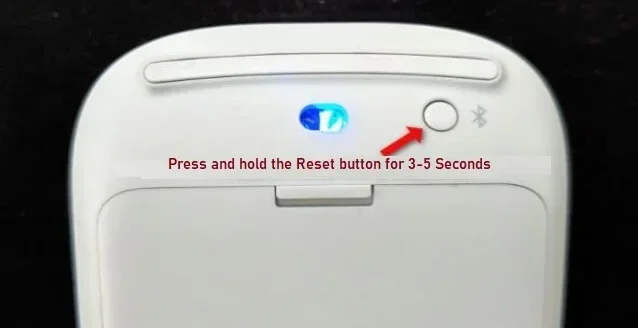
Many Bluetooth mice come with a tiny reset button on the bottom or underneath the device. This is the quickest way to reset your mouse. Here is how to do it:
- Turn off your Bluetooth mouse or simply flip the power switch to off.
- Flip the mouse over and look for a small pinhole labeled “Reset.”
- Use a paperclip or a SIM ejector tool to press and hold the button inside the pinhole.
- Hold it for about five to ten seconds.
- Release the button and turn the mouse back on.
- Check if the mouse reconnects to your computer automatically.
If your mouse has a reset button, this method works about 80 percent of the time. It clears the Bluetooth pairing memory and forces the mouse to start fresh. This is similar to how you might pair a Bluetooth device for the first time.
Method 2: Remove and Re-Pair the Device
If your mouse does not have a reset button, or if the reset button did not work, the next best step is to remove the device from your Bluetooth list and pair it again. This method works on Windows, Mac, and even tablets.
On Windows:
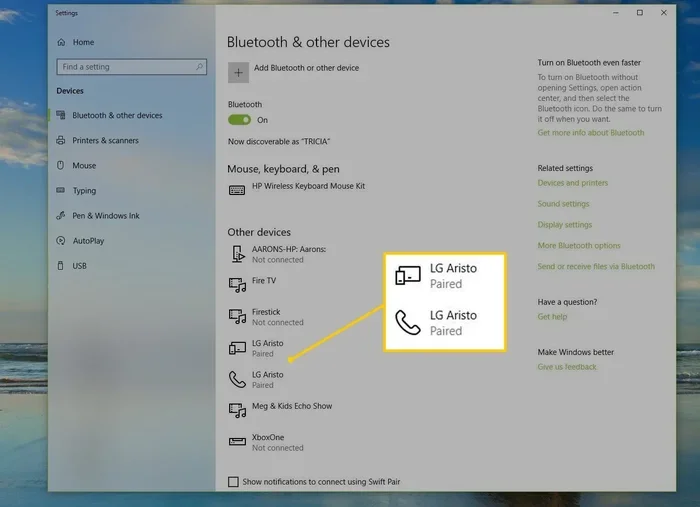
- Go to Settings > Bluetooth & Devices.
- Find your Bluetooth mouse in the list of paired devices.
- Click on the mouse and select “Remove device.”
- Turn off your mouse and wait ten seconds.
- Turn the mouse back on and put it in pairing mode.
- Click “Add device” in the Bluetooth settings.
- Select your mouse from the list and follow the on-screen prompts.
On Mac:
- Open System Settings > Bluetooth.
- Find your mouse in the list of connected devices.
- Click the “i” icon next to the mouse name.
- Select “Disconnect” and then “Forget This Device.”
- Turn off the mouse and turn it back on in pairing mode.
- Click “Connect” when your mouse appears in the list.
This method essentially gives your Bluetooth connection a clean slate. It is one of the most effective ways to fix a Bluetooth mouse not connecting issue. Think of it like restarting a friendship where the communication got tangled up.
Method 3: Factory Reset Through Device Settings
Some Bluetooth mice allow you to perform a factory reset through your computer’s device manager or system settings. This method goes deeper than a simple re-pair. It restores the mouse to its original factory settings.
On Windows:
- Right-click the Start button and select “Device Manager.”
- Expand the “Bluetooth” section.
- Find your mouse under the Bluetooth devices list.
- Right-click on the mouse and select “Uninstall device.”
- Check the box that says “Delete the driver software for this device.”
- Click “Uninstall.”
- Restart your computer.
- After the restart, go to Bluetooth settings and re-pair your mouse.
On Mac, you can also reset the Bluetooth module by holding down the Shift and Option keys, clicking the Bluetooth icon in the menu bar, and selecting “Reset the Bluetooth module.” This is a powerful fix that clears all Bluetooth connections and refreshes the entire system.
Common Bluetooth Mouse Problems and How to Fix Them
Resetting your mouse solves many issues, but not all. Here are some common problems you might encounter and what to do about them.
Mouse Cursor Is Jumping or Lagging
A jumping cursor is one of the most annoying Bluetooth mouse problems. It usually happens because of interference or a weak signal. Try these fixes:
- Move closer to your computer. Bluetooth works best within about 30 feet.
- Remove other wireless devices from the area temporarily.
- Switch USB ports if you are using a Bluetooth dongle or adapter.
- Check for USB 3.0 ports that might be causing interference. Try a USB 2.0 port instead.
- Make sure the mouse surface is clean and flat.
If the cursor still jumps after trying these steps, a Bluetooth mouse reset often helps. The interference may have corrupted the current connection settings.
Mouse Won’t Turn On
If your wireless mouse will not turn on at all, the problem is likely the battery. Try replacing the batteries with fresh ones. If you use a rechargeable mouse, plug it in with the charging cable and let it charge for at least 30 minutes before trying again.
Sometimes a completely dead battery causes the mouse to appear unresponsive even when you try to reset it. Always check the power source first.
Mouse Connects But Clicks Do Not Work
This is a less common but frustrating issue. The cursor moves, but left-clicking and right-clicking do nothing. Here is what to try:
- Check if the mouse buttons are physically stuck or dirty.
- Clean the buttons with a soft, damp cloth.
- Try using the mouse on a different surface.
- Reset the mouse using one of the methods above.
- Check your computer’s accessibility settings. Sometimes sticky keys or filter keys can interfere with mouse clicks.
How to Prevent Bluetooth Mouse Connection Issues
Resetting is great, but preventing problems in the first place is even better. Here are some simple habits that keep your Bluetooth mouse working smoothly:
- Keep your batteries fresh: Replace batteries regularly, even if they are not completely dead. Low power causes weak signals and disconnections.
- Keep your mouse and computer close: Stay within the recommended Bluetooth range. Most mice work best within 30 feet.
- Update your drivers: Check for driver updates regularly. Windows and Mac both offer automatic driver updates in their settings.
- Avoid interference: Keep your mouse away from other wireless devices, especially USB 3.0 hubs and Wi-Fi routers.
- Store your mouse properly: When not in use, turn off the mouse or put it in a storage case. This preserves battery life and prevents accidental power drain.
- Clean the sensor regularly: Dust and debris on the optical sensor can cause tracking problems. A quick wipe with a soft cloth keeps things running smoothly.
These simple tips can save you a lot of trouble. Think of them as basic wireless mouse troubleshooting habits that anyone can follow.
When Should You Replace Your Bluetooth Mouse Instead of Resetting?
Resetting works wonders for software and connection issues. But sometimes, the problem is hardware. Here are signs that your mouse may need replacement rather than another reset:
- The mouse is physically damaged: Cracked casing, stuck buttons that do not respond to cleaning, or a sensor that is visibly broken.
- The mouse overheats: If the mouse gets unusually hot during use, there may be an internal electrical problem.
- Resetting does not work after multiple tries: If you have tried every reset method and the mouse still does not work, the internal Bluetooth module may be faulty.
- The mouse is very old: Bluetooth mice typically last two to five years with regular use. If yours is older, the battery and Bluetooth hardware may simply be worn out.
- The scroll wheel is broken: A broken scroll wheel usually means internal damage that a reset cannot fix.
If any of these signs sound familiar, it is time to shop for a new wireless mouse. But before you do, make sure you have tried every reset method in this guide. You might be surprised how often a simple reset brings an old mouse back to life.
Expert Tips for Bluetooth Mouse Maintenance
Want to get the most out of your Bluetooth mouse? Here are some expert tips that go beyond just resetting:
- Keep a spare set of batteries: Always have fresh batteries on hand so you are never stuck with a dead mouse.
- Use a Bluetooth USB adapter: If your computer has weak built-in Bluetooth, a quality USB adapter can improve signal strength and stability.
- Turn off the mouse when not in use: This saves battery and prevents accidental Bluetooth connections to nearby devices.
- Check for firmware updates: Some premium Bluetooth mice have firmware that can be updated through a companion app. Updated firmware often fixes connection bugs.
- Avoid using your mouse on reflective surfaces: Glass and mirrored surfaces can confuse the optical sensor and cause tracking issues.
These tips come from years of experience helping people fix their wireless devices. They are small changes that make a big difference in how long your Bluetooth mouse lasts and how well it performs.
Remember, a Bluetooth mouse reset is your first line of defense when things go wrong. It is fast, free, and easy. Most of the time, it is all you need to get back to work. If the problem persists, move through the other troubleshooting steps we covered. And if nothing works, it might be time for a new mouse.
Now you have all the tools and knowledge to handle any Bluetooth mouse problem that comes your way. Go ahead and give your mouse a reset. You will be glad you did.
One last thing: if you are dealing with other Bluetooth device issues, remember that many of the same troubleshooting principles apply. Whether you are trying to use Bluetooth on your hearing aid or connect Bluetooth headphones to your TV, the basics of resetting and re-pairing remain the same. Bluetooth technology works the same way across devices, so the skills you learn here will serve you well in many situations.
Keep this guide bookmarked. The next time your Bluetooth mouse gives you trouble, you will know exactly what to do. No panic, no frustration. Just a quick reset and you are back in business.
Frequently Asked Questions
How do I know if my Bluetooth mouse needs a reset?
If your cursor freezes, clicks stop working, or the mouse disconnects frequently, a reset is likely needed. These are clear signs that the Bluetooth connection has dropped or the device needs a fresh start. Try a reset before replacing the mouse.
Can I reset a Bluetooth mouse without a reset button?
Yes, you can. Simply remove the mouse from your Bluetooth device list and re-pair it. This works on Windows, Mac, and tablets. The re-pairing process effectively resets the connection and often fixes most issues.
Why does my Bluetooth mouse keep disconnecting after a reset?
Frequent disconnections after a reset usually point to interference, low batteries, or outdated drivers. Check your battery level first, then move closer to your computer, and finally update your Bluetooth drivers. If the problem continues, the mouse hardware may be failing.
How long does a Bluetooth mouse reset take?
A Bluetooth mouse reset takes anywhere from 30 seconds to two minutes. The reset button method is the fastest. Removing and re-pairing the device takes a little longer but is still very quick. Either way, you will be back up and running in no time.
Will resetting my Bluetooth mouse delete any of my files or settings on my computer?
No, resetting your Bluetooth mouse only affects the mouse itself. It does not touch your computer files, settings, or any other devices. The reset simply clears the Bluetooth pairing memory on the mouse so it can connect fresh.
What should I do if none of the reset methods work for my Bluetooth mouse?
If none of the reset methods work, try replacing the batteries first. If that does not help, the Bluetooth module inside the mouse may be damaged. At that point, you should consider replacing the mouse or contacting the manufacturer for warranty support. Sometimes Bluetooth connectivity problems are beyond simple fixes.