Can You Play Youtube Videos Through Bluetooth Speakers
Yes, you can play YouTube videos through Bluetooth speakers with ease. Whether you are using a phone, tablet, or laptop, connecting wireless speakers to your device is simple and quick. This guide covers everything you need to know about Bluetooth speakers, from pairing to troubleshooting common problems.
Can you play YouTube videos through Bluetooth speakers? The short answer is yes. You can stream your favorite YouTube content wirelessly through a Bluetooth speaker without needing any cables or extra equipment. Whether you are in the kitchen, the backyard, or just lounging on the couch, connecting your speaker to your device opens up a world of wireless audio possibilities.
Bluetooth technology has made it incredibly easy to share audio between devices. You do not need to worry about wires getting in the way or finding the right adapter. As long as your speaker supports Bluetooth and your device has Bluetooth capability, you are good to go. This guide walks you through the entire process step by step.
Many people ask about wireless audio setups because they want more freedom. You might want to play music from YouTube at a party, watch a tutorial in another room, or simply enjoy better sound than your phone or laptop provides. Whatever your reason, Bluetooth speakers make it possible. Let us dive into how this all works.
Key Takeaways
- Yes, YouTube works with Bluetooth speakers: You can stream videos and audio wirelessly to most Bluetooth-enabled speakers.
- Pairing is simple: The process takes under a minute on most devices.
- Audio quality varies: Your Bluetooth codec and speaker quality affect the sound you get.
- Common issues are fixable: Lag, disconnection, and low volume can usually be solved with basic steps.
- Smart TVs add another option: Some smart TVs support Bluetooth output for YouTube streaming.
- YouTube Premium helps: It removes ads and allows background play while using Bluetooth.
📑 Table of Contents
- How Bluetooth Speakers Work with YouTube
- How to Connect Bluetooth Speakers to Your Device
- Best Bluetooth Speakers for YouTube Watching
- Common Problems and How to Fix Them
- Tips for Better Audio Quality When Streaming YouTube
- Can You Use Bluetooth Speakers with YouTube on Smart TVs?
- Bluetooth vs. Other Ways to Play YouTube Audio
- Final Thoughts
How Bluetooth Speakers Work with YouTube
Understanding how Bluetooth speakers connect to YouTube starts with knowing the basics of wireless audio. Bluetooth uses short-range radio waves to transmit audio from one device to another. When you hit play on a YouTube video, the audio signal travels from your phone or computer to your speaker through these invisible waves.
The process relies on something called a Bluetooth codec. This is the method used to compress and send audio data. Common codecs include SBC, AAC, and aptX. The codec you use affects your audio quality and how much delay you experience. For most YouTube watching, the default SBC codec works just fine. But if you care about sound quality, look for speakers that support newer codecs.
Does YouTube Support Bluetooth Output Directly?
YouTube itself does not have a built-in Bluetooth setting. Instead, your device handles the Bluetooth connection. When you open the YouTube app on your phone or tablet, the audio routes through your device’s Bluetooth settings. This means you need to pair your wireless speaker with your device first. Once paired, any audio from YouTube flows straight to the speaker.
If you are watching on a laptop, the same principle applies. Your laptop sends the audio signal to the speaker. You can also plug speakers into your laptop if you prefer a wired connection, but Bluetooth gives you more flexibility. You can move around the room without being tethered to your device.
How to Connect Bluetooth Speakers to Your Device
Setting up your Bluetooth speakers with YouTube is a straightforward process. It usually takes less than a minute. Here is how to do it on different devices.
Connecting on Android Phones
On an Android phone, open your Settings app and tap Bluetooth. Make sure Bluetooth is turned on. Your phone will scan for nearby devices. Find your speaker in the list and tap it. Once paired, open YouTube and start playing a video. The audio will come through your speaker.
Quick Tip: If your speaker does not show up, make sure it is in pairing mode. Most speakers have a button that flashes a light when ready. Also, keep your phone within 30 feet of the speaker for the best Bluetooth range.
Connecting on iPhones
iPhone users should open the Control Center by swiping down from the top right corner. Tap the Bluetooth icon to turn it on. Then long-press the music control box and tap the speaker name. Your iPhone will connect to the speaker instantly.
Once connected, open the YouTube app and play any video. The sound comes through your wireless speaker. You can also control volume directly from the Control Center or the YouTube app itself.
Connecting on Windows Laptops
On a Windows laptop, click the Start menu and go to Settings. Select Devices and then Bluetooth. Turn on Bluetooth and click Add Bluetooth or other device. Choose Bluetooth and select your speaker from the list.
After pairing, open your web browser and go to YouTube. Play a video and check the audio output. You may need to click the volume icon in the taskbar and select your speaker as the output device. This step is important because sometimes the audio stays on your laptop speakers even after pairing.
Connecting on MacBooks
MacBook users should click the Control Center icon in the top right menu bar. Click Bluetooth and turn it on. Select your speaker from the list of available devices. Once connected, open Safari or Chrome and go to YouTube. Your audio will play through the speaker.
You can also check your audio settings by clicking the sound icon in the menu bar. Make sure your Bluetooth speaker is selected as the output device. This ensures you do not accidentally play audio through the laptop speakers.
Best Bluetooth Speakers for YouTube Watching
Not all Bluetooth speakers are created equal. Some offer richer sound, longer battery life, or better range. Here are a few things to consider when choosing a speaker for YouTube.
What to Look For in a Bluetooth Speaker
- Battery Life: Look for at least 10 hours of playback. This lets you watch long YouTube playlists without recharging.
- Bluetooth Version: Bluetooth 5.0 or newer offers better range and more stable connections.
- Audio Quality: Check for speakers that support aptX or LDAC codecs for better sound.
- Portability: If you want to carry your speaker around, choose a compact and lightweight model.
- Water Resistance: An IPX7 rating means the speaker can handle splashes and rain.
Popular Options for Streaming YouTube
Some popular wireless speakers work great with YouTube. The JBL Flip series offers solid sound and long battery life. The Bose SoundLink is another favorite for its clear audio and reliable connection. The Anker Soundcore Motion+ provides excellent value with rich bass and good range.
If you already own a smart speaker like an Amazon Echo, you can also use it to play YouTube audio. However, you may need a workaround since direct YouTube casting to Echo devices has some limitations. In those cases, you might consider using Alexa as a Bluetooth speaker for your TV or other devices.
Common Problems and How to Fix Them
Even though Bluetooth is simple, you might run into issues now and then. Here are the most common problems and how to solve them.
Audio Lag or Delay
Audio lag happens when the sound does not match the video. This is especially noticeable on YouTube where people speak and their lips move. The delay comes from the time it takes to compress and send the audio signal through Bluetooth.
To fix this, move closer to your speaker. Walls and furniture can weaken the Bluetooth signal. Also, try closing other apps that use Bluetooth, like fitness trackers or smartwatches. Some speakers have a low-latency mode in their app. Check the manufacturer’s instructions to see if yours does.
Speaker Keeps Disconnecting
If your Bluetooth speaker keeps cutting out, the battery might be low. Charge both your speaker and your device fully. Also, make sure you are within range. Bluetooth typically works best within 30 feet with no obstacles.
Another fix is to forget the device and re-pair it. On your phone, go to Bluetooth settings, find the speaker, and tap Forget. Then put the speaker back in pairing mode and connect again. This resets the connection and often solves disconnection issues.
Low Volume or No Sound
If you get no sound, check your volume levels on both the device and the speaker. Sometimes the device volume is turned down even though the speaker volume is high. Also, make sure the speaker is selected as the audio output device.
On Android phones, you can swipe down from the top and tap the media volume slider. On iPhones, use the side buttons during video playback. For laptops, check the taskbar volume icon and select your speaker as the output.
Interference from Other Devices
Other wireless devices can interfere with your Bluetooth connection. Wi-Fi routers, microwaves, and even USB 3.0 ports can cause signal disruption. If you notice audio cutting out, try moving away from these devices. You can also try switching your Wi-Fi band from 2.4GHz to 5GHz since Bluetooth uses the 2.4GHz frequency.
Tips for Better Audio Quality When Streaming YouTube
You can improve your listening experience with a few simple tips. These small changes make a big difference in sound quality.
Use YouTube Premium
YouTube Premium removes ads and allows background play. This means you can switch to other apps without stopping your YouTube audio. It also streams at higher bitrates, which means better sound quality through your Bluetooth speakers.
While YouTube Premium is a paid service, it is worth it if you watch a lot of YouTube. The ad-free experience alone saves time and frustration. Plus, you get access to YouTube Music as a bonus.
Optimize Your Speaker Placement
Where you place your speaker matters. Put it on a flat surface away from walls for the best sound. Avoid placing it in corners because this can cause bass to sound muddy. If you are watching in a large room, place the speaker closer to where you sit.
Keep Your Firmware Updated
Many Bluetooth speakers receive firmware updates that improve performance. Check the manufacturer’s app for updates regularly. These updates can fix audio bugs and improve Bluetooth stability.
Consider a Bluetooth Transmitter
If your device does not support Bluetooth, you can buy a Bluetooth transmitter. This small device plugs into your audio output and sends the signal wirelessly to your speaker. This is a great option if you want to use Bluetooth speakers with older TVs or desktop computers.
Can You Use Bluetooth Speakers with YouTube on Smart TVs?
Many smart TVs now support Bluetooth. This means you can connect your wireless speaker directly to your TV and watch YouTube on the big screen with better sound. The process varies by TV brand, but most follow a similar pattern.
On Samsung TVs, go to Settings, then Sound, then Sound Output. Select Bluetooth Speaker List and choose your speaker. On LG TVs, go to Settings, then Sound, then Bluetooth Device. On Sony TVs, navigate to Settings, then Bluetooth and other Devices, then add a new device.
Once paired, open the YouTube app on your TV and play a video. The audio will come through your Bluetooth speaker instead of the TV speakers. This is a great way to upgrade your sound without buying a new TV. You can also use this method to pair Bluetooth headphones to your LG TV for private listening.
Keep in mind that some smart TVs have limited Bluetooth range. If you move too far from the TV, the connection may drop. Also, not all smart TVs support Bluetooth natively. In those cases, you can use a Bluetooth transmitter plugged into the TV’s audio output.
Bluetooth vs. Other Ways to Play YouTube Audio
Bluetooth is not the only way to get YouTube audio to your speakers. Let us compare a few options.
| Method | Pros | Cons |
|---|---|---|
| Bluetooth Speakers | Wireless, portable, easy to set up | Slight audio delay, range limits |
| Aux Cable | No delay, reliable connection | Wired, less flexible |
| USB-C Connection | High-quality digital audio | Not all speakers support USB-C |
| Wi-Fi Streaming | No range limits, high quality | Requires same network, setup is more complex |
Each method has its strengths. Bluetooth speakers win for convenience and portability. If you want zero delay, an aux cable is the best choice. For the highest quality, a USB-C connection or Wi-Fi streaming works well. But for most people, Bluetooth is the easiest and most practical option.
You can also explore other wireless audio options. For example, you might want to play music through a USB-C cable if your speaker supports it. Or you could look into Wi-Fi speakers that connect to your home network for even more range and stability.
Final Thoughts
So, can you play YouTube videos through Bluetooth speakers? Absolutely. The process is simple, fast, and gives you the freedom to enjoy your favorite content anywhere. Whether you are at home, outdoors, or traveling, a Bluetooth speaker turns any space into your personal theater.
Remember to keep your devices updated, place your speaker wisely, and troubleshoot common issues with the tips we shared. With the right setup, your YouTube audio will sound clearer and richer than ever before. Embrace the wireless experience and enjoy your content the way it was meant to be heard.
Now that you know how easy it is, grab your Bluetooth speaker, open YouTube, and start streaming. You will wonder how you ever watched videos without wireless audio. Happy listening!
Frequently Asked Questions
Can I play YouTube through any Bluetooth speaker?
Yes, most Bluetooth speakers can play YouTube audio. As long as your speaker supports Bluetooth and your device can connect to it, you should be able to stream YouTube without any issues. The audio quality may vary depending on your speaker’s capabilities.
Why is there a delay when I play YouTube through Bluetooth speakers?
The delay, also called latency, happens because Bluetooth compresses and transmits audio data. This process takes a small amount of time. To reduce the delay, stay close to your speaker and close other apps that might use Bluetooth bandwidth.
Can I use Bluetooth speakers with YouTube on a smart TV?
Yes, many smart TVs support Bluetooth. You can pair your Bluetooth speaker directly with your TV and play YouTube with improved sound. Check your TV settings under Sound or Bluetooth to find the pairing option.
Does YouTube Premium make a difference with Bluetooth speakers?
YouTube Premium removes ads and allows higher-quality streaming. This means your audio through Bluetooth speakers sounds better and you can listen in the background while using other apps. It is a great upgrade for frequent YouTube users.
How far can I be from my Bluetooth speaker while watching YouTube?
Most Bluetooth speakers work within 30 feet of your device. Walls and obstacles can reduce this range. For the best experience, stay within range and keep your line of sight clear.
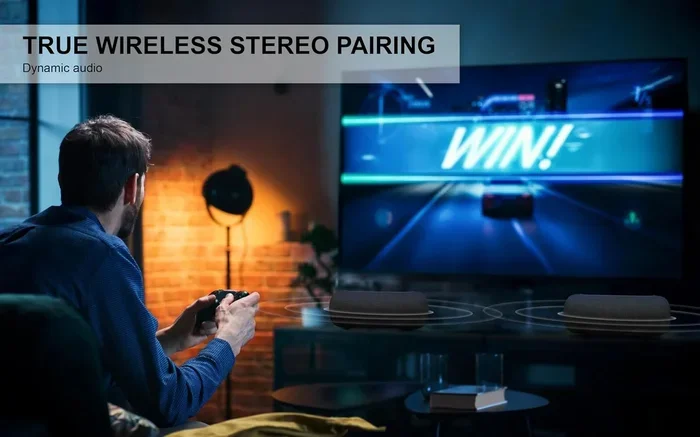
Can I connect multiple Bluetooth speakers to one device for YouTube?
Some devices support connecting to multiple speakers at once. Android phones can use the Dual Audio feature, and some iPhones support sharing audio between two Bluetooth devices. Check your device settings to see if this option is available.