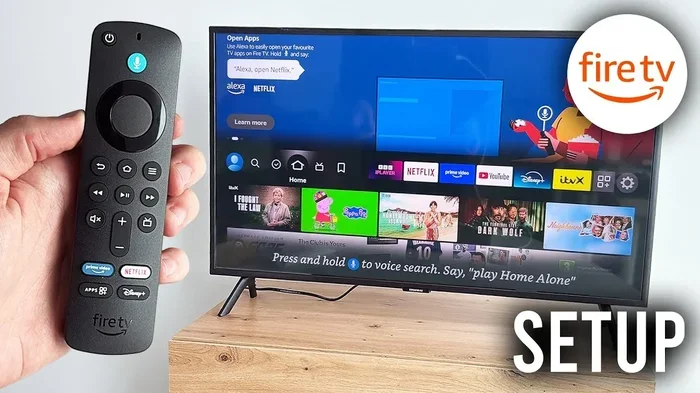
Can You Manually Reset Firestick Without Losing Data
Yes, you can manually reset Firestick without losing your data by performing a soft reset or restarting the device. A soft reset refreshes your Firestick while keeping your apps, login details, and settings intact. This guide shows you exactly how to do it safely, step by step.
Key Takeaways
- Soft reset keeps your data safe: A simple restart refreshes your Firestick without deleting anything.
- Hard reset wipes everything: Only factory reset clears all data, so avoid it unless necessary.
- Two easy methods exist: You can reset through settings or use the remote button combo.
- Your apps and logins stay put: Soft reset preserves installed apps, accounts, and preferences.
- Performance improves after reset: A manual reset can fix freezing, lag, and app crashes.
- No computer is needed: You can do everything directly on your Firestick device.
📑 Table of Contents
- Can You Manually Reset Firestick Without Losing Your Data?
- What Happens When You Reset a Firestick
- How to Manually Reset Firestick With a Soft Reset
- Common Problems a Firestick Reset Can Fix
- How to Boost Firestick Performance After a Reset
- When Should You NOT Reset Your Firestick
- Firestick Reset vs. Firestick Restart: What Is the Difference
- Expert Tips to Keep Your Firestick Running Smoothly
- Frequently Asked Questions
- Final Thoughts
Can You Manually Reset Firestick Without Losing Your Data?
If your Amazon Firestick is acting up, you might be wondering if a reset will wipe everything. The good news is that you can manually reset Firestick without losing data. A soft reset or restart refreshes your device while keeping all your apps, settings, and login details safe.
Many people fear that resetting means starting from scratch. But that is not true. You have options. You can refresh your Firestick and fix common problems without touching your personal data. Let us walk you through exactly how this works.
A Firestick reset can solve freezing screens, app crashes, slow performance, and connectivity issues. The key is knowing which type of reset to use. A soft reset keeps everything. A factory reset wipes it all. This guide focuses on the safe, data-friendly methods you can use right now.
Whether your Firestick is frozen, lagging, or just not working right, a manual reset often fixes the problem. You do not need to be a tech expert. You do not need a computer. And you definitely do not need to lose your favorite apps or streaming logins. Let us get into it.
What Happens When You Reset a Firestick
Before you do anything, it helps to understand what a reset actually does. There are two main types of resets for Firestick devices. Each one behaves very differently.
Soft Reset (Restart)
A soft reset simply restarts your Firestick. It turns the device off and back on again. This clears temporary files, refreshes the system, and fixes minor glitches. Nothing gets deleted. Your apps stay installed. Your logins stay saved. Your settings remain exactly as you left them.
Think of it like restarting your phone. You do not lose anything. You just get a fresh start. A soft reset is the safest way to troubleshoot problems without any risk to your data.
Factory Reset (Hard Reset)
A factory reset wipes your Firestick completely. It removes all apps, settings, login details, and personal data. The device goes back to the way it was when you first unboxed it. This is a last-resort option for serious problems.
You should only factory reset if nothing else works. And even then, you should try a soft reset first. Factory resets are powerful tools, but they come with a cost. You lose everything unless you backed it up beforehand.
How to Manually Reset Firestick With a Soft Reset
A soft reset is the best way to refresh your Firestick without losing anything. It takes less than a minute and requires no technical skills. Here are the two easiest methods.
Method 1: Use the Firestick Settings Menu
This is the most straightforward way to restart your device. Follow these simple steps:
- Press the Home button on your Firestick remote.
- Navigate to Settings at the top of the screen.
- Select My Fire TV or Device depending on your model.
- Click on Restart or Reboot.
- Confirm your choice and wait for the device to power back on.
That is it. Your Firestick will turn off and back on within a minute. All your data stays exactly where it is. This method works for most common issues like slow performance or app freezing.
Method 2: Use the Remote Button Combo
If your Firestick is frozen and you cannot access the settings menu, try this trick:
- Press and hold the Select button and the Play/Pause button together.
- Hold them for about five seconds.
- The Firestick will restart automatically.
This button combo forces a restart even when the screen is unresponsive. It is a handy trick to know when your device freezes mid-movie. Once it powers back on, everything will be right where you left it.
Common Problems a Firestick Reset Can Fix
So, when should you actually reset your Firestick? Many common issues go away with a simple restart. Here are the most frequent problems a soft reset solves.
- Freezing or hanging: If your screen locks up and stops responding, a reset often fixes it right away.
- Slow performance: Over time, Firesticks can get sluggish. A restart clears out temporary files and boosts speed.
- App crashes: Apps that keep closing or crashing usually work fine after a refresh.
- Wi-Fi connection issues: If your Firestick internet connection drops or stays slow, a reset can re-establish the link. Sometimes, boosting your Wi-Fi at home helps too if the reset does not fully solve the problem.
- Audio or video sync problems: A reset can fix lip-sync issues and streaming lag.
- Black screen or no signal: A frozen black screen often responds to a simple restart.
These problems do not mean your Firestick is broken. They usually just need a fresh start. A soft reset gives your device that fresh start without any downside.
How to Boost Firestick Performance After a Reset
Once you have reset your Firestick, you can take a few extra steps to keep it running smoothly. These tips help your device stay fast and responsive.
Clear App Cache Regularly
Apps store temporary files that build up over time. To clear them, go to Settings, then Applications, and select Manage Installed Applications. Pick an app and choose Clear Cache. This frees up space and keeps things running fast.
Keep Your Firestick Updated
Amazon releases regular updates that fix bugs and improve performance. To check for updates, go to Settings, then My Fire TV, and select About, then Check for Updates. Keeping your device current prevents many common issues.
Use a Strong Wi-Fi Connection
Your streaming quality depends heavily on your internet speed. If your Firestick keeps buffering, your Wi-Fi signal might be weak. Consider moving your router closer to your TV or using a Wi-Fi extender for better coverage.
Uninstall Apps You Do Not Use
Every app takes up space and background resources. Go through your installed apps and remove anything you no longer watch. This keeps your Firestick lean and fast.
When Should You NOT Reset Your Firestick
While resetting is safe and helpful, there are times when you should pause and think. Here is when you should avoid resetting your Firestick.
- You have not tried simpler fixes first: Sometimes just unplugging your Firestick for 30 seconds does the trick. Try that before a full reset.
- You have not backed up your preferences: While a soft reset keeps your data, it is always smart to note down important settings just in case.
- The problem is with your TV, not the Firestick: If your screen shows no signal, the issue might be with your HDMI cable or TV input, not the Firestick itself.
- You are experiencing account or billing issues: Resetting will not fix Amazon account problems. Contact Amazon support for billing or login issues.
Knowing when not to reset saves you time and frustration. A reset should be your go-to fix for device-level problems, not account or connection issues outside the Firestick.
Firestick Reset vs. Firestick Restart: What Is the Difference
People often use the words “reset” and “restart” interchangeably. But on a Firestick, they mean different things. Understanding this difference helps you choose the right action.
| Action | Data Lost? | Time Required | Best For |
|---|---|---|---|
| Soft Reset (Restart) | No | 1-2 minutes | Freezing, slow performance, app crashes |
| Factory Reset (Hard Reset) | Yes, everything | 5-10 minutes | Major software issues, selling the device |
| Unplug and Replug | No | 1 minute | Quick fix for minor glitches |
The table shows that a soft reset is the safest and fastest option for most issues. It keeps your data and gets your Firestick working again quickly. Factory reset is powerful but should only be used when absolutely necessary.
Expert Tips to Keep Your Firestick Running Smoothly
After years of using Firestick devices, a few simple habits make a huge difference. Here are expert tips that help prevent the need for frequent resets.
- Restart your Firestick once a week: A weekly restart clears out temporary files and keeps things running smoothly. Just like your phone, a regular refresh prevents buildup.
- Keep at least 1GB of free storage: A full device slows down. Delete unused apps and clear cache regularly to maintain space.
- Use a quality power adapter: The USB port on your TV may not provide enough power. Use the original power adapter that came with your Firestick for best results.
- Enable automatic updates: Go to Settings, then My Fire TV, and turn on automatic updates. This ensures you always have the latest performance improvements.
- Use a wired connection when possible: If your Wi-Fi is weak, a simple Ethernet adapter plugged into your Firestick can dramatically improve streaming quality.
These small habits prevent most common Firestick problems. You will find yourself needing to reset far less often when you follow these tips consistently.
Frequently Asked Questions
Can You Manually Reset Firestick Without Losing Your Apps?
Yes, absolutely. A soft reset or restart keeps all your installed apps exactly as they are. You do not need to reinstall anything. Your apps, logins, and preferences all stay intact after a simple restart. Only a factory reset removes apps from your device.
How Long Does a Firestick Soft Reset Take?
A soft reset takes about one to two minutes. The screen will go dark for a few seconds while the device powers off. Then it will turn back on and return to your home screen with everything still in place. It is a very quick process.
Will I Need to Log Back Into My Streaming Apps After a Reset?
No, you will not. A soft reset does not delete your login credentials. Netflix, Hulu, Disney Plus, and all other apps will remember your accounts. You can open them right away after the restart without entering your password again.
What Is the Difference Between a Soft Reset and a Factory Reset?
A soft reset simply restarts your Firestick and clears temporary files. It does not delete anything. A factory reset wipes the entire device back to its original state, removing all apps, settings, and data. Always try a soft reset first before considering a factory reset.
Can a Reset Fix a Firestick That Will Not Turn On?
Yes, in many cases. If your Firestick is frozen and will not respond, a forced restart using the button combo on the remote can bring it back to life. Unplugging the Firestick from power for 30 seconds and plugging it back in also works. If the device still will not turn on, try a different power outlet or USB port on your TV.
How Often Should I Reset My Firestick?
You do not need to reset your Firestick regularly. A monthly restart is plenty for most users. Only reset when you notice performance issues like freezing, slow loading, or app crashes. Resetting too often does not provide extra benefits and interrupts your streaming experience unnecessarily.
Final Thoughts
So, can you manually reset Firestick without losing data? The answer is a clear yes. A soft reset is safe, fast, and keeps everything intact. Your apps, settings, and logins all stay exactly where they are. You simply get a fresh, responsive device at the end of the process.
Remember that a Firestick reset is one of the easiest and most effective troubleshooting tools you have. Before you call support or consider buying a new device, try a soft reset first. It solves the majority of common Firestick problems in under two minutes.
Keep your Firestick updated, clear your cache regularly, and restart your device weekly. These simple habits keep your streaming experience smooth and enjoyable. You will spend less time troubleshooting and more time watching the shows and movies you love.
A well-maintained Firestick works reliably for years. You do not need to fear resetting it. Now that you know how to do it safely, you can fix most problems on your own with confidence. Enjoy your streaming, and keep your Firestick running at its best.