Can I Use My Phone Wi Fi For My Tv And How To Set It Up
Yes, you can use your phone Wi-Fi for your TV through screen mirroring, casting, or a mobile hotspot. This guide covers every method in simple steps so you can share your phone screen on your TV without buying extra equipment. Whether you have an Android or iPhone, there is a way that works for you.
Have you ever wanted to watch something on a bigger screen but didn’t want to deal with cords and cables? The good news is that you can use your phone Wi-Fi for your TV and enjoy your favorite shows, photos, and videos on a much larger display. It is easier than most people think, and you do not need to be a tech expert to make it work.
Many people do not realize that their phone and TV can talk to each other wirelessly. Whether you want to share vacation photos with the family, watch YouTube on a big screen, or cast a movie from Netflix, your phone Wi-Fi can make it happen. This article walks you through every method step by step so you can start streaming right away.
We will cover screen mirroring, casting, mobile hotspots, and wired options too. You will also learn about common problems and how to fix them. By the end of this guide, you will know exactly how to use your phone Wi-Fi for your TV without any confusion.
Key Takeaways
- Screen Mirroring Works Wirelessly: You can mirror your phone screen to your TV using built-in features like Chromecast, AirPlay, or Miracast without any cables.
- Mobile Hotspot Is a Backup Option: If your TV lacks a Wi-Fi connection, you can use your phone as a hotspot to connect your TV to the internet.
- Setup Takes Only Minutes: Most methods require no special apps or tools. You just need both devices on the same network.
- Streaming Quality Depends on Your Signal: A strong Wi-Fi connection gives you smooth video playback and no lag.
- Multiple Devices Can Work Together: You can connect phones, tablets, and laptops to share content on a big screen easily.
- Avoid Common Mistakes: Keep both devices close, update your software, and check your router settings for the best results.
📑 Table of Contents
- What Does It Mean to Use Phone Wi-Fi for TV?
- Can I Use My Phone Wi-Fi for My TV? Yes, Here Is How
- Comparison: Different Methods to Connect Phone Wi-Fi to TV
- Quick Tips for the Best Experience
- Common Mistakes to Avoid
- How to Improve Your Phone-to-TV WiFi Connection
- What About Privacy and Security?
- Frequently Asked Questions
- Conclusion
What Does It Mean to Use Phone Wi-Fi for TV?
When we talk about using phone Wi-Fi for TV, we mean sharing your phone’s wireless connection with your television. This can happen in a few different ways. Let us break them down so you understand what is really going on.
Screen Mirroring
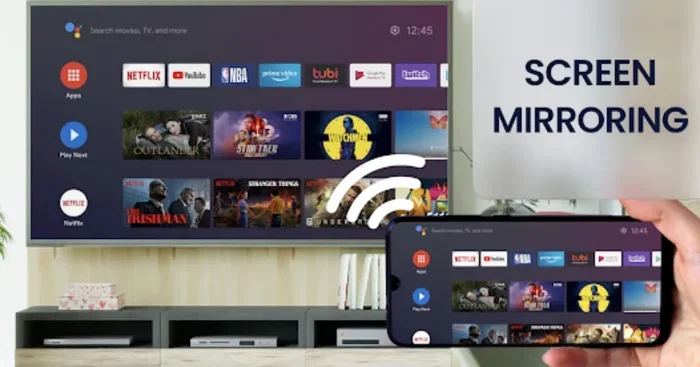
Screen mirroring copies everything on your phone screen and shows it on your TV in real time. You tap on your phone, and the same thing appears on the big screen. This works great for showing photos, browsing the web, or playing games on a larger display.
Casting
Casting is a little different. Instead of mirroring your whole screen, you send a video or audio stream from an app directly to your TV. Your phone becomes a remote control. You can even leave the room and the video keeps playing on the TV. This is how services like Netflix and YouTube work with devices like Chromecast and Apple TV.
Mobile Hotspot Sharing
A mobile hotspot turns your phone into a mini router. Your TV connects to your phone’s internet signal just like it would connect to a home WiFi router. This is helpful when you do not have access to a regular WiFi network, like at a hotel or a friend’s house.
Can I Use My Phone Wi-Fi for My TV? Yes, Here Is How
The short answer is yes. You can absolutely use your phone Wi-Fi for your TV in several ways. The method you choose depends on what kind of TV you have and what you want to do. Let us look at each option in detail.
Method 1: Use Built-In Screen Mirroring
Many modern smart TVs come with built-in screen mirroring already. This means you do not need to buy any extra gadgets. Both your phone and TV just need to be on the same WiFi network.
Here is how to do it on most phones:
- Make sure your phone and TV are connected to the same WiFi network.
- On your phone, look for the Cast or Screen Mirror button in your quick settings.
- Tap it and select your TV from the list of available devices.
- Your phone screen should now appear on the TV.
For Android phones, this feature is often called Wireless Display or uses Miracast technology. On iPhones, it uses AirPlay to send your screen to an Apple TV or a compatible smart TV. Both methods work very well for everyday use.
Method 2: Use a Streaming Device
If your TV is not a smart TV or does not support screen mirroring, you can use a small streaming device. These plug right into your TV’s HDMI port and connect to your WiFi. Some popular options include:
- Google Chromecast: A small stick that plugs into HDMI. You control it from your phone using the Google Home app.
- Amazon Fire TV Stick: A tiny device that gives any TV smart features. It works with Alexa and supports casting from your phone.
- Apple TV: The best option for iPhone users. It supports AirPlay and gives you access to all major streaming apps.
- Roku: A popular choice that works with both Android and iPhone. It has a simple interface and supports screen mirroring.
These devices act as a bridge between your phone and TV. Your phone sends the content over WiFi, and the streaming device displays it on your TV. The quality is usually excellent because these devices are built specifically for this purpose.
Method 3: Use Your Phone as a Mobile Hotspot
This is the method where your phone shares its own WiFi connection with your TV. You turn on your phone’s hotspot feature, and your TV connects to it just like it would connect to a home router.
Here is how to set it up:
- Open your phone’s Settings app.
- Go to Network & Internet or Connections, depending on your phone.
- Tap on Hotspot & Tethering or Mobile Hotspot.
- Turn the hotspot on and set a name and password.
- On your TV, go to WiFi settings and find your phone’s hotspot.
- Enter the password and connect.
Once connected, your TV can access the internet through your phone’s data plan. This is super useful when you are traveling or when your home internet is down. Just keep an eye on your data usage since streaming video uses a lot of data.
Method 4: Use an HDMI Cable (Wired Connection)
Not everyone wants to go wireless. A wired connection can give you the most stable and highest-quality picture. You can connect your phone directly to your TV using an HDMI cable.
For Android phones, you need a USB-C to HDMI adapter or a Micro-USB to HDMI adapter depending on your phone’s port. For iPhones, you need a Lightning to Digital AV Adapter. These adapters are inexpensive and work right out of the box.
The wired method has some clear advantages:
- No lag or delay between your phone and TV.
- Best picture and sound quality.
- No need for a WiFi connection at all.
- Works with any TV that has an HDMI port.
The downside is that you are tethered to your TV by a cable. It is not as convenient for casual viewing, but it is great for presentations or gaming.
Comparison: Different Methods to Connect Phone Wi-Fi to TV
Not sure which method is right for you? Here is a quick comparison to help you decide.
| Method | Best For | Quality | Setup Difficulty | Cost |
|---|---|---|---|---|
| Built-In Screen Mirroring | Casual sharing, photos, quick casting | Good | Very Easy | Free |
| Streaming Device (Chromecast, Fire Stick) | Streaming movies, apps, regular use | Excellent | Easy | $20-$50 |
| Mobile Hotspot | Traveling, no home WiFi available | Good | Moderate | Free (uses data) |
| HDMI Cable (Wired) | Gaming, presentations, best quality | Best | Easy | $5-$15 |
As you can see, each method has its strengths. If you just want to show photos on the big screen, built-in mirroring is perfect. If you watch a lot of streaming content, a streaming device gives you the best experience. And if you need a quick fix while traveling, your phone hotspot saves the day.
Quick Tips for the Best Experience
Getting your phone Wi-Fi connected to your TV is only half the battle. Here are some quick tips to make sure everything runs smoothly.
- Keep both devices close: WiFi signal strength drops with distance. Keep your phone and TV in the same room for the best connection.
- Use a 5GHz WiFi band: If your router supports it, the 5GHz band is faster and less crowded than the 2.4GHz band.
- Close unused apps: Running too many apps on your phone can slow down casting and mirroring. Close apps you are not using.
- Restart your devices: A simple restart of both your phone and TV can fix most connection issues. This is the first thing you should try.
- Update your software: Make sure your phone, TV, and any streaming device are running the latest software. Updates often fix bugs and improve performance.
- Check your internet speed: For smooth HD streaming, you need at least 5 Mbps. For 4K streaming, aim for 25 Mbps or more.
Expert Insight
Networking experts recommend using a WiFi range extender if your TV is far from your router. This boosts the signal and gives you a more stable connection for streaming. A weak signal is the number one cause of buffering and lag during wireless casting.
Common Mistakes to Avoid
Even though connecting your phone to your TV is simple, there are a few mistakes that trip people up. Here are the most common ones and how to avoid them.
- Not being on the same network: The most common reason screen mirroring fails is that the phone and TV are on different WiFi networks. Double-check that both are connected to the same network.
- Ignoring firewall settings: Some routers have firewall settings that block device-to-device connections. Check your router settings and make sure your TV and phone can communicate.
- Using outdated apps: If you use a casting app, make sure it is up to date. Outdated apps can have bugs that prevent proper connections.
- Overloading your network: If too many devices are connected to your WiFi, the bandwidth gets split. This can cause slow streaming and lag. Disconnect devices you are not using.
- Not checking TV compatibility: Not every TV supports every wireless protocol. Check your TV manual or settings to see what it supports before you try to connect.
How to Improve Your Phone-to-TV WiFi Connection
If you are having trouble getting a good connection, there are several things you can try to improve the experience.
Move Your Router Closer to the TV
The farther your TV is from your router, the weaker the signal. If possible, move your router to a central location in your home. This helps all your devices get a stronger connection, including your TV.
Use a WiFi Mesh System
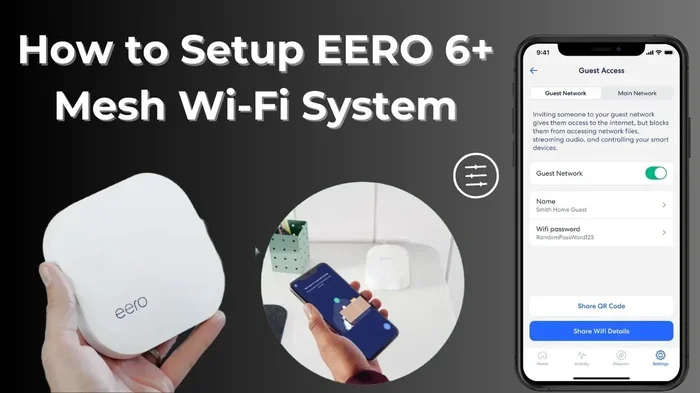
A WiFi mesh system replaces your regular router with multiple units placed around your home. These units work together to create one strong, seamless network. This is a great solution for larger homes where WiFi signal can be weak in certain rooms.
Reduce Interference
Other electronic devices can interfere with your WiFi signal. Microwaves, baby monitors, and even cordless phones can cause problems. Keep your router away from these devices for a cleaner connection.
Upgrade Your Internet Plan
If you consistently experience buffering or poor quality, your internet speed might not be enough. Contact your internet provider and ask about faster plans. Most streaming services recommend at least 25 Mbps for 4K content.
What About Privacy and Security?
When you share your WiFi connection or mirror your phone screen, it is natural to think about privacy. Here are a few things to keep in mind.
- Use a strong hotspot password: If you are using your phone as a hotspot, set a strong password so strangers cannot connect to your network.
- Turn off casting when not in use: When you are done mirroring or casting, turn off the feature. This prevents unauthorized devices from connecting.
- Be careful on public WiFi: Avoid casting sensitive content when connected to public WiFi networks. These networks are less secure and can expose your data.
- Keep your devices updated: Software updates often include security patches that protect your devices from vulnerabilities.
Following these simple steps keeps your connection safe and your personal data protected while you enjoy streaming on the big screen.
Frequently Asked Questions
Can I use my phone Wi-Fi for my TV without a smart TV?
Yes, you can. You do not need a smart TV to use your phone Wi-Fi. You can connect a streaming device like a Chromecast or Fire TV Stick to any TV with an HDMI port. These devices connect to your phone’s WiFi and let you stream content to your TV wirelessly.
Does using my phone as a hotspot for my TV slow down my phone?
It can use some of your phone’s battery and processing power, but most modern phones handle it well. If you notice your phone getting hot or draining battery quickly, try reducing the streaming quality or turning off the hotspot when you are not using it.
Can I connect my iPhone to a non-Apple TV using WiFi?
Yes, you can. Many smart TVs support AirPlay or have built-in screen mirroring that works with iPhones. You can also use a streaming device like a Chromecast or Fire TV Stick, which works with iPhones through their respective apps.
Why is my phone-to-TV connection lagging or buffering?
Lag and buffering usually happen when the WiFi signal is weak or the internet speed is too slow. Try moving closer to your router, switching to a 5GHz network, or closing other apps that use bandwidth. Restarting both devices can also help.
Do I need any special apps to mirror my phone to my TV?
Most modern phones and TVs have built-in casting and mirroring features that do not require any extra apps. However, some TVs and streaming devices may need you to download a specific app like the Google Home app for Chromecast or the Roku app for Roku devices.
Can I use my phone Wi-Fi for my TV while also using my phone for other things?
Yes, you can. When you cast content, your phone acts as a remote control and can still be used for other tasks. The video streams directly from the internet to your TV, so your phone does not need to keep the content open the whole time.
Conclusion
Using your phone Wi-Fi for your TV is one of the simplest and most useful things you can do with modern technology. Whether you choose screen mirroring, casting, a mobile hotspot, or a wired HDMI connection, the process is easier than you might think. You do not need expensive equipment or technical skills to get started.
The key is to pick the method that fits your needs best. For casual sharing, built-in mirroring works great. For regular streaming, a dedicated streaming device gives you the best experience. And for travel or emergencies, your phone hotspot keeps you connected anywhere.
Remember to follow the tips we shared for the best performance. Keep your devices updated, maintain a strong WiFi signal, and avoid common setup mistakes. With the right setup, you can turn any TV into a smart, connected display powered by your phone.
Now that you know how to use your phone Wi-Fi for your TV, go ahead and give it a try. You will wonder how you ever watched content on a small screen ever again. Happy streaming!