How Do I Share Wi Fi Password From My Mac To iPhone
Sharing your Wi Fi password from Mac to iPhone is faster than you think. With built-in Apple features like AirDrop and iCloud Keychain, you can send your wireless network credentials in just a few taps. This guide walks you through every method, so you can connect your iPhone to Wi Fi from Mac without typing a single character.
Have you ever been in a situation where your Mac knows the Wi Fi password, but your iPhone does not? Maybe you just set up a new network on your laptop and now your phone needs to connect too. Or perhaps a friend handed you their network details, and you want to get your iPhone online without squinting at a tiny keyboard. Whatever the reason, sharing your Wi Fi password from Mac to iPhone is a simple process that saves time and frustration.
Apple makes this easier than most people realize. The company designed its ecosystem to work seamlessly across devices, and password sharing is a perfect example. Whether you use AirDrop, iCloud Keychain, or a QR code, there are multiple ways to get your iPhone connected to Wi Fi without manually typing in a long, complicated password. In this guide, we cover every method in detail.
By the end of this article, you will know exactly how to share wifi password from mac to iphone using the fastest and most reliable methods. You will also learn troubleshooting tips, common mistakes to avoid, and expert advice to keep your wireless network secure. Let us get started.
Key Takeaways
- AirDrop is the fastest way to share your Wi Fi password between Mac and iPhone instantly.
- iCloud Keychain syncs passwords automatically across all your Apple devices.
- Bluetooth and Wi Fi sharing works when both devices are nearby and paired.
- QR code scanning offers a simple alternative for sharing wireless network credentials.
- Common mistakes like disabled Bluetooth or outdated software can block password sharing.
- Security matters — always verify the network name before accepting a shared password.
📑 Table of Contents
- Why Sharing Wi Fi Passwords Between Mac and iPhone Matters
- Method 1: Share Wi Fi Password Using AirDrop
- Method 2: Use iCloud Keychain to Sync Wi Fi Passwords
- Method 3: Scan a QR Code to Connect iPhone to Wi Fi
- Method 4: Share Password Through Bluetooth Pairing
- Method 5: Use a Shared Note or Message
- Comparison of All Methods
- Common Mistakes When Sharing Wi Fi Passwords
- Troubleshooting Tips When Sharing Fails
- Keeping Your Wi Fi Network Secure
- Frequently Asked Questions
- Final Thoughts
Why Sharing Wi Fi Passwords Between Mac and iPhone Matters
We live in a world where staying connected is essential. Your iPhone is often your primary device for browsing, streaming, and communicating. When it cannot connect to Wi Fi, everything slows down. Manually entering a long password with special characters on a small touchscreen is tedious and error-prone.
Sharing the password directly from your Mac eliminates this hassle. It also reduces the risk of typos that can prevent your iPhone from connecting. Beyond convenience, sharing passwords between Apple devices strengthens the overall ecosystem experience. When your Mac and iPhone work together smoothly, you spend less time on setup and more time doing what matters.
Here are a few real-world scenarios where this skill comes in handy:
- You just changed your home network password on your Mac and need your iPhone to use the new one.
- A guest at your home asks for the Wi Fi password, and you want to send it directly from your Mac to their iPhone.
- You set up a new router and your Mac already has the credentials saved, but your iPhone does not.
- You are at a coffee shop and want to share your hotspot connection details with a friend.
Each of these situations is common, and each one has a simple solution. The methods below cover all of them.
Method 1: Share Wi Fi Password Using AirDrop
AirDrop is the most popular and fastest way to share your Wi Fi password from Mac to iPhone. It uses Bluetooth and Wi Fi to transfer data between nearby Apple devices. The entire process takes less than ten seconds once both devices are set up correctly.
How to Enable AirDrop on Your Mac
Before you can send anything via AirDrop, you need to make sure it is turned on. Here is how to do it:
- Open Finder on your Mac.
- Click on AirDrop in the left sidebar.
- Set Allow me to be discovered by to “Contacts Only” or “Everyone.”
- Make sure both Bluetooth and Wi Fi are turned on in your Mac settings.
How to Enable AirDrop on Your iPhone
Your iPhone also needs AirDrop enabled to receive the password. Follow these steps:
- Open Control Center by swiping down from the top-right corner of your screen.
- Press and hold the wireless control cluster (Wi Fi, Bluetooth, and Airplane Mode icons).
- Tap AirDrop and choose “Contacts Only” or “Everyone.”
Sending the Wi Fi Password via AirDrop
Now comes the easy part. With AirDrop active on both devices, follow these steps:
- On your Mac, open System Settings and go to Wi Fi.
- Click on the network name you want to share.
- Look for the Password field and click the copy button next to it.
- Open Finder and go to AirDrop.
- Drag the copied password into the AirDrop window and select your iPhone from the list.
- On your iPhone, accept the AirDrop transfer when the prompt appears.
Once your iPhone receives the password, it will usually prompt you to join the network automatically. If it does not, go to Settings > Wi Fi on your iPhone, select the network, and paste the password. You are now connected.
Quick Tip: Make sure both devices are within 30 feet of each other for the best AirDrop performance. Also, ensure that neither device has Personal Hotspot enabled, as this can sometimes interfere with the transfer.
Method 2: Use iCloud Keychain to Sync Wi Fi Passwords
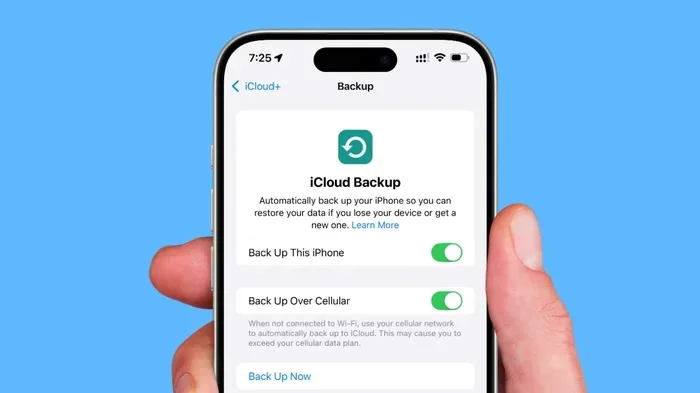
iCloud Keychain is Apple’s built-in password manager. It securely stores your Wi Fi passwords, website logins, and other credentials across all your Apple devices. When iCloud Keychain is enabled, your Mac and iPhone sync passwords automatically through Apple’s secure cloud servers.
How to Enable iCloud Keychain on Mac
To get iCloud Keychain working on your Mac, follow these steps:
- Open System Settings and click on your Apple ID at the top.
- Select iCloud from the sidebar.
- Find Keychain and toggle it on.
- Enter your Apple ID password to confirm.
How to Enable iCloud Keychain on iPhone
On your iPhone, the process is similar:
- Open Settings and tap your Apple ID at the top.
- Tap iCloud.
- Select Keychain and toggle it on.
- Choose Merge iCloud Keychain if prompted.
How This Helps You Share Wi Fi Passwords
Once iCloud Keychain is active on both devices, any Wi Fi password your Mac saves will automatically appear on your iPhone. You do not need to do anything manually. This is especially useful when you connect your Mac to a new network — your iPhone will often prompt you to join the same network with a single tap.
This method is perfect for people who want a set-it-and-forget-it solution. As long as both devices are signed into the same Apple ID and connected to the internet, your passwords stay in sync. It also means you never have to worry about forgetting a Wi Fi password again.
Expert Insight: iCloud Keychain uses end-to-end encryption, which means Apple cannot read your stored passwords. This makes it one of the safest ways to manage and sync credentials across devices. Always use a strong Apple ID password and enable two-factor authentication for maximum security.
Method 3: Scan a QR Code to Connect iPhone to Wi Fi
Did you know you can generate a QR code from your Mac that contains your Wi Fi network name and password? Your iPhone can scan this QR code and join the network instantly. This method is incredibly useful when you want to share a password with someone else or when you do not have AirDrop available.
How to Generate a Wi Fi QR Code on Mac
You will need a free QR code generator or a simple Terminal command to create the code. Here is the Terminal method:
- Open Terminal on your Mac.
- Type the following command, replacing the placeholders with your actual network details:
qrencode -t png "WIFI:T:WPA;S:YourNetworkName;P:YourPassword;;" -o wifi.png
- Press Enter, and a QR code image will be saved on your Desktop.
- Open the image and share it via AirDrop, email, or messages.
How to Scan the QR Code on iPhone
Scanning the QR code on your iPhone is just as easy:
- Open the Camera app on your iPhone.
- Point the camera at the QR code displayed on your Mac screen or printed copy.
- A notification will appear asking if you want to join the Wi Fi network.
- Tap Join, and your iPhone connects immediately.
This method works great for sharing passwords with guests or for setting up new devices quickly. It is also handy when you want to avoid typing passwords on a small screen.
Quick Tip: You can also use free online QR code generators if you prefer not to use Terminal. Just make sure to use a trusted site and avoid entering sensitive passwords on unfamiliar websites.
Method 4: Share Password Through Bluetooth Pairing
Another way to share your Wi Fi password from Mac to iPhone is through Bluetooth. This method works when both devices are already paired and within close range. While it is not as fast as AirDrop, it serves as a reliable backup option.
Steps to Share via Bluetooth
- Turn on Bluetooth on both your Mac and iPhone.
- On your Mac, go to System Settings > Bluetooth and make sure your iPhone appears in the device list.
- Click on your iPhone and confirm the pairing on both devices.
- On your Mac, navigate to System Settings > Wi Fi and locate the network you want to share.
- Click on the network name and select Copy Password.
- Use Bluetooth File Exchange or a shared note to send the password to your iPhone.
Once your iPhone receives the password, go to Settings > Wi Fi, select the network, and paste the credentials. This method is slightly more involved than AirDrop, but it works well when AirDrop is not available or when you prefer a wired-like connection.
Method 5: Use a Shared Note or Message
Sometimes the simplest method is the best. You can copy your Wi Fi password on your Mac and paste it into a shared note, email, or text message. Your iPhone will then have the password ready to use.
Here is how to do it quickly:
- On your Mac, go to System Settings > Wi Fi and click on your network.
- Click the Password field and select Copy.
- Open Notes or Messages on your Mac.
- Paste the password and send it to yourself via iMessage or iCloud Notes.
- On your iPhone, open the message or note and copy the password.
- Go to Settings > Wi Fi on your iPhone, select the network, and paste the password.
This method is straightforward and works even if AirDrop and Bluetooth are unavailable. The only downside is that you have to manually enter the password on your iPhone, which can be tedious for long, complex passwords.
Comparison of All Methods
With so many options available, it helps to compare them side by side. The table below breaks down each method by speed, ease of use, and best use case.
| Method | Speed | Ease of Use | Best For |
|---|---|---|---|
| AirDrop | Very Fast | Very Easy | Quick, everyday sharing |
| iCloud Keychain | Automatic | Easiest | Long-term password sync |
| QR Code | Fast | Easy | Sharing with guests |
| Bluetooth | Moderate | Moderate | Backup when AirDrop fails |
| Shared Note/Message | Moderate | Easy | Manual control over sharing |
For most users, AirDrop and iCloud Keychain will cover 95% of sharing needs. Use QR codes when you need to share with others, and fall back on Bluetooth or shared notes when the primary methods are not working.
Common Mistakes When Sharing Wi Fi Passwords
Even though sharing passwords between Apple devices is straightforward, people still run into issues. Here are the most common mistakes and how to avoid them.
1. Forgetting to Enable Bluetooth and Wi Fi
AirDrop and Bluetooth sharing both require these features to be turned on. If either one is disabled, the transfer will fail. Always check that both Bluetooth and Wi Fi are active on both devices before attempting to share.
2. Using Outdated Software
Older versions of macOS and iOS may not support the latest sharing features. Make sure both your Mac and iPhone are running the most recent software updates. Go to System Settings > General > Software Update on your Mac, and Settings > General > Software Update on your iPhone.
3. Ignoring Network Name Mismatches
Sometimes the network name on your Mac is slightly different from the one on your iPhone. This can happen if you have multiple networks with similar names. Always double-check the network name before accepting a shared password to avoid connecting to the wrong network.
4. Not Checking iCloud Keychain Settings
If iCloud Keychain is not enabled on both devices, passwords will not sync automatically. Take a moment to verify that Keychain is turned on in your Apple ID settings on both your Mac and iPhone.
5. Sharing Passwords in Unsecured Channels
Avoid sending Wi Fi passwords through unsecured email or public messaging apps. Use Apple’s built-in sharing tools like AirDrop, iMessage, or iCloud Notes, which offer better encryption and privacy protection.
Troubleshooting Tips When Sharing Fails
If you are having trouble sharing your Wi Fi password, do not worry. Most issues are easy to fix. Here are some troubleshooting steps to try:
- Restart both devices. A simple restart often resolves connection issues between Mac and iPhone.
- Check your Wi Fi connection. Make sure your Mac is currently connected to the network you are trying to share.
- Turn AirDrop off and back on. Toggle AirDrop off, wait a few seconds, and turn it back on.
- Sign out and back into iCloud. This can refresh your iCloud Keychain sync and fix any hanging password updates.
- Reset network settings on your iPhone. Go to Settings > General > Transfer or Reset iPhone > Reset > Reset Network Settings. Note that this will erase saved Wi Fi passwords on your iPhone.
- Check for interference. Other wireless devices, microwaves, and thick walls can weaken Bluetooth and Wi Fi signals, slowing down AirDrop transfers.
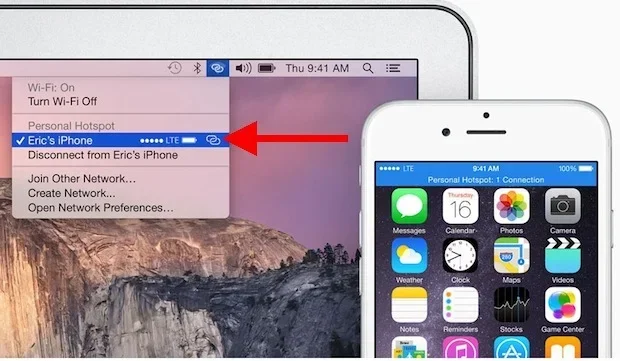
Expert Insight: If none of the above steps work, try creating a temporary personal hotspot from your Mac and connecting your iPhone to it. Once connected, you can use iCloud Keychain to sync the password properly. This workaround resolves most stubborn sharing issues.
Keeping Your Wi Fi Network Secure
Sharing passwords is convenient, but it also means you should be mindful of security. Every time you share your Wi Fi password, you are giving someone access to your network. Here are a few tips to keep your wireless network safe:
- Use WPA3 encryption if your router supports it. It is the most secure Wi Fi standard available today.
- Change your Wi Fi password regularly, especially after sharing it with guests.
- Create a guest network on your router so visitors can access the internet without reaching your main network.
- Monitor connected devices through your router’s admin panel to spot any unauthorized access.
- Never share your password publicly, such as on social media or in open group chats.
By following these practices, you can enjoy the convenience of password sharing without compromising your network security. A secure Wi Fi network protects all the devices connected to it, including your Mac, iPhone, iPad, and smart home gadgets.
Frequently Asked Questions
Can I share my Wi Fi password from Mac to iPhone without AirDrop?
Yes, absolutely. You can use iCloud Keychain to sync passwords automatically, scan a QR code, share through Bluetooth, or simply copy and paste the password into a shared note or message. AirDrop is the fastest method, but it is not the only option available.
Why can’t my iPhone find my Mac in AirDrop?
This usually happens when AirDrop is not enabled on one or both devices. Make sure Bluetooth and Wi Fi are turned on, and set AirDrop discovery to “Everyone” or “Contacts Only” on both your Mac and iPhone. Also, ensure both devices are within 30 feet of each other and that neither is in Airplane Mode.
Is iCloud Keychain safe for storing Wi Fi passwords?
Yes, iCloud Keychain uses end-to-end encryption, which means your passwords are protected and cannot be read by Apple or anyone else. It is one of the safest ways to store and sync credentials across your Apple devices. Just make sure your Apple ID password is strong and two-factor authentication is enabled.
Can I share a Wi Fi password from my Mac to an Android phone?
The methods described in this guide are designed for Apple devices. For Android phones, you can share a Wi Fi password using a QR code or by manually typing the password. Some Android phones also have a “Share” option in their Wi Fi settings that generates a QR code others can scan.
How do I know if my Wi Fi password was successfully shared to my iPhone?
If you used AirDrop, your iPhone will usually show a prompt asking if you want to join the network. If you used iCloud Keychain, check your iPhone’s Wi Fi settings — the network should appear with a “Join” button. If you used a QR code, your iPhone Camera app will display a notification to join the network when you scan it.
What should I do if my shared Wi Fi password does not work on my iPhone?
First, double-check that the network name matches exactly. Then, make sure you copied the full password correctly, including any special characters. If the issue persists, try forgetting the network on your iPhone and reconnecting using the shared password. Restarting both devices can also resolve temporary syncing issues.
Final Thoughts
Sharing your Wi Fi password from Mac to iPhone is one of those small things that makes the Apple ecosystem truly shine. Whether you use AirDrop for speed, iCloud Keychain for automatic syncing, or a QR code for sharing with others, each method is designed to be simple and effective.
The key is to choose the method that fits your situation best. For everyday use, AirDrop and iCloud Keychain are hard to beat. For sharing with guests, a QR code is your best friend. And for those times when technology does not cooperate, a shared note or message always gets the job done.
Now that you know all the methods, troubleshooting steps, and security tips, you can connect your devices with confidence. The next time someone asks you for your Wi Fi password or you need to get your iPhone online, you will know exactly what to do. Try these methods today and experience how easy Apple device sharing can be.