How Do I Scan My Wi Fi Password On Android Devices
Scanning your Wi-Fi password on Android is simple and saves you from the hassle of asking for the password every time you connect a new device. Whether you use a QR code, a built-in Android feature, or a third-party app, this guide walks you through every method in detail. You will learn how to scan WiFi password Android devices, share network credentials, and troubleshoot common issues like a pro.
Have you ever stood in front of a friend’s router, trying to type in a long, complicated WiFi password on your phone? It is frustrating, time-consuming, and honestly, a little embarrassing when you get it wrong for the third time. The good news is that scanning your Wi-Fi password on Android devices has become incredibly easy. You no longer need to squint at tiny printed letters or ask someone to repeat the password five times.
In this guide, we will walk you through every method available for scanning WiFi passwords on Android phones. From using built-in Android features to QR code sharing and third-party apps, you will find everything you need right here. By the end of this article, you will know exactly how to scan WiFi password Android devices like a seasoned tech pro. Let us dive in and make your WiFi life a whole lot simpler.
Key Takeaways
- QR Code Sharing: The easiest way to scan and share your Wi-Fi password using a QR code generated from your Android device.
- Built-In Android Features: Newer Android versions offer native WiFi sharing without needing extra apps.
- Third-Party Apps: Reliable WiFi QR scanner apps make scanning and viewing saved passwords a breeze.
- Network Security: Understanding your WiFi authentication type helps you troubleshoot connection issues.
- Common Mistakes: Avoid blurry QR codes, outdated apps, and incorrect network selections for smooth scanning.
- Cross-Device Sharing: You can share your WiFi password with friends and family using the scan method on any Android phone.
📑 Table of Contents
- Why Scanning Your Wi-Fi Password Is a Game-Changer
- Method 1: Using Android’s Built-In WiFi Sharing Feature
- Method 2: Using a WiFi QR Scanner App
- Method 3: Viewing Saved WiFi Passwords Directly on Android
- How WiFi QR Codes Work
- Quick Tips for Smooth WiFi Scanning
- Common Mistakes to Avoid When Scanning WiFi Passwords
- Expert Insights on WiFi Security and Scanning
- Comparison Table: WiFi Password Scanning Methods
- Conclusion
Why Scanning Your Wi-Fi Password Is a Game-Changer
Before we get into the how-to, let us talk about why this skill matters so much. In today’s connected world, we use WiFi everywhere — at home, at work, at coffee shops, and at friends’ houses. Every time you get a new phone, a tablet, a smart TV, or a gaming console, you need to enter that password. Typing it out manually is not just annoying; it is also a security risk. The more you type your password on different screens, the more chances there are for someone to peek over your shoulder.
Scanning a WiFi QR code eliminates all of that. One scan, and your device connects instantly. No typing. No errors. No frustration. Plus, sharing your home network with guests becomes as simple as showing them a code on your screen. Here are some of the biggest benefits of mastering this skill:
- Instant connections: Connect new devices in seconds without typing a single character.
- Error-free setup: QR codes remove typos and wrong capitalization issues completely.
- Easy guest sharing: Share your network with visitors without revealing the actual password.
- Time savings: Save minutes every time you set up a new device or help someone connect.
- Better security: Reduce the number of times you expose your password on screens or paper.
Now that you understand the value, let us explore the different ways you can scan your Wi-Fi password on Android devices.
Method 1: Using Android’s Built-In WiFi Sharing Feature
How It Works on Modern Android Phones
If you have a relatively recent Android phone, you might already have a built-in feature for sharing and scanning WiFi passwords. Google has been rolling out native WiFi sharing options across Android 10 and later versions. This means you do not need to download anything extra to get started.
Here is how you can use the built-in sharing feature to scan WiFi password Android setups:
- Open the Settings app on your Android device.
- Tap on Network & Internet or Connections, depending on your phone model.
- Select WiFi from the menu.
- Find the network you are currently connected to and tap on it.
- Look for a Share or QR Code button. It usually looks like a small square with lines inside.
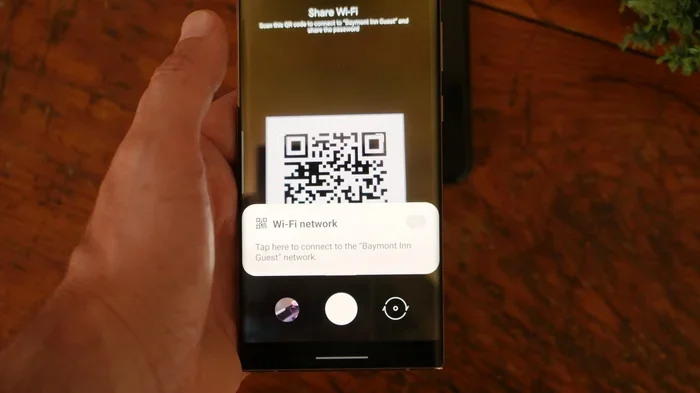
- Your phone will generate a QR code. Another Android device can scan this code using its built-in camera or a QR scanner app.
- Once scanned, the second device connects automatically without anyone typing the password.
This method works beautifully for sharing your home network with family members or friends. The QR code contains the network name and password, so the receiving device gets everything it needs in one scan. However, this built-in method only works for sharing, not for retrieving a password you have forgotten. If you need to view a saved password, you will need a different approach.
Limitations of the Built-In Method
While the built-in feature is convenient, it does have some limitations. Not all Android phones display the share button for every network. Some manufacturers like Samsung, Xiaomi, and OnePlus may place the sharing option in slightly different menu paths. Also, the QR code generated this way typically cannot be used to retrieve a forgotten password — it only serves as a sharing tool. If you need to view or recover a saved WiFi network password, you will want to try the next methods.
Method 2: Using a WiFi QR Scanner App
Best Apps for Scanning WiFi Passwords
If the built-in option does not give you what you need, third-party apps are your next best bet. There are many WiFi QR scanner apps available on the Google Play Store that let you view saved passwords, scan QR codes, and even generate new sharing codes. Here are some of the most reliable options:
- QR & Barcode Scanner: A lightweight, ad-free scanner that handles WiFi QR codes effortlessly.
- WiFi Key Share: Specifically designed for sharing and viewing WiFi credentials across devices.
- NetGuard: A firewall app that also displays detailed network information including saved passwords.
- WiFi Analyzer: Great for viewing network details and troubleshooting connection issues.
- QR Code Reader by Scan: A popular, trusted scanner that reads WiFi QR codes quickly and accurately.
When choosing an app, look for one with good reviews, minimal permissions, and no suspicious data collection practices. You do not want to install an app that compromises your network security just to scan a QR code. Stick with well-known developers and always check the app permissions before installing.
Step-by-Step: Scanning a WiFi QR Code
Once you have installed a reliable QR scanner app, here is how you use it to scan WiFi password Android networks:
- Open the QR scanner app on your Android device.
- Point your camera at the WiFi QR code. This could be on a router label, a printed card, or a screen-sharing QR code from another phone.
- The app will automatically detect the QR code and display the network name and password.
- Tap the Connect button if the app offers one, or manually select the network and enter the displayed password.
- Your device should now connect to the WiFi network without any further input.
Some apps also let you save QR codes for future use, which is handy if you frequently connect the same devices. You can also use these apps to generate your own WiFi QR code to share with guests. Simply enter your network name and password, and the app creates a scannable code that others can use to connect.
Method 3: Viewing Saved WiFi Passwords Directly on Android
Accessing Passwords Through Android Settings
Did you know that your Android phone stores all the WiFi networks you have ever connected to? That means your WiFi router password is saved right on your device. The challenge is accessing it, because Android hides passwords behind a security layer. Here is how you can view saved passwords on most Android phones:
- Go to Settings and select Network & Internet or Connections.
- Tap on WiFi and find the network you are connected to or have connected to before.
- Tap on the network name or the gear icon next to it.
- Look for a Share button or a Forget option. On some phones, tapping Share will show a QR code that includes the password.
- If your phone asks for authentication, you may need to use your fingerprint, PIN, or face unlock to reveal the password.
On Samsung devices, the process is slightly different. You can go to Settings > Connections > WiFi > Select Network > Share, and the QR code generated will contain the password. Another Samsung-specific option is to check the WiFi settings and look for a Manage known networks section where you can view details of previously connected networks.
Using ADB to Retrieve WiFi Passwords (Advanced)
For more technically inclined users, Android Debug Bridge (ADB) offers a powerful way to retrieve all saved WiFi passwords from your device. This method requires a computer and a USB cable. Here is a quick overview:
- Enable Developer Options on your Android phone by tapping Build Number seven times in Settings > About Phone.
- Enable USB Debugging in Developer Options.
- Connect your phone to a computer via USB.
- Open a command prompt or terminal and type adb shell followed by cat /data/misc/wifi/WifiConfigStore.xml.
- Search through the output for your network name and look for the networkSecurityKey field, which contains your WiFi password.
This method is powerful but should be used carefully. It gives you access to sensitive network data, so make sure you trust the computer you are using and do not share the output publicly. For most everyday users, the Settings method or a QR scanner app is more than enough.
How WiFi QR Codes Work
The Science Behind WiFi QR Codes
WiFi QR codes are not magic — they follow a simple, standardized format. When you scan a WiFi QR code, the scanner reads a specific data string that contains your network name (SSID), encryption type, and password. The format looks something like this:
WIFI:T:WPA;S:YourNetworkName;P:YourPassword;;
Let us break that down:
- T: The encryption type — WPA, WPA2, WEP, or none.
- S: The SSID or network name.
- P: The password for the network.
- ;; The double semicolon marks the end of the data string.
Understanding this format helps you troubleshoot when a scan does not work. If your QR code is not connecting, check that the encryption type matches your router settings. Most modern routers use WPA2 or WPA3, and the QR code must reflect this correctly. If someone generates a QR code with the wrong encryption type, the scanning device will fail to connect even if the password is correct.
Creating Your Own WiFi QR Code
You can also create your own WiFi QR code to share with others. Many free websites and apps let you enter your network name and password, and they generate a scannable QR code instantly. Here are some popular options:
- qifi.org: A simple, no-login website that generates WiFi QR codes in seconds.
- QR Code Generator: A versatile tool that supports WiFi codes and many other data types.
- WiFi QR Code Generator apps: Available on the Play Store, these apps let you create, save, and share codes directly from your phone.
When creating a QR code for your network, make sure you use the correct encryption type. If you select WEP when your router actually uses WPA2, the code will not work. Double-check your router settings before generating the code. Also, remember that anyone who scans the code gets your password, so only share it with people you trust.
Quick Tips for Smooth WiFi Scanning
Scanning WiFi passwords should be a seamless experience, but sometimes things go wrong. Here are some quick tips to keep in mind:
- Clean your camera lens: A smudgy camera lens can make QR codes unreadable. Wipe it with a soft cloth before scanning.
- Hold steady: Keep your phone steady and at the right distance from the QR code. Too close or too far can cause scanning failures.
- Check lighting: Bright, even lighting helps your camera read QR codes more accurately. Avoid glare on the code surface.
- Update your scanner app: Outdated scanner apps may not support newer QR code formats or encryption types.
- Restart if needed: If scanning fails repeatedly, restart your phone and try again. This fixes most minor software glitches.
- Use the default camera app: On most modern Android phones, the default camera app can scan WiFi QR codes without any extra app. Just point and look for a notification prompt.
Common Mistakes to Avoid When Scanning WiFi Passwords
Even though scanning WiFi passwords is straightforward, people make avoidable mistakes that cause frustration. Here are the most common ones:
- Using a low-quality QR code: Blurry, faded, or poorly printed QR codes often fail to scan. Always use a clear, high-contrast code.
- Ignoring the encryption type: If the QR code specifies WEP but your network uses WPA2, the scan will not connect. Always verify the encryption type matches your router.
- Granting unnecessary permissions: Some sketchy QR scanner apps ask for permissions they do not need. Only grant camera and storage permissions to trusted apps.
- Not updating Android: Older Android versions may lack built-in WiFi sharing features. Keep your phone updated for the best experience.
- Confusing network names: If you have multiple networks with similar names, make sure you are scanning the correct QR code for the right network.
Avoiding these simple mistakes will save you time and ensure that every scan WiFi password Android attempt goes smoothly. Take a moment to verify each step, and you will rarely run into issues.
Expert Insights on WiFi Security and Scanning
According to cybersecurity experts, the way you share and store your WiFi password matters just as much as how you scan it. Every time you generate a QR code for your network, you are essentially sharing your network security key with the world — at least digitally. Here are some expert recommendations:
- Change your password regularly: If you frequently generate and share QR codes, consider updating your WiFi password every few months.
- Use WPA3 encryption: If your router supports it, WPA3 is the most secure WiFi standard available today. It protects against brute-force attacks and eavesdropping.
- Create a guest network: Instead of sharing your main network password, set up a separate guest network. This keeps your primary devices and data safe.
- Monitor connected devices: Use your router’s admin panel or a WiFi analyzer app to check which devices are connected. If you see unfamiliar devices, change your password immediately.
- Delete old QR codes: If you have shared a QR code with someone and no longer want them to have access, delete the code or change your password.
These expert tips add an extra layer of protection to your home network while still making it easy to connect new devices. Scanning WiFi passwords on Android does not have to come at the cost of security — you just need to be mindful of how and with whom you share your credentials.
Comparison Table: WiFi Password Scanning Methods
| Method | Best For | Requires App? | Can Retrieve Password? | Ease of Use |
|---|---|---|---|---|
| Built-In Android Sharing | Sharing with friends and family | No | Limited | Very Easy |
| QR Scanner Apps | Scanning and generating QR codes | Yes | Yes | Easy |
| Android Settings | Viewing saved passwords | No | Yes (with auth) | Moderate |
| ADB Method | Advanced users and troubleshooting | Yes (ADB setup) | Yes | Difficult |
| WiFi Analyzer Apps | Network troubleshooting and details | Yes | Yes | Easy |
Each method has its strengths. For most users, the built-in sharing feature and a reliable QR scanner app will cover 95% of use cases. The ADB method is powerful but best reserved for troubleshooting or advanced scenarios. Choose the method that fits your comfort level and needs.
Conclusion
Scanning your WiFi password on Android devices is one of those small skills that makes a huge difference in your daily digital life. Whether you use the built-in sharing feature, a QR scanner app, or the ADB method, you now have multiple reliable ways to connect, share, and manage your WiFi networks. No more typing long passwords on tiny screens. No more asking neighbors for their network details. No more connection errors caused by typos.
The key is to choose the method that works best for your situation. For quick sharing, use the built-in QR code feature. For viewing saved passwords, try the Settings menu or a trusted scanner app. For advanced troubleshooting, explore the ADB option. And always keep your network security in mind when sharing credentials with others.
Now that you know how to scan WiFi password Android devices with confidence, go ahead and try it out. Connect that new smart TV, share your network with a visiting friend, or simply set up a guest QR code for your home. Once you start using these methods, you will wonder how you ever managed without them. Happy scanning!
Frequently Asked Questions
Can I scan a WiFi password QR code on any Android phone?
Yes, most Android phones running Android 8 or later can scan WiFi QR codes. You can use your default camera app or download a free QR scanner from the Google Play Store. The process is the same across all major brands including Samsung, Google Pixel, Xiaomi, and OnePlus.
Is it safe to generate a WiFi QR code for my home network?
It is safe as long as you only share the QR code with people you trust. Anyone who scans the code gets your network name and password. To stay extra safe, consider setting up a separate guest network on your router and generating the QR code for that network instead of your main one.
Why does my QR code scanner not read the WiFi code?
This usually happens when the QR code is blurry, too small, or printed with low contrast. Make sure your camera lens is clean and that you are holding your phone at the right distance. Also, check that the encryption type in the QR code matches your router settings. If the problem persists, try a different QR scanner app.
Can I view my saved WiFi password without rooting my Android device?
Yes, you can view saved WiFi passwords without rooting. On most Android phones, you can use the built-in Share feature to generate a QR code that includes the password. Some third-party apps also display saved passwords after you authenticate with your PIN, fingerprint, or face unlock. Full password visibility typically requires root access, but the QR code method works without it.
What is the difference between WPA, WPA2, and WPA3 WiFi encryption?
WPA is the oldest and least secure standard. WPA2 is the most widely used and offers solid protection for most homes. WPA3 is the newest and most secure standard, offering better protection against brute-force attacks. When scanning a WiFi QR code, make sure the encryption type listed matches what your router uses, or the connection will fail.
How do I share my WiFi password with an iPhone user?
If the iPhone user has an Android QR code scanner app, they can scan the same QR code you generate from your Android device. The iPhone will read the network name and password from the code and prompt the user to connect. Alternatively, you can share the password verbally or through Apple’s AirDrop if both users have Apple devices.
=== CONCLUSION ===
Scanning your Wi-Fi password on Android is a simple yet powerful skill that saves time, reduces errors, and makes connecting new devices effortless. From built-in Android sharing features to QR scanner apps and advanced ADB methods, you now have a complete toolkit for managing your WiFi networks like a pro. Remember to keep your network security strong by using WPA2 or WPA3 encryption, creating guest networks, and being mindful of who you share your QR codes with. Apply the tips and methods from this guide, and you will never struggle with WiFi passwords again.