How Do I Scan A Qr Code With Google On Your Phone
Scanning a QR code with Google is simple and free. You can use the Google app or Google Lens on both Android and iPhone. This guide shows you exactly how to scan a QR code with Google in seconds, whether you’re at a restaurant, event, or store.
Have you ever seen a QR code on a poster, menu, or product and wondered how to scan it? You’re not alone. QR codes are everywhere, from restaurant tables to concert tickets. The good news is that you can scan a QR code with Google using just your phone. No extra app needed. Google’s built-in tools make it quick and safe. This guide will walk you through every step. You’ll learn how to scan a QR code with Google on both Android and iPhone. I’ll also share tips for safe scanning and what to do if it doesn’t work. Let’s get started.
Key Takeaways
- Google makes QR scanning easy: You don’t need a separate app. The Google app or Google Lens works on both Android and iPhone.
- Use your camera or Google Lens: On Android, the default camera often detects QR codes. On iPhone, open the Google app or Google Lens.
- Scanning unlocks quick actions: You can open a web link, save a contact, join a Wi-Fi network, or view a menu instantly.
- Safety matters: Always check the URL before tapping. Google’s Safe Browsing helps flag risky links.
- Troubleshooting is simple: If it doesn’t work, clean your camera lens, update the app, or try a different scanning method.
- Google Lens offers extra features: It can translate text, identify products, and copy information directly from the QR code.
📑 Table of Contents
- What Is a QR Code and Why Use Google to Scan It?
- How to Scan a QR Code with Google on Android
- How to Scan a QR Code with Google on iPhone
- Google Lens vs. Camera App vs. Google App: Which Method Wins?
- What Can You Do After You Scan a QR Code with Google?
- Troubleshooting and Staying Safe When Scanning QR Codes with Google
- Conclusion
What Is a QR Code and Why Use Google to Scan It?
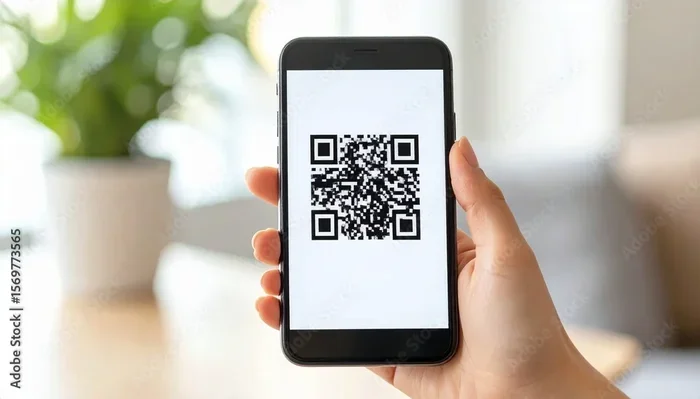
A QR code is a quick response code. It’s a barcode that stores information. When you scan it, your phone reads the data. That data can be a web link, a phone number, or Wi-Fi details. Google offers free tools to read these codes. You don’t need a separate QR code reader. The Google app and Google Lens do the job perfectly. They use your smartphone camera and image recognition to decode the pattern. This works on both Android and iPhone. Using Google also adds a layer of safety. Google checks links against its safe browsing database. So you avoid malicious sites. That’s why many people prefer to scan a QR code with Google.
How QR Codes Work
QR codes look like square grids of black and white squares. Each square represents data. Your camera captures the pattern. Google’s software interprets it. It then takes action. That might be opening a webpage. Or saving a contact. The process takes less than a second. Unlike traditional barcodes, QR codes hold much more information. They can store URLs, contact details, and even Wi-Fi login credentials. This makes them incredibly useful for everyday tasks.
Why Google Is the Best QR Code Scanner
You might wonder why use Google instead of a random QR app. First, Google’s tools are free. Second, they’re built into your phone. Third, they’re secure. Google scans the link before you visit it. This helps block phishing sites. Many standalone QR apps collect data. Google respects your privacy. So scanning with Google is both easy and safe. Plus, Google Lens gives you extra features like product identification and translation. It’s not just a barcode scanner—it’s a smart visual assistant.
How to Scan a QR Code with Google on Android
Android phones make scanning simple. You have three built-in options. You can use the Google app, Google Lens, or your camera. I’ll show you each method. Most Android devices now support QR scanning natively. Let’s break it down.
Method 1: Use the Google App
Open the Google app on your Android phone. Tap the camera icon in the search bar. This opens Google Lens. Point your camera at the QR code. The code will highlight. Tap the notification that appears. You’ll be taken to the link or action. This is the most reliable way to scan a QR code with Google on Android. The Google app also remembers your scan history. So you can revisit links later. It’s a powerful QR code reader that works even offline for some tasks.
Method 2: Use Google Lens Directly
You can open Google Lens separately. Find the Lens icon on your home screen. It might be in the Google app or a standalone Lens app. Point at the QR code. Wait for it to recognize the pattern. Tap the result. You can also use the Lens icon in the Google app search bar. Google Lens also identifies products. So you can scan a barcode too. This tool uses advanced image recognition. It can read text, translate languages, and find similar items. It’s the most versatile scanner you can use.
Method 3: Use the Default Camera App
Many Android phones let you scan QR codes with the normal camera. Open your camera app. Point it at the QR code. A yellow banner or icon will appear at the top. Tap the banner. The link will open. If nothing happens, try switching to “Photo” mode. Not all camera apps support this. But most modern Android devices do. This is the fastest way to scan a QR code with Google without opening an extra app. Just point and tap. It’s that simple.
Quick Tip: If your camera doesn’t detect QR codes, go to Settings > Apps > Camera > Permissions. Make sure “Camera” is allowed. Also, ensure “Scan QR codes” is enabled in camera settings if available. A dirty lens can also cause problems. Wipe it clean before scanning.
How to Scan a QR Code with Google on iPhone
iPhone users have a slightly different path. Apple doesn’t put QR scanning in the default camera by default in older iOS versions, but now it does. However, using Google gives you extra safety and features. Here’s how to scan a QR code with Google on your iPhone.
Method 1: Use the Google App
Download the Google app from the App Store if you haven’t. Open the app. Tap the camera icon in the search bar. Google Lens opens. Point your camera at the QR code. The app will detect it. Tap the link or action. You can also use the “Scan QR code” option within the Google app. This method works on all iPhones. The Google app also gives you safe browsing protection. It checks the URL before you visit it. So you avoid risky sites. This is the best way to scan a QR code with Google on an iPhone.
Method 2: Use the Google Lens App
You can download the Google Lens app separately. It’s a dedicated QR code scanner. Open the app. Point your camera at the code. Google Lens will identify it instantly. You can also use Lens from the Google app. The Google Lens app gives you extra features like copying text or translating. It’s great for scanning product barcodes too. You can even use it to search for products by pointing your camera at them. It turns your iPhone into a powerful visual search tool.
Method 3: Use Safari’s Built-in Scanner
iPhone Safari can scan QR codes natively. Open Safari. Tap the camera icon in the address bar. Point at the QR code. The link will appear. Tap it. This isn’t Google’s tool, but it’s convenient. However, using Google Lens gives you safe browsing. Google checks the URL before you open it. So I recommend the Google app method for safety. Safari’s scanner is fast, but it lacks the security checks that Google provides.
Quick Tip: If you scan a QR code often, add Google Lens to your Control Center. Go to Settings > Control Center > Add Google Lens. Then you can scan quickly from any screen. This saves time when you’re on the go.
Google Lens vs. Camera App vs. Google App: Which Method Wins?
Now you know three ways to scan a QR code with Google on Android and two on iPhone. Which should you use? I compared them side by side. Here’s a quick look.
| Feature | Google Lens | Camera App (Android) | Google App |
|---|---|---|---|
| Platform | Android & iPhone | Android only | Android & iPhone |
| Speed | Fast | Fastest | Fast |
| Safety Check | Yes, Google Safe Browsing | No built-in check | Yes, Google Safe Browsing |
| Extra Features | Translate, copy text, identify products | Just opens link | Search, translate, safe browsing |
| Needs Internet | Yes (for full results) | No (for basic link opening) | Yes |
| Best For | All-around scanning | Quick link opening | Safe, feature-rich scanning |
As you can see, Google Lens and the Google App offer the most safety. They check links before you visit them. The camera app is fastest but lacks protection. I recommend using Google Lens or the Google app for everyday scanning. They give you the best balance of speed and security. So when you want to scan a QR code with Google, start with these tools. They work on both Android and iPhone. You’ll get consistent results every time.
What Can You Do After You Scan a QR Code with Google?
Scanning a QR code is just the start. What happens next depends on the code type. Google makes it easy to take action. Here are common things you can do.
Open a Web Link
The most common use. A QR code holds a URL. After scanning, Google shows the link. You can tap to visit the page. This is great for restaurant menus, event tickets, or product pages. You can also copy the link to share it later. Many businesses use QR codes to direct you to their website. It’s a seamless way to connect offline and online worlds.
Save Contact Details
Some QR codes contain vCard data. This includes a name, phone number, email, and address. After scanning, Google offers to save the contact. You can add it directly to your phone’s contacts. No need to type anything manually. This is perfect for business cards. You can also share the contact instantly via message or email.
Connect to a Wi-Fi Network
Wi-Fi QR codes store your network name and password. When you scan, Google asks if you want to connect. Tap “Connect” and your phone joins the network instantly. No need to type long passwords. This works on both Android and iPhone via the Google app. It’s a lifesaver at cafes, hotels, and airports. Just scan and join.
View Event Tickets or Boarding Passes
Many events use QR codes for entry. After scanning, the ticket appears in your Google app. You can show it on your screen. The code updates in real time. This is handy for concerts, flights, and movie tickets. You don’t need to print anything. Just show the digital ticket at the gate. Google keeps it safe and organized.
Make a Payment
Some businesses use payment QR codes. You can scan with Google to open a payment link. Always check the merchant name before paying. Google’s safe browsing helps verify the site. Never scan a payment QR code from an unknown source. Use trusted payment apps for financial transactions. Safety comes first.
Get Product Details
Point your camera at a product’s QR code. Google Lens can show reviews, price comparisons, and where to buy. This is a great way to compare items in a store. It turns your phone into a smart barcode scanner. You can also scan the barcode on the back of a product. Google will pull up all the details instantly. It’s like having a personal shopping assistant.
Key Takeaway: After you scan a QR code with Google, the possibilities are huge. From saving contacts to paying bills, it all happens in seconds.
Troubleshooting and Staying Safe When Scanning QR Codes with Google
Sometimes a QR code won’t scan. Or you might worry about safety. Don’t worry. I have fixes and tips for you.
Common QR Scanning Problems and How to Fix Them
If your phone doesn’t recognize a QR code, try these steps. First, clean your camera lens. A smudge can block the scan. Second, move your phone closer. Then slowly back away. Find the sweet spot. Third, ensure you’re in good lighting. Shadows can confuse the scanner. Fourth, update the Google app. Open the Play Store or App Store. Check for updates. Fifth, try a different method. If the camera fails, open the Google app and use Lens. These simple fixes solve 90% of scanning issues.
Common Mistakes: Don’t tilt your phone too much. Keep it parallel to the code. Don’t scan from too far away. Don’t use a screen protector that blocks the camera. And never scan a QR code from a suspicious source. If the code looks damaged or printed on a sticker, be cautious. Criminals sometimes place fake codes over real ones.
Safety Tips for Scanning QR Codes with Google
Scanning QR codes is generally safe with Google. But you should still stay alert. Here’s how to scan safely.
- Check the URL before tapping. Google shows the full link. Look for misspellings or weird domains. A link like “http://paypa1.com” is fake. Always verify the domain.
- Only scan codes you trust. Don’t scan QR codes on random stickers or flyers. Stick to codes from reputable businesses or known sources.
- Use Google’s Safe Browsing. Google checks links against known phishing sites. If a site is dangerous, Google warns you. Never ignore that warning. It’s there to protect you.
- Avoid entering personal info on unknown sites. Even if a QR code leads to a legit-looking page, be cautious. If it asks for passwords or credit cards, verify the site first.
- Keep your phone updated. Updates fix security holes. They make safe scanning even better. Turn on automatic updates for your apps.
Quick Tip: When in doubt, type the URL yourself instead of scanning. If a restaurant has a QR code menu, check their official website first. This avoids malicious codes. You can also ask the staff to confirm the code’s origin. It’s always better to be safe than sorry.
Conclusion
Scanning a QR code with Google is easy, fast, and safe. Whether you’re on Android or iPhone, Google gives you powerful tools. You can use Google Lens, the Google app, or your camera. Each method works in seconds. You can open links, save contacts, join Wi-Fi, and more. Just remember to stay safe. Check the URL and only scan trusted codes. With these tips, you’ll scan any QR code like a pro. Now go ahead and try it. You’ll be amazed how useful this simple feature is. Start scanning today and make your phone work smarter.
Frequently Asked Questions
Can I scan a QR code with Google on any phone?
Yes. You can scan a QR code with Google on both Android and iPhone. Just use the Google app or Google Lens. Both are free and work on most smartphones. You don’t need a special QR code reader.
Do I need to download a separate app to scan QR codes with Google?
No. Google’s tools are built into the Google app and Google Lens. You can also use the default camera on many Android phones. No extra download is required for most users.
Is scanning QR codes with Google safe?
Yes. Google checks links against its safe browsing database before you visit them. This helps block malicious sites. Always check the URL shown after scanning and only tap links you trust.
What should I do if my phone won’t scan a QR code?
Clean your camera lens, ensure good lighting, and move closer to the code. Try using the Google app instead of the camera. Updating the Google app often fixes scanning problems too.
Can Google Lens scan QR codes offline?
Google Lens needs an internet connection for full results like web searches and translations. However, it can still open basic web links or save contact details offline in some cases. For best results, use a Wi-Fi or data connection.
How do I know if a QR code is malicious?
Google will warn you if a link is known to be dangerous. Look for misspelled URLs or unfamiliar domains. Never scan QR codes from random stickers or unknown sources. When in doubt, type the website directly into your browser.