Can I Turn Off Wi Fi On My Router Without Losing Connection
Yes, you can turn off Wi-Fi on your router without losing your internet connection. By accessing your router admin panel and disabling the wireless radio, you keep your wired devices online while cutting wireless signals. This simple trick helps save energy, boost network security, and improve sleep quality for your household.
Have you ever wondered whether turning off Wi-Fi on your router means losing your internet connection entirely? It is a question many homeowners ask, especially when they want to save energy or improve security at night. The good news is that disabling the wireless signal on your router does not have to mean going dark on all your devices.
When you understand how your wireless router works, the solution becomes clear. Your router handles two separate functions. It connects to your modem through a wired line, and it broadcasts a wireless signal to your devices. These two functions operate independently. You can shut down one without touching the other. This guide walks you through everything you need to know about managing your wireless router settings safely and effectively.
Whether you want to turn off Wi-Fi at night, boost your network security, or simply reduce unnecessary radiation in your home, this article has you covered. We will explore every method, every setting, and every pitfall you might encounter along the way. Let us dive in and take control of your home network.
Key Takeaways
- You can disable Wi-Fi independently: Turning off the wireless radio does not affect your wired internet connection or modem.
- Access is simple: Most routers let you manage Wi-Fi settings through a web browser or mobile app.
- Multiple benefits exist: Disabling Wi-Fi saves energy, enhances security, and reduces household radiation exposure.
- Smart home devices may be affected: Some IoT devices rely on wireless signals, so plan accordingly before turning Wi-Fi off.
- Scheduling is available: Many modern routers offer a Wi-Fi schedule feature to automate on/off times.
- Common mistakes happen: Disabling the wrong setting can kill your entire internet connection, not just the wireless signal.
- Dual-band routers need special attention: You can turn off one band while keeping the other active for flexibility.
📑 Table of Contents
- What Happens When You Turn Off Wi-Fi on Your Router?
- How to Turn Off Wi-Fi Without Losing Your Internet Connection
- Why Would You Want to Disable Wi-Fi on Your Router?
- Router Settings That Help You Manage Wi-Fi Effectively
- Common Mistakes When Disabling Wi-Fi on Your Router
- Expert Tips for Better Router Management
- Final Thoughts
What Happens When You Turn Off Wi-Fi on Your Router?
Before you make any changes, it helps to understand exactly what happens when you disable Wi-Fi on your router. Many people assume turning off wireless means losing internet altogether. That is not the case. When you disable the Wi-Fi signal, you are only switching off the radio that broadcasts the wireless network name, also known as the SSID. Your router continues to receive data from your modem through the ethernet cable. Wired devices stay connected and functional.
How Your Router Handles Wireless and Wired Connections
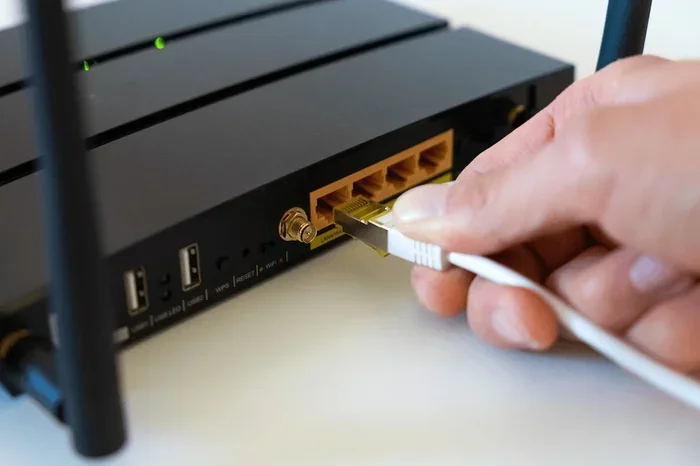
Think of your router as a traffic controller. It has multiple lanes. One lane brings data in from your internet service provider through a wired connection. The other lanes send data out to your devices wirelessly. When you close one lane, the others stay open. Your connected devices that use ethernet cables will not notice any change. Laptops, desktop computers, gaming consoles, and smart TVs plugged in directly will continue to work perfectly.
However, devices that rely on wireless signals will lose their connection. Phones, tablets, wireless printers, and smart home devices that use Wi-Fi will no longer be able to connect. This is the key distinction many people miss. Turning off Wi-Fi does not mean turning off the internet. It only means turning off the wireless broadcast.
Will Your Modem Still Work?
Yes, your modem keeps working exactly as before. The modem connects directly to your internet service provider. It does not care whether your router broadcasts wireless signals or not. The modem and router are two separate devices, even though many people combine them into a single unit. Understanding this modem vs router difference is essential for managing your home network effectively.
Quick Tip: If you have a combined modem-router unit from your internet provider, you can still disable the wireless portion. Look for a wireless settings or radio toggle option in the admin panel. The wired connection will remain fully active.
How to Turn Off Wi-Fi Without Losing Your Internet Connection
Now that you understand what happens when you turn off Wi-Fi, let us look at the actual steps. The process is straightforward and works for most router brands. You will need to access your router admin panel to make these changes.
Step-by-Step Guide to Disabling Wi-Fi
Follow these steps to safely turn off your wireless signal while keeping your wired connection alive:
- Connect to your router: Use a wired ethernet connection or connect to the existing Wi-Fi network. A wired connection is safer because you will not lose access mid-process.
- Open a web browser: Type your router’s IP address into the address bar. Common addresses include 192.168.1.1 or 192.168.0.1. Check your router’s manual if these do not work.
- Log in: Enter your admin username and password. Default credentials are often printed on a sticker on the back of your router. Change these later for better network security.
- Find wireless settings: Look for a tab labeled “Wireless,” “Wi-Fi Settings,” or “Radio Settings.” The exact name varies by brand.
- Disable the wireless radio: Find the option to turn off the wireless broadcast. This might be called “Disable Radio,” “Turn Off Wi-Fi,” or “SSID Broadcast Off.”
- Save your changes: Click apply or save. Your router may restart briefly. After it comes back online, the wireless signal will be off.
Using Your Router’s Mobile App
Many modern routers come with companion apps that make this process even easier. Brands like Netgear, TP-Link, ASUS, and Linksys all offer mobile apps. Simply open the app, navigate to wireless settings, and toggle Wi-Fi off. The wired connection stays active. This method is especially helpful if you want to manage your wireless access point settings from your couch.
Quick Tip: Before making any changes, write down your current settings. Take a screenshot or jot down the values. This way, you can easily restore them if something goes wrong.
Can You Do This Through a Power Switch?
Some routers have a physical wireless on/off button or switch on the back or side. If your router has one, simply flip it to turn off the wireless signal. This is the fastest method, but not all routers include this feature. Check your model’s manual or look for a button labeled “Wi-Fi” or “Wireless.”
Why Would You Want to Disable Wi-Fi on Your Router?
There are many valid reasons to turn off your router’s wireless signal. Understanding these reasons can help you decide if this is the right move for your household. Let us explore the most common motivations.
Saving Energy and Reducing Radiation
Your router constantly broadcasts a wireless signal, even when no one is using it. This uses electricity 24 hours a day. Over time, the energy consumption adds up. Turning off Wi-Fi at night or when you are not home can reduce your electricity bill slightly. Some people also choose to disable wireless signals for radiation reduction concerns. While scientific evidence on harmful effects remains debated, many families prefer to minimize exposure, especially in bedrooms.
Enhancing Network Security
Every active Wi-Fi signal is a potential entry point for unauthorized users. Hackers can exploit weak Wi-Fi passwords or outdated router firmware to gain access to your network. By turning off Wi-Fi when you do not need it, you reduce your attack surface. This is especially important if you live in a densely populated area with many neighboring networks.
Expert Insight: Security professionals recommend turning off your wireless signal during extended periods of non-use, such as overnight or when you are away from home for the day. Combine this with a strong Wi-Fi password and regular firmware updates for maximum protection.
Improving Sleep Quality
Many people believe that electromagnetic fields from wireless routers can interfere with sleep quality. While research is ongoing, some studies suggest that reducing exposure to wireless signals in the bedroom may improve sleep. Turning off Wi-Fi at bedtime is a simple way to create a quieter, less stimulating environment. Your wired devices, like an alarm clock or a desktop computer, will keep working without any interruption.
Managing Screen Time for Kids
Parents often struggle to limit their children’s screen time. Turning off the Wi-Fi at certain hours is an effective way to enforce boundaries. Without a wireless signal, kids cannot connect their phones, tablets, or gaming consoles to the internet. This method works better than simply asking them to put devices away. It removes the temptation entirely and creates a natural cutoff point for evening screen use.
Boosting Internet Speed for Wired Devices
When many devices connect to your router wirelessly, they share the available bandwidth. This can slow down your internet speed for devices that need it most. By turning off Wi-Fi and using ethernet connections for critical devices, you free up bandwidth and reduce interference. This is especially helpful for online gaming, video conferencing, and streaming 4K content.
| Reason | Benefit | Best For |
|---|---|---|
| Energy Saving | Reduces electricity usage | Eco-conscious households |
| Security | Reduces attack surface | Privacy-focused users |
| Sleep Quality | Minimizes EMF exposure at night | Light sleepers |
| Screen Time Control | Enforces device-free hours | Families with children |
| Speed Boost | Frees bandwidth for wired devices | Gamers and streamers |
Router Settings That Help You Manage Wi-Fi Effectively
Modern routers come packed with features that give you fine-grained control over your wireless network. Understanding these settings helps you manage your wireless router settings like a pro. Let us explore the most useful options available.
Accessing Your Router Admin Panel
To access your router admin panel, open a web browser and type your router’s IP address into the address bar. Most routers use 192.168.1.1 or 192.168.0.1 as their default gateway. If these do not work, you can find the correct address by checking your computer’s network settings or looking at the sticker on your router.
Once logged in, look for sections labeled “Wireless,” “Wi-Fi,” “Network,” or “Advanced Settings.” Each router brand organizes its settings differently, but the basic options are similar across the board. Spend a few minutes exploring the interface so you know where everything is located.
Scheduling Wi-Fi On and Off
Many routers offer a Wi-Fi schedule feature that lets you set specific times for the wireless signal to turn on and off automatically. This is incredibly convenient because you do not have to remember to make changes manually every day. For example, you can set Wi-Fi to turn off at 10 PM and turn back on at 6 AM every day.
To set up a schedule, look for “Wi-Fi Schedule,” “Timed Access,” or “Wireless Schedule” in your router settings. You can usually set different schedules for weekdays and weekends. This feature is perfect for families who want to enforce consistent screen-free hours.
Disabling the Wireless Radio While Keeping Ethernet Active
The key setting you need to find is the wireless radio toggle. This is different from turning off the entire router. When you disable the wireless radio, you are only shutting down the Wi-Fi broadcast. The ethernet ports and the internet connection remain fully functional. Look for options like “Disable Wireless,” “Turn Off Radio,” or “Wireless Mode: Disabled” in your settings.
Common Mistakes: Do not confuse disabling the wireless radio with disabling the entire router or the WAN connection. If you accidentally turn off the wrong setting, you will lose your internet connection entirely. Always double-check which setting you are changing before clicking save.
Managing Dual-Band Routers
If you have a dual-band router, you have two separate wireless networks: one on the 2.4 GHz band and one on the 5 GHz band. You can turn off one band while keeping the other active. The 2.4 GHz band offers longer range but slower speeds. The 5 GHz band provides faster speeds but shorter range. This flexibility lets you customize your network based on your needs.
For example, you might keep the 2.4 GHz band on for smart home devices that only support that frequency, while turning off the 5 GHz band to reduce interference and save a small amount of energy. This level of control is one of the biggest advantages of modern dual-band and even tri-band routers.
Updating Your Router Firmware
Keeping your router’s firmware update current is essential for both security and performance. Manufacturers regularly release updates that fix bugs, patch vulnerabilities, and improve stability. Many routers offer automatic updates, but it is always a good idea to check manually. Look for a “Firmware Update” or “Router Update” section in your admin panel.
Quick Tip: Set a calendar reminder to check for firmware updates once a month. This simple habit keeps your network running smoothly and securely.
Common Mistakes When Disabling Wi-Fi on Your Router
Even though turning off Wi-Fi is a simple process, mistakes can happen. Being aware of these common errors helps you avoid frustration and network downtime.
Disabling the Wrong Setting
The most common mistake is turning off the wrong setting in your router admin panel. There is a difference between disabling the wireless radio and disabling the internet connection. Always verify you are in the wireless settings section before making changes. If you accidentally turn off the WAN connection or the entire router, all devices will lose internet access.
Forgetting About Smart Home Devices
Many smart home devices, including smart speakers, security cameras, and smart plugs, rely on Wi-Fi to function. If you turn off your wireless signal, these devices will go offline. Before disabling Wi-Fi, make a list of all devices that depend on your wireless network. Some smart home hubs support ethernet connections, which can keep them online even when Wi-Fi is off.
Not Having a Wired Backup
If you disconnect from Wi-Fi before making changes and do not have a wired connection available, you might lose access to your router admin panel entirely. Always connect via ethernet cable before modifying wireless settings. This ensures you can always reach the admin panel, even after you disable the wireless signal.
Ignoring the Guest Network
Many routers have a separate guest network that operates independently from your main network. Disabling the main Wi-Fi does not always turn off the guest network. Check both settings if you want to completely eliminate all wireless broadcasts. Otherwise, someone might still connect to your guest network and potentially access your local network resources.
Skipping the Save Step
It sounds obvious, but many people forget to click “Save” or “Apply” after changing settings. Your router will not retain the changes unless you confirm them. After making any adjustment, always verify that the setting took effect by checking your wireless devices. If they can still see the network, you may need to save again or restart the router.
Expert Tips for Better Router Management
Managing your router effectively goes beyond just turning Wi-Fi on and off. These expert tips help you get the most from your home network while keeping it secure and efficient.
Use Ethernet for Critical Devices
For devices that need a stable, fast connection, use ethernet cables whenever possible. Desktop computers, gaming consoles, smart TVs, and work-from-home setups all benefit from wired connections. Ethernet provides lower latency, faster speeds, and more reliable performance compared to wireless signals. When you turn off Wi-Fi, these devices continue working without any interruption.
Set Up a Wi-Fi Schedule
Instead of manually turning Wi-Fi on and off every day, use your router’s scheduling feature. This automates the process and ensures consistency. You can set different schedules for different days of the week, giving you full control over when wireless signals are active in your home.
Regularly Review Connected Devices
Periodically check the list of devices connected to your network. Most router admin panels show a “Connected Devices” or “DHCP Client List” section. If you see unfamiliar devices, change your Wi-Fi password immediately. Regular monitoring helps you catch unauthorized access early and maintain strong network security.
Place Your Router Strategically
Router placement affects signal strength and coverage. Place your router in a central location, away from walls and metal objects. Avoid placing it near microwaves, cordless phones, or baby monitors, as these devices can cause interference. A well-placed router provides better coverage, which means you can confidently turn off Wi-Fi in certain areas without losing connectivity where it matters most.
Restart Your Router Regularly
Just like any electronic device, routers benefit from regular restarts. Restarting your router clears its memory, refreshes connections, and can resolve minor connectivity issues. Many modern routers offer a scheduled restart feature. Use this to keep your network running smoothly without manual intervention.
Consider a Separate Access Point for Wired Devices
If you have many wired devices and still want wireless coverage, consider using a separate wireless access point. This setup lets you keep the access point’s Wi-Fi on while your main router’s wireless radio is off. It gives you the best of both worlds: secure wired connections for critical devices and wireless access when you need it.
Final Thoughts
So, can I turn off Wi-Fi on my router without losing connection? Absolutely yes. By disabling the wireless radio while keeping the wired connection active, you gain control over your home network in a simple and effective way. Whether your goal is saving energy, improving security, managing screen time, or boosting sleep quality, the steps are straightforward and accessible to everyone.
Take a few minutes today to explore your router admin panel and familiarize yourself with your wireless settings. Write down your current configuration, experiment with disabling the wireless radio, and observe how your devices respond. You will quickly see that turning off Wi-Fi does not mean turning off your internet. It simply means taking a smarter, more intentional approach to how your home network operates.
Apply what you have learned here. Start small, perhaps by turning off Wi-Fi at night, and build from there. Your wallet, your security, and your family will thank you for it. Take charge of your wireless router settings today and enjoy a safer, more efficient home network.
Frequently Asked Questions
Will turning off Wi-Fi on my router also turn off the internet?
No, turning off Wi-Fi only disables the wireless broadcast. Your internet connection stays active through the wired ethernet connection. Devices plugged in via cable will continue to access the internet normally. This is the key difference between disabling wireless and disconnecting from the internet entirely.
Can I schedule Wi-Fi to turn off automatically on my router?
Yes, most modern routers offer a scheduling feature. You can find this in your router admin panel under “Wi-Fi Schedule” or “Timed Access.” Set specific on and off times, and your router will handle the rest automatically. This is especially useful for enforcing consistent screen-free hours in your household.
Will my smart home devices work if I turn off Wi-Fi?
Most smart home devices need Wi-Fi to function, so they will go offline when you disable the wireless signal. However, some devices that support ethernet or use a separate hub with wired connectivity may continue working. Check each device’s connectivity options before turning off your router’s Wi-Fi.
How do I access my router settings to disable Wi-Fi?
Open a web browser and type your router’s IP address into the address bar. Common addresses are 192.168.1.1 or 192.168.0.1. Log in with your admin credentials, navigate to the wireless settings section, and look for an option to disable the wireless radio or turn off the SSID broadcast. Save your changes to apply them.
Is it safe to turn off Wi-Fi on my router every night?
Yes, turning off Wi-Fi every night is safe and can even be beneficial. It reduces your exposure to electromagnetic fields, saves a small amount of electricity, and improves your network security. Just make sure your wired devices and any smart home devices that need overnight connectivity are connected via ethernet or have alternative power sources.
Can I turn off Wi-Fi on one band but keep the other on a dual-band router?
Yes, dual-band routers let you manage the 2.4 GHz and 5 GHz bands independently. You can disable one band while keeping the other active. This is useful if you have devices that only support one frequency band or if you want to reduce interference while maintaining wireless coverage for specific devices.