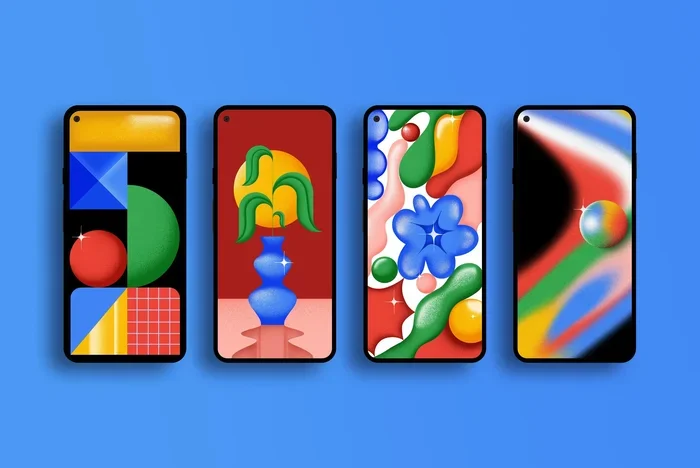
How Do I Get Google Wallpaper on My Phone or Desktop
Finding and setting Google wallpapers is simple and free. Whether you use an Android phone, iPhone, or desktop computer, you can get stunning Google wallpapers in minutes. This guide covers every method, app, and trick to help you personalize your device with the Google wallpaper collection you love.
Want to make your phone or computer look amazing? The answer is simpler than you think. How do I get Google wallpaper on my device? You have more options than most people realize. Google offers a huge library of beautiful, high-quality images. You can use them on your home screen, lock screen, or desktop background. Best of all, almost all of them are completely free.
In this guide, we will walk you through every way to get Google wallpapers. You will learn how to do it on Android, iPhone, Windows, and Mac. We will also share tips to make the process even faster. By the end, you will have the perfect background on every device you own.
Google wallpapers are known for their clean design and vibrant colors. They include nature scenes, abstract art, and minimalist patterns. Many people love the Google Pixel wallpaper collection because it looks professional and stylish. Whether you prefer a live wallpaper or a simple static wallpaper, Google has something for everyone.
Key Takeaways
- Multiple Methods Available: You can get Google wallpapers through the Wallpapers by Google app, Google Play Store, or direct downloads on any device.
- Free and Easy: All official Google wallpapers are free to download and set as your home or lock screen.
- Works on All Devices: The process works on Android phones, iPhones, Windows PCs, and Mac desktops.
- High Quality: Google offers HD and 4K resolution wallpapers that look crisp on any screen size.
- Regular Updates: Google frequently adds new wallpaper collections, so you always have fresh options.
- No Account Required: You can download and set wallpapers without signing into a Google account.
📑 Table of Contents
- What Are Google Wallpapers and Why Use Them?
- How Do I Get Google Wallpaper on Android Phones
- How Do I Get Google Wallpaper on iPhone
- How Do I Get Google Wallpaper on Desktop
- Best Google Wallpaper Collections to Explore
- Quick Tips for Getting the Best Google Wallpaper
- Common Mistakes to Avoid When Setting Google Wallpapers
- Expert Insights on Google Wallpapers
- Key Takeaways
- Conclusion
What Are Google Wallpapers and Why Use Them?
Google wallpapers are curated images created or selected by Google. They come in many styles and themes. Some change with the seasons. Others are timeless classics. Google releases new sets regularly, often tied to Android launches or special events.
Here is why so many people choose Google wallpapers for their devices:
- High Resolution: They look sharp on every screen, from small phones to large monitors.
- Free to Use: You do not need to pay anything to download or set them.
- Variety: There are thousands of images across many categories.
- Optimized for Devices: Google designs them to fit different screen sizes perfectly.
- Regular Updates: New collections drop often, keeping your background fresh.
Using a desktop background from Google can instantly change the feel of your workspace. On phones, a great phone wallpaper makes your device feel personal and polished. The Google wallpaper app makes it all easy to manage and switch whenever you want.
How Do I Get Google Wallpaper on Android Phones
Android users have the easiest path to Google wallpapers. Google built this experience right into the operating system. You can also use the dedicated app for even more options.
Method 1: Use the Built-In Wallpaper Picker
Most Android phones come with a built-in tool to set Google wallpapers. Here is how to use it:
- Open the Settings app on your phone.
- Tap on Display or Wallpaper, depending on your model.
- Select Home Screen or Lock Screen.
- Tap on the Google wallpapers option.
- Browse through the collection and tap your favorite.
- Choose Fit or Fill, then tap Apply.
This method works on most phones running Android 10 or later. The built-in picker pulls directly from Google’s servers, so you always get the latest Google wallpapers HD.
Method 2: Download the Wallpapers by Google App
The Wallpapers by Google app is the best way to get Google wallpaper on Android. It gives you access to the full collection. Here is how to set it up:
- Open the Google Play Store on your phone.
- Search for “Wallpapers by Google.”
- Tap Install and wait for the download to finish.
- Open the app and browse the categories.
- Tap any image to preview it full screen.
- Hit the Set Wallpaper button to apply it.
The app lets you set wallpapers for your home screen, lock screen, or both. You can also explore curated collections from Google artists. Some of these wallpaper collections include Earth, Landscapes, and Color Pop themes.
Method 3: Download Wallpapers Directly
You can also download individual Google wallpapers from the web. Many sites host Google’s official images for free. Just search for the specific wallpaper name you want. Download the image file, then use your file manager to set it as your background. This works well when you want a specific high resolution wallpaper not available in the app.
How Do I Get Google Wallpaper on iPhone
iPhone users can also enjoy Google’s beautiful wallpapers. Apple does not have a built-in Google wallpaper tool, but the process is still simple and straightforward.
Method 1: Download from the Web
This is the most popular way iPhone users get Google wallpaper. Here is the step-by-step process:
- Open Safari or any browser on your iPhone.
- Search for the Google wallpaper you want.
- Tap and hold the image until a menu appears.
- Select Save Image to save it to your Photos app.
- Go to Settings on your iPhone.
- Tap Wallpaper, then Add New Wallpaper.
- Choose the saved image and set it for your home screen or lock screen.
Make sure you download images in the highest resolution available. This ensures your phone wallpaper looks crisp and clear on the iPhone screen. Avoid small images because they will appear blurry when stretched.
Method 2: Use the Google App
The Google app for iPhone sometimes features daily wallpapers. You can find these in the Discover feed. Simply scroll through the feed and tap on any wallpaper that catches your eye. From there, you can save it to your camera roll and follow the steps above to set it.
Method 3: Third-Party Wallpaper Apps
Several apps on the App Store curate Google-style wallpapers. These apps often include similar designs to what Google offers. Search for “Google wallpaper” in the App Store and explore the top results. Just make sure to download from trusted developers to keep your device safe.
How Do I Get Google Wallpaper on Desktop
Setting a desktop wallpaper from Google works on both Windows and Mac computers. The process is a bit different from mobile, but still very easy to follow.
On Windows PC
Here is how to get and set Google wallpapers on a Windows desktop:
- Open your web browser and search for Google wallpapers.
- Find an image you like and right-click on it.
- Select Save Image As and choose a folder on your computer.
- Right-click on your desktop.
- Select Personalize from the menu.
- Click Background and choose Picture.
- Browse to the saved image and select it.
- Choose Fit, Fill, or Center, then click Save.
Windows also lets you create a slideshow of Google wallpapers. Simply go to Settings, then Personalization, then Background. Choose Slideshow and select a folder with your downloaded Google images. This gives you a rotating desktop background that changes automatically.
On Mac
Mac users can follow these steps:
- Download your favorite Google wallpaper image.
- Open System Settings (or System Preferences on older Macs).
- Click on Wallpaper or Desktop & Screen Saver.
- Click the Add Image button or the plus icon.
- Navigate to your downloaded image and select it.
- The wallpaper applies instantly to your desktop.
You can also drag and drop the image directly onto the desktop preview in System Settings. This quick trick saves time and works on all recent macOS versions.
Best Google Wallpaper Collections to Explore
Google releases several themed wallpaper collections throughout the year. Each collection has a unique style and mood. Here are some of the most popular ones:
| Collection Name | Style | Best For |
|---|---|---|
| Earth | Satellite imagery of Earth | Nature lovers and explorers |
| Color Pop | Vibrant abstract shapes | Bold, modern looks |
| Landscapes | Nature scenery | Calm and serene backgrounds |
| Material You | Dynamic, color-adaptive | Android 12+ users |
| Pixel Legacy | Classic Pixel designs | Nostalgic Google fans |
| Art Series | Artist collaborations | Creative and unique tastes |
Each collection offers Google wallpapers HD and 4K versions. You can switch between them whenever you want a fresh look. Many of these collections are available through the Wallpapers by Google app and the built-in Android wallpaper picker.
Quick Tips for Getting the Best Google Wallpaper
Follow these simple tips to get the most out of your Google wallpaper experience:
- Always download the highest resolution: This ensures your wallpaper looks sharp on large screens.
- Check your screen resolution: Match the wallpaper resolution to your device for the best results.
- Use a wallpaper app: Apps like Wallpapers by Google make browsing and setting much faster.
- Clear your cache regularly: This keeps your wallpaper app running smoothly.
- Explore Google Discover: New wallpapers often appear in your Discover feed before anywhere else.
- Set a slideshow: A rotating wallpaper collection keeps your background feeling fresh every day.
Common Mistakes to Avoid When Setting Google Wallpapers
Even though the process is simple, people sometimes make mistakes. Here are a few to watch out for:
- Downloading low-resolution images: Small images look blurry when stretched to fill a large screen.
- Ignoring aspect ratio: A wallpaper that does not match your screen ratio may crop important parts of the image.
- Using untrusted websites: Some sites host fake or low-quality copies of Google wallpapers. Stick to official sources.
- Forgetting to set both screens: On phones, make sure you set your home screen and lock screen separately if you want different images.
- Not updating regularly: Google adds new wallpapers frequently. Check back often to discover fresh wallpaper download options.
Expert Insights on Google Wallpapers
Design experts often praise Google’s approach to wallpapers. The company focuses on simplicity, color harmony, and visual comfort. Unlike some wallpaper sites that use busy or overly complex images, Google keeps things clean and elegant. This design philosophy is part of Google’s broader Material Design language.
“The best Google wallpaper collections show a deep understanding of visual balance,” says a leading UI designer. “They work beautifully as backgrounds because they do not compete with your icons or text.”
Google also uses dynamic color in some of its newer collections. This means the wallpaper colors subtly shift based on your device settings. It is a small detail that makes a big difference in how your phone or desktop feels overall.
If you want to stay updated on the latest Google wallpaper releases, follow Google’s official blog or the Android Developers channel. They often announce new collections alongside major software updates. This is the best way to never miss a new wallpaper collection.
Key Takeaways
- Multiple Methods Available: You can get Google wallpapers through the Wallpapers by Google app, Google Play Store, or direct downloads on any device.
- Free and Easy: All official Google wallpapers are free to download and set as your home or lock screen.
- Works on All Devices: The process works on Android phones, iPhones, Windows PCs, and Mac desktops.
- High Quality: Google offers HD and 4K resolution wallpapers that look crisp on any screen size.
- Regular Updates: Google frequently adds new wallpaper collections, so you always have fresh options.
- No Account Required: You can download and set wallpapers without signing into a Google account.
Conclusion
Now you know exactly how do I get Google wallpaper on any device. Whether you use an Android phone, iPhone, Windows PC, or Mac, the process is quick and easy. Google offers a massive library of free, high-quality wallpapers that can transform the look of your devices in minutes.
Start with the Wallpapers by Google app if you are on Android. iPhone users can download images directly from the web. Desktop users on Windows and Mac can save images and set them through their system settings. Each method is simple and requires no technical skills.
Explore the different wallpaper collections Google offers. Try new themes every week to keep your devices looking fresh. With so many options available, you will never run out of great desktop background or phone wallpaper choices.
Take a few minutes today to personalize your devices. Your phone and computer will look better than ever. And the best part? It costs nothing and takes just a few simple steps.
Frequently Asked Questions
Can I get Google wallpapers for free?
Yes, all official Google wallpapers are completely free to download and use. You do not need to pay for any of the images in the Wallpapers by Google app or on Google’s website. They are meant to be enjoyed by everyone.
Do I need a Google account to download wallpapers?
No, you do not need a Google account to download or set Google wallpapers. You can browse, download, and apply them without signing in. However, having an account lets you sync your preferences across devices.
What is the best resolution for Google wallpapers?
The best resolution depends on your device. For phones, 1080 x 1920 pixels is standard. For desktops, aim for at least 1920 x 1080. Google provides HD and 4K versions of most wallpapers, so always choose the highest option available for the sharpest result.
Can I use Google wallpapers on any phone brand?
Yes, Google wallpapers work on any phone brand. Whether you have a Samsung, OnePlus, Xiaomi, or any other Android device, you can download and set Google wallpapers. iPhone users can also use them by downloading the images manually.
How often does Google release new wallpapers?
Google releases new wallpaper collections several times a year. New sets often come with major Android updates like Android 12, 13, and 14. Google also drops seasonal and event-based collections throughout the year.
Can I create a slideshow with Google wallpapers?
Yes, both Windows and Android support wallpaper slideshows. On Windows, go to Settings, Personalization, Background, and choose Slideshow. On Android, some launcher apps and the Wallpapers by Google app offer rotating wallpaper features. This keeps your background fresh every day.