How Do I Find Hidden Text In A Picture On My Phone
Finding hidden text in a picture on your phone is simpler than most people think. Whether you need to extract text from a photo, uncover a secret message, or read text embedded in an image, several tools and techniques can help you do it fast. This guide covers every reliable method, from built-in phone features to powerful third-party apps, so you can find hidden text in a picture with confidence.
Have you ever stared at a photo and wondered if there was text hiding inside it? Maybe someone sent you an image with a secret note, or you need to pull words from a screenshot for a project. Whatever the reason, how do I find hidden text in a picture is a question more people are asking every day. With the rise of smartphones and powerful scanning tools, uncovering text inside images has never been easier. You do not need to be a tech expert to get it done.
Your phone likely has built-in features right now that can detect and extract text from photos. On top of that, dozens of free and paid apps can take text recognition even further. This guide walks you through every practical method so you can find hidden text in a picture on my phone quickly and accurately. Let us dive in and explore your options.
Key Takeaways
- Built-in phone tools like Google Lens and Apple Live Text can detect text in photos instantly without downloading extra apps.
- OCR technology is the core engine behind most text extraction methods for images on mobile devices.
- Third-party apps like Adobe Scan and Microsoft Lens offer advanced features for scanning and extracting text from pictures.
- Steganography and hidden watermarks are common ways text gets concealed inside images.
- Avoid common mistakes like using low-quality images or skipping image enhancement before scanning.
- Multiple methods work on both Android and iPhone, so you have plenty of options regardless of your device.
- Regular practice with these tools will make finding text in images second nature over time.
📑 Table of Contents
- Why Would You Need to Find Hidden Text in a Picture?
- How Hidden Text Gets Embedded in Images
- Best Methods to Find Hidden Text in a Picture on Your Phone
- Top Apps for Extracting Text from Photos
- Common Mistakes to Avoid When Searching for Text in Images
- Expert Insights for Better Text Detection Results
- How to Get the Best Results Every Time
- The Future of Text Detection in Images
- Conclusion
Why Would You Need to Find Hidden Text in a Picture?
People search for text inside images for all kinds of reasons. Some need to copy a quote from a photo for a school project. Others want to read a note that someone hid inside an image. Businesses often deal with scanned documents that contain text buried in graphics. No matter your situation, knowing how to pull words out of a photo saves time and frustration.
Common Real-World Uses
Here are some everyday situations where finding text in images comes in handy:
- School and work projects: You find a great chart in a photo but need the text from it for a report.
- Personal notes: A friend sends you a picture with a handwritten message you want to save digitally.
- Receipts and documents: You photograph a receipt but need to search the text later.
- Social media content: You see a meme or post with important text and want to share just the words.
- Security and verification: You need to check a watermark or hidden text in an image for authenticity.
Each of these scenarios shows why text recognition from photos is such a valuable skill. Once you learn the methods, you will use them all the time.
How Hidden Text Gets Embedded in Images
Before you learn how to extract text, it helps to understand how text hides inside images in the first place. Different techniques are used depending on the purpose. Some are simple and visible with the right tool. Others are designed to stay completely invisible to the naked eye.
Visible Text in Images
The most common type of hidden text is text that is simply hard to see. It might be the same color as the background, written in a tiny font, or placed in a busy area of the photo. This kind of text is easy to find once you know what to look for. You just need the right image text finder tool.
Steganography and Hidden Messages
Steganography is the practice of hiding information inside an image file. The text is encoded into the image data itself. You cannot see it just by looking at the picture. Special software or apps are needed to decode and reveal the hidden message in picture files. This method is often used for digital watermarking and secure communication.
Watermarks and Metadata
Some images contain text in the form of watermarks or metadata. A watermark is a semi-transparent overlay of text, often used by photographers to protect their work. Metadata is information stored inside the image file, like the camera model or location data. Both of these can contain text from photograph files that you might want to extract or read.
Best Methods to Find Hidden Text in a Picture on Your Phone
Now that you understand how text hides in images, let us look at the best ways to uncover it. These methods work on both Android and iPhone devices. Some require no extra apps at all.
Method 1: Use Google Lens on Android
Google Lens is a powerful free tool built into most Android phones. It uses OCR technology to detect text inside photos and images. Here is how to use it:
- Open your photo gallery and select the image.
- Tap the Google Lens icon at the bottom of the screen.
- Wait a few seconds for the app to analyze the image.
- Tap the detected text to select, copy, or translate it.
This method works great for extracting text from photo files that contain visible text. It is fast and does not require any downloads.
Method 2: Use Apple Live Text on iPhone
If you have an iPhone running iOS 15 or later, you already have Live Text built in. This feature lets you find and copy text directly from images. Here is how it works:
- Open the Photos app and go to your image.
- Look for a small text icon in the bottom right corner.
- Tap it, and the phone will highlight all detectable text.
- Select the text you want and copy it to your clipboard.
Live Text also works in real time through your camera. Point your phone at a sign or document, and it will let you interact with the text live. This is one of the easiest ways to find text in screenshot files and other images on your phone.
Method 3: Use a Reverse Image Search
Sometimes you want to find text that appears in an image but is not easily readable. A reverse image search can help. Google Images and TinEye both let you upload a photo and search for similar images online. This works well if the image contains text that is indexed on the web.
To use this method, go to images.google.com on your phone browser, tap the camera icon, and upload your photo. Google will look for matching images and may display the text it finds. This is a handy trick for image text search when other methods fall short.
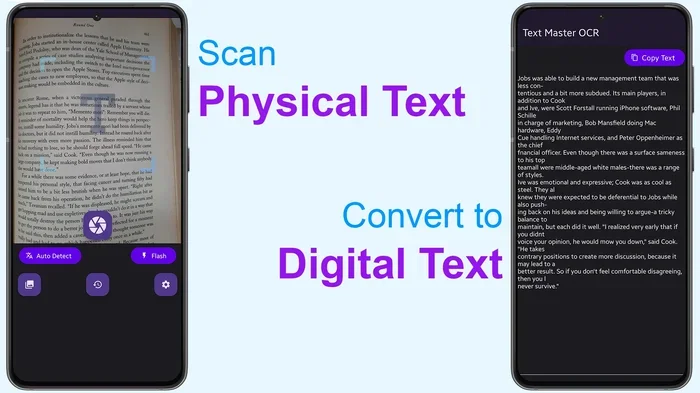
Method 4: Use a Dedicated Text Scanner App
If the built-in tools are not giving you the results you need, a dedicated scanner app is the next step. These apps are designed specifically for text extraction from photo files and often include extra features like translation, formatting, and document saving.
Look for apps that support mobile text scanner capabilities and photo text reader functions. Many of these apps use advanced OCR engines that work faster and more accurately than the basic tools built into your phone.
Method 5: Use Online OCR Tools
If you prefer not to install apps, free online OCR tools can help. Websites like OCR.Space and OnlineOCR.net let you upload an image and extract the text. These tools work through your phone browser and do not require any downloads. They are great for one-time use or when you need a quick result.
Top Apps for Extracting Text from Photos
Not all text extraction apps are created equal. Some are free, some offer premium features, and some work better for specific types of images. Here is a comparison of the top options available right now.
| App Name | Platform | Price | Best For |
|---|---|---|---|
| Google Lens | Android / iOS | Free | Quick text detection in photos |
| Apple Live Text | iOS | Free (built-in) | iPhone users needing instant text extraction |
| Adobe Scan | Android / iOS | Free with premium options | Document scanning and OCR accuracy |
| Microsoft Lens | Android / iOS | Free | Whiteboard and document scanning |
| Text Scanner (OCR) | Android / iOS | Free with ads | Quick one-off text extraction |
| Pen to Print | Android / iOS | Free with premium | Handwritten text recognition |
Each of these apps handles detect hidden text in images differently. Google Lens and Apple Live Text are the fastest for everyday use. Adobe Scan and Microsoft Lens shine when you need to scan full documents. If you deal with handwritten notes, Pen to Print is a great choice for scan text in image files that contain cursive or messy writing.
Quick Tips for Choosing the Right App
- Check your phone’s operating system. Some apps only work on Android or only on iPhone.
- Read user reviews. Real user feedback tells you about accuracy and speed.
- Try free versions first. Most apps let you test before paying for premium features.
- Look for offline support. Some apps work without an internet connection, which is handy when you are on the go.
Common Mistakes to Avoid When Searching for Text in Images
Even with the right tools, people often make mistakes that lead to poor results. Avoiding these pitfalls will save you time and frustration.
Using Low-Quality or Blurry Images
The biggest enemy of text detection is a blurry image. If the text in the photo is pixelated or out of focus, no tool will be able to read it accurately. Always try to use the clearest, highest-resolution version of the image you can find. If you are taking the photo yourself, hold your phone steady and use good lighting.
Skipping Image Enhancement
Many people skip a simple but powerful step: enhancing the image before scanning. Increasing the contrast, adjusting brightness, or cropping the image to focus on the text area can dramatically improve results. Most photo editing apps on your phone let you make these adjustments in seconds.
Ignoring Image Orientation
Some text detection tools struggle with rotated or sideways images. If your photo is tilted, rotate it so the text is upright before running the scan. This small step can make a big difference in accuracy.
Relying on Only One Tool
Different tools use different OCR engines. If one app fails to detect the text, try another. Google Lens might miss text that Adobe Scan picks up, or vice versa. Having two or three apps on your phone gives you backup options when one does not work.
Overlooking Image File Format
The file format of your image matters. JPEG and PNG are the most widely supported formats for text detection. If your image is in a less common format, convert it first. This ensures the scanning tool can process the file without issues.
Expert Insights for Better Text Detection Results
Professional photographers, document scanners, and digital forensics experts use a few extra tricks that can improve your results significantly. Here is what the pros recommend.
Enhance Before You Scan
Before running any text detection tool, spend 30 seconds editing the image. Boost the contrast so the text stands out from the background. Crop the image to remove unnecessary edges. These simple steps can boost accuracy by a surprising amount.
Use Multiple Tools for Verification
If the text is critical, run it through two different tools and compare the results. This double-check method catches errors and ensures you get the most accurate extraction possible. It takes only a few extra minutes but can save you from serious mistakes.
Understand the Limits of OCR
OCR technology has come a long way, but it is not perfect. Handwritten text, decorative fonts, and images with heavy distortion can still confuse most tools. Set realistic expectations and understand that some images will need manual correction after scanning.
Keep Your Apps Updated
OCR engines improve with every update. App developers constantly refine their text detection algorithms to handle more fonts, languages, and image conditions. Keeping your scanning apps up to date ensures you always have the best performance available.
Explore Advanced Steganography Detection
If you suspect an image contains truly hidden text encoded through steganography, you need specialized tools. Apps like StegDetect and online steganography analyzers can reveal text that is completely invisible in the image. These are advanced tools for advanced needs, but they are worth knowing about if you regularly deal with encoded content.
How to Get the Best Results Every Time
Following a simple workflow will make your text detection efforts much more successful. Here is a step-by-step process you can use every time:
- Select the clearest image you have of the text you want to find.
- Enhance the image by adjusting brightness and contrast.
- Crop the image to focus on the area with text.
- Choose your detection method based on the type of text and your device.
- Run the scan and review the extracted text carefully.
- Verify the results by running the image through a second tool if accuracy matters.
- Save or copy the text to where you need it.
This workflow works whether you are extracting text for a school assignment, pulling data from a scanned document, or uncovering a hidden message in a photo. Once you make it a habit, the entire process takes less than a minute.
The Future of Text Detection in Images
Technology is moving fast, and text detection in images is getting better every year. AI-powered tools can now read text in extremely low-quality photos, detect text in multiple languages simultaneously, and even interpret handwritten notes with impressive accuracy. As photo text extraction technology continues to evolve, the tools on your phone will only get more powerful and more accessible.
Machine learning models are being trained on billions of images, which means they get smarter with every update. Soon, finding hidden text in any image will be as simple as taking a photo. For now, the methods in this guide give you everything you need to handle the task like a pro.
Conclusion
Now you know exactly how do I find hidden text in a picture on your phone. You have learned about built-in tools like Google Lens and Apple Live Text, powerful third-party apps, online OCR tools, and advanced techniques for tricky images. The key is to start with the simplest method and move to more advanced tools only when needed.
Remember to always enhance your image before scanning, avoid common mistakes like using blurry photos, and verify your results with a second tool when accuracy matters. With practice, you will be able to detect hidden text in any image quickly and confidently. Try these methods today and see how much easier your digital life becomes.
Your phone is a powerful text detection tool sitting in your pocket. The only thing you need to do is learn how to use it. Start with the methods in this guide, experiment with different apps, and you will be extracting text from images like an expert in no time.
Frequently Asked Questions
Can I find hidden text in any picture on my phone?
Most pictures with visible text can be processed using built-in tools like Google Lens or Apple Live Text. However, images with text encoded through steganography require specialized detection software. The method you choose depends on how the text is hidden in the image file.
Do I need an internet connection to extract text from photos?
Some tools work offline, while others require an internet connection. Google Lens and Apple Live Text need internet for full functionality. Dedicated scanner apps like Adobe Scan may offer offline mode. Check your app settings to see if offline use is supported.
How accurate is text detection on mobile devices?
Modern OCR technology on phones is highly accurate for printed text in clear images. Accuracy drops for handwritten text, blurry photos, or images with complex backgrounds. Using high-quality images and enhancing contrast before scanning improves accuracy significantly.
Are there free apps for finding text in images?
Yes, several free apps handle this task well. Google Lens, Apple Live Text, Microsoft Lens, and Text Scanner are all free options. They offer solid text extraction capabilities without costing you anything. Some also have premium tiers with extra features.
Can I find hidden text in a screenshot using my phone?
Absolutely. Screenshots often contain text that can be extracted easily using your phone’s built-in tools. On iPhone, Live Text works directly on screenshots. On Android, Google Lens can detect and extract text from screenshot images quickly and accurately.
What is the difference between OCR and regular text detection?
OCR stands for Optical Character Recognition. It is the technology that converts images of text into machine-readable text. Regular text detection simply identifies where text exists in an image. OCR goes further by actually reading and extracting the text so you can copy, edit, or search it.
=== CONCLUSION ===
Finding hidden text in a picture on your phone is a skill anyone can learn. With the right tools and a little practice, you can extract text from any image in seconds. Whether you use Google Lens, Apple Live Text, or a dedicated scanning app, the methods in this guide give you everything you need to succeed. Start experimenting today and discover how easy it is to uncover text hiding inside your photos.