How Do I Enable Tethering On Android Phone Step By Step
Want to know how do I enable tethering on Android? This step-by-step guide walks you through every method including Wi-Fi hotspot, Bluetooth tethering, and USB tethering. You will learn simple settings to share your mobile data with any device in minutes.
Have you ever been stuck somewhere without Wi-Fi and wished your phone could share its internet? How do I enable tethering on Android? The answer is simpler than you think. This guide will show you the exact steps to turn your phone into a mobile hotspot in just a few minutes.
Tethering means sharing your phone’s mobile data connection with other devices. You can connect your laptop, tablet, or another phone to the internet using your Android device. Whether you are traveling, working remotely, or just need a backup connection, tethering saves the day.
In this article, we will cover every method step by step. You will learn about Wi-Fi hotspot, Bluetooth tethering, and USB tethering. We will also share tips on staying safe and avoiding extra charges. By the end, you will be a tethering pro.
Key Takeaways
- Easy Setup: Enabling tethering on Android takes just a few taps in your settings menu.
- Multiple Methods: You can tether using Wi-Fi hotspot, Bluetooth, or a USB cable depending on your needs.
- Carrier Matters: Some carriers may restrict tethering or require a special plan add-on.
- Battery Awareness: Tethering can drain your phone battery quickly, so keep a charger handy.
- Security Tips: Always set a strong password for your Wi-Fi hotspot to keep your data safe.
- Works on Most Devices: Nearly all Android phones from Samsung to Google Pixel support tethering natively.
📑 Table of Contents
- What Is Tethering and Why Do You Need It?
- How Do I Enable Tethering On Android Using Wi-Fi Hotspot
- How Do I Enable Tethering On Android Using Bluetooth
- How Do I Enable Tethering On Android Using USB
- Common Problems and How to Fix Them
- How to Keep Your Tethered Connection Safe
- Does Tethering Use a Lot of Data?
- Expert Insights on Tethering
- Carrier Restrictions You Should Know
- How to Save Battery While Tethering
- How Do I Enable Tethering On Android: Summary of All Methods
- Frequently Asked Questions
What Is Tethering and Why Do You Need It?
Tethering on Android is the process of using your phone’s cellular data to provide internet access to other devices. Think of your phone as a portable router. It takes the signal from your mobile network and shares it wirelessly or through a cable.
There are many situations where mobile data sharing comes in handy. You might be at a coffee shop with no free Wi-Fi. Maybe your home internet went down. Or perhaps you are on a road trip and need your laptop online. In all these cases, tethering helps you stay connected.
The great thing is that most modern Android phones support this feature out of the box. You do not need to download any extra apps. Your phone already has everything built in. You just need to know where to look.
Types of Tethering You Should Know
Before we dive into the steps, let us look at the three main types of tethering. Each one has its own strengths and best use cases.
- Wi-Fi Hotspot: This is the most popular method. Your phone creates a wireless network that other devices can join. It works well for laptops, tablets, and multiple devices at once.
- Bluetooth Tethering: This connects your phone to another device using Bluetooth. It uses less battery than Wi-Fi but is slower. It works best for quick tasks when you do not need much speed.
- USB Tethering: You connect your phone to a computer using a USB cable. This gives the fastest and most stable connection. It also charges your phone while tethering.
How Do I Enable Tethering On Android Using Wi-Fi Hotspot
The Wi-Fi hotspot method is the most common way to share your connection. It lets other devices connect wirelessly, just like a home router. Here is how to set it up on your Android phone.
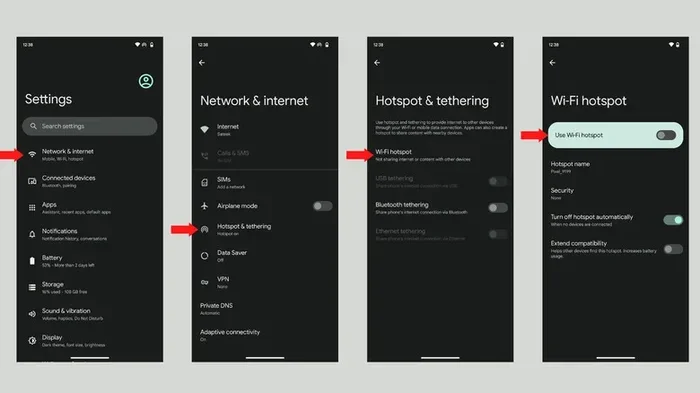
Step 1: Open Your Settings
Swipe down from the top of your screen to open the quick settings panel. Look for the gear icon and tap it to open Settings. If you cannot find it there, find the Settings app on your home screen and tap it.
Once you are in Settings, scroll down until you see “Network and Internet” or “Connections.” The exact name depends on your phone brand. Samsung phones use “Connections.” Google Pixel phones use “Network and Internet.”
Step 2: Find the Hotspot Option
Tap on “Hotspot and Tethering” or “Mobile Hotspot.” You will see several options here. The one you want is usually called “Wi-Fi Hotspot” or “Portable Hotspot.”
Tap on it to open the settings page. Here you can turn the hotspot on or off. You can also change the name of your network and set a password. Setting a password is very important for keeping your data secure.
Step 3: Turn It On and Connect
Toggle the switch to turn on your hotspot. Your phone will now broadcast a wireless network. Go to the other device you want to connect. Open its Wi-Fi settings and look for your phone’s network name.
Tap on the network and enter the password you set. Within seconds, the other device will be connected to the internet through your phone. That is all there is to it!
Quick Tip: If you want to tether quickly without going into Settings, swipe down from the top of your screen twice to expand the quick settings panel. Look for the “Hotspot” or “Mobile Hotspot” tile and tap it. This turns it on instantly.
How Do I Enable Tethering On Android Using Bluetooth
Bluetooth tethering is a great option when you want to save battery. It is slower than Wi-Fi hotspot but uses much less power. This method works well for sending emails or browsing light websites.
Step 1: Pair Your Devices
First, make sure Bluetooth is turned on both on your phone and the device you want to connect. On your Android phone, go to Settings and tap “Bluetooth.” Turn it on and make your phone visible to other devices.
On the other device, search for available Bluetooth devices. Your phone should appear in the list. Tap on it to pair the two devices. You may need to confirm a pairing code on both screens.
Step 2: Enable Bluetooth Tethering
Go back to your phone’s Settings. Navigate to “Network and Internet” and then “Hotspot and Tethering.” You will see a “Bluetooth Tethering” option here.
Toggle the switch to turn it on. Your phone will now share its mobile data connection through Bluetooth. The paired device should now have internet access.
Remember that Bluetooth tethering is slower than Wi-Fi. It is best for basic tasks like checking emails or reading articles. If you need to stream videos or download large files, use the Wi-Fi hotspot method instead.
How Do I Enable Tethering On Android Using USB
USB tethering gives you the fastest and most reliable connection. It also charges your phone while you work. This method is perfect when you need a stable connection for video calls or large downloads.
Step 1: Connect Your Phone to Your Computer
Take a USB cable and connect your Android phone to your computer. Make sure you have a cable that supports data transfer. Some charging-only cables will not work for tethering.
Once connected, your phone may show a notification about USB charging. Tap on it and select “File Transfer” or “MTP” mode. This allows your computer to communicate with your phone.
Step 2: Enable USB Tethering
On your phone, go to Settings. Navigate to “Network and Internet” and then “Hotspot and Tethering.” You will see a “USB Tethering” option.
Toggle the switch to turn it on. Your computer should now recognize the connection and have internet access through your phone’s mobile data. You can check this by opening a browser on your computer and visiting any website.
USB tethering is the most stable option. It does not suffer from signal drops or interference like Wi-Fi. However, you do need to keep your phone physically connected to the computer with a cable.
Common Problems and How to Fix Them
Sometimes tethering does not work the way you expect. Do not worry. Most issues have simple fixes. Here are the common problems you might face and how to solve them.
The Hotspot Option Is Missing
If you cannot find the hotspot option in your settings, do not panic. This is a common issue. First, check if your carrier has blocked tethering. Some carriers require you to pay extra for a tethering plan. Contact your carrier to confirm.
Another reason could be that your phone’s software is outdated. Go to Settings, then “Software Update,” and check for any available updates. Installing the latest update often fixes missing features.
Devices Cannot Connect to the Hotspot
If your hotspot is on but other devices cannot connect, try turning the hotspot off and back on again. Sometimes a simple restart of the hotspot fixes the issue.
Also check if you have too many devices connected. Most Android phones limit the number of devices that can connect to a hotspot. Usually, the limit is around 5 to 10 devices. Disconnect unused devices and try again.
Make sure the password you are entering is correct. Passwords are case-sensitive. If you changed the password recently, make sure you are using the updated one.
Slow Internet Speed While Tethering
Slow speeds are frustrating but common with tethering. The speed depends on your mobile signal strength. If you are in an area with weak coverage, your tethered connection will be slow too.
Try moving to a different location. Being near a window or outside often improves signal strength. Also, closing background apps on your phone can free up data and improve speed.
If you are using Bluetooth tethering, switch to Wi-Fi hotspot for better speeds. Bluetooth has a lower data transfer rate than Wi-Fi. For the best performance, USB tethering is the winner every time.
How to Keep Your Tethered Connection Safe
Sharing your mobile data connection comes with security risks. You do not want strangers accessing your hotspot or your data. Follow these simple tips to stay safe.
- Use a Strong Password: Always set a password for your Wi-Fi hotspot. Use a mix of letters, numbers, and symbols. Avoid simple passwords like “1234” or “password.”
- Change the Network Name: Use a unique network name that does not reveal your identity. Avoid using your real name or address in the hotspot name.
- Turn Off Hotspot When Not in Use: Do not leave your hotspot on all the time. Turn it off when you are done sharing your connection. This saves battery and reduces security risks.
- Use a VPN: If you are tethering for sensitive work, consider using a virtual private network. A VPN encrypts your data and keeps it safe from prying eyes.
- Monitor Connected Devices: Check which devices are connected to your hotspot regularly. If you see an unknown device, disconnect it immediately and change your password.
Does Tethering Use a Lot of Data?
Yes, tethering uses your phone’s data plan. When you share your connection, the other device uses your data allowance. Streaming videos or downloading large files uses data very quickly.
Keep an eye on your data usage while tethering. You can check this in Settings under “Data Usage.” If you have a limited data plan, be careful about what you do while tethered.
Here are some tips to manage data usage:
- Avoid streaming high-quality videos while tethered.
- Download files when connected to Wi-Fi instead.
- Use data-saving mode on your phone when tethering.
- Set a data warning in your phone settings to get alerts.
Some carriers offer unlimited data plans that include tethering. Others charge extra for the feature. Check with your carrier before you tether regularly to avoid surprise charges on your bill.
Expert Insights on Tethering
According to mobile technology experts, data tethering has become an essential tool for remote workers. Many professionals rely on it as their primary internet source when traveling. The feature has improved significantly over the years, with newer Android versions offering better speed and stability.
Experts also recommend checking your APN settings if tethering does not work. APN stands for Access Point Name. These settings tell your phone how to connect to your carrier’s data network. Sometimes these settings get reset after a software update, which can break tethering.
If you are having persistent issues, resetting APN settings to default can help. Go to Settings, then “Network and Internet,” then “Mobile Network,” and find “Access Point Names.” Tap the three dots menu and select “Reset to default.”
Another expert tip is to use a USB hub with a power source if you are tethering multiple devices via USB. This keeps your phone charged and maintains a stable connection throughout the day.
Carrier Restrictions You Should Know
Not all carriers allow tethering on every plan. Some carriers have specific rules about sharing mobile data. Understanding these restrictions can save you from unexpected fees or blocked connections.
For example, some carriers offer basic plans that do not include tethering at all. If you try to enable it, your phone might show the option but the connection will not work. Other carriers require you to add a tethering add-on to your plan.
Here are some common carrier policies:
- Unlimited Plans: Most unlimited plans include tethering but may slow down speeds after a certain data limit.
- Prepaid Plans: Some prepaid plans restrict tethering. Check the plan details before you buy.
- International Roaming: Tethering while roaming internationally can be very expensive. Use caution and check roaming rates first.
- Data Caps: Plans with data caps may charge extra fees if you exceed your limit while tethering.
If you are unsure about your carrier’s tethering policy, call customer service or check your plan details online. It is better to know before you need the connection.
How to Save Battery While Tethering
Tethering can drain your phone battery fast. Your phone works harder to share its connection with other devices. But there are ways to reduce battery drain and keep your phone running longer.
- Use USB Tethering: USB tethering uses less battery than Wi-Fi hotspot because your phone is plugged into a power source.
- Turn Off Hotspot When Idle: If no devices are connected, turn off the hotspot. It wastes battery broadcasting a network that nobody is using.
- Reduce Hotspot Range: Some phones let you adjust the hotspot range. A shorter range uses less power.
- Keep Your Phone Plugged In: When tethering for long periods, keep your phone connected to a charger or power bank.
- Lower Screen Brightness: Turn down your screen brightness to save battery while tethering.
Following these tips can significantly extend your battery life while sharing your connection. A portable power bank is a great investment if you tether often on the go.
How Do I Enable Tethering On Android: Summary of All Methods
Let us bring everything together. Here is a quick recap of all three tethering methods and when to use each one.
- Wi-Fi Hotspot: Best for connecting multiple devices. Offers good speed and range. Use this for laptops, tablets, and group work.
- Bluetooth Tethering: Best for saving battery. Slower speed but low power usage. Use this for quick tasks on the go.
- USB Tethering: Best for speed and stability. Requires a cable. Use this for video calls, large downloads, and work that needs a reliable connection.
No matter which method you choose, the process is straightforward on Android. You do not need any special apps or technical skills. Your phone has everything built in. Just follow the steps in this guide and you will be connected in no time.
The key is knowing which method fits your situation. If you need speed and multiple connections, go with Wi-Fi. If you need battery savings, use Bluetooth. If you need the fastest and most stable link, plug in with USB.
Remember to always secure your hotspot with a strong password. Keep an eye on your data usage to avoid surprises on your bill. And if something goes wrong, check your carrier restrictions and APN settings first.
How do I enable tethering on Android is a question with a very simple answer. Now you have all the tools and knowledge to do it yourself. Try each method and see which one works best for your needs. You will be sharing your internet connection like a pro in just a few minutes.
Frequently Asked Questions
Can I enable tethering on any Android phone?
Most Android phones support tethering natively. However, some carriers may block the feature on certain plans. Check with your carrier if you cannot find the tethering option on your phone.
Is tethering on Android free?
Tethering itself is free, but it uses your mobile data plan. Some carriers charge extra for tethering or require a specific plan. Always check your data limits and carrier policies to avoid extra charges.
Why is my tethering not working on Android?
Several reasons can cause tethering to fail. Your carrier may have blocked it, your APN settings may be incorrect, or your phone may need a software update. Try restarting your phone and checking your settings first.
Does tethering drain battery quickly?
Yes, tethering can drain your battery faster than normal use. Wi-Fi hotspot uses the most battery. USB tethering is the best option for preserving battery life while staying connected.
Can I tether Android to iPhone?
Yes, you can tether your Android phone to an iPhone. Use the Wi-Fi hotspot method on your Android phone and connect the iPhone to the network. Bluetooth tethering also works between Android and iPhone devices.
What is the difference between a hotspot and tethering?
Hotspot is a type of tethering. Tethering is the general term for sharing your phone’s data connection. A Wi-Fi hotspot is one method of tethering. Bluetooth and USB tethering are other methods that achieve the same goal.