How Do I Display My Phone On A Projector Wirelessly
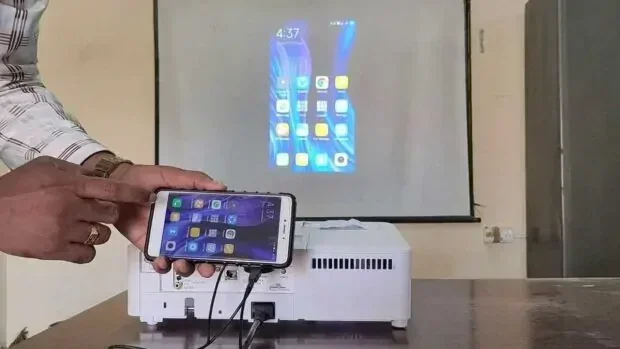
Displaying your phone on a projector wirelessly is easier than you think. Whether you use AirPlay, Chromecast, Miracast, or a wireless HDMI adapter, you can cast your screen to any projector without messy cables. This guide covers every method, device compatibility, and practical tips to get you projecting in minutes.
Have you ever wanted to share something on your phone with a big group? Maybe it is a presentation, a movie, or photos from a recent trip. Displaying your phone on a projector wirelessly makes this possible without any tangled cables. You do not need expensive equipment or technical skills. In this guide, we walk you through every method step by step. You will learn how to cast your phone screen to a projector in just a few minutes. Let us get started.
Wireless projection has changed the way we share content. Gone are the days of fumbling with HDMI cables and adapters. Today, most phones and projectors support wireless display technology built right in. Whether you have an iPhone or an Android device, there is a simple way to connect. This guide covers every option so you can pick the best one for your setup.
Key Takeaways
- Wireless projection is simple: You can mirror your phone screen to a projector using built-in features like AirPlay or Miracast, or with affordable casting devices.
- Multiple methods work: Chromecast, wireless HDMI adapters, smart projectors, and dedicated screen mirroring apps all let you display your phone without wires.
- Compatibility matters: Check that your phone and projector support the same wireless standard before you start.
- Setup takes minutes: Most wireless methods require just a few simple steps and no technical expertise.
- Troubleshooting is straightforward: Common issues like lag, black screens, or connection drops usually have quick fixes.
- Best results come from preparation: A strong WiFi connection and updated software make all the difference.
📑 Table of Contents
- Why Displaying Your Phone on a Projector Wirelessly Is a Game Changer
- What You Need to Display Your Phone on a Projector Wirelessly
- How to Display Your Phone on a Projector Wirelessly: Step-by-Step Methods
- Comparison of Wireless Projection Methods
- Common Problems When Displaying Your Phone on a Projector Wirelessly
- Tips for the Best Wireless Projection Experience
- Final Thoughts
Why Displaying Your Phone on a Projector Wirelessly Is a Game Changer
Wireless screen sharing offers real freedom. You move around the room instead of being tied to a desk. You can present from anywhere in the space. This makes meetings, classrooms, and movie nights feel natural and relaxed.
No More Cables
Wired connections limit where you can stand. You also need the right adapter for your phone model. Wireless projection removes all of that hassle. You just connect and go. Screen mirroring without wires saves time and reduces setup stress.
Works With Almost Any Device
Modern smartphones support wireless projection standards like AirPlay, Miracast, and Chromecast. Most new projectors include built-in WiFi or smart features. Even older projectors can work with a simple wireless adapter. The options are vast and flexible.
Perfect for Many Situations
Here are some common uses for wireless phone-to-projector display:
- Business presentations at the office or in meetings
- Classroom teaching where teachers share content from their phones
- Home movie nights with friends and family
- Photo sharing at events and parties
- Gaming on a big screen
What You Need to Display Your Phone on a Projector Wirelessly
Before you start, make sure you have the right setup. The good news is that most people already have everything they need. Here is what matters most.
Check Your Projector
Not all projectors are the same. Smart projectors come with built-in WiFi and apps. They can receive a wireless signal directly. Older projectors may need a wireless display adapter plugged into the input port. Check your projector model to see what it supports.
Check Your Phone
Both iPhones and Android phones can project wirelessly. Here is what you need:
- iPhone: Needs iOS 12 or later for AirPlay support
- Android: Needs Android 5.0 or later for Miracast or Google Cast
- Both: Must be on the same WiFi network as the projector or adapter
Make Sure You Have a Stable WiFi Connection
A strong WiFi signal is the backbone of wireless screen mirroring. If your network is slow or unstable, you may see lag or drops. Try to use a 5GHz WiFi band for the best performance. If you are in a large room, consider a WiFi extender to boost the signal.
How to Display Your Phone on a Projector Wirelessly: Step-by-Step Methods
There are several ways to cast your phone screen to a projector. Each method works differently, and some work better with certain devices. Let us look at the most popular options.
Method 1: Use Built-In AirPlay (For iPhone Users)
If you have an iPhone, AirPlay is the easiest way to project wirelessly. Most Apple-compatible projectors and smart TVs support AirPlay natively.
- Make sure your iPhone and the projector are on the same WiFi network.
- Open the Control Center by swiping down from the top right of your screen.
- Tap the Screen Mirroring button (it looks like two overlapping rectangles).
- Select your projector from the list of available devices.
- Your phone screen will now appear on the projector.
Quick Tip: If you do not see your projector, restart both devices and try again. Also, check that AirPlay is enabled in your projector settings.
Method 2: Use Google Cast or Chromecast (For Android Users)
Android users can rely on Google Cast technology. If your projector supports Chromecast or you have a Chromecast device plugged in, this method works great.
- Connect your Chromecast device to the projector’s HDMI port.
- Make sure both your phone and Chromecast are on the same WiFi network.
- Open the app you want to display (like YouTube or Google Photos).
- Tap the Cast icon (a rectangle with WiFi waves in the corner).
- Select your projector or Chromecast device.
- Your content will now display on the big screen.
Quick Tip: You can also mirror your entire Android screen using the Google Home app. Open the app, tap your device, and choose “Cast my screen.”
Method 3: Use Miracast (For Android and Some Windows Phones)
Miracast is a wireless display standard built into many Android phones and projectors. It creates a direct WiFi connection between devices without needing an app.
- Enable Miracast on your projector (often found in the display or network settings).
- On your Android phone, go to Settings > Connected Devices > Cast.
- Your phone will search for available Miracast devices.
- Select your projector from the list.
- Your phone screen will mirror to the projector instantly.
Expert Insight: Miracast works best when both devices support Wi-Fi Direct. This means the connection happens directly between the phone and projector without needing a router. It is fast and reliable for real-time screen sharing.
Method 4: Use a Wireless HDMI Adapter
If your projector does not have smart features, a wireless HDMI adapter is a great solution. These small devices plug into the projector’s HDMI port and create a wireless receiver.
- Plug the wireless adapter into the projector’s HDMI port.
- Connect the adapter to a power source.
- Download the adapter’s companion app on your phone.
- Follow the app instructions to pair your phone with the adapter.
- Start casting your screen to the projector.
Popular wireless adapters include ScreenBeam, Airtame, and EZCast. They work with both iPhones and Android phones and cost between 30 and 100 dollars.
Method 5: Use a Smart Projector With Built-In Apps
Smart projectors like the Anker Nebula, XGIMI, and Epson EpiqVision come with built-in WiFi and app stores. You can download casting apps directly onto the projector. Some even support AirPlay and Miracast out of the box.
With a smart projector, you do not need any extra hardware. Just connect both devices to the same WiFi network and start casting. This is the simplest and cleanest setup for wireless phone projection.
Comparison of Wireless Projection Methods
Not sure which method is right for you? Here is a quick comparison of the most popular wireless display options.
| Method | Best For | Device Compatibility | Extra Hardware Needed | Ease of Use |
|---|---|---|---|---|
| AirPlay | iPhone users | iPhone, iPad, Mac | AirPlay-compatible projector | Very Easy |
| Google Cast / Chromecast | Android users | Android phones, Chromebook | Chromecast device (if projector lacks it) | Easy |
| Miracast | Android and Windows phones | Most Android phones | Miracast-enabled projector | Easy |
| Wireless HDMI Adapter | Older or non-smart projectors | iPhone and Android | Wireless adapter (30-100 USD) | Moderate |
| Smart Projector | All-around simplicity | All phones | None | Very Easy |
As you can see, each method has its strengths. AirPlay is the go-to for iPhone users. Chromecast works well for Android. Miracast is great for direct connections. And wireless adapters make old projectors new again. Pick the one that fits your devices best.
Common Problems When Displaying Your Phone on a Projector Wirelessly
Even with the simplest setup, you might run into issues now and then. Here are the most common problems and how to fix them quickly.
Lag or Delay During Screen Mirroring
Lag happens when the WiFi signal is weak or crowded. Try these fixes:
- Move closer to the WiFi router
- Switch to a 5GHz network instead of 2.4GHz
- Close other apps that use bandwidth on your phone
- Restart your router and projector
Projector Does Not Show Up in the Device List
This is one of the most common frustrations. Here is what to do:
- Make sure both devices are on the same WiFi network
- Restart both your phone and the projector
- Check that wireless display is enabled on the projector
- Update the firmware on your projector
Black Screen or No Signal
A black screen usually means the connection failed. Try this:
- Turn off screen mirroring on your phone and turn it back on
- Check the projector input source (make sure it is set to the correct HDMI or wireless input)
- Try a different cable or adapter if you are using one
- Reset network settings on your phone
Poor Audio Quality
If the video works but the sound is bad, check these settings:
- Make sure your phone is not muted
- Check the projector volume settings
- Some projectors need you to select the correct audio output source
- Try using a Bluetooth speaker as a backup audio source
Common Mistakes to Avoid:
- Forgetting to connect both devices to the same WiFi network
- Using an outdated projector firmware that does not support new mirroring standards
- Trying to mirror while on a crowded public WiFi network
- Ignoring the projector’s input source selection
Tips for the Best Wireless Projection Experience
Want smooth, high-quality projection every time? Follow these simple tips to get the most out of your setup.
Use a Dedicated WiFi Network
If possible, set up a separate WiFi network just for your projector and phone. This reduces interference from other devices. You will get a faster, more stable wireless display connection.
Keep Your Software Updated
Both your phone and projector receive regular software updates. These often include fixes for screen mirroring bugs and performance improvements. Check for updates before your next presentation or movie night.
Optimize Your Phone Settings
Turn off features you do not need while projecting. Disable Bluetooth, location services, and background app refresh. This frees up resources and improves wireless projection quality.
Test Before Your Event
Always do a test run before you present to a group. Set up your phone and projector, try casting, and check the audio and video quality. This saves you from surprises on the big day.
Consider a Dedicated Streaming Device
If you project often, a dedicated device like Amazon Fire Stick, Roku, or Apple TV can make things even easier. You connect these to your projector and cast from your phone with minimal setup. They handle the heavy lifting so your phone battery lasts longer.
Final Thoughts
Displaying your phone on a projector wirelessly is one of the most useful tech skills you can learn. Whether you are presenting at work, teaching in a classroom, or enjoying a movie night at home, wireless projection makes it easy and convenient. You have many options to choose from, including AirPlay, Google Cast, Miracast, wireless adapters, and smart projectors.
The best method depends on your phone, your projector, and your budget. Start with the built-in options on your devices. If those do not work, a wireless adapter or smart projector is a reliable backup. Wireless screen mirroring removes the hassle of cables and lets you share content with confidence.
Now that you know all the methods, pick the one that works best for you. Set up your devices, test the connection, and enjoy the freedom of cable-free projection. You will wonder how you ever managed without it.
Frequently Asked Questions
Can I display my phone on any projector wirelessly?
Most modern projectors support some form of wireless display. Smart projectors often have built-in WiFi and apps. Older projectors may need a wireless HDMI adapter to receive a wireless signal. Check your projector’s manual or specs to confirm compatibility.
Do I need an internet connection to mirror my phone to a projector?
It depends on the method. AirPlay and Chromecast usually require a WiFi network. Miracast can work without internet using Wi-Fi Direct. Wireless adapters also create a direct connection in most cases. Check the requirements for your specific method.
Why is there a delay when I cast my phone screen to a projector?
Lag usually happens due to a weak WiFi signal or network congestion. Switch to a 5GHz band, move closer to the router, or reduce the number of devices on your network. Closing background apps on your phone can also help improve performance.
Can I display videos and games from my phone on a projector wirelessly?
Yes, you can cast videos, games, photos, and any other content from your phone screen. However, some apps like Netflix use DRM protection and may block screen mirroring. In those cases, try using the projector’s built-in apps or a streaming device instead.
What is the best wireless method for iPhone users?
AirPlay is the best and most seamless option for iPhone users. It is built into iOS and works with AirPlay-compatible projectors and adapters. If your projector does not support AirPlay, a wireless HDMI adapter or Apple TV can bridge the gap easily.
Are wireless adapters worth buying for phone-to-projector casting?
Yes, wireless adapters are a great investment if you have an older projector without smart features. Devices like ScreenBeam and Airtame cost between 30 and 100 dollars and make any projector capable of wireless screen mirroring. They are simple to set up and work with both iPhones and Android phones.