How Do I Connect My iPhone To My Jensen Car Stereo Now
Learning how to connect your iPhone to your Jensen car stereo is easier than you think. Whether you prefer Bluetooth wireless streaming, a simple USB cable, or Apple CarPlay, this guide walks you through every step. You will also find troubleshooting tips, expert advice, and answers to the most common questions about Jensen audio systems.
You just got into your car, plugged in your iPhone, and… nothing happens. The music does not play. The screen stays blank. It is frustrating, right? You are not alone. Many Jensen stereo owners struggle with connecting their iPhone at first. The good news is that it is usually a quick fix. This guide shows you exactly how to connect your iPhone to your Jensen stereo in simple steps. You will learn about Bluetooth, USB cables, Aux inputs, and Apple CarPlay. By the end, you will be streaming music, making calls, and using your phone safely through your car audio system. Let us get started.
Jensen is a well-known name in car audio. They make reliable stereos, amplifiers, and speakers for all kinds of vehicles. Their receivers support modern phone connections like Bluetooth and CarPlay. But every model is slightly different. That is why this guide covers all the main ways to connect an iPhone to a Jensen stereo. No matter what Jensen model you own, you will find the right method here. We keep things simple and practical. You do not need to be a tech expert to follow along.
Key Takeaways
- Multiple Connection Options: You can connect your iPhone to a Jensen stereo using Bluetooth, USB, Aux cable, or Apple CarPlay depending on your model.
- Bluetooth Is the Most Popular Method: Wireless pairing gives you freedom and convenience while driving.
- USB Offers Charging and Stable Audio: A USB cable keeps your iPhone charged and delivers reliable sound quality.
- Apple CarPlay Adds Smart Features: CarPlay brings Siri, maps, and apps to your Jensen stereo screen.
- Troubleshooting Is Simple: Most connection issues can be fixed with basic steps like restarting devices or updating software.
- Check Your Jensen Model First: Different Jensen receivers support different connection types, so verify your model before starting.
- Hands-Free Calling Works Too: Once connected, you can make and receive calls through your Jensen stereo safely.
📑 Table of Contents
- Before You Start: Know Your Jensen Stereo Model
- How to Connect Your iPhone to Jensen Stereo Using Bluetooth
- How to Connect iPhone to Jensen Stereo Using a USB Cable
- Using Apple CarPlay with Your Jensen Stereo
- Connecting with an Aux Cable
- Common Connection Problems and How to Fix Them
- Expert Tips for the Best iPhone and Jensen Stereo Experience
- Comparison Table: Connection Methods for iPhone and Jensen Stereo
- Conclusion
Before You Start: Know Your Jensen Stereo Model
Every Jensen stereo is a little different. Some models have Bluetooth built in. Others need an adapter. Before you try any connection method, check what your stereo supports. Look at the front panel of your Jensen receiver. Do you see a Bluetooth symbol? Is there a USB port on the face? These small details matter. They tell you which connection methods are available.
You can also check your owner’s manual. The manual lists all the features of your specific model. If you do not have the paper copy, visit Jensen’s website. They have digital manuals for most models. Knowing what your stereo can do saves you time. It also stops you from buying cables or adapters you do not need.
Common Jensen Stereo Models That Support iPhone Connection
Jensen makes many different receiver models. Here are some popular ones that work well with iPhones:
- Jensen CM14000-DL: This is a popular double-DIN receiver with Bluetooth and USB support.
- Jensen CD-7900: A single-DIN model with modern connectivity features.
- Jensen VM9512: A touchscreen model that supports Apple CarPlay and Bluetooth.
- Jensen MS-8:** An amplifier system that works with Jensen receivers for full car audio upgrades.
- Jensen Touchscreen Receivers: Many newer Jensen models come with touchscreens and CarPlay support.
Check your model number before proceeding. This ensures you follow the right steps for your specific stereo.
How to Connect Your iPhone to Jensen Stereo Using Bluetooth
Bluetooth is the most popular way to connect an iPhone to a Jensen stereo. It is wireless, easy, and works in most Jensen models. Once paired, your phone streams music and handles calls without any cables. This is the method most people prefer because it is so convenient.
Step-by-Step Bluetooth Pairing Guide
Follow these steps to pair your iPhone with your Jensen stereo:
- Turn on your Jensen stereo. Press the power button and let the receiver fully start up.
- Go to the Bluetooth settings on your Jensen. Use the touchscreen or press the Setup button on the face. Look for a Bluetooth or Settings menu.
- Select “Search for Devices” or “Scan.” Your Jensen stereo will look for nearby Bluetooth devices.
- On your iPhone, open Settings. Tap “Bluetooth” and make sure it is turned on.
- Wait for your Jensen stereo to appear. It might show up as “Jensen,” “JVC-BT,” or your specific model name.
- Tap on the Jensen device name on your iPhone. A pairing code may appear on both screens.
- Enter the code on both devices if needed. Some models confirm the connection automatically.
- Look for a confirmation message. Your iPhone should now show “Connected” under the Jensen device name.
That is it! Your iPhone is now connected to your Jensen stereo wirelessly. You can start playing music right away. The audio streams through your car speakers.
Quick Tips for Better Bluetooth Connection
- Keep your iPhone within 10 feet of the stereo for the best signal.
- Turn off other Bluetooth devices nearby that might interfere.
- Make sure your Jensen stereo firmware is up to date.
- Restart both devices if the connection drops unexpectedly.
- Name your Jensen stereo something recognizable in the Bluetooth settings.
How to Connect iPhone to Jensen Stereo Using a USB Cable
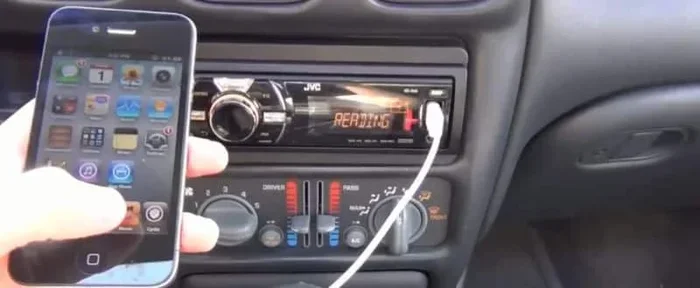
A USB cable connection is another great option. It provides a stable audio signal and charges your iPhone at the same time. Many Jensen receivers have a USB port on the front panel or behind the face. This method works well for people who want reliable playback without worrying about battery drain.
Steps to Connect via USB
- Find the USB port on your Jensen stereo. It is usually on the front panel. Some models have it behind the detachable face.
- Use a good quality USB cable. A Lightning cable or USB-C cable works depending on your iPhone model.
- Plug one end into your iPhone. Make sure the connection is snug and secure.
- Plug the other end into the Jensen USB port. Push it in gently until it clicks.
- Your Jensen stereo should detect the iPhone automatically. The screen may show a message or the iPhone icon.
- Select “iPhone” or “USB” as the source on your Jensen. Use the source or mode button on the stereo.
- Browse your music library. You can now play songs, playlists, and podcasts through your car speakers.
The USB connection also charges your iPhone while you drive. This is a big plus on long road trips. You do not have to worry about your phone battery dying.
USB Connection Troubleshooting
If your Jensen stereo does not recognize your iPhone via USB, try these steps:
- Unplug the cable and plug it back in firmly.
- Try a different USB cable. Some cables only charge and do not transfer data.
- Clean the USB port on both the iPhone and the Jensen stereo.
- Restart your iPhone and the Jensen receiver.
- Check if your iPhone is locked. Some models need the screen unlocked for USB connections.
Using Apple CarPlay with Your Jensen Stereo
Apple CarPlay is a fantastic feature. It puts your iPhone’s smart features right on your Jensen stereo screen. You get access to maps, music, messages, and Siri. It works through a USB cable or wirelessly on supported models. CarPlay makes your driving experience much safer and more convenient.
What You Need for Apple CarPlay
- A Jensen stereo that supports Apple CarPlay.
- An iPhone 5 or newer with the latest iOS version.
- A Lightning to USB cable (for wired CarPlay).
- A wireless CarPlay adapter (if your Jensen supports wireless CarPlay).
Setting Up CarPlay with Your Jensen
Follow these steps to get CarPlay running on your Jensen stereo:
- Connect your iPhone to the Jensen using a USB cable. Plug the cable into your iPhone and the Jensen USB port.
- Your Jensen stereo should display the CarPlay interface. If it does not, select CarPlay from the source menu.
- Unlock your iPhone. A prompt may ask you to trust the car stereo. Tap “Trust.”
- Follow the on-screen setup. You can customize your CarPlay layout and apps.
- Use Siri for hands-free control. Press and hold the voice command button on your Jensen stereo.
CarPlay gives you access to Apple Maps, Spotify, Apple Music, Messages, and more. You can get directions, make calls, and listen to podcasts all through your Jensen stereo. It is one of the best ways to integrate your iPhone with your car audio system.
Connecting with an Aux Cable
Not all Jensen models have Bluetooth or USB. Some older stereos only have an Aux input. This is a simple 3.5mm audio jack. You can use it to connect your iPhone with a standard aux cable. It is not the most advanced method, but it works reliably.
How to Use an Aux Cable with Jensen
- Get a 3.5mm aux cable. You probably already have one. They are cheap and widely available.
- Plug one end into your iPhone’s headphone jack or adapter. Newer iPhones do not have a headphone jack, so you need a Lightning to 3.5mm adapter.
- Plug the other end into the Aux port on your Jensen stereo. It is usually labeled “AUX” or “Line In.”
- Select the Aux source on your Jensen. Press the source or mode button until “AUX” appears on the screen.
- Play music on your iPhone. The sound comes through your car speakers.
The aux connection does not charge your iPhone. It also does not support hands-free calling. But for simple music playback, it gets the job done. It is a solid backup option if Bluetooth or USB is not available.
Common Connection Problems and How to Fix Them
Even with the best setup, you might run into issues. iPhone and Jensen stereo connections can sometimes be tricky. Here are the most common problems and their solutions.
iPhone Not Showing Up on Jensen Bluetooth
If your iPhone does not appear in the Jensen Bluetooth search list, try this:
- Turn Bluetooth off and back on from your iPhone Settings.
- Restart your Jensen stereo by holding the power button for 10 seconds.
- Reset your iPhone’s network settings (Settings > General > Reset > Reset Network Settings).
- Make sure your Jensen stereo is not already connected to another device.
- Move your iPhone closer to the Jensen receiver.
Music Keeps Pausing or Cutting Out
Intermittent audio is annoying. Here is what to do:
- Check that your iPhone is fully charged or connected to power.
- Make sure no other Bluetooth devices are interfering.
- Reduce the distance between your iPhone and the Jensen stereo.
- Update your Jensen firmware through the Jensen website or manual instructions.
- Delete the Jensen Bluetooth pairing from your iPhone and pair again from scratch.
iPhone Does Not Charge via USB on Jensen
If your iPhone connects but does not charge, try these fixes:
- Use a different USB cable. Some cables are charging-only and do not transfer data.
- Try a different USB port on the Jensen stereo if available.
- Check if your Jensen has a dedicated charging port or if it shares the USB port with audio.
- Restart both devices and try again.
CarPlay Not Working on Jensen Stereo
If Apple CarPlay fails to launch, try these steps:
- Make sure your iPhone supports CarPlay and is running the latest iOS.
- Use a certified Lightning cable. Cheap cables often cause CarPlay issues.
- Go to Settings > General > CarPlay on your iPhone and remove the Jensen connection, then re-add it.
- Restart both your iPhone and your Jensen stereo.
- Check if your Jensen model supports wireless CarPlay or if it requires a wired connection.
Expert Tips for the Best iPhone and Jensen Stereo Experience
Once your iPhone is connected to your Jensen stereo, you want the best experience possible. Here are some expert tips that make a big difference.
Keep Your Firmware Updated
Jensen regularly releases firmware updates for their receivers. These updates fix bugs and add new features. Check the Jensen website for your model’s latest firmware. Updating is usually simple and free. It keeps your stereo running smoothly with your iPhone.
Use a Quality Cable
Cheap USB cables cause many connection problems. They may only charge your phone or disconnect randomly. Invest in a good quality, certified cable. Apple-certified cables are the safest bet. They work reliably with both your iPhone and your Jensen stereo.
Set Your iPhone Audio Output Correctly
Sometimes your iPhone sends audio to the wrong output. To fix this:
- Open Control Center on your iPhone.
- Tap the AirPlay icon.
- Select your Jensen stereo as the output device.
- This ensures all audio goes through your car speakers.
Use Hands-Free Calling Safely
One of the biggest benefits of connecting your iPhone to your Jensen stereo is hands-free calling. You can answer calls through your car speakers and microphone. This keeps your hands on the wheel and your eyes on the road. Always use this feature for safer driving.
Organize Your iPhone for Car Use
Create a driving playlist on your iPhone before you start your car. This saves time and keeps you focused on the road. You can also use Siri voice commands to change songs or get directions without touching your phone. It is safer and more convenient.
Comparison Table: Connection Methods for iPhone and Jensen Stereo
| Connection Method | Wireless? | Charges iPhone? | Audio Quality | Hands-Free Calling? | Best For |
|---|---|---|---|---|---|
| Bluetooth | Yes | No | Good | Yes | Casual listening and calls |
| USB Cable | No | Yes | Excellent | Yes | Reliable playback and charging |
| Apple CarPlay | Yes or No | Yes (wired) | Excellent | Yes | Smart features and navigation |
| Aux Cable | No | No | Good | No | Simple music playback |
As you can see, each method has its strengths. Bluetooth is the most convenient. USB and CarPlay offer the best audio quality and charging. Aux is the simplest fallback option. Choose the method that fits your needs and your Jensen model.
Conclusion
Connecting your iPhone to your Jensen stereo is straightforward once you know the right steps. You have several options to choose from. Bluetooth gives you wireless freedom. USB provides stable audio and charging. Apple CarPlay brings smart features to your car. And an aux cable works when nothing else is available. Pick the method that suits your Jensen model and your needs. Follow the steps in this guide, and you will be listening to your favorite music in minutes. Keep your firmware updated, use quality cables, and enjoy a better driving experience every time you get behind the wheel. Your Jensen stereo and iPhone are made to work together. Now you know exactly how to make that connection happen.
Frequently Asked Questions
Can I connect any iPhone to any Jensen stereo?
Most Jensen stereos work with iPhones that have Bluetooth or USB capability. However, not every Jensen model supports every connection type. Check your specific Jensen stereo manual to confirm which iPhone connection methods it supports. Older models may only have aux input, while newer ones support Bluetooth, USB, and CarPlay.
Why is my iPhone not showing up in the Jensen Bluetooth list?
This usually happens when Bluetooth is turned off on one of the devices or when the devices are too far apart. Try turning Bluetooth off and back on, restarting both devices, and moving closer together. Also check if your Jensen stereo is already paired with another phone, as most receivers can only connect to one device at a time.
Does connecting my iPhone via USB charge the battery?
Yes, when you connect your iPhone to your Jensen stereo using a USB cable, it typically charges your iPhone while you drive. The charging speed depends on your Jensen model and the USB port’s power output. If charging does not work, try a different USB cable or port.
Can I use Apple CarPlay with a Jensen stereo?
Apple CarPlay works with many newer Jensen stereo models. You need a Jensen receiver that specifically supports CarPlay, which is usually listed in the product specifications. Connect your iPhone via a USB cable or wirelessly if your model supports it, and CarPlay will launch automatically.
What should I do if the audio quality is poor when connected?
Poor audio quality is often caused by a weak Bluetooth signal, a damaged cable, or interference from other devices. Try moving closer to the stereo, using a different cable, or switching from Bluetooth to USB for better sound. You can also check if your Jensen stereo has an equalizer setting that needs adjustment.
How do I disconnect my iPhone from my Jensen stereo safely?
To disconnect, you can either turn off Bluetooth on your iPhone, unplug the USB cable, or go into the Jensen stereo’s Bluetooth settings and select “Disconnect” or “Forget Device.” This ensures a clean connection the next time you pair your devices.