Can I Set Up Eero Without A Modem Here Is What You Need
Yes, you can set up eero without a modem in certain situations. If your internet provider gives you a modem-router combo unit, you can connect eero directly to it. Setting up eero without a modem is possible when you use fiber internet, a bridge, or an existing router. This guide walks you through every option so you can get your eero mesh network up and running fast.
Key Takeaways
- You can skip a modem: If your ISP provides a gateway device, eero can connect directly to it.
- Fiber internet is the easiest path: Fiber setups often use an ONT, which acts like a modem, letting eero connect without a separate modem.
- Bridge mode solves conflicts: If you already have a router, putting it in bridge mode lets eero handle all WiFi duties.
- The eero app makes setup simple: The whole process takes about 15 to 30 minutes.
- Not all setups work without a modem: DSL and cable internet usually need a modem to convert the signal.
- Check with your ISP first: Your internet provider can tell you exactly what hardware you need.
📑 Table of Contents
- Can I Set Up Eero Without A Modem
- When Can You Skip the Modem Entirely?
- How to Set Up Eero Without a Modem
- Eero Setup With Different Internet Types
- Common Mistakes When Setting Up Eero Without a Modem
- Quick Tips for the Best Eero Experience
- Expert Insights on Eero and Modem-Free Setup
- Key Takeaways
- Conclusion
Can I Set Up Eero Without A Modem
Many people ask, Can I Set Up Eero Without A Modem. The short answer is yes. But the full answer depends on your internet setup. Some homes need a modem. Others do not. This guide will help you figure out which one applies to you.
Eero is a mesh WiFi system that replaces your old router. It creates strong, steady WiFi coverage throughout your home. But does it need a modem? That is the big question. Let us break it down in plain language so you can get started right away.
What Does a Modem Actually Do?
A modem connects your home to the internet. It takes the signal from your internet service provider, or ISP, and turns it into data your devices can use. Without a modem, your eero system has no internet source. So the modem is still important. But you may not need a separate one.
Many ISPs today give you a single device that works as both a modem and a router. This is called a gateway. If you have a gateway, you might not need a separate modem at all. That is where things get interesting for eero users.
When Can You Skip the Modem Entirely?
There are a few situations where you can set up eero without a modem. Let us look at each one so you can see if your home qualifies.
Fiber Internet Connections
Fiber internet is the best option for skipping a modem. Fiber uses an ONT, or optical network terminal, instead of a traditional modem. The ONT converts light signals into internet data. Eero can connect directly to the ONT. This means you do not need a separate modem at all.
Fiber also gives you faster speeds and lower latency. So pairing eero with fiber is a great combo. You get fast internet and strong WiFi coverage in one setup.
ISP Gateway Devices
If your internet provider gave you a single box that handles both modem and router functions, you can use eero with that device. You put eero in bridge mode or connect it behind the gateway. This lets eero focus on creating WiFi while the gateway handles the modem work.
Some people find that using a gateway with eero creates double NAT issues. But putting the gateway in bridge mode fixes that. We will cover how to do this in the setup section below.
Ethernet-Only Connections
Some offices and apartments offer a plain ethernet jack on the wall. This jack is already connected to the internet. In this case, you can plug eero directly into the wall jack. No modem needed. This is one of the simplest ways to get eero running.
How to Set Up Eero Without a Modem
Setting up eero without a modem is straightforward. Follow these steps and you will be online in no time.
Step 1: Check Your Internet Source
First, figure out where your internet comes from. Is it fiber? Do you have a gateway? Is there a wall jack with ethernet? Knowing your source tells you what to do next.
Call your ISP if you are unsure. Ask them, “Do I have a separate modem, or is it all in one box?” They can walk you through it quickly.
Step 2: Connect Eero to the Internet Source
Plug your eero hub into the internet source using an ethernet cable. If you have a gateway, plug the cable from the gateway into the eero hub. If you have a wall jack, plug the cable from the wall into eero.
Make sure the eero hub is plugged into power too. The light on the front will tell you when it is ready.
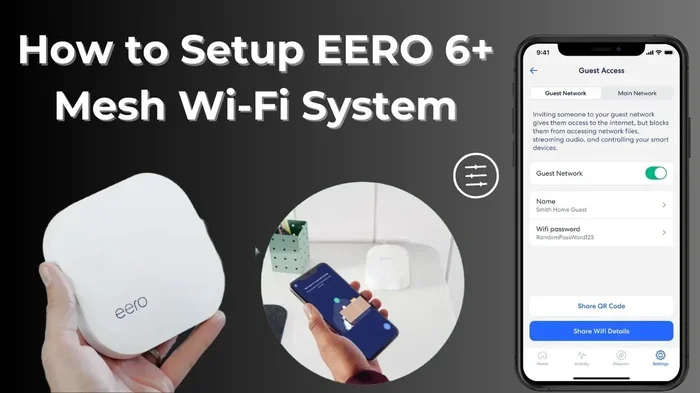
Step 3: Use the Eero App
Download the eero app on your phone. It works with both iPhone and Android. Open the app and follow the on-screen steps. The app will guide you through the whole process.
You will create a network name and password. Pick something easy to remember. The app makes it simple to set up eero beacons too. Just place them around your home and the app walks you through pairing each one.
Step 4: Place Your Eero Beacons
Once the main hub is set up, add your beacons. Place them in rooms where WiFi is weak. Keep them within a good distance from the hub. The eero app shows you signal strength as you move them around.
You do not need to plug beacons into ethernet. They connect wirelessly to the hub. This is one of the big benefits of a mesh WiFi system.
Step 5: Test Your Network
Walk around your home and test the WiFi. Check speeds in different rooms. Open the eero app to see how each node is performing. If a room has weak signal, move the beacon closer.
Most people find that one eero hub and one or two beacons cover a full house. Larger homes may need more nodes.
Eero Setup With Different Internet Types
Not all internet connections are the same. Here is how eero works with different types of internet service.
| Internet Type | Modem Needed? | Eero Setup Method |
|---|---|---|
| Fiber | No | Connect eero directly to ONT |
| Cable | Usually yes | Connect eero to cable modem |
| DSL | Yes | Connect eero to DSL modem |
| Ethernet Wall Jack | No | Plug eero directly into wall jack |
| Gateway (Modem-Router Combo) | No separate modem | Put gateway in bridge mode, connect eero |
| Fixed Wireless | Sometimes | Check with your ISP for setup needs |
As you can see, fiber and ethernet wall jacks are the easiest paths. Cable and DSL usually need a modem. But even with cable or DSL, you can still use eero. You just need the modem in place first.
Common Mistakes When Setting Up Eero Without a Modem
Avoid these common pitfalls to save yourself frustration.
Skipping the ISP Check
Many people skip calling their ISP. They guess about their setup. This leads to problems. Always confirm what type of internet you have and what hardware you need. A five-minute phone call can save hours of troubleshooting.
Ignoring Double NAT Issues
Double NAT happens when two routers both try to manage your network. This can cause slow speeds, connection drops, and devices that cannot connect. If you have a gateway and a separate router, put one of them in bridge mode. Eero works best when it is the main router on your network.
Placing Eero Too Far From the Source
Your eero hub needs a strong signal from the internet source. If you place it too far away or behind thick walls, the connection will be weak. Keep the hub close to the modem or ONT when you first set it up. You can move it later once everything is working.
Forgetting to Update Firmware
Eero releases updates that improve speed and security. After setup, check the app for any available updates. Keeping your eero system updated ensures the best performance.
Quick Tips for the Best Eero Experience
- Use a hardwired backhaul: If possible, connect eero nodes with ethernet cables. This gives you the fastest speeds.
- Restart your eero monthly: A quick restart keeps things running smoothly.
- Name your network something simple: Pick a network name and password you will remember easily.
- Keep eero firmware updated: Updates fix bugs and boost performance.
- Use the eero app for speed tests: The built-in speed test helps you spot weak spots.
- Place beacons in open areas: Avoid hiding them inside cabinets or behind furniture.
Expert Insights on Eero and Modem-Free Setup
Networking experts agree that eero is one of the easiest mesh systems to set up. The eero app is designed for beginners. You do not need to know how to configure ports or adjust settings manually.
Most experts recommend checking with your ISP before buying eero. Some ISPs charge extra if you use your own router. Others provide full support for third-party devices. A quick call can clear up any surprises.
Experts also suggest starting with a three-pack if you have a larger home. The coverage is excellent, and adding more nodes later is easy. Eero’s mesh WiFi system scales with your needs.
Key Takeaways
- Yes, you can set up eero without a modem: In many cases, especially with fiber or ethernet wall jacks.
- Gateway devices replace modems: If your ISP gave you a combo unit, you do not need a separate modem.
- Bridge mode is your friend: It prevents double NAT and lets eero work as the main router.
- The eero app guides you step by step: Setup takes about 15 to 30 minutes for most people.
- Different internet types need different setups: Fiber is easiest, while cable and DSL usually need a modem.
- Avoid common mistakes: Check with your ISP, avoid double NAT, and keep firmware updated.
- Eero scales easily: Start small and add more nodes as your home or needs grow.
Conclusion
Can I set up eero without a modem? Yes, you can. The method depends on your internet type and the hardware your provider gives you. Fiber users can connect eero directly to the ONT. Gateway users can skip a separate modem entirely. Ethernet wall jack users have the simplest setup of all.
For cable or DSL users, a modem is still needed. But eero can work alongside it easily. The key is understanding your setup before you begin. Use the eero app, follow the steps, and you will have a strong mesh network in under half an hour.
Do not let the modem question stop you from trying eero. It is one of the best mesh WiFi systems on the market. With clear setup steps and helpful app guidance, setting up eero without a modem is within reach for most homes. Give it a try and enjoy fast, reliable WiFi everywhere.
Frequently Asked Questions
Can I use eero if I already have a router from my ISP?
Yes, you can. Put your ISP router in bridge mode and connect eero to it. This lets eero handle all WiFi duties while the ISP router just passes the internet signal through. It prevents double NAT and gives you the best performance from your eero system.
Do I need a modem for cable internet with eero?
Most cable internet setups need a modem. The modem converts the cable signal into data your devices can use. You then connect eero to that modem. Check with your ISP to see if they provide a modem or if you need to buy one separately.
Can I connect eero directly to a wall ethernet jack?
Yes, if your building provides a direct ethernet connection to the wall. This is common in apartments and some offices. Just plug an ethernet cable from the wall jack into the eero hub. No modem is needed in this case.
How long does eero setup take without a modem?
Most people finish setup in 15 to 30 minutes. The eero app walks you through each step. Downloading the app, connecting the hub, adding beacons, and testing your network all happen quickly. It is one of the easiest mesh systems to set up.
Will I lose any features if I set up eero without a modem?
No. You get the same features with or without a separate modem. Eero still provides mesh WiFi, parental controls, device prioritization, and guest networks. The only difference is how your internet signal enters your home.
What is the difference between a modem and a router?
A modem connects your home to the internet from your ISP. A router shares that internet connection with your devices over WiFi. Many ISPs now combine both into one device called a gateway. Eero replaces the router part of that combo and creates a better WiFi network.