How Do I Access My Phone From My Computer Wirelessly
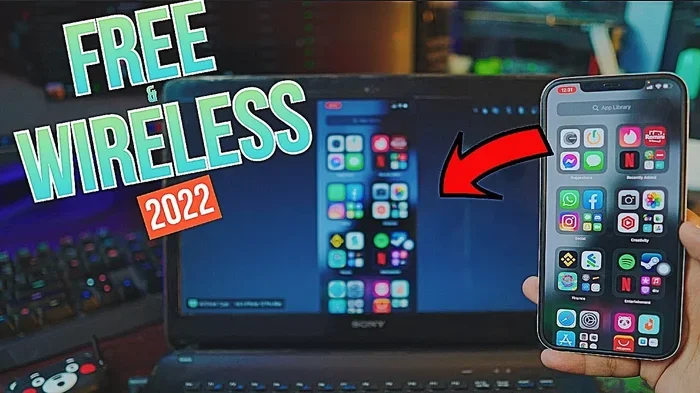
Accessing your phone from your computer wirelessly is easier than you think. You can sync files, mirror your screen, and even reply to texts without picking up your device. This guide covers every reliable method for both Android and iPhone users.
Have you ever been sitting at your desk and needed something from your phone? Maybe a photo, a text message, or a file you forgot to email yourself. Instead of digging through your bag or walking across the room, you can access your phone from your computer wirelessly. It is faster, simpler, and honestly a total game-changer for everyday productivity.
Wireless phone access has come a long way. A few years ago, you needed messy cables and clunky software. Today, built-in tools and free apps let you connect your phone and computer in seconds. Whether you use Android or iPhone, Windows or Mac, there is a method that fits your setup perfectly.
In this guide, we walk through every practical way to access your phone from your computer wirelessly. You will learn about native tools, third-party apps, and pro tips that make the whole process smooth. By the end, you will wonder how you ever lived without it.
Key Takeaways
- Built-in tools work great: Windows Phone Link and Apple iCloud offer free wireless access.
- Third-party apps unlock more features: AirDroid, Pushbullet, and Samsung Flow give you powerful control.
- Wi-Fi and Bluetooth are your best friends: No cables needed for most wireless phone access methods.
- File transfer is seamless: You can move photos, documents, and videos between devices in seconds.
- Setup takes minutes: Most methods require just a few simple steps to get running.
- Security matters: Always use trusted apps and keep your devices updated.
📑 Table of Contents
- Why Wireless Phone Access Matters
- Method 1: Use Built-In Tools for Wireless Phone-to-PC Connection
- Method 2: Third-Party Apps That Supercharge Wireless Access
- Method 3: Use Wi-Fi Direct and Bluetooth for Direct Connections
- Method 4: Cloud Services for Seamless Access
- Method 5: Remote Desktop and Screen Mirroring Tools
- Common Mistakes to Avoid When Accessing Your Phone Wirelessly
- How to Choose the Right Method for Your Needs
- Key Takeaways
- Conclusion
Why Wireless Phone Access Matters
We live in a multi-device world. Your phone holds your photos, messages, and personal files. Your computer handles work, emails, and big projects. When these devices talk to each other seamlessly, life gets so much easier.
Here are some real reasons wireless phone-to-PC connection matters:
- Time savings: You do not need to plug in a cable every time you share a file.
- Convenience: Reply to texts or check notifications right from your desk.
- Productivity boost: Copy text from your phone and paste it into a document on your computer.
- No cable clutter: Keep your workspace clean and tidy.
- Cross-platform flexibility: Work between different devices and operating systems effortlessly.
The beauty of wireless phone access is that it works in the background. Once set up, you barely think about it. It just works. That is the goal we are chasing in this article.
Method 1: Use Built-In Tools for Wireless Phone-to-PC Connection
Both major operating systems offer free built-in tools for sync phone with computer tasks. These are the best starting points because they cost nothing and require no extra downloads.
Windows Phone Link (Previously Your Phone)
If you use a Windows 10 or 11 computer, you already have Phone Link on your device. This tool lets you access your phone from your computer without any third-party software. It works best with Android phones and has solid iPhone support too.
Here is how to set it up:
- Open the Phone Link app on your Windows PC.
- On your phone, go to your settings and search for “Phone Link” or “Link to Windows.”
- Scan the QR code that appears on your computer screen.
- Grant the necessary permissions when prompted.
- Wait a moment for your devices to pair.
Once connected, you can view notifications, read and reply to texts, see photos, and even make calls. The phone to PC connection happens over your shared Wi-Fi network, so no cables are involved.
Quick Tip: Make sure both devices are on the same Wi-Fi network for the best experience. If they are not, the connection may be slow or unstable.
Apple iCloud and Continuity
iPhone users have a powerful built-in option too. Apple’s ecosystem is designed for seamless wireless phone access between your iPhone and any Mac or even a Windows PC with iCloud for Windows installed.
To get started with iCloud:
- Sign in to iCloud.com on your computer browser.
- You can access photos, files, notes, and more instantly.
- On a Mac, iCloud syncs everything automatically.
For a deeper connection, use Apple Continuity features like Universal Clipboard. This lets you copy text on your phone and paste it on your computer. It feels like magic once you try it.
Quick Tip: Enable Two-Factor Authentication on your Apple ID for extra security when using iCloud across devices.
Method 2: Third-Party Apps That Supercharge Wireless Access
Built-in tools are great, but third-party apps add features that make remote phone access truly powerful. Let us explore the best options available.
AirDroid: The All-in-One Solution
AirDroid is one of the most popular apps for wireless file transfer between phones and computers. It works on both Android and iPhone, and it is free for basic use.
What makes AirDroid stand out:
- File transfer: Move photos, videos, and documents without cables.
- Screen mirroring: View your phone screen on your computer in real time.
- SMS and call management: Reply to messages directly from your PC.
- App management: Install or remove apps remotely.
To use AirDroid, install the app on your phone and visit the web address on your computer. They will pair automatically if both devices are on the same network. It is that simple.
Pushbullet: Best for Notifications and Messaging
Pushbullet focuses on keeping you connected across devices. It syncs notifications from your phone to your computer, so you never miss a message. You can also send files, links, and SMS directly from your desktop.
This app is perfect if you spend most of your day at a computer and want your phone to stay quietly in your pocket while still being reachable.
Samsung Flow and Smart Switch
Samsung phone users have dedicated tools that make phone mirroring software setup a breeze. Samsung Flow connects your Galaxy phone to your PC via Wi-Fi or Bluetooth. You get seamless notifications, text replies, and file sharing built right in.
Smart Switch is another Samsung tool that handles large data transfers. It is ideal when you are setting up a new computer and want to move everything from your phone over wirelessly.
| App | Best For | Platforms | Price |
|---|---|---|---|
| Phone Link | Built-in Windows integration | Windows + Android/iPhone | Free |
| iCloud | Apple ecosystem sync | Mac + iPhone | Free |
| AirDroid | Full phone control and file transfer | All platforms | Free / Premium |
| Pushbullet | Notifications and messaging | All platforms | Free / Premium |
| Samsung Flow | Samsung Galaxy users | Windows + Mac | Free |
Method 3: Use Wi-Fi Direct and Bluetooth for Direct Connections
Sometimes you do not want to rely on Wi-Fi or cloud services. That is where Wi-Fi Direct and Bluetooth file transfer come in handy. These methods create a direct link between your phone and computer.
What Is Wi-Fi Direct?
Wi-Fi Direct lets two devices connect without a router. Your phone and computer create a private network between them. This means faster speeds and better privacy since your data does not travel through your home network.
Many modern computers and phones support Wi-Fi Direct natively. On Android, you can find it in your wireless settings. On Windows, you can use the built-in Wi-Fi Direct feature for wireless file transfer.
Bluetooth File Transfer
Bluetooth is the older sibling of Wi-Fi Direct, but it still works well for smaller files. You can send photos or documents between your phone and computer without any internet connection at all.
Here is the basic process:
- Turn on Bluetooth on both your phone and computer.
- Pair the devices by searching for each other.
- Select the file you want to send on your phone.
- Choose “Share via Bluetooth” and select your computer.
- Accept the transfer on your computer.
Quick Tip: Bluetooth is slower than Wi-Fi Direct, so it works best for files under 50 MB. For larger files, stick with Wi-Fi or Wi-Fi Direct.
Method 4: Cloud Services for Seamless Access
Cloud services are one of the easiest ways to access your phone files from your computer. They work by uploading your data to a server, which you can then reach from any device with internet access.
Google Drive for Android Users
If you use an Android phone, Google Drive is already built into your device. Photos, documents, and backups sync automatically to the cloud. You can then open Google Drive on your computer and download anything you need.
This method is perfect for people who want a set it and forget it approach to file syncing.
OneDrive and Dropbox
OneDrive comes built into Windows, and Dropbox works on every platform. Both apps offer folders on your computer that automatically sync with your phone. Save a file on your phone, and it appears on your computer moments later.
Expert Insight: For the best experience, use the desktop app version of your chosen cloud service. It creates a folder on your computer that behaves just like a regular folder, making cross-platform file sharing feel completely natural.
Method 5: Remote Desktop and Screen Mirroring Tools
Sometimes you need more than file access. You want to see your phone screen on your computer and control it remotely. This is where phone mirroring software and remote desktop tools shine.
Scrcpy: A Free Powerhouse
Scrcpy is a free, open-source tool that mirrors your Android screen to your computer. It works over USB or wirelessly over TCP/IP. The performance is surprisingly smooth, and you can even control your phone from your keyboard and mouse.
Scrcpy is popular among tech enthusiasts because it is lightweight, fast, and has no ads or premium tiers. It is the go-to choice for serious remote phone access on Android.
TeamViewer and AnyDesk
These tools are traditionally used for computer-to-computer remote access, but they also support phone connections. You can view and control your phone screen from your computer from anywhere in the world, as long as both devices have internet.
Quick Tip: For local wireless access, Scrcpy is faster and more reliable. Save TeamViewer or AnyDesk for situations where you need to access your phone remotely over the internet.
Common Mistakes to Avoid When Accessing Your Phone Wirelessly
Even with the right tools, people sometimes run into frustrating issues. Here are the most common mistakes and how to avoid them.
Skipping Software Updates
Outdated apps and operating systems cause connection problems. Always keep your phone, computer, and any phone-to-PC connection software up to date. Updates fix bugs and improve compatibility between devices.
Using Unofficial or Sketchy Apps
The app store is full of tools that promise free wireless access but secretly collect your data. Stick to well-known apps like AirDroid, Phone Link, and Pushbullet. Check reviews and developer information before installing anything new.
Ignoring Network Settings
Firewalls and VPNs can block wireless phone access tools from working properly. If your connection keeps dropping, check your firewall settings and make sure the app is allowed through. Also, ensure both devices are on the same network for local connections.
Overlooking Battery Drain
Screen mirroring and continuous syncing drain your phone battery faster. If you notice your phone getting hot or losing charge quickly, reduce the mirroring quality or disconnect when you do not need it.
How to Choose the Right Method for Your Needs
With so many options, how do you pick the best one? It depends on what you want to achieve.
- Just need to read texts and see notifications? Use Phone Link or Pushbullet.
- Want to transfer files regularly? AirDroid or cloud services like Google Drive work great.
- Need full screen control? Scrcpy or Samsung Flow are your best bets.
- In the Apple ecosystem? iCloud and Continuity make everything effortless.
- Working across different platforms? AirDroid and Pushbullet support Android, iPhone, Windows, and Mac.
Think about what you do most often. Do you share lots of photos? Do you need to reply to messages from your desk? Do you want to control your phone remotely? Your answers will guide you to the right tool.
Key Takeaways
- Built-in tools work great: Windows Phone Link and Apple iCloud offer free wireless access.
- Third-party apps unlock more features: AirDroid, Pushbullet, and Samsung Flow give you powerful control.
- Wi-Fi and Bluetooth are your best friends: No cables needed for most wireless phone access methods.
- File transfer is seamless: You can move photos, documents, and videos between devices in seconds.
- Setup takes minutes: Most methods require just a few simple steps to get running.
- Security matters: Always use trusted apps and keep your devices updated.
Conclusion
Learning how to access your phone from your computer wirelessly opens up a world of convenience. You no longer need cables, you do not need to carry your phone everywhere, and you can stay productive across all your devices. The methods in this guide cover every major scenario, from simple file transfers to full screen mirroring and remote control.
Start with the built-in tools on your devices. If you need more power, explore third-party apps like AirDroid or Pushbullet. The key is to find the method that fits your workflow and stick with it. Once you experience the ease of wireless phone access, you will never go back to digging for cables again.
Try one method today. Set it up in five minutes. And enjoy the freedom of having your phone right there on your computer screen whenever you need it.
Frequently Asked Questions
Can I access my phone from my computer without installing any software?
Yes. If you use Windows, the built-in Phone Link app requires no extra downloads. iPhone users can access their files through iCloud.com in any web browser. Both methods work wirelessly and are completely free.
Is wireless phone access safe and secure?
It is safe when you use trusted apps and keep your devices updated. Always download apps from official stores like Google Play or the Apple App Store. Enable two-factor authentication on your accounts for an extra layer of protection.
Can I access my phone from a computer on a different network?
Yes, but it depends on the tool you use. Cloud services like Google Drive and iCloud work from anywhere with internet. Apps like AirDroid and TeamViewer also support remote access over the internet, not just on your local Wi-Fi network.
What is the fastest way to transfer files between my phone and computer wirelessly?
AirDroid and Wi-Fi Direct are among the fastest methods for local wireless file transfer. They use your Wi-Fi network directly, which is much quicker than Bluetooth. For large files like videos, these options will save you a lot of time.
Does wireless phone access work between Android and iPhone?
Some tools do. AirDroid and Pushbullet support both Android and iPhone, making cross-platform access possible. However, Apple’s built-in tools like Continuity work best within the Apple ecosystem and have limited support for Android devices.
Will using these tools drain my phone battery quickly?
Continuous screen mirroring and background syncing can increase battery usage. To minimize drain, disconnect when you are not actively using the connection. Lower the screen mirroring resolution in apps like Scrcpy for better battery life.