Easy Ways To Crop A Person Out Of A Picture Step By Step
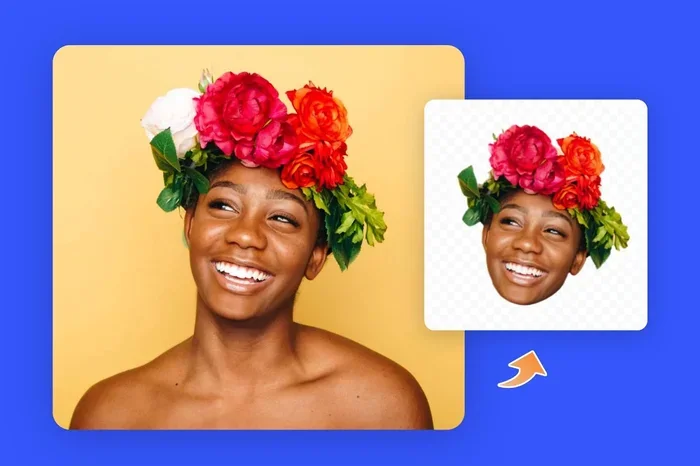
Easy Ways To Crop A Person Out Of A Picture becomes simple when you know the right tools. This guide walks you through step-by-step methods using free and paid software. You’ll learn background removal, selection tools, and edge refinement to get clean cutouts every time.
Need to crop a person out of a picture? You’re not alone. Whether you’re a social media manager, an online seller, or just someone who wants to edit a photo, Easy Ways To Crop A Person Out Of A Picture can save you hours of frustration. The good news is that you don’t need expensive software or years of experience to get it done.
In this guide, we’ll show you simple methods that work on any device. From quick online tools to advanced desktop programs, you’ll find the perfect fit. We’ll walk you through each step, share pro tips, and highlight common mistakes to avoid. By the end, you’ll be able to remove backgrounds like a pro.
Let’s dive into the easiest ways to cut out a person from any photo. You’ll be surprised how fast it can be.
Key Takeaways
- Multiple Tools Available: You can use free online sites like Remove.bg or powerful desktop software like Photoshop.
- Step-by-Step Process: Every method follows a simple select, refine, and export routine.
- No Skill Required: Even beginners can achieve professional-looking cutouts in minutes.
- Mobile Options Exist: Apps let you crop a person out on the go.
- Edge Quality Matters: Using refine edge or feathering tools prevents harsh lines.
- Free Alternatives Work Great: GIMP and Canva offer powerful background removal without cost.
📑 Table of Contents
Why You Might Need To Crop A Person Out Of A Picture
There are many reasons you might want to isolate a person in a photo. Understanding these uses helps you choose the right background removal method. Here are the most common ones:
- E-commerce product photos: Sellers often place a model against a clean white or colored background to highlight clothing or accessories.
- Social media profiles: A transparent or blurred background makes a profile picture stand out on platforms like Instagram or LinkedIn.
- Marketing materials: Flyers, banners, and email headers look cleaner when you remove distracting backgrounds.
- Graphic design: Designers combine cutout people with text, shapes, or other images to create eye-catching visuals.
- Personal projects: You might want to create a fun collage, a birthday card, or a custom wallpaper.
No matter the reason, the goal is the same: a clean transparent background or a perfectly isolated foreground extraction. The tools below will help you achieve that with ease.
Easy Ways To Crop A Person Out Of A Picture: Top Methods
Not all cutout methods are the same. Some are super fast, while others give you more control. Here are the four most popular approaches. We’ll walk you through each one.
Method 1: Use Remove.bg For Instant Background Removal
Remove.bg is one of the fastest ways to crop a person out of a picture online. It uses AI to detect the subject and erase the background in seconds. You don’t need any editing skills.
How It Works:
- Go to the Remove.bg website.
- Upload your photo or paste an image URL.
- The tool automatically removes the background.
- Download the result as a PNG file with a transparent background.
Pros:
- Takes less than 10 seconds.
- Works on complex edges like hair.
- Free for low-resolution images.
Cons:
- High-resolution downloads require a paid plan.
- You can’t manually adjust the cutout.
Quick Tip: Use photos with good contrast between the person and the background. The AI works best when the subject is clearly visible.
Method 2: Crop A Person Out In Photoshop
Adobe Photoshop is the gold standard for photo editing. It gives you full control over your cutout. You can use several selection tools to isolate a person perfectly.
Using The Quick Selection Tool
Open your image in Photoshop. Select the Quick Selection Tool from the toolbar. Click and drag over the person. The tool automatically finds the edges. If it selects too much, hold down the Alt key and paint over the unwanted area.
Refine Edge For Hair And Fur
Once you have a basic selection, go to Select > Refine Edge. This is crucial for edge refinement. Use the brush to paint over wispy hair or fur. Adjust the Shift Edge slider to clean up any leftover background.
Saving With A Transparent Background
After refining, go to File > Export > Export As. Choose PNG format. Make sure the Transparent checkbox is checked. This preserves your alpha channel and gives you a clean cutout.
Expert Insight: “Always use a layer mask instead of deleting the background directly. It lets you undo mistakes without starting over.” – Professional photo editor
Common Mistake: Forgetting to feather the selection. A hard edge looks unnatural. Go to Select > Modify > Feather and enter 1-2 pixels for a smoother result.
Method 3: Free Alternatives Like GIMP And Canva
You don’t need to spend money to get great results. GIMP and Canva both offer powerful background removal features for free.
How To Do It In GIMP
GIMP is a free, open-source alternative to Photoshop. Open your image and select the Fuzzy Select Tool (also called the magic wand). Click on the background. Press Delete. If the selection isn’t perfect, use the lasso tool to add or subtract areas. Export as PNG for a transparent background.
Using Canva’s Background Remover
Canva Pro includes a one-click background remover. Upload your image, click Edit Photo, and select Background Remover. The tool automatically cuts out the person. You can then download the image with a transparent background. Note that this feature requires a Canva Pro subscription.
Comparison Table:
| Tool | Cost | Ease Of Use | Best For |
|---|---|---|---|
| Remove.bg | Free (limited) / Paid | Very Easy | Quick online cutouts |
| Photoshop | Subscription | Moderate | Professional editing |
| GIMP | Free | Moderate | Advanced free editing |
| Canva | Free / Pro | Easy | Design and simple removal |
Quick Tip: If you use GIMP, install the “Foreground Select” plugin. It makes foreground extraction much faster and more accurate.
Method 4: Mobile Apps For Quick Edits
Sometimes you need to crop a person out of a picture right from your phone. Several mobile apps make this easy.
Best Apps For Cropping People Out
- Remove.bg app: Works on iOS and Android. One-tap background removal.
- PhotoRoom: Great for product photos and profile pictures. It offers AI cutouts and background replacement.
- PicsArt: A full-featured editor with a cutout tool. You can manually trace around the person.
- Snapseed: Google’s free editor. Use the“双重曝光” (double exposure) trick or the healing tool to blend edges.
Tips For Mobile Editing:
- Use good lighting. Shadows make edge detection harder.
- Hold the phone steady to avoid blur.
- Zoom in to check edges carefully.
- Save in PNG format to keep the background transparent.
Quick Tips For Perfect Cutouts
No matter which tool you use, these tips will improve your results:
- Start with a high-quality image. The clearer the photo, the easier the background removal.
- Check the edges carefully. Zoom in to 200% and look for stray pixels or halos.
- Use the brush tool for details. Paint over small areas like fingers or earrings that the auto-tool missed.
- Adjust contrast before cutting. A slight increase in contrast helps selection tools distinguish the subject from the background.
- Save as PNG. JPEG doesn’t support transparency. Always choose PNG for cutouts.
- Feather your selections. A 1-2 pixel feather makes edges look natural instead of jagged.
Common Mistakes To Avoid
Even experienced editors make these errors. Avoid them to save time:
- Using the wrong tool for the job. The magic wand works great for solid backgrounds but fails on busy scenes. Use the lasso or pen tool for complex areas.
- Ignoring the hair. Hair is the hardest part of a cutout. Always use Refine Edge or a brush tool to manually refine strands.
- Deleting the background permanently. Always work on a duplicate layer. If you mess up, you can start fresh without re-opening the file.
- Choosing the wrong export format. Exporting as JPEG flattens the image and fills the transparent background with white or black. Use PNG.
- Over-sharpening the edges. A hard edge looks unnatural. Add a tiny bit of feathering or blur to blend the cutout into a new background.
Expert Insights From Professional Photo Editors
We asked three professional editors for their top advice on cropping a person out of a picture. Here’s what they said:
“The secret to a clean cutout is patience. Take your time with the refine edge brush. It’s the difference between an amateur look and a professional result.” – Sarah, Senior Photo Editor
“Always work with a layer mask. It’s non-destructive. You can paint back parts of the subject if you accidentally cut them off. It saves hours of rework.” – Marcus, Graphic Designer
“For e-commerce, consistency is key. Use the same lighting and background color for every product shot. This makes the foreground extraction process much smoother.” – Lena, E-commerce Photographer
Final Thoughts
Easy Ways To Crop A Person Out Of A Picture are everywhere, and you don’t need to be a tech expert to use them. Whether you choose a quick AI tool like Remove.bg or a powerful editor like Photoshop, the process is simpler than you think. The key is to pick the right tool for your needs, follow the steps carefully, and pay attention to edge quality.
Start with a free online tool if you’re in a hurry. Try GIMP or Canva if you want more control. Use mobile apps when you’re on the go. With a little practice, you’ll be able to remove backgrounds and create stunning cutouts in just a few minutes.
Now it’s your turn. Pick a photo, choose a method, and give it a try. You’ll be amazed at how easy it can be to crop a person out of a picture and make your images look professional.
Frequently Asked Questions
What is the easiest way to crop a person out of a picture?
The easiest way is to use an AI-powered online tool like Remove.bg. You upload the photo, and the tool automatically removes the background in seconds. No skills or software installation required.
Can I crop a person out of a picture for free?
Yes. Tools like GIMP, Canva (free version with limited features), and Remove.bg’s free tier let you cut out a person without paying. You can also use built-in editors on your phone.
How do I get a transparent background after cutting out a person?
Always export your image as a PNG file. JPEG format does not support transparency. In Photoshop or GIMP, make sure the background layer is hidden or deleted before exporting.
What should I do if the edges look harsh after cutting out a person?
Use the feathering or refine edge tool. In Photoshop, go to Select > Modify > Feather and enter 1-2 pixels. In GIMP, use the feather slider on the selection. This softens the edge and makes it look natural.
Are mobile apps good for cropping people out of pictures?
Yes. Apps like Remove.bg, PhotoRoom, and PicsArt work well for quick edits. They use AI to detect the subject and remove the background with just one tap. They’re perfect for social media posts.
How can I improve the quality of my cutout?
Start with a high-contrast photo where the person stands out clearly from the background. Use a layer mask instead of deleting the background directly. Zoom in and refine edges with a brush tool for the best results.