Does Freecad Make Stl Files Everything You Need To Know
Yes, FreeCAD makes STL files easily and reliably. This open source CAD tool lets you export your designs directly to STL format, which is the standard file type most 3D printers understand. Whether you are a beginner or an experienced designer, learning how FreeCAD handles STL export will save you time and frustration.
So you want to know does FreeCAD make STL files? The short answer is yes, and it does so beautifully. FreeCAD is a powerful open source parametric 3D modeler that handles STL export with ease. If you have ever struggled with expensive software just to get a file your printer can read, this guide is for you.
Many people assume they need costly programs like SolidWorks or Fusion 360 to create printable 3D files. That is simply not true. FreeCAD gives you everything you need to design, refine, and export STL files without spending a single dollar. Let us walk through exactly how this works and what you need to know.
STL files are the universal language of 3D printing. Almost every slicer program out there, from Cura to PrusaSlicer, accepts STL format. When you design something in FreeCAD, the STL export step bridges the gap between your creative vision and a physical object sitting on your printer bed. Understanding this process fully will make you a much more confident maker.
Key Takeaways
- FreeCAD absolutely creates STL files: You can export any completed design directly to STL format with just a few clicks.
- Two STL formats are available: FreeCAD supports both ASCII and binary STL, giving you flexibility for different workflows.
- Export settings matter: Adjusting mesh resolution and tolerance settings in FreeCAD affects the quality of your STL output significantly.
- FreeCAD works great for 3D printing: The software is purpose built for open source CAD and pairs perfectly with slicing software.
- Common export problems have simple fixes: Most STL issues in FreeCAD come from mesh settings or incomplete shapes that are easy to resolve.
- FreeCAD is free and open source: Unlike many competing CAD programs, there are no licensing fees or hidden costs.
📑 Table of Contents
- Understanding How FreeCAD Creates STL Files
- Step by Step Guide to Exporting STL Files from FreeCAD
- Why FreeCAD Is Great for 3D Printing
- Common Problems When Exporting STL Files from FreeCAD
- Tips for Getting the Best STL Output from FreeCAD
- Comparing FreeCAD STL Export With Other CAD Software
- The Future of FreeCAD and STL Workflows
- Frequently Asked Questions
- Final Thoughts
Understanding How FreeCAD Creates STL Files
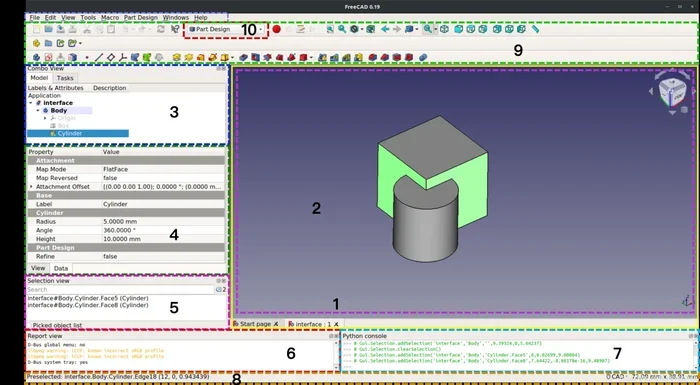
FreeCAD handles STL export through its mesh workbench and export tools. The process starts when you finish designing a part using FreeCAD modeling tools. Once your shape is complete, you convert it into a mesh, which is essentially a collection of tiny triangles that define the surface of your object. This mesh is what becomes your STL file.
The Mesh Workbench in FreeCAD
FreeCAD uses something called the Mesh workbench to handle STL operations. This dedicated workspace gives you tools to convert your Part designs into mesh objects. You can also edit meshes directly, repair problems, and optimize them before exporting. The Mesh workbench is where all the STL magic happens.
When you build a model in FreeCAD, you typically work with Part or Shape objects. These are smooth, mathematically defined surfaces. To turn them into an STL file, FreeCAD tessellates the surface, meaning it breaks it down into small flat triangles. The finer the tessellation, the smoother your STL file will look, but the larger the file size becomes.
ASCII vs Binary STL Format
FreeCAD gives you a choice between two STL formats during export. ASCII STL is a text based format that you can open and read in any text editor. Binary STL is a compact format that stores the same data but uses much less file space.
For most 3D printing workflows, binary STL is the better choice. It loads faster in slicer software and takes up less storage space. ASCII STL can be useful when you need to inspect or manually edit the mesh data, but this is rare in everyday use. FreeCAD handles both formats seamlessly.
Step by Step Guide to Exporting STL Files from FreeCAD
Exporting an STL file from FreeCAD is straightforward once you know where to look. Here is the exact process you should follow every time you need a printable file.
- Finish your design: Complete your model using FreeCAD Part Design or Part workbench tools. Make sure all shapes are solid and watertight.
- Select the object: Click on the object you want to export in the model tree or 3D view.
- Go to File menu: Click File in the top menu bar, then select Export.
- Choose STL format: In the file type dropdown, select STL as your export format.
- Adjust export settings: Before clicking Save, click the Options button to set mesh resolution and deviation tolerance.
- Save your file: Choose a location on your computer and click Save to generate the STL file.
That is all it takes. Your STL file is now ready to import into any slicer software. The key step many beginners miss is adjusting the export settings in step 5. Getting these right makes a huge difference in print quality.
Important Export Settings You Should Know
When you click the Options button during STL export, FreeCAD shows you several settings that control mesh quality. The Angular Deviation setting determines how closely triangles follow curved surfaces. A smaller value creates smoother curves but increases file size. A larger value is faster but may cause faceted or jagged surfaces on your print.
The Deviation setting controls how far triangles can deviate from the actual surface. For most 3D printing projects, the default settings work fine. But if you are printing something with smooth curves like a vase or a sphere, tightening these values will produce much better results.
Another important setting is the Relative Precision option. When enabled, FreeCAD scales the deviation tolerance based on the size of your model. This prevents tiny objects from having overly coarse meshes while keeping large models manageable. Always experiment with these settings until you find what works best for your specific projects.
Why FreeCAD Is Great for 3D Printing
FreeCAD has become one of the most popular choices for people who want to get into 3D printing without spending money on software. The free CAD software community has grown enormously, and FreeCAD sits at the center of that movement. Here is why it works so well for STL creation and 3D printing workflows.
It Is Completely Free and Open Source
Unlike commercial CAD programs that charge hundreds or thousands of dollars, FreeCAD costs nothing. You can download it right now and start designing. There are no subscription fees, no hidden costs, and no feature limitations based on your license tier. This makes it perfect for hobbyists, students, educators, and small businesses alike.
The open source nature of FreeCAD also means a huge community contributes to its development. Thousands of users create tutorials, addons, and workbenches that extend FreeCAD functionality. If you ever need a specialized tool for STL handling or 3D printing prep, someone has likely already built it.
Parametric Design Gives You Control
One of FreeCAD strongest features is its parametric modeling approach. This means you can go back and change dimensions at any point, and the entire model updates automatically. When you are creating STL files for 3D printing, this is incredibly valuable because you can quickly iterate on designs and re export without starting over.
Imagine designing a phone stand and realizing the base is too narrow. In a parametric modeler like FreeCAD, you simply adjust the base width parameter, and everything else stays the same. You then re export to STL and print again. This workflow saves enormous amounts of time compared to starting fresh each time.
Works With Any Slicer Software
Because STL is the universal 3D printing file format, your FreeCAD exports work with every slicer program available. Whether you use Cura, PrusaSlicer, Simplify3D, Orca Slicer, or any other tool, FreeCAD STL files load without any conversion or special plugins. This compatibility is one of the biggest advantages of working with STL format.
The 3D printing workflow becomes seamless when you pair FreeCAD with a good slicer. Design your part in FreeCAD, export to STL, import into your slicer, slice the model, and send it to your printer. That is the entire process, and FreeCAD handles its part perfectly every time.
Common Problems When Exporting STL Files from FreeCAD
While FreeCAD makes STL export easy, you may encounter some issues along the way. Understanding these problems and their solutions will save you hours of frustration.
Mesh Is Too Faceted or Blocky
If your exported STL file looks blocky or has visible flat facets on curved surfaces, your mesh resolution settings are too coarse. Go back to the export options and reduce the Angular Deviation value. Try setting it to 0.1 degrees or lower for smooth curves. Re export and check the result before printing.
STL File Is Extremely Large
A bloated STL file usually means your mesh settings are too fine for the object. While high resolution is good for curved surfaces, applying ultra fine settings to a flat or simple object wastes file space and slows down your slicer. Match your mesh quality to the complexity of your model. Simple shapes need less detail than organic curved forms.
Export Fails or Produces Empty File
If FreeCAD will not export your STL file or produces a file that is zero bytes, your model likely has gaps or non manifold edges. This means the shape is not fully closed or watertight. Use FreeCAD check tools to inspect your model before exporting. Fix any holes or overlapping faces, and the export should work normally.
Imported STL Looks Wrong in FreeCAD
Sometimes you import an STL file into FreeCAD and it appears distorted or the scale is wrong. This usually happens when the original file uses a different unit system than your FreeCAD project. Check your document units in FreeCAD preferences and ensure they match the units used when the STL was created. FreeCAD supports millimeters, inches, and other units natively.
Tips for Getting the Best STL Output from FreeCAD
Getting professional quality STL files from FreeCAD comes down to a few simple habits. Follow these tips and your 3D prints will thank you.
- Always check your model before export: Use FreeCAD measurement tools to verify dimensions match your intended size. A model that is the wrong scale will print incorrectly.
- Use binary STL for everyday printing: Binary format is smaller and faster to process in slicers. Reserve ASCII STL for situations where you need to inspect the raw mesh data.
- Adjust mesh settings per project: Do not just use default settings every time. Complex curved models need finer mesh resolution than simple boxy shapes.
- Name your files clearly: When you have many STL files, use descriptive names that include dimensions or version numbers. This saves enormous time when you are hunting for the right file later.
- Keep your FreeCAD version updated: The FreeCAD development team regularly improves mesh handling and export reliability. Using the latest version means fewer bugs and better STL output.
Quick Tips for Beginners
If you are new to FreeCAD and 3D printing, start with simple objects first. Design a basic cube or cylinder, export it to STL, and slice it in your favorite slicer. This lets you learn the export process without the frustration of a complex model failing. Once you are comfortable, move on to more ambitious projects.
Another great tip is to watch FreeCAD tutorial videos that specifically cover STL export. Seeing the process visually helps you understand the workflow much faster than reading alone. The FreeCAD community has excellent free resources that walk you through every step.
Comparing FreeCAD STL Export With Other CAD Software
How does FreeCAD handle STL export compared to other popular CAD programs? Let us look at a quick comparison.
| Software | Free or Paid | STL Export | Ease of Use | Best For |
|---|---|---|---|---|
| FreeCAD | Free | Yes | Moderate | Open source CAD users |
| Fusion 360 | Free for personal use | Yes | Easy | Professional hobbyists |
| Tinkercad | Free | Yes | Very Easy | Absolute beginners |
| SolidWorks | Paid | Yes | Moderate | Professional engineers |
| Blender | Free | Yes | Hard | Organic modeling |
FreeCAD holds its own very well in this comparison. It offers full STL export capabilities at zero cost, which is a massive advantage over paid alternatives like SolidWorks. While it may not be as beginner friendly as Tinkercad, the parametric modeling power makes it far more capable for serious projects.
For people who want a free CAD program that can handle real engineering projects and still produce clean STL files, FreeCAD is hard to beat. The learning curve is steeper than some alternatives, but the payoff in capability and cost savings is enormous.
The Future of FreeCAD and STL Workflows
The FreeCAD development team is constantly improving mesh handling and export features. Recent updates have focused on making STL export faster and more reliable. Future versions promise even better mesh optimization tools and more intuitive export settings.
As 3D printing continues to grow in popularity, free CAD software like FreeCAD will only become more important. The ability to create high quality STL files without spending money on software is a game changer for makers around the world. Whether you are prototyping a new product or creating custom gifts, FreeCAD gives you the tools you need.
The open source community surrounding FreeCAD is vibrant and growing. New workbenches and plugins appear regularly that make the STL export process even smoother. Staying connected with the FreeCAD community through forums and online groups helps you stay current with the latest features and best practices.
Frequently Asked Questions
Can FreeCAD export STL files directly from the Part Design workbench?
Yes, FreeCAD can export STL files from the Part Design workbench. You simply finish your design, select the object, go to the File menu, choose Export, and select STL as your format. FreeCAD will automatically convert your parametric shape into a mesh and save it as an STL file ready for 3D printing.
What is the difference between ASCII and binary STL in FreeCAD?
ASCII STL stores mesh data as human readable text, while binary STL uses a compact binary format. Binary STL files are smaller and load faster in slicer software. ASCII STL is useful when you need to inspect or manually edit the mesh data. FreeCAD supports both formats during export.
Why is my FreeCAD STL file so large?
An oversized STL file usually means your mesh export settings are too detailed for the model. High resolution settings create more triangles, which increases file size. Go to export options and adjust the Angular Deviation and Deviation settings to find a balance between quality and file size that suits your project.
Does FreeCAD support importing STL files as well?
Yes, FreeCAD can import STL files through its Mesh workbench. This is useful when you want to edit an existing STL file, repair mesh issues, or convert it back into a parametric shape. Importing STL gives you flexibility to work with files created in other software.
Is FreeCAD good enough for professional 3D printing work?
Absolutely. FreeCAD handles professional grade STL export with proper settings and workflow knowledge. Many makers and small businesses use FreeCAD as their primary CAD tool for 3D printing. Its parametric design capabilities and zero cost make it an excellent choice for professional and hobbyist use alike.
Can I use FreeCAD STL files with any 3D printer?
Yes, STL files from FreeCAD work with virtually every 3D printer and slicer on the market. STL is the universal 3D printing file format. Whether you use a Prusa, Creality, Bambu Lab, or any other brand, your FreeCAD STL files will import directly into your slicer software without any conversion.
Final Thoughts
The answer to does FreeCAD make STL files is a resounding yes. FreeCAD handles STL export efficiently, reliably, and completely free of charge. From the initial design phase through the final export settings, FreeCAD gives you everything you need to create high quality printable files.
Whether you are just starting your 3D printing journey or you are a seasoned maker looking for a free alternative to expensive CAD software, FreeCAD delivers. The STL export process is simple, the output is compatible with all major slicers, and the parametric design tools give you incredible flexibility.
Start experimenting with FreeCAD STL export today. Adjust your mesh settings, try different models, and watch how quickly you can go from idea to printed object. The only thing standing between you and your next 3D print is hitting that Export button. You have got this.
Remember, every expert was once a beginner. The fact that you are learning how FreeCAD creates STL files puts you ahead of the curve. Keep designing, keep printing, and keep exploring what this amazing free software can do for your creative projects.