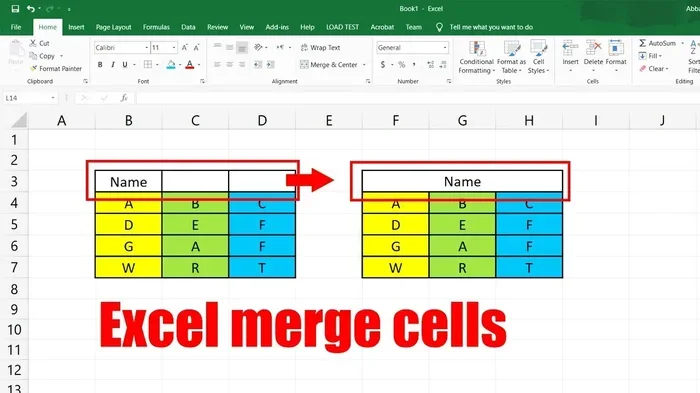
Definition Of Merge Cell Explained Simply And Clearly
The definition of merge cell is a feature in spreadsheet software that combines two or more adjacent cells into a single larger cell. This tool is commonly used in Excel and Google Sheets to create headers, improve table design, and enhance data presentation across rows and columns.
Key Takeaways
- What It Means: The definition of merge cell refers to combining multiple cells into one unified cell in a spreadsheet.
- Where It Works: You can merge cells in Excel, Google Sheets, and other spreadsheet software programs.
- Common Uses: Merged cells are ideal for headers, titles, and improving table layout and data organization.
- Limitations Exist: Merging can cause issues with sorting, filtering, and cell reference accuracy.
- Alternatives Available: The “Center Across Selection” feature offers a similar visual effect without the drawbacks.
- Best Practices: Always plan your table design before merging cells to avoid formatting headaches later.
📑 Table of Contents
What Is the Definition of Merge Cell?
So, what exactly does merge cell mean? In simple terms, the definition of merge cell is a function in spreadsheet programs that joins two or more adjacent cells together to form one single, larger cell. Instead of having separate boxes side by side, they become one big box that spans across rows or columns.
This feature has been around for a long time. People who work with spreadsheets use it all the time. Whether you are building a budget, organizing a schedule, or creating a report, merging cells can change how your information looks. It makes your data presentation cleaner and easier to read.
But here is the thing. Merging cells is not just about making things look pretty. It also affects how your spreadsheet works. Sorting, filtering, and even printing can be impacted when you combine cells. That is why understanding the definition of merge cell properly matters. You need to know not just how to do it, but when it makes sense and when it does not.
In this guide, we will break everything down. You will learn how merging works, how to do it in different programs, and the best ways to use it. By the end, you will feel confident every time you need to merge cells in your own work.
How Merge Cells Work in Spreadsheets
Before you dive into the step-by-step process, it helps to understand what happens behind the scenes. When you merge cells, the spreadsheet takes multiple cells and turns them into one. But what really goes on with the data inside?
What Happens to the Data?
Here is something many people do not know. When you merge cells, only the data in the top-left cell survives. Everything else gets deleted. So if cell A1 has the word “Sales” and cell B1 has the word “2024,” after merging, you will only see “Sales.” The “2024” disappears.
This is a critical point to remember. Always double-check your data before merging. Save your work first if you are unsure. Some people lose important information because they did not realize this behavior.
How Merged Cells Affect Cell References
In spreadsheet software, every cell has an address. Think of A1 or B2. These are called cell references. When you merge cells, the reference of the new combined cell stays the same as the top-left cell. So if you merge A1 through C3, the merged cell still uses the address A1.
This can cause problems in formulas. If another cell tries to reference B2, and B2 is now part of a merged range, the formula might return an error or give unexpected results. Keep this in mind when you are building complex data organization systems.
The Visual Impact of Merged Cells
Visually, merged cells create a cleaner look. They remove the gridlines between cells and give you more control over table layout. This is especially useful when designing reports or dashboards. A well-placed merged cell can draw attention to a title or section heading.
However, too many merged cells can make a spreadsheet look messy. It can also make it harder for others to edit the file. Balance is key. Use merging intentionally, not just because you can.
How to Merge Cells in Excel
Microsoft Excel is the most popular spreadsheet tool in the world. And merging cells in Excel is straightforward once you know where to look. Let us walk through it.
Using the Ribbon Menu
Here is the easiest way to merge cells in Excel. First, highlight the cells you want to combine. You can click and drag across them, or hold down the Shift key and use the arrow keys. Once the cells are selected, look at the Home tab at the top of the screen.
In the “Alignment” group, you will see a button that looks like four squares stacked together. That is the merge button. Click it, and your cells become one. You can also click the small arrow next to the button to choose different merge options:
- Merge & Center — Combines cells and centers the text.
- Merge Across — Merges cells in each row separately.
- Merge Cells — Combines cells without centering the text.
- Unmerge Cells — Splits a merged cell back into individual cells.
Using Keyboard Shortcuts
If you like working faster, keyboard shortcuts are your best friend. Unfortunately, Excel does not have a default shortcut specifically for merging cells. But you can create your own. Go to File, then Options, then Customize Ribbon, and assign a shortcut to the merge command.
Another quick trick is to use the Alt key. Press Alt, then H, then M, and then C to merge and center. This sequence works in most versions of Excel and can save you a lot of time.
Merging Cells with VBA Macros
For advanced users, VBA macros offer a powerful way to automate merging. You can write a simple script that merges specific cells based on conditions. This is especially useful when you work with large spreadsheets that need regular formatting updates. A basic VBA line looks like this:
Range("A1:C1").Merge
This single line merges cells A1 through C1. You can adjust the range to fit your needs. Just remember to always test macros on a copy of your file first.
How to Merge Cells in Google Sheets
Google Sheets is a free, cloud-based alternative to Excel. It works in your browser and syncs across all your devices. Merging cells in Google Sheets is very similar to Excel, but with a few differences.
The Merge Button in Google Sheets
To merge cells in Google Sheets, highlight the cells you want to combine. Then go to the “Format” menu at the top. Click “Merge cells.” You will see three options:
- Merge all — Combines all selected cells into one.
- Merge rows — Merges cells within each row separately.
- Merge columns — Merges cells within each column separately.
Google Sheets also has an “Unmerge” option in the same menu. It works just like Excel’s unmerge feature.
Differences Between Excel and Google Sheets Merging
While the basic function is the same, there are some differences worth noting. Google Sheets handles merged cells a bit differently when it comes to sorting and filtering. The behavior is similar to Excel, but Google Sheets sometimes gives clearer warning messages when merging could cause data loss.
Also, Google Sheets does not support VBA macros. Instead, it uses Google Apps Script, which is a JavaScript-based language. If you are comfortable with coding, you can automate merging in Google Sheets just like in Excel.
Common Uses for Merged Cells
Now that you know how to merge cells, let us talk about why you would want to. There are several situations where merging makes perfect sense. Understanding these use cases will help you decide when merging is the right move.
Creating Headers and Titles
The most common use for merged cells is creating headers. Imagine you have a table with columns for “January,” “February,” and “March.” Instead of having three separate headers, you can merge cells above them and write one title like “First Quarter Results.” This makes your table layout much clearer.
Building Report Covers
When you create business reports or dashboards, merged cells help you build professional-looking covers. You can merge a large area at the top of the sheet to place a title, a logo description, or a date. This gives your report a polished and organized appearance.
Designing Forms and Templates
Many people use spreadsheets to create forms, invoices, or templates. Merged cells let you create labels that span across multiple columns. For example, a “Customer Name” label can stretch across two columns to align perfectly with the input area below it.
Improving Readability
Sometimes, a table just looks better with merged cells. When you have a long category name that applies to several columns, merging the header row cells makes the table easier to scan. It improves data organization and helps readers understand the structure at a glance.
Pros and Cons of Merging Cells
Like any tool, merging cells has its strengths and weaknesses. Let us look at both sides so you can make smart decisions about when to use this feature.
The Benefits
- Cleaner appearance: Merged cells remove unnecessary gridlines and create a more professional look.
- Better organization: They help group related data together visually.
- Easier reading: Large headers that span multiple columns are much easier to read than tiny individual cells.
- More design control: You have greater flexibility in how you arrange your spreadsheet layout.
- Professional presentation: Reports and templates look more polished when cells are merged thoughtfully.
The Drawbacks
- Data loss risk: Only the top-left cell’s content survives the merge. Everything else is gone.
- Sorting problems: Merged cells can break sorting and filtering. Your data may not organize the way you expect.
- Copy and paste issues: Pasting data into or around merged cells can be unpredictable.
- Formatting conflicts: Merged cells can clash with other formatting rules, especially in conditional formatting.
- Compatibility issues: Some programs handle merged cells differently, which can cause problems when sharing files.
Weighing these pros and cons will help you decide whether merging is the best choice for your specific situation. In many cases, there are alternatives that give you the same visual benefit without the drawbacks.
Common Mistakes When Merging Cells
Even experienced spreadsheet users make mistakes with merged cells. Here are some of the most common errors and how to avoid them.
Merging Without Backing Up Your Data
This is the number one mistake. Always save a copy of your file before merging cells. If something goes wrong, you need a backup. It takes five seconds and can save you hours of work.
Overusing Merged Cells
It is tempting to merge cells everywhere for a clean look. But too many merged cells create a spreadsheet that is hard to edit and maintain. Use merging sparingly and only where it adds real value to your data presentation.
Ignoring the Data Loss Rule
Remember, only the top-left cell keeps its content. If you have important data in any of the other cells, move it somewhere safe first. Many people learn this lesson the hard way.
Merging Inside Data Tables
Never merge cells within a data table that you plan to sort or filter. Merged cells in the middle of a table will break these features. Keep your data tables clean and unmerged for the best results.
Expert Tips for Using Merged Cells Effectively
Want to get even better at using merged cells? Here are some expert tips that will take your spreadsheet skills to the next level.
Use “Center Across Selection” Instead
Here is a pro tip that many people do not know about. Instead of merging cells, you can use the “Center Across Selection” option. This makes text appear centered across multiple cells without actually combining them. Your data stays intact, and sorting and filtering still work perfectly.
To find this option in Excel, right-click the cells, choose “Format Cells,” go to the “Alignment” tab, and select “Center Across Selection” from the horizontal dropdown. It is a game changer.
Plan Your Layout First
Before you start merging, sketch out your table design on paper or in your mind. Decide which cells need to be merged and which should stay separate. This planning step saves time and prevents mistakes later.
Keep Merged Cells Near the Top
The safest place to use merged cells is in header rows or title areas. These areas are rarely sorted or filtered, so the risks are lower. Keeping merged cells toward the top of your spreadsheet reduces the chance of breaking important features.
Test Your File Before Sharing
If you are sharing your spreadsheet with others, test it first. Try sorting, filtering, and editing the data. Make sure nothing breaks because of merged cells. This small step can save a lot of frustration for everyone involved.
Consider Accessibility
Merged cells can be confusing for screen readers and assistive technologies. If you are creating a spreadsheet that needs to be accessible, use merged cells carefully. Provide clear labels and consider alternative formatting methods that are more accessible to all users.
Conclusion
The definition of merge cell is simple: it is a feature that combines multiple cells into one larger cell in a spreadsheet. But the impact of this feature goes far beyond just a visual change. When used correctly, merged cells improve data presentation, create cleaner table layouts, and make your spreadsheets easier to read.
On the other hand, misusing merged cells can cause real problems. Data loss, broken sorting, and formatting conflicts are all real risks. That is why it is so important to understand not just how to merge cells, but when to merge them and when to use alternatives like “Center Across Selection.”
Whether you work in Excel, Google Sheets, or another spreadsheet program, the principles remain the same. Plan your layout, protect your data, and merge with intention. The definition of merge cell is easy to understand, but using it well takes practice and thoughtfulness.
Now that you have all the knowledge you need, go ahead and put it into action. Open your next spreadsheet and try these tips. You will be amazed at how much cleaner and more professional your work looks. Happy merging!
Frequently Asked Questions
What does merge cell mean in Excel?
In Excel, the definition of merge cell means combining two or more selected cells into a single larger cell. The data from the top-left cell remains, while the content from other cells is removed. This feature is found in the Alignment group on the Home tab.
Can I undo a merge if I make a mistake?
Yes, you can unmerge cells at any time. Simply select the merged cell, go to the Merge button on the ribbon, and choose “Unmerge Cells.” Keep in mind that the content will stay in the top-left cell, and the other cells will become empty.
Does merging cells affect formulas?
Yes, it can. Merged cells may cause formulas that reference the merged range to return errors or unexpected results. Always check your formulas after merging cells to make sure everything still calculates correctly.
Can I merge cells in Google Sheets on my phone?
Yes, you can. The Google Sheets mobile app supports merging cells. Tap the cells you want to merge, then tap the “Format” option and select “Merge cells.” The process is similar to the desktop version.
Is there a keyboard shortcut to merge cells?
Excel does not have a default keyboard shortcut for merging cells. However, you can use the Alt key sequence Alt, H, M, C to merge and center quickly. You can also create a custom shortcut through Excel Options.
What is the best alternative to merging cells?
The “Center Across Selection” feature is the best alternative. It visually centers text across multiple cells without actually merging them. This keeps your data intact and avoids problems with sorting, filtering, and formulas.