Watch Netflix On Your Chromebook With These Easy Steps
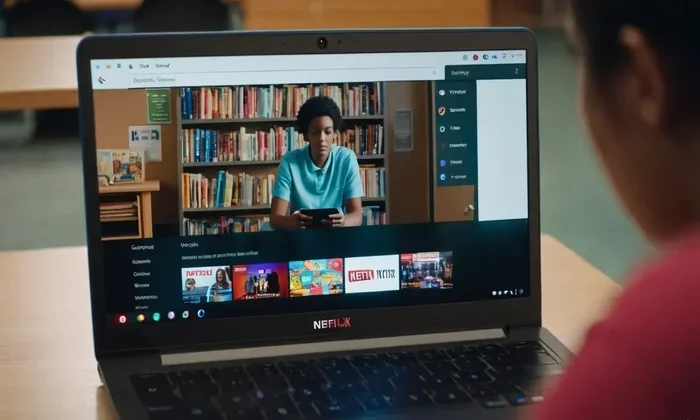
Yes, you can watch Netflix on a Chromebook — it is simple, fast, and works in just a few minutes. Whether you use the Netflix app or your web browser, streaming Netflix on a Chromebook is smooth and reliable. This guide covers setup, troubleshooting, and pro tips for the best Netflix Chromebook experience.
So you just got a Google Chromebook and you want to binge-watch your favorite shows on Netflix. The good news is that it works really well. Watching Netflix on a Chromebook is easy, and you can be up and running in just a few minutes.
Maybe you are wondering if Netflix even works on Chrome OS. Or maybe you tried it before and ran into a problem. Either way, you are in the right place. This guide walks you through everything you need to know. From setup to troubleshooting, we have you covered.
Streaming Netflix on a Chromebook is something millions of people do every day. Chromebooks are lightweight, affordable, and perfect for watching movies and TV shows. And with Netflix built right into the system, you do not need a lot of tech skills. Let us dive in.
Key Takeaways
- Netflix works great on Chromebooks: You can use the app or your browser to stream instantly.
- Setup takes under 5 minutes: Just sign in and start watching.
- Common issues are easy to fix: Most problems have simple solutions.
- You can cast Netflix: Use Chromecast or screen mirroring for a bigger screen.
- Offline viewing is possible: Download shows and movies to watch without Wi-Fi.
- School and work Chromebooks have limits: But there are still ways to stream.
📑 Table of Contents
- Can You Watch Netflix On A Chromebook?
- How To Set Up Netflix On Your Chromebook
- Troubleshooting Common Netflix Issues On Chromebook
- Tips For The Best Netflix Experience On Chromebook
- Netflix On A School Or Work Chromebook
- Chromebook vs Other Devices For Netflix
- Common Mistakes To Avoid When Watching Netflix On Chromebook
- Frequently Asked Questions
- Conclusion
Can You Watch Netflix On A Chromebook?
The short answer is yes. Netflix on Chromebook is fully supported and works very well. Google Chrome OS has a native Netflix app, and you can also use the Netflix website in your browser. Both options give you access to the full Netflix library.
Netflix was one of the first apps to support Chrome OS. That means it has been tested and optimized for Chromebooks. You get smooth playback, good picture quality, and easy navigation. Whether you have a budget Chromebook or a premium model, Netflix will run just fine.
How Netflix Works On Chrome OS
When you open Netflix on a Chromebook, it runs inside a special container. This container keeps the app separate from other files and apps on your device. It also helps Netflix run smoothly without slowing down your Chromebook.
The Netflix app on Chrome OS gets regular updates. These updates bring new features and fix bugs. You do not need to update Netflix manually. It updates automatically in the background, just like other Chrome OS apps.
System Requirements For Netflix On Chromebook
You do not need a powerful Chromebook to watch Netflix. Here is what you need:
- A Chromebook with Chrome OS version 69 or later. Most modern Chromebooks meet this requirement.
- A stable internet connection. Netflix needs at least 5 Mbps for HD streaming.
- A Netflix subscription. You need an active account to watch anything.
- At least 2 GB of RAM. Most Chromebooks have this or more.
- A Google account. This is needed to set up your Chromebook and access the Netflix app.
If your Chromebook meets these basic requirements, you are good to go. Even older Chromebooks can handle Netflix without any issues.
How To Set Up Netflix On Your Chromebook
Setting up Netflix on your Chromebook is quick and painless. You have two main ways to do it. You can use the Netflix app from the app store, or you can watch through your web browser. Both work great.
Installing The Netflix App
The Netflix app is the easiest way to watch on a Chromebook. Here is how you do it:
- Click the Launcher button at the bottom left of your screen.
- Type “Netflix” in the search bar.
- Click the Netflix app when it appears.
- Click “Install.” The app will download and install in a few seconds.
- Open Netflix and sign in. Use your Netflix email and password.
Once you are signed in, you can start watching right away. The app gives you access to all your profiles, watchlists, and recommendations. It also supports downloads for offline viewing.
Using Netflix In Your Browser
Not everyone wants to install an app. That is totally fine. You can watch Netflix directly in the Google Chrome browser. Just go to netflix.com, sign in, and start streaming. The browser version has all the same features as the app.
Using Netflix in the browser is great if you have limited storage space. It also means you do not need to update a separate app. Everything runs through Chrome, which updates automatically.
Quick Tip
Bookmark the Netflix website in your browser for quick access. This saves you time every time you want to watch something.
Troubleshooting Common Netflix Issues On Chromebook
Sometimes things do not go as planned. Maybe Netflix will not load, or the video keeps buffering. These issues are common, but they are easy to fix. Let us look at the most common problems and their solutions.
Netflix Not Loading Or Playing
If Netflix will not open or play a video, try these steps:
- Check your internet connection. Make sure your Wi-Fi is working. Try loading another website to confirm.
- Restart your Chromebook. A simple reboot fixes most minor glitches.
- Clear your browser cache. Go to Chrome settings, then Privacy and Security, and clear browsing data.
- Sign out of Netflix and sign back in. This refreshes your connection to the Netflix servers.
- Check the Netflix server status. Sometimes Netflix has outages. You can check downdetector.com to see if others are having the same issue.
Streaming Quality Problems
If your Netflix video looks blurry or keeps pausing to buffer, try these fixes:
- Lower the video quality. Go to Netflix Account settings, then Playback settings, and reduce the data usage.
- Close other tabs and apps. Too many open things can slow down your Chromebook.
- Move closer to your Wi-Fi router. A stronger signal means better streaming.
- Check your Netflix plan. Some plans only support standard definition, not HD.
Expert Insight
According to Netflix support, a 5 Mbps connection is enough for HD streaming. For 4K, you need at least 15 Mbps. Most home Wi-Fi connections easily handle this.
Netflix Error Messages On Chromebook
Error codes can be frustrating. Here are some common ones and what they mean:
- Error NW-2-5: This means your Chromebook cannot connect to Netflix. Check your Wi-Fi and try again.
- Error M7037-1111: This is a browser-related issue. Try using a different browser or clearing your cache.
- Error UI-800-3: This means the Netflix app data is corrupted. Try uninstalling and reinstalling the app.
Most error codes have simple fixes. You do not need to be a tech expert to solve them.
Tips For The Best Netflix Experience On Chromebook
Once Netflix is working on your Chromebook, you can make it even better. These tips help you get the most out of your streaming experience.
Improving Video Quality
Want sharper, clearer video? Here is what you can do:
- Make sure you are on a Netflix plan that supports HD or 4K. The basic plan only supports standard definition.
- Watch during off-peak hours. Late at night or early in the morning, your internet speed is usually faster.
- Use an Ethernet adapter. A wired connection is more stable than Wi-Fi for streaming.
- Update your Chromebook. Go to Settings, then About Chrome OS, and check for updates.
Using External Displays And Casting
You do not have to watch Netflix on your Chromebook screen. You can cast it to your TV or connect an external monitor.
To cast Netflix to your TV:
- Make sure your TV and Chromebook are on the same Wi-Fi network.
- Click the cast icon in the Netflix app or browser.
- Select your TV from the list of available devices.
- Your Netflix will now play on your TV screen.
You can also connect your Chromebook to a monitor using an HDMI cable. This is great if you want a bigger screen without a smart TV.
Keyboard Shortcuts For Netflix On Chromebook
These shortcuts make watching Netflix much more convenient:
- F11: Toggle full screen on and off.
- Spacebar: Pause and play the video.
- Arrow keys: Skip forward or backward by 10 seconds.
- M: Mute or unmute the volume.
Quick Tip
Use the full-screen shortcut to make your Netflix viewing area as big as possible. This gives you a more immersive experience.
Netflix On A School Or Work Chromebook
If your Chromebook is provided by your school or employer, you might face some restrictions. Many school and work Chromebooks block certain websites and apps, including Netflix. But there are still ways to watch.
Understanding Chromebook Restrictions
School and work Chromebooks are managed by IT administrators. These administrators can block apps, websites, and even the Netflix website. This is done through a system called Google Admin Console.
The restrictions are put in place to keep you focused on work or school tasks. They are not meant to be permanent or personal. In most cases, you can still find ways to watch Netflix during your free time.
Ways To Access Netflix On Restricted Chromebooks
Here are some options if Netflix is blocked on your Chromebook:
- Use the Netflix website through a proxy. A proxy can sometimes bypass restrictions. However, many schools and workplaces also block proxy sites.
- Watch Netflix on your phone and cast it. If you have a smart TV, you can cast from your phone while using your Chromebook for other things.
- Use your personal phone or tablet. This is the simplest solution if your Chromebook is heavily restricted.
- Ask your IT administrator. Some schools allow Netflix access during lunch or free periods. It never hurts to ask.
Downloading Netflix Content For Offline Viewing
One of the best features of Netflix on a Chromebook is offline viewing. You can download movies and episodes to watch without an internet connection. This is perfect for flights, long bus rides, or places with bad Wi-Fi.
To download content, you need the Netflix app (not the browser version). Here is how:
- Open the Netflix app on your Chromebook.
- Find the show or movie you want to download.
- Click the download icon (a downward arrow).
- Wait for the download to finish.
- Go to “My List” or “Downloads” to find your saved content.
Keep in mind that downloaded content expires after a certain period. You need to reconnect to the internet every 48 hours to keep your downloads active.
Chromebook vs Other Devices For Netflix
How does watching Netflix on a Chromebook compare to other devices? Let us take a look.
| Feature | Chromebook | Smart TV | Phone | Tablet |
|---|---|---|---|---|
| Screen Size | 11 to 15 inches | 40 to 75 inches | 5 to 7 inches | 10 to 13 inches |
| Portability | Excellent | Poor | Excellent | Very Good |
| Offline Downloads | Yes | No | Yes | Yes |
| App Quality | Native app | Built-in app | Native app | Native app |
| Price Range | $200 to $1000 | $300 to $2000 | $150 to $1200 | $200 to $1000 |
| Best For | On-the-go viewing | Home theater | Quick viewing | Comfortable viewing |
Each device has its strengths. A smart TV gives you the biggest screen. A phone is the most portable. But a Chromebook hits a sweet spot. It is portable enough to carry anywhere, has a screen big enough to enjoy, and runs Netflix just as well as any other device.
Which Device Is Best For You?
If you travel a lot, a Chromebook is a great choice for Netflix. It is lighter than a laptop and more versatile than a tablet. You can also get work done on it while you are on the go.
If you mostly watch Netflix at home, a smart TV might be better. The bigger screen and better speakers make a big difference. But if you like to watch in bed or in different rooms, a Chromebook gives you that flexibility.
Common Mistakes To Avoid When Watching Netflix On Chromebook
Even though streaming Netflix on a Chromebook is easy, there are a few mistakes people make. Avoid these to keep your experience smooth.
- Using the wrong Netflix plan. The basic plan does not support HD. If you want good picture quality, upgrade to Standard or Premium.
- Ignoring Chromebook updates. Updates fix bugs and improve performance. Keep your Chromebook up to date.
- Leaving too many tabs open. This eats up your memory and can slow down Netflix playback.
- Not clearing the cache regularly. A full cache can cause Netflix to glitch or not load properly.
- Trying to use Netflix on public Wi-Fi without a VPN. Some public networks block streaming. A VPN can help, but check the network rules first.
By avoiding these simple mistakes, you can enjoy a seamless Netflix experience every time you open your Chromebook.
Frequently Asked Questions
Can I Watch Netflix On A Chromebook For Free?
No, you need an active Netflix subscription to watch content. You can sign up for a plan on the Netflix website. Chromebooks do not have a free Netflix option built into the operating system.
Does Netflix Work On All Chromebook Models?
Most Chromebooks released after 2016 support Netflix very well. If your Chromebook runs Chrome OS version 69 or later, you should have no problems. Very old models might struggle, but this is rare.
Can I Download Netflix Shows On A Chromebook?
Yes, you can download shows and movies for offline viewing. You need the Netflix app installed on your Chromebook. Not all content is available for download due to licensing restrictions.
Why Is Netflix So Slow On My Chromebook?
Slow Netflix is usually caused by a weak internet connection. Try moving closer to your router, closing other apps, or restarting your Chromebook. If the problem continues, check your internet speed at speedtest.net.
Can I Cast Netflix From My Chromebook To My TV?
Yes, casting is fully supported. Make sure both your Chromebook and your TV are on the same Wi-Fi network. Click the cast icon in the Netflix app or browser to start casting.
Is It Safe To Use Netflix On A School Chromebook?
Using Netflix on a school Chromebook is generally safe. However, it may violate your school’s internet usage policy. Always check with your school’s rules before streaming during school hours.
Conclusion
Watching Netflix on a Chromebook is simple, enjoyable, and works like a charm. Whether you use the Netflix app or the browser, you get a great streaming experience every time. From setup to troubleshooting, this guide has covered everything you need to know.
Remember the key steps: install the app or use the browser, make sure your internet is strong, and keep your Chromebook updated. If you run into issues, the fixes are quick and easy. And do not forget about offline downloads for when you are on the go.
Now that you know how to watch Netflix on your Chromebook, grab some popcorn and start your next binge session. Your Chromebook is a great device for streaming, and Netflix makes it even better. Happy watching!