Can You Use An Ipad As A Monitor Complete Guide 2024
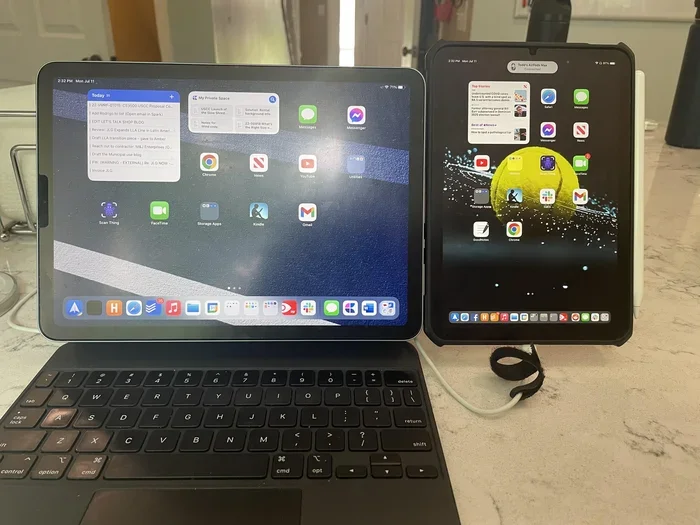
Yes, you can absolutely use an iPad as a monitor in 2024. Whether you want an extended display for your laptop or a portable second screen for work, your iPad can serve as a functional monitor with the right setup. This guide walks you through every method, app, and tip you need to know.
Have you ever looked at your iPad and thought, “This screen could do so much more?” Maybe you are working from home and need extra display space. Perhaps you want a portable monitor for travel. Whatever the reason, using an iPad as a monitor is not just a cool trick. It is a real, practical solution that thousands of people use every day.
The short answer is yes. You can use your iPad as a second screen or even a primary display. Apple built a feature called Sidecar for this exact purpose. And if you are not in the Apple ecosystem, several third-party apps make it work too. In this guide, we will walk through every method, every app, and every tip you need to set up your iPad as a monitor in 2024.
Whether you use a Mac, a Windows laptop, or even a Chromebook, there is a way to extend your screen to an iPad. The process is simpler than you might think. Let us dive in.
Key Takeaways
- Multiple connection methods exist: You can go wired with USB-C or wirelessly using Sidecar, Duet Display, or AirPlay.
- iPad as a monitor works best for productivity: It’s ideal for adding extra screen space without buying a new display.
- Some limitations exist: Input lag, resolution constraints, and battery drain are real factors to consider.
- Free and paid apps are available: Options like Sidecar are free for Apple users, while Duet Display offers more features for a fee.
- Not a full laptop replacement: An iPad monitor setup works great as a supplement, not a substitute for a dedicated display.
- 2024 makes it easier than ever: Newer iPads and updated software have improved the experience significantly.
📑 Table of Contents
- What Does It Mean to Use an iPad as a Monitor?
- How to Connect Your iPad to a Computer as a Monitor
- Best Apps for Using iPad as a Monitor
- iPad as Monitor vs. Traditional External Monitor
- Tips for the Best iPad Monitor Experience
- Common Mistakes to Avoid
- Who Benefits Most From Using an iPad as a Monitor?
- Conclusion
What Does It Mean to Use an iPad as a Monitor?
Using an iPad as a monitor means connecting it to another device and displaying its screen on the iPad. You can extend your workspace or mirror your main screen. This turns your iPad into a secondary display or even a standalone monitor for specific tasks.
How It Works Technically
When you connect your iPad to a computer, the two devices communicate through a cable or a wireless connection. The computer sends its display signal to the iPad. The iPad then shows that signal on its screen. You can move windows, drag files, and work across both screens as if they were one big workspace.
The quality of this experience depends on a few things. The connection type matters a lot. A wired USB-C connection gives you the best performance. Wireless options like AirPlay or Sidecar offer convenience but may have slight delays. The app or method you choose also affects how smooth the experience feels.
Why People Do This
There are many reasons people turn their iPad into a monitor. Some want a dual monitor setup without buying a second physical screen. Others travel frequently and prefer carrying one lightweight device instead of a bulky external monitor. Freelancers, students, and remote workers all benefit from this setup.
Also, iPads have beautiful Retina displays. The colors are vibrant, and the screens are sharp. Using an iPad as a monitor means you get a high-quality display without spending hundreds of dollars on a separate monitor.
How to Connect Your iPad to a Computer as a Monitor
Setting up your iPad as a second screen is straightforward. The steps vary depending on your devices and the method you choose. Here are the main ways to make it happen.
Method 1: Apple Sidecar (For Mac Users)
Sidecar is Apple’s built-in feature. It lets you use your iPad as a wireless or wired extension of your Mac. This is the easiest method if you are in the Apple ecosystem.
Here is how to set it up:
- Make sure both your Mac and iPad are signed into the same Apple ID.
- On your Mac, click the Control Center icon in the top menu bar.
- Select Screen Mirroring or Use as Separate Display.
- Choose your iPad from the list of available devices.
That is it. Your iPad now acts as an extended display. You can drag windows between your Mac and iPad screens. Sidecar also supports the Apple Pencil, so you can draw or annotate directly on the iPad screen.
For a wired connection, use a USB-C cable. This reduces any wireless lag and charges your iPad at the same time.
Method 2: Duet Display (For Mac and Windows)
Duet Display is one of the most popular apps for using an iPad as a monitor. It works with both Mac and Windows computers. The free version offers basic functionality, while the paid version unlocks higher resolution and better performance.
To get started:
- Download Duet Display on your computer and your iPad.
- Connect your iPad to your computer using a USB-C or Lightning cable.
- Open the app on both devices.
- Your iPad will instantly become an external monitor.
Duet Display is great because it has low latency. The image feels almost instant, which matters if you are working with video or fast-moving content.
Method 3: AirPlay (Wireless for Mac Users)
If you have a Mac and an iPad on the same Wi-Fi network, you can use AirPlay to mirror or extend your display. This method is completely free and requires no extra apps.
On your Mac, go to System Settings and look for AirPlay Display. Select your iPad from the list. You can choose to mirror the screen or use it as a separate display.
The downside of AirPlay is that it can have a slight delay. It works well for browsing, reading, and presentations. It may not be ideal for fast-paced gaming or video editing.
Method 4: Third-Party Apps for Windows Users
Windows users have several options beyond Duet Display. Apps like SpaceDesk, iDisplay, and Splashtop Wired XDisplay let you extend your Windows desktop to an iPad.
Most of these apps require a USB cable connection. Some offer wireless options over the same Wi-Fi network. The setup process is usually simple. You install the app on your PC, install the companion app on your iPad, and connect.
Each app has its strengths. Some focus on speed, while others offer extra features like touch support or stylus input. It is worth trying a few to see which one fits your workflow best.
Best Apps for Using iPad as a Monitor
Not all apps are created equal. Some offer better performance, while others come with extra features. Here is a look at the top options available in 2024.
Sidecar (Free, Apple Only)
Sidecar is the go-to choice for Mac users. It is built into macOS and iPadOS, so there is nothing to install. The connection is stable, and the experience is smooth. You get full retina display support and Apple Pencil compatibility.
The main limitation is that Sidecar only works with Mac computers. If you use a Windows PC or a Chromebook, you will need a different solution.
Duet Display (Paid, Cross-Platform)
Duet Display stands out for its reliability and low latency. The paid version supports high-resolution displays and works with both Mac and Windows. It also lets you use your iPad as a graphics tablet, which is a nice bonus for digital artists.
The free version is limited to lower resolution. If you want the full experience, the Pro version is worth the investment.
SpaceDesk (Free, Windows Only)
SpaceDesk is a solid free option for Windows users. It supports both wired and wireless connections. The app is lightweight and does not require a powerful computer to run.
One thing to note is that wireless performance depends heavily on your Wi-Fi network. For the best results, use a 5 GHz connection or stick with a USB cable.
iDisplay (Paid, Cross-Platform)
iDisplay has been around for a while and remains a reliable choice. It supports Mac, Windows, and Android tablets. The setup is simple, and the app offers good image quality.
The user interface is straightforward. You can adjust the resolution and screen orientation from within the app. It is a solid pick if you want a no-fuss solution.
iPad as Monitor vs. Traditional External Monitor
So how does an iPad stack up against a real external monitor? Let us compare the two directly.
Display Quality
iPads have stunning displays. The Liquid Retina and Liquid Retina XDR screens on newer iPads are gorgeous. Colors are accurate, brightness is high, and the resolution is sharp. In terms of pure visual quality, a high-end iPad can rival or even beat some budget monitors.
However, traditional monitors come in larger sizes. A 27-inch 4K monitor gives you more screen real estate than even the largest iPad. If you need a big display for multitasking, a dedicated monitor still wins.
Portability
This is where the iPad shines. You can slip it into a backpack and take it anywhere. A traditional monitor is bulky and heavy. For digital nomads and frequent travelers, using an iPad as a monitor is a game-changer.
Cost
If you already own an iPad, using it as a monitor costs nothing extra. Even if you need to buy a cable or an adapter, the total cost is minimal. A decent external monitor can cost $200 or more.
On the other hand, if you do not own an iPad, buying one just to use as a monitor does not make financial sense. The iPad is a powerful device on its own, and using it as a monitor is just one of its many capabilities.
Performance and Latency
Wired connections offer the best performance. A USB-C cable provides a near-instant display with no noticeable lag. Wireless connections have more latency. This can be distracting if you are doing precise work like photo editing or gaming.
Traditional monitors connect directly to your computer and have zero latency. They are the better choice for performance-sensitive tasks.
| Feature | iPad as Monitor | Traditional Monitor |
|---|---|---|
| Display Size | 11 to 13 inches | 21 to 34 inches |
| Ports | USB-C only | HDMI, DisplayPort, USB-C |
| Portability | Excellent | Poor |
| Cost | Low (if already owned) | Moderate to High |
| Latency (Wired) | Very Low | None |
| Latency (Wireless) | Low to Moderate | N/A |
| Touch Support | Yes | Rare |
| Battery Powered | Yes | No |
Tips for the Best iPad Monitor Experience
Getting the most out of your iPad as a monitor takes a little tweaking. Here are some practical tips to improve your setup.
Use a Wired Connection When Possible
Wired connections are faster and more stable than wireless ones. A USB-C cable eliminates lag and keeps your iPad charged at the same time. If your setup allows it, always go wired for the best experience.
If you must go wireless, make sure both devices are on the same Wi-Fi network. A 5 GHz band will give you better performance than a 2.4 GHz band.
Adjust Display Settings
Your iPad may not match your computer’s resolution exactly. Go to your display settings and adjust the scaling to get the best image quality. On a Mac, you can find these settings in System Settings under Displays.
You can also change the screen orientation. Some people prefer their iPad in portrait mode for coding or reading. Others like landscape for spreadsheets and design work. Experiment to find what works best for you.
Close Unnecessary Apps on Your iPad
When your iPad is acting as a monitor, it is still running its own operating system. Background apps can drain the battery and slow down performance. Close any apps you are not using to keep things running smoothly.
If you are using a wired connection and have access to a power outlet, keep your iPad plugged in. This prevents battery drain and ensures the display stays active for as long as you need it.
Use a Stand or Mount
Using an iPad as a monitor for hours can strain your neck. A adjustable iPad stand or a mount lets you position the screen at eye level. This makes the setup much more comfortable for long work sessions.
There are many affordable stands available. Some clip onto your desk, while others are portable and fold up for travel. A good stand transforms your iPad monitor setup from functional to ergonomic.
Enable Touch and Apple Pencil Support
One of the unique advantages of using an iPad as a monitor is touch input. Apps like Duet Display support touch gestures on the iPad screen. You can tap, swipe, and pinch to zoom directly on your extended display.
If you have an Apple Pencil, you can use it for precise drawing, note-taking, or annotation. This makes the iPad monitor setup incredibly versatile for creative professionals.
Manage Expectations for Video and Gaming
While an iPad monitor works great for office tasks, web browsing, and creative work, it is not ideal for video playback or gaming. Wireless connections introduce latency that can make videos feel out of sync and games feel unresponsive.
If you need a monitor for media consumption or gaming, a dedicated external display is still the better choice. The iPad monitor setup excels at productivity, not entertainment.
Common Mistakes to Avoid
Setting up an iPad as a monitor is usually smooth, but a few common mistakes can cause frustration.
Using an outdated cable. Old USB cables may not support the data transfer speeds needed for a smooth display. Always use a high-quality USB-C cable that supports video output.
Ignoring Wi-Fi quality. If you go wireless, a weak Wi-Fi signal will cause lag and stuttering. Make sure you are close to your router or use a dedicated 5 GHz band.
Not updating your software. Both your iPad and your computer need to run updated software for the best compatibility. Check for updates before setting up your display.
Overlooking battery drain. Using your iPad as a monitor drains the battery faster than normal. If you are not plugged in, you may lose screen time quickly.
Expecting zero lag on wireless. Even the best wireless setups have some latency. If you are sensitive to delays, a wired connection is always the safer bet.
Who Benefits Most From Using an iPad as a Monitor?
This setup is not for everyone, but certain groups benefit greatly. Here is a look at who gets the most value.
Remote Workers and Freelancers
If you work from home and need a dual monitor setup, using an iPad as a second screen saves money and space. You get the extra screen real estate without cluttering your desk with another monitor.
Travelers and Digital Nomads
Packing a laptop and an iPad is already light. Adding a portable external monitor makes the bag heavier. Using your iPad as a monitor keeps your travel setup minimal and efficient.
Students
Students often work in tight spaces like dorm rooms or libraries. An iPad as a second screen gives them more room for research, notes, and assignments without needing a bulky external monitor.
Creative Professionals
Designers, illustrators, and photographers can use the iPad as both a display and a drawing tablet. The Apple Pencil support adds a creative dimension that traditional monitors cannot match.
Budget-Conscious Users
If you are on a tight budget and already own an iPad, this is a free way to get a second screen. It is one of the most cost-effective productivity upgrades you can make.
Conclusion
Using an iPad as a monitor is a practical, affordable, and surprisingly effective solution. Whether you are a Mac user leveraging Sidecar or a Windows user relying on Duet Display, the setup process is simple and the results are impressive.
The iPad’s beautiful display, portability, and touch capabilities make it a unique monitor alternative. It is not a perfect replacement for a traditional external display, but it is a fantastic supplement for productivity, creativity, and on-the-go work.
With the right app, the right cable, and a few adjustments, your iPad can become a valuable part of your workspace. Give it a try, and you might wonder how you ever worked without it.
Frequently Asked Questions
Can I use any iPad as a monitor?
Most iPads can work as a monitor, but newer models with USB-C ports offer the best experience. iPads running iPadOS 13 or later support Sidecar for Mac users. For Windows users, apps like Duet Display work with most iPad models. Always check app compatibility before purchasing.
Is using an iPad as a monitor good for gaming?
It is not ideal for gaming. Wireless connections introduce latency that can make games feel unresponsive. Wired connections reduce lag but still may not match a dedicated monitor’s performance. Casual games work fine, but competitive or fast-paced games are not the best use case.
Does using an iPad as a monitor drain the battery quickly?
Yes, it does. Running a display takes significant power. If you are using a wired connection, keep your iPad plugged in to avoid battery drain. Wireless use drains the battery even faster, so plan for access to a power source during long sessions.
Can I use an iPad as a monitor with a Chromebook?
Yes, but options are more limited. Chromebook users can try apps like Duet Display or SpaceDesk. Some users also use web-based remote desktop tools. The experience may not be as seamless as with Mac or Windows, but it is definitely possible.
Do I need any special cables to connect my iPad as a monitor?
For wired connections, a USB-C to USB-C cable works with most modern iPads and computers. Older iPads with Lightning ports may need a USB-C to Lightning cable or a display adapter. Always use a high-quality cable that supports data transfer for the best results.
Can I use touch gestures on my iPad when it is acting as a monitor?
Yes, many apps support touch input on the iPad screen. Duet Display and other apps let you tap, swipe, and pinch to zoom directly on the extended display. This feature is especially useful for creative work, presentations, and navigating web pages.